Prime Contract Change Orders
Agave syncs Procore Potential Change Orders (PCOs) to Spectrum Change Requests with Cost and Billing Line Items:
Visual Mapping
Header
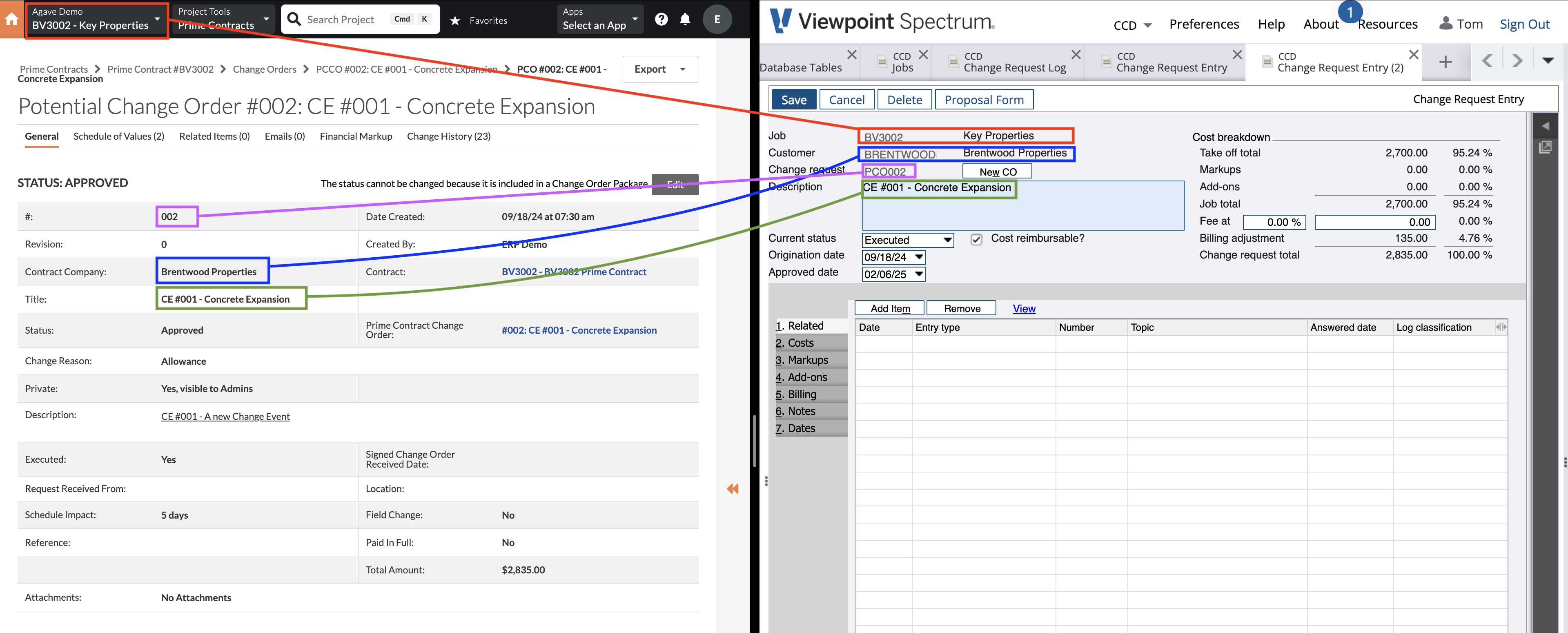
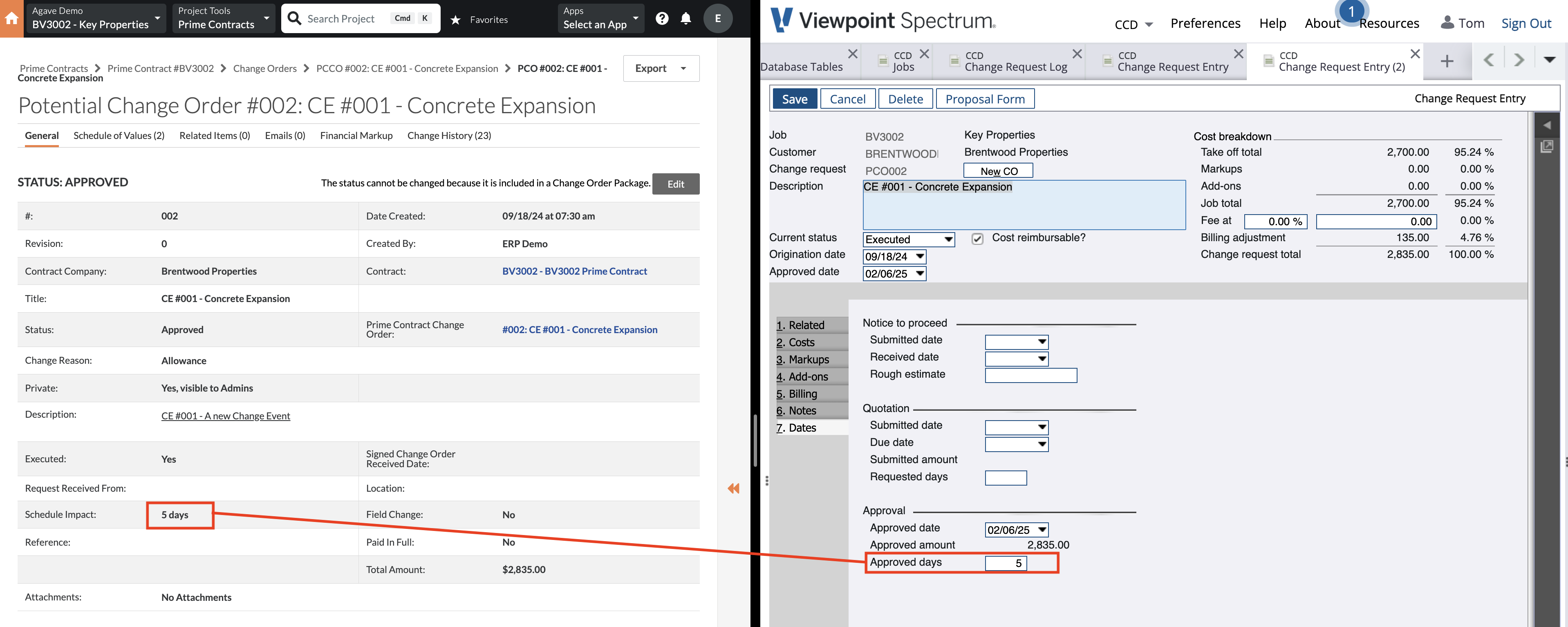
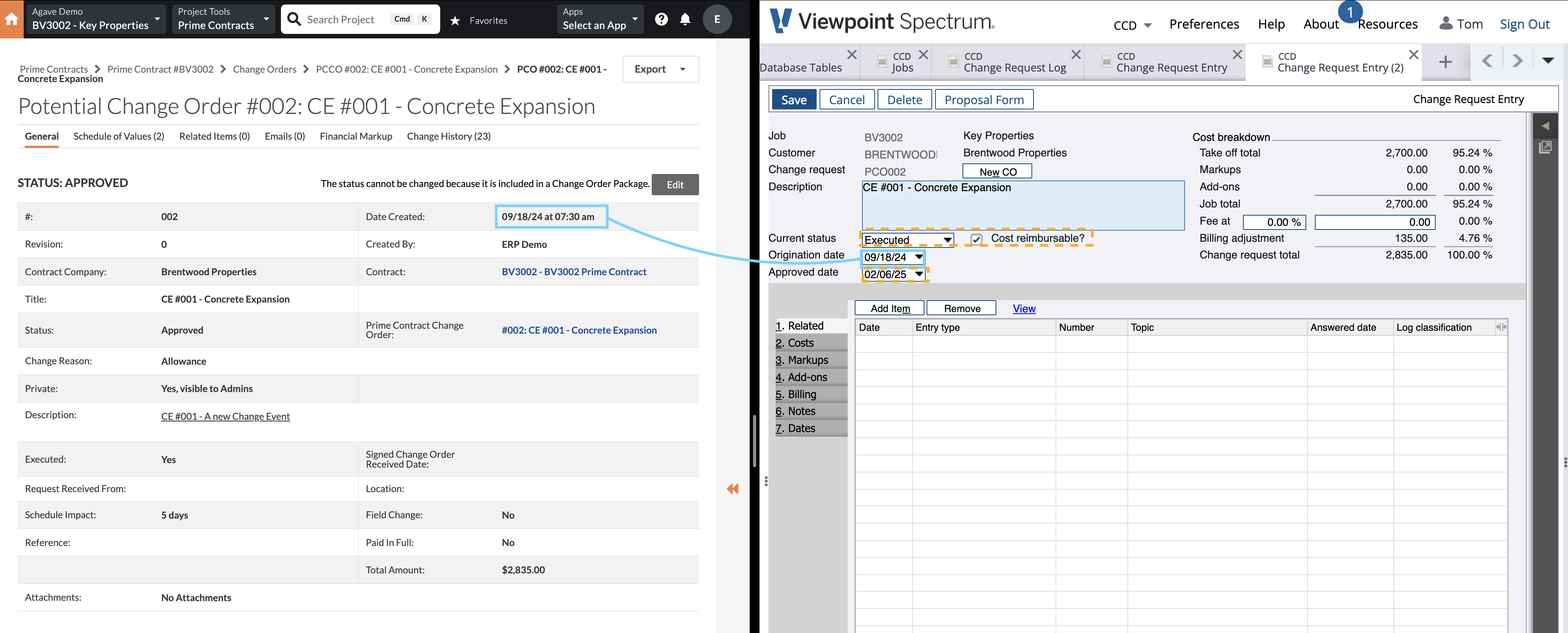
The orange dashed boxes denote default values applied by Agave:
- Status - Configurable via a setting. See below.
- Approved Date - The date the Change Request is synced.
- Cost Reimbursable - Checked by default for all Prime Changes.
Cost Lines
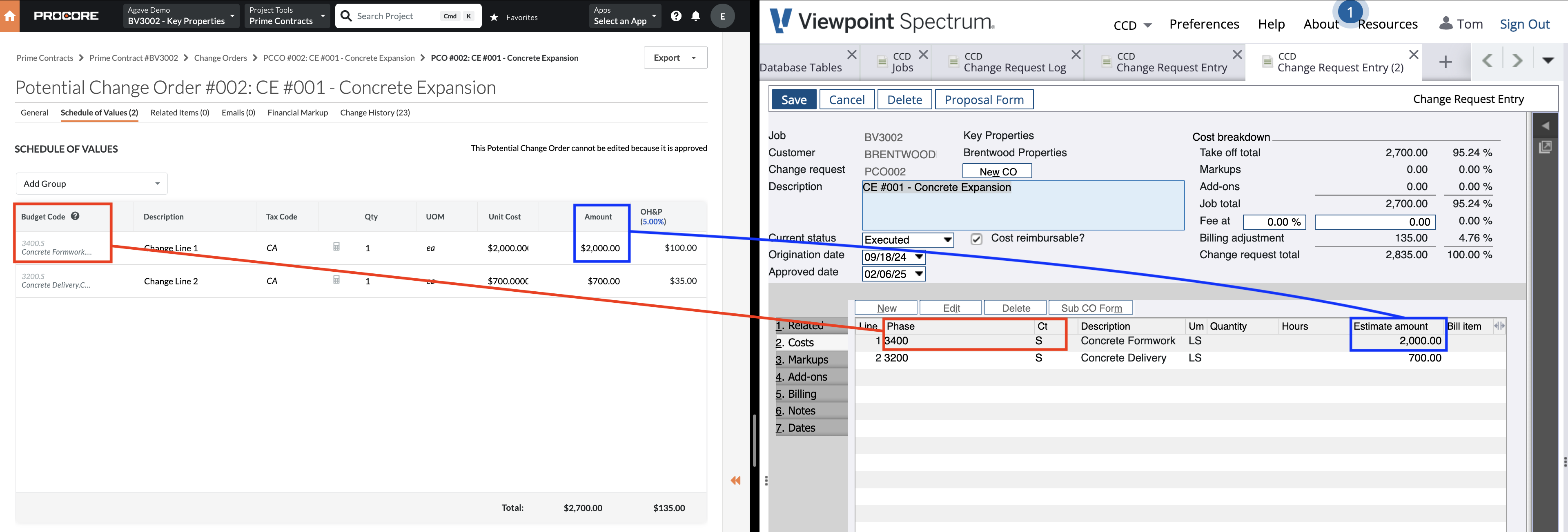
The cost total for each line item in Procore (exclusive of markup) is written to the "Costs" tab in Spectrum:
Billing Lines
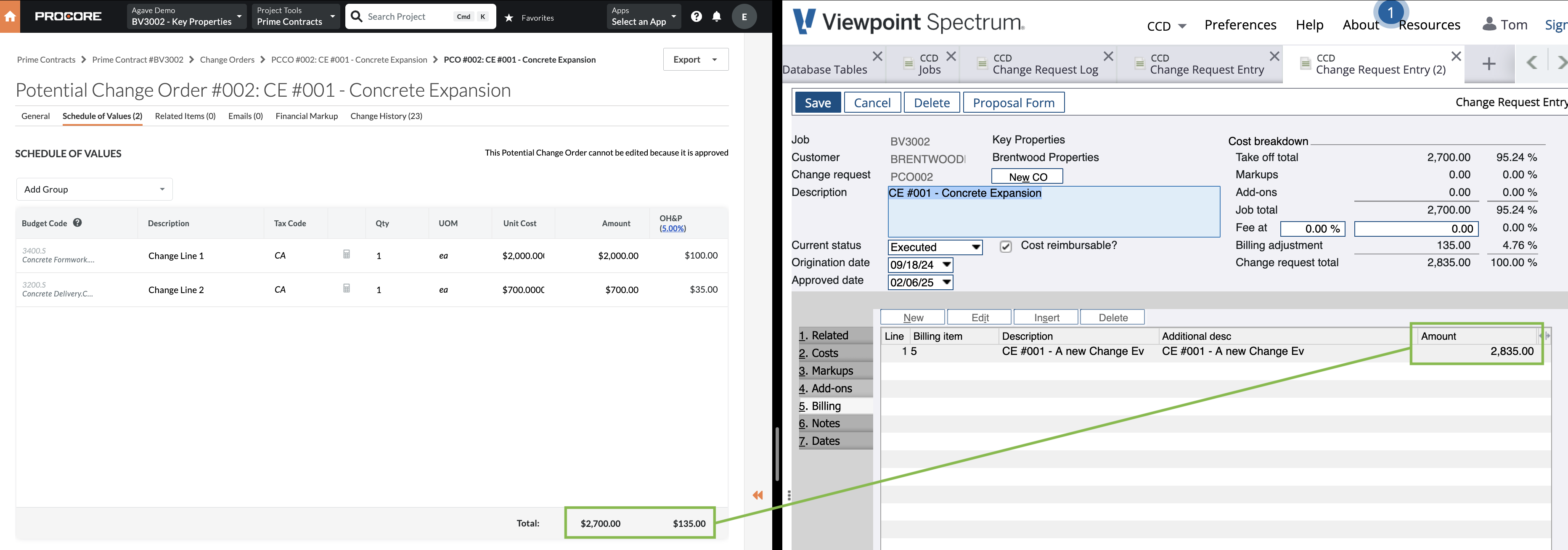
The revenue total (inclusive of markup) from Procore is written to the "Billing" tab in Spectrum:
See below for billing line configuration settings.
Video Tutorial
Common Errors and FAQs
Markup
When syncing PCOs from Procore to Spectrum, Agave will include markups only in the Billing tab of the Spectrum Change Request. There are two ways to designate markups in Procore:
Procore's Markup Tool
Use the "Financial Markup" tool in Procore. Agave supports vertical, horizontal, and compounded markups.
Designating a Markup Cost Code
If you prefer to enter a lump sum markup in Procore, you can designate a specific Cost Code that Agave will treat as revenue and not cost. Work with your Agave rep to set this Cost Code.
Status
Procore Prime Contract Change Orders exported to Viewpoint Spectrum will create a Change Request with a "Billing" Line Item. Since the "Status" in Spectrum Change Requests value will determine whether the "Billing" tab in Spectrum Change Requests is enabled (and if there is a revenue impact), please let your Agave Account Manager know which "Status" value you would like to sync for all Prime Contract Change Orders (e.g. "Approved", "Executed").
Numbering
To avoid conflicting with other Change Requests in Spectrum (e.g. from Commitments), Agave syncs the Change Request to Spectrum in the format: PCO<PCO Number>.
Billing Lines
Agave has three settings for how billing lines are synced:
- Billing Items for each Change Order Line - Every line item in the Procore PCO is reflected in the "Billing" tab in Spectrum.
- One Billing Line per Change Request - Agave creates one billing item with the total revenue value of change in Spectrum.
- No Billing Lines - Agave does not fill out the billing tab.
Cost Code/Cost Type Pairs
Spectrum's web service does not accept multiple line items with the same Cost Code/Cost Type combination.
As a result, each combination of Cost Code/Cost Type can only be used once per Change Order. Agave will show this error when a combination is repeated: [Spectrum Error] All Change Order line items must have unique cost_code_id, cost_type_id, and type pairs. To fix the error, combine these changes to a single line and re-sync the Change Order.
Agave can support automatically combining line items with the same Cost Code/Cost Type combination before syncing to Spectrum, but this may have downstream effects on your AP Invoice workflows. Work with your Agave Account manager if you would like this enabled.
Prime Contract is not Synced
Spectrum requires a contract when creating a Change Request:
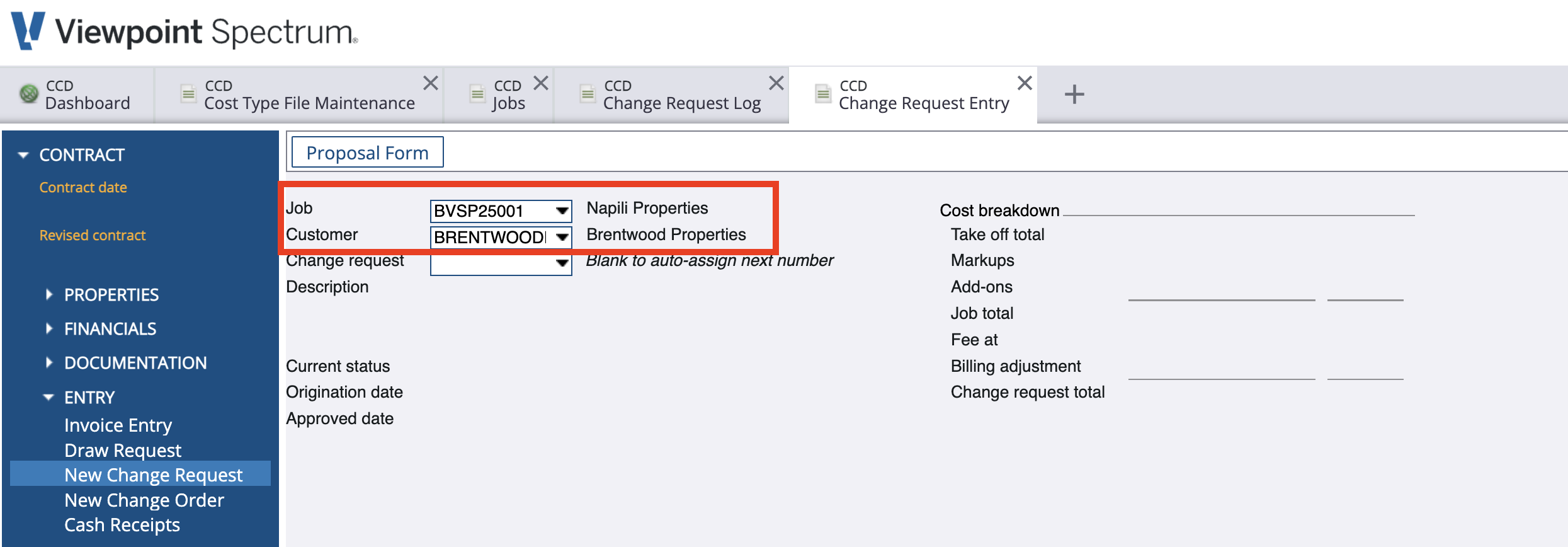
The Procore CO itself does not specify a contract, so Agave has a few options for which Prime Contract is used. Link the relevant Prime Contract in Agave to resolve the error.
Here is how Agave chooses the Prime Contract (in order of priority):
-
Use the
Prime Contract for Markup Estimatesfield from the CO's Change Event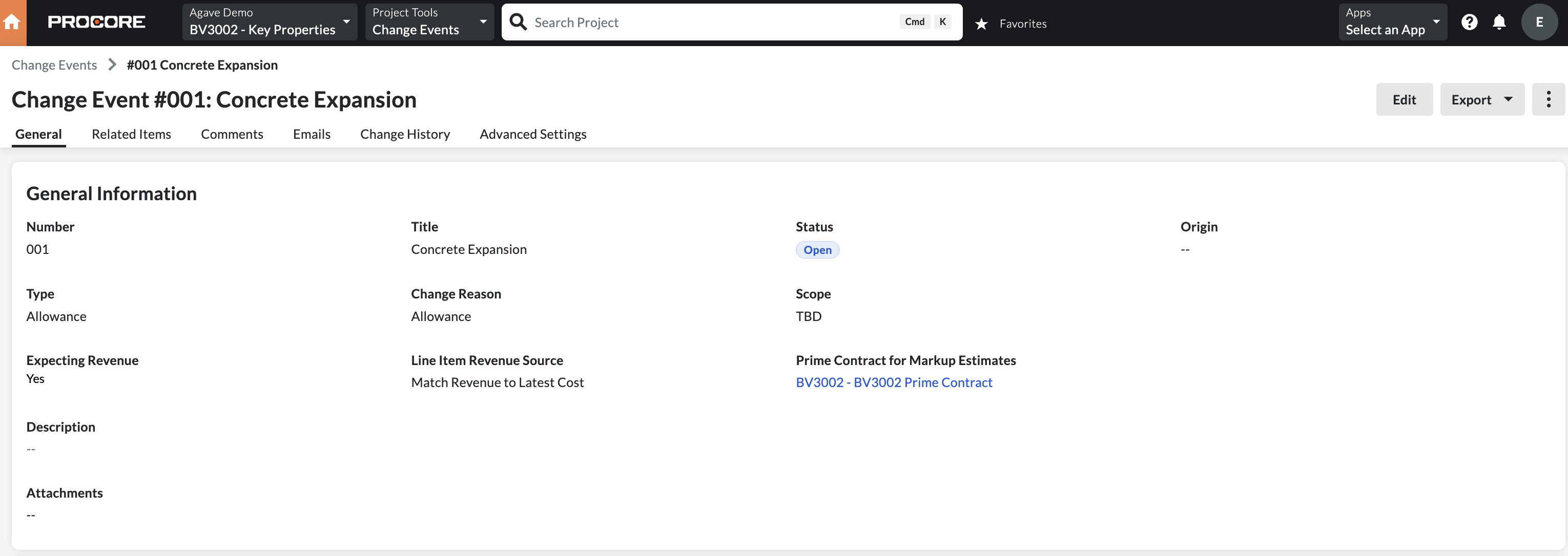
When this is enabled, Agave uses the specified Prime Contract on the CO's change event.
If this field is empty, Agave will progress to option 2.
-
Use the only Prime Contract
If the field from Option 1 is empty and there is only one Prime Contract, Agave will use that Prime Contract.
-
(Requires Configuration) Use the first Prime Contract in the Procore Project
If there are multiple Prime Contracts and the field from Option 1 is empty, Agave will throw an error to avoid associating the CO with an incorrect contract.
However, upon request Agave can use the first approved Prime Contract on the Procore project, even if there are multiple. This is best for users that may create subsequent Prime Contracts and did not utilize the
Prime Contract for Markup Estimatesfield on the Change Event during the initial phase of the projectContact your Agave rep if you would like this option enabled.
What Info-Link Tables do I need?
The following Info-Link tables are required when syncing Change Orders from or to Spectrum:
- CR_CHNG_REQ_CON_DET_MC
- CR_CHNG_REQ_HDR_MC
- CR_CHNG_REQ_REV_MC
- CR_CHNG_REQ_STATUS_MC
For details on enabling Info-Link tables for your user, see Steps 2.7 in our Spectrum authentication guide.
Setting Cost and Revenue Amounts from Procore
When syncing Prime Contract Change Orders from Procore to your ERP, you may want to distinguish between Cost and Revenue amounts so that Profit (Revenue − Cost) can be calculated accurately on the Change Order.
Agave Sync supports two approaches for determining how cost and revenue are derived.
Available Approaches
1. Use Procore’s Markup Tool (Default)
If you use Procore’s Markup Tool, Agave Sync will automatically handle the separation of cost and revenue.
- Horizontal and vertical markup amounts will:
- Be excluded from creating Cost or Estimate amounts in the ERP
- Be included only in the Revenue amount
- Non-markup amounts will continue to generate both cost and revenue as expected
- This approach is enabled by default and requires no additional configuration
Best used when:
- You are already using Procore’s native markup functionality
- Markup represents pure revenue (no associated cost)
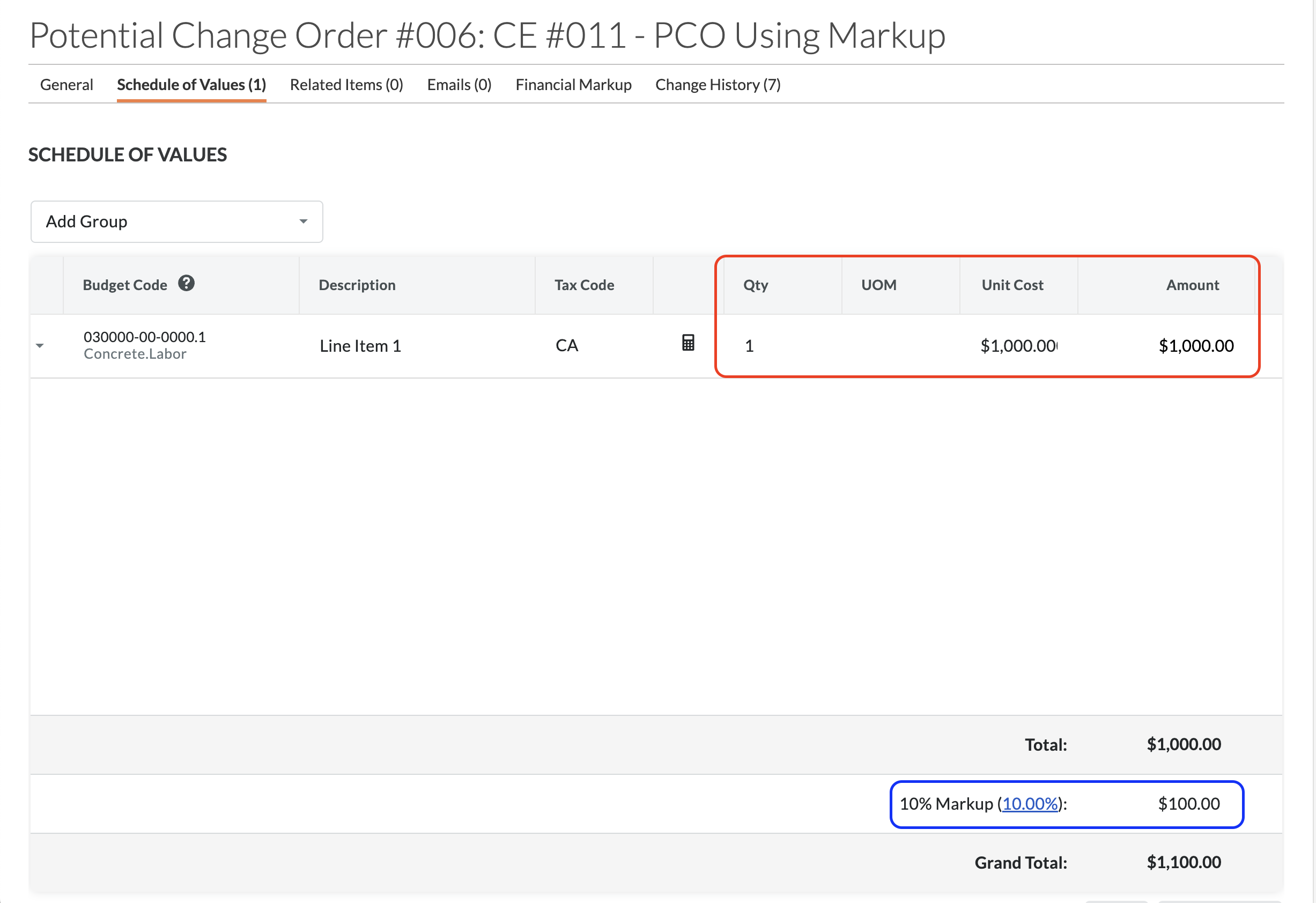
In the below example, the Cost or Estimate amount is equal to the PCO Line Item amount total (see red rectangle), while the Revenue amount is equal to the PCO Line Item amount total plus any markup amounts (see blue rectangle):
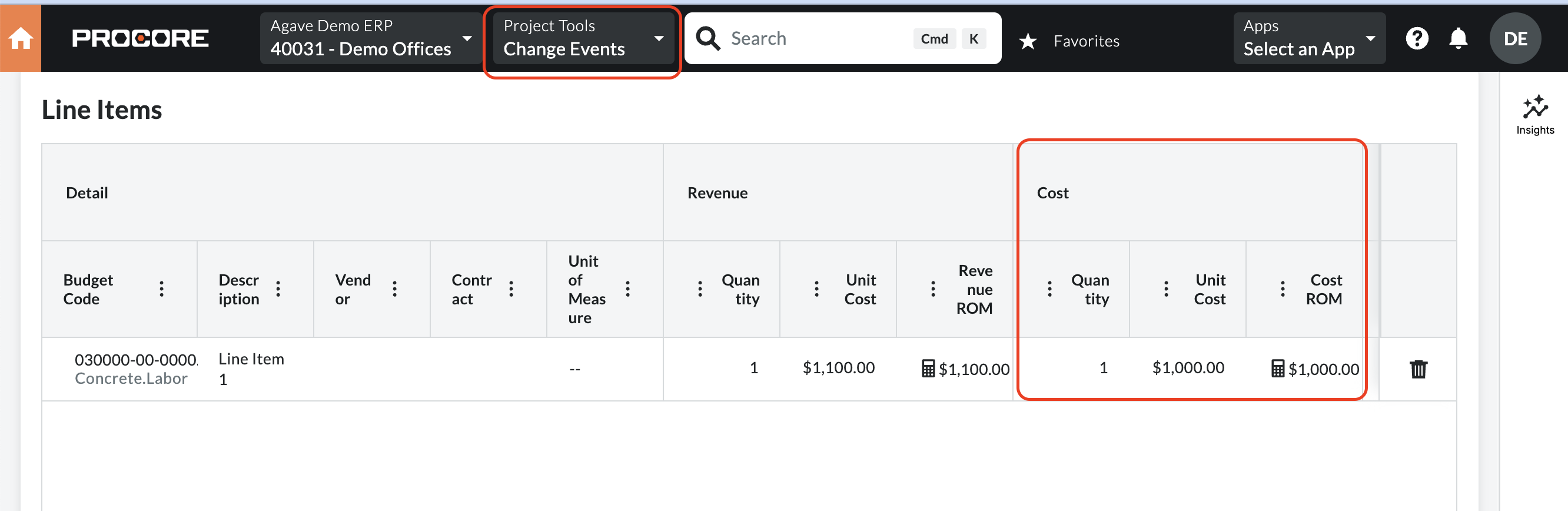
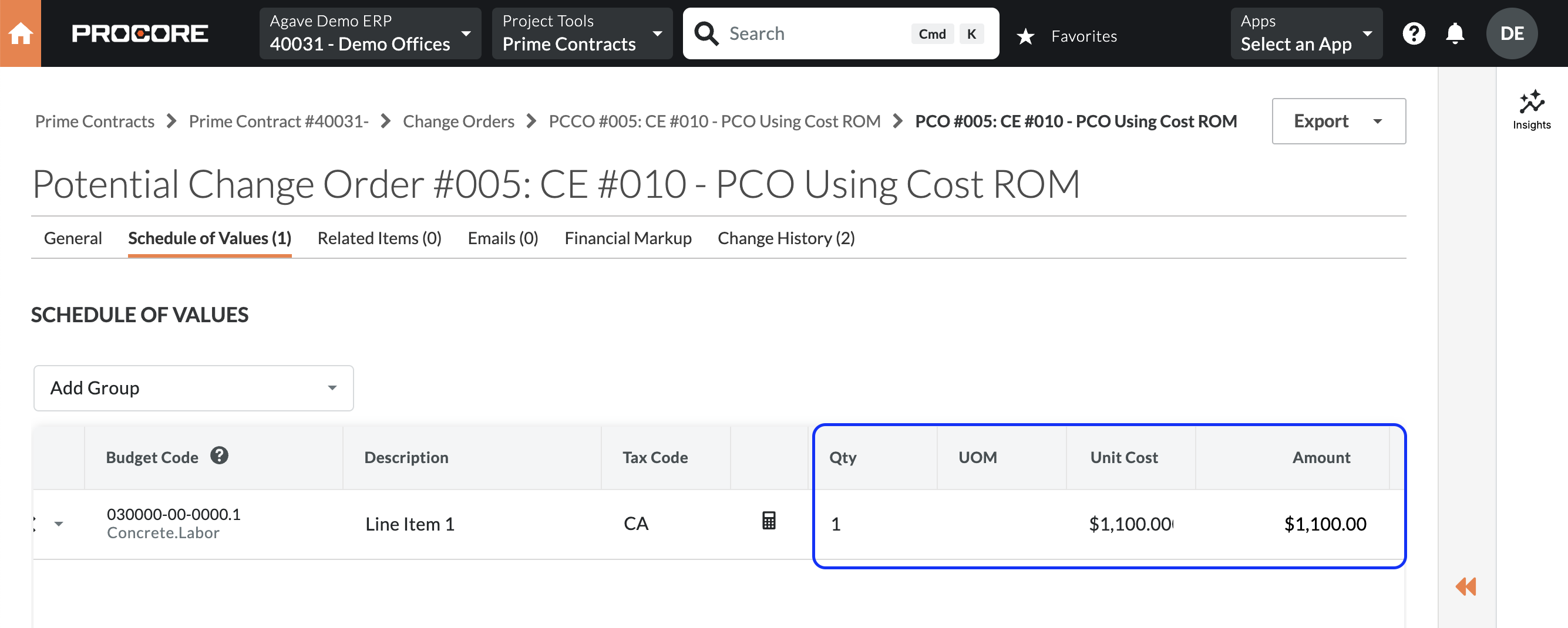
2. Use the Cost ROM from the Associated Change Event
If you do not plan to use Procore’s Markup Tool but still want to separate cost and revenue, Agave Sync can use the Cost ROM from the Change Event associated with the Prime Contract Change Order as the source of the Cost amount.
- Revenue continues to come from the Prime Contract Change Order
- Cost is derived from the associated Change Event’s Cost ROM
- This approach must be enabled by your Agave Account Manager
Considerations and limitations:
- A Cost ROM can be updated after it has been associated with a Prime Contract Change Order that has already synced
- Cost ROM values can be difficult to surface or reconcile in Procore’s Budget View
Best used when:
- You are not using Procore’s Markup Tool
- You maintain reliable and stable Cost ROMs on Change Events
In the below example, the Cost or Estimate amount is equal to the Change Event Cost ROM (see red rectangle), while the Revenue amount is equal to the PCO Line Item amount total (see blue rectangle):