Actual Production Quantities
Agave Sync allows you to sync Procore Production Quantities to Vista JC Progress (Actual Production Quantities).
Visual Mapping
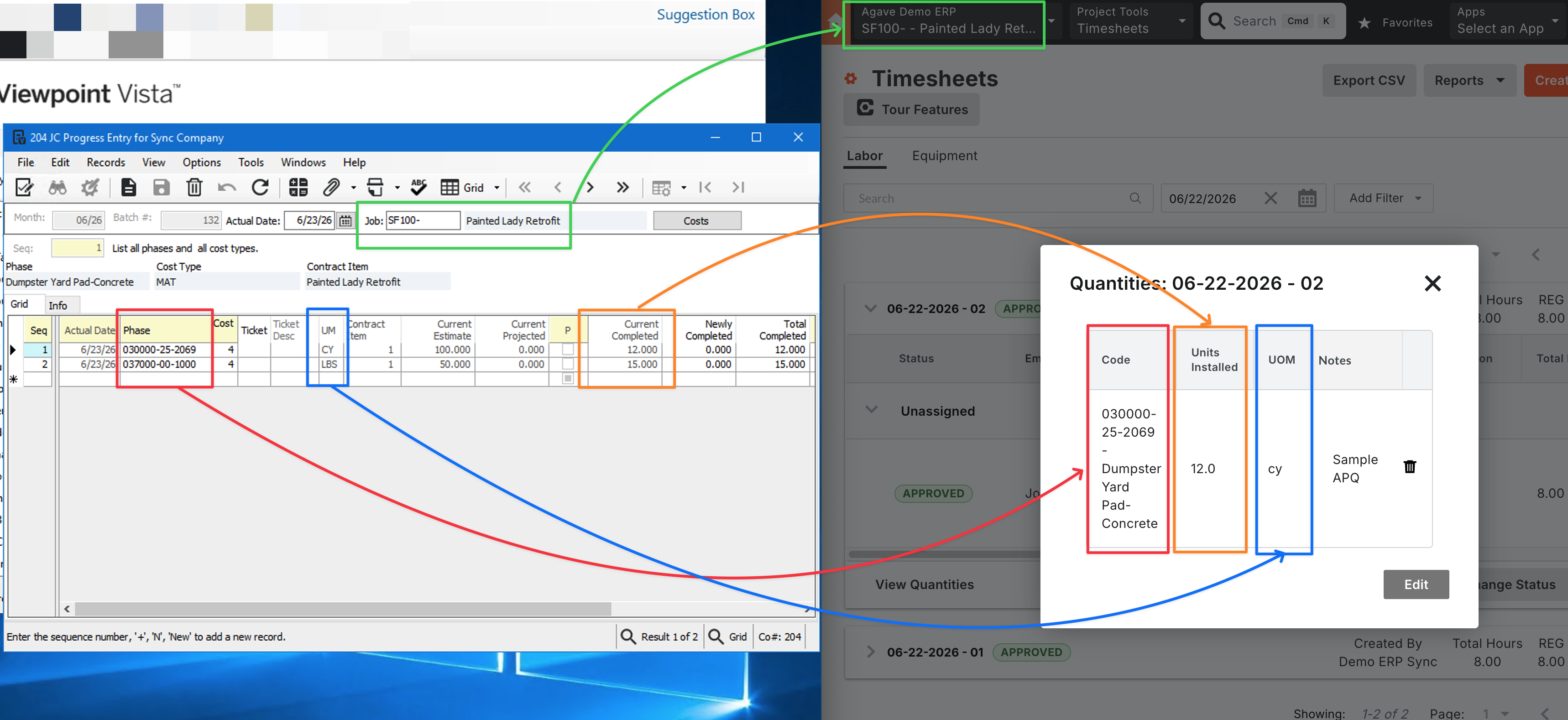
Procore stores actual quantities on daily timesheet entries. Agave writes these into Vista as JC Progress batch entries. Depending on how your account is configured, records can either be posted to Vista immediately or left as Pending for your team to review and post manually.
Supported Sync Direction
| Direction | Supported |
|---|---|
| Procore → Vista | Yes |
| Vista → Procore | No |
Record Status in Vista
When Agave writes an Actual Production Quantity to Vista, it first creates a Pending entry. It may then post that entry right away, depending on your account setup.
| Status | Description |
|---|---|
| Pending | Written to Vista but not yet posted. Review and post the batch in Vista before it affects job cost actuals. |
| Posted | Posted to Vista immediately. Once posted, the record cannot be updated or deleted through Agave. |
All Actual Production Quantities synced through Agave for a given month are grouped into a single Vista batch. The batch month is based on the date of the Procore entry (for example, an entry dated June 15 is placed in the June batch).
Prerequisites
Before syncing Actual Production Quantities, confirm the following:
- Production Quantities must be enabled in Procore. Go to Project → Budget Tools (Admin) → Advanced Settings → Labor Productivity for Budget, Change Events, and Change Orders, then click Update after enabling the setting.
- Your Agave Account Manager must configure a Vista Cost Type for Actual Production Quantities. Procore does not include a cost type on production quantity entries, so Agave applies one Vista Cost Type to all synced records. That cost type must exist on the job's budget for the Phase being synced, or Vista will reject the entry. Contact your Account Manager to set this before syncing.
- Cost Codes must be synced. Agave maps Procore Cost Codes to Vista Phases. Unlinked cost codes will cause sync failures.
Importing Actual Production Quantities to Vista
Step 1: Enter Production Quantities in Procore
- In Procore, select your project and navigate to Project Tools → Timesheets.
- Create a new daily timesheet.
- Fill out the timesheet with the appropriate work information. Ensure you select a Cost Code that supports production quantities.
- Once complete, set the timesheet status to Approved.
Step 2: Sync Data in Agave
- In Agave, go to the Actual Production Quantities module.
- Locate your entry and click Sync.
- If you don't see the entry, click Fetch Latest Data.
Step 3: Validate in Vista
If the record was synced as Pending:
- In Vista, navigate to JC → JC Progress Entry.
- Locate the batch for the corresponding month.
- Review the entry and post the batch when ready.
If the record was synced as Posted:
- In Vista, navigate to JC → JC Cost.
- Confirm the quantity appears in the actual costs for the correct Phase.
Common Errors and FAQs
Are there any prerequisites to syncing Actual Production Quantities?
Yes. In addition to the prerequisites above, the Project and Cost Code associated with each Actual Production Quantity must be synced.
Can I update or delete a synced Actual Production Quantity?
- Pending records can be updated (quantity only) or deleted in Agave, up until they are posted in Vista.
- Posted records cannot be changed through Agave. Corrections must be made directly in Vista.
Should records be posted immediately or left as Pending?
That depends on your team's workflow. Contact your Agave Account Manager:
- If your team reviews JC Progress batches in Vista before posting, ask them to leave Actual Production Quantities as Pending after sync.
- If you want quantities to post automatically, ask them to enable auto-posting for Actual Production Quantities.