Common Errors and FAQs
General Errors
Table or Object Not Found
You might encounter an error like:
- "Phase Group for HQ Company X not found!"
- "Job not on file!"
This typically happens when syncing a specific record (e.g., a Subcontract or Job).
Context
The error occurs because a Security Group is restricting access to the table or view required for the sync operation. These restrictions are often in place to protect sensitive data.
Agave relies on stored procedures (e.g., to update Subcontracts or create AP Invoices) during data syncs. These procedures need access to specific tables/views, such as HQCO and bJob. If the SQL user created for the integration lacks permission to access these resources, the stored procedure fails, resulting in an error.
Solution
To resolve this issue, add the SQL user created for the integration (e.g., "Agave-User") to the Security Group that has access to the required tables:
- bJob
- bPMCO
- bHQCO
- bJCCM
To implement the foregoing:
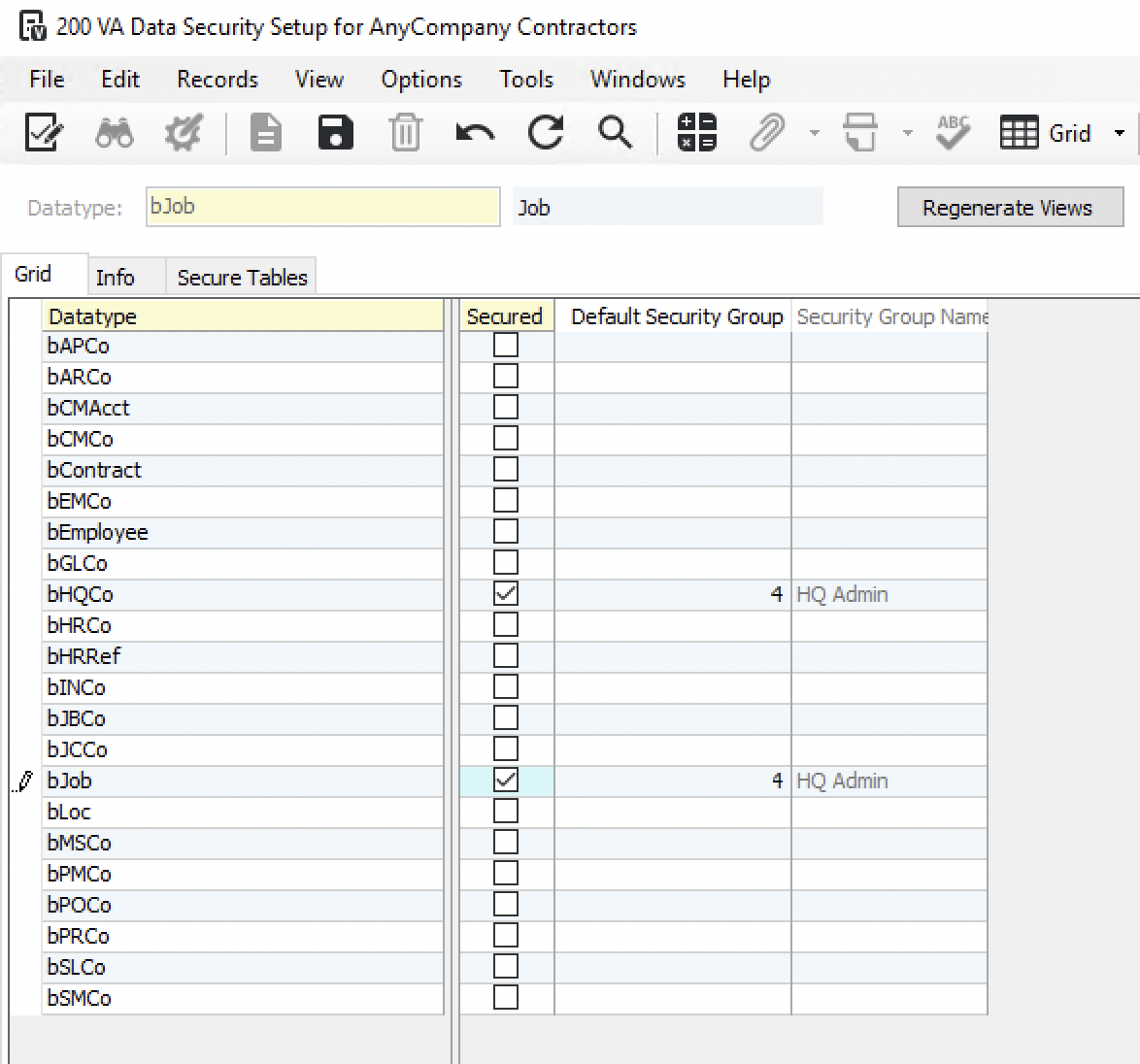
- Open VA Data Security Setup and press Grid. Note the “Default Security Group” applied to the datatypes “bHQCO” and “bJob”:
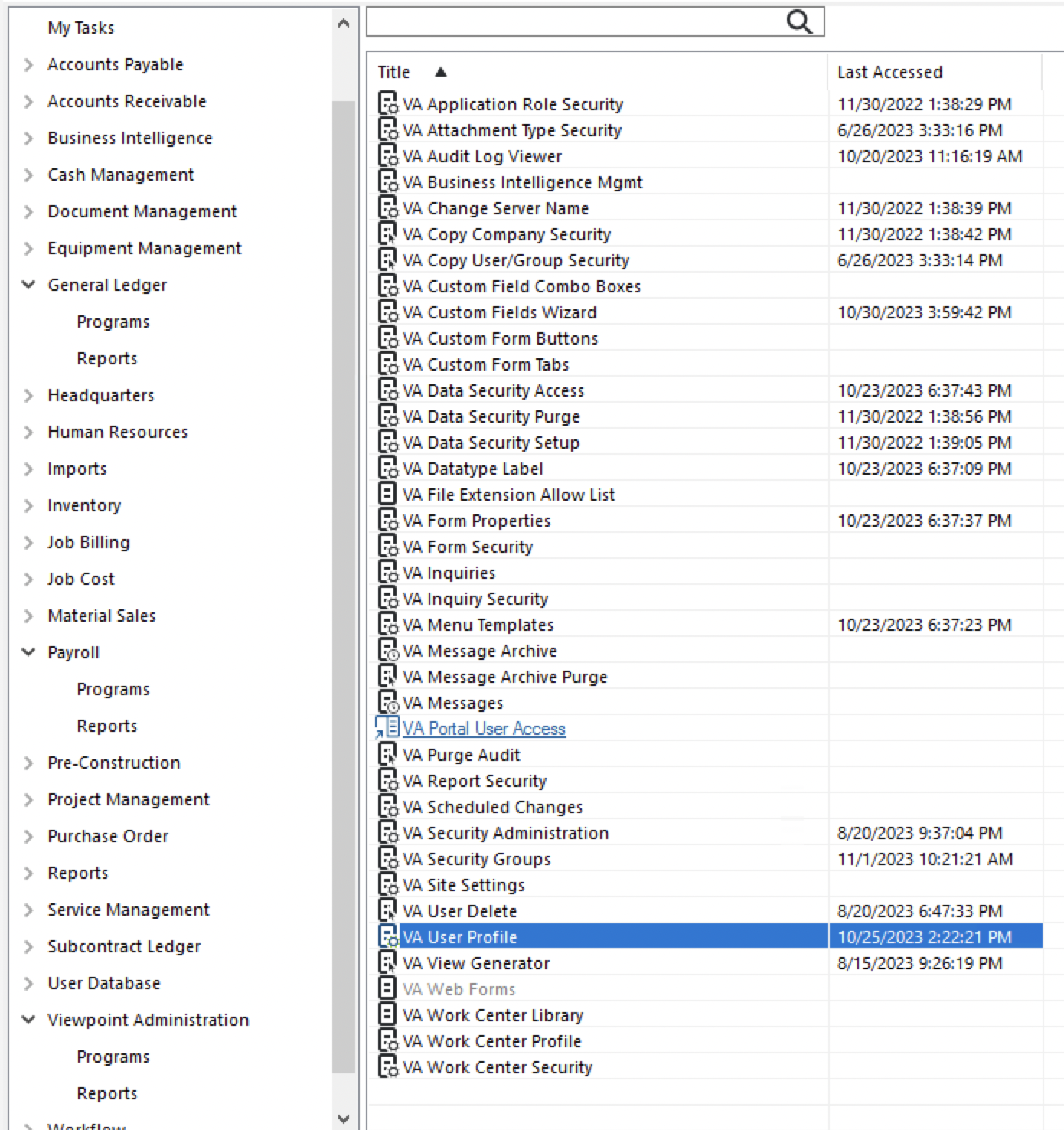
- Go to Viewpoint Administration → VA User Profile:
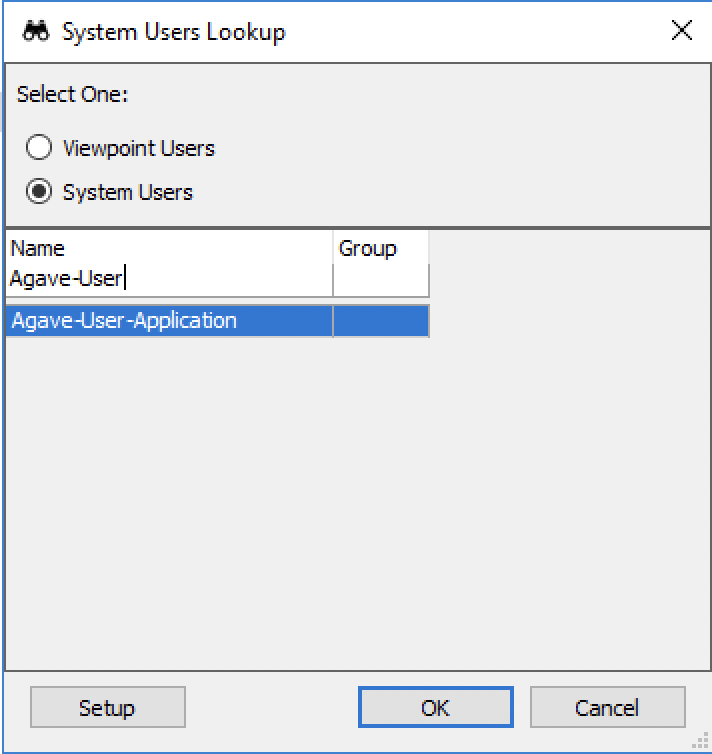
- Search for the System User you added (note, this would be the user you created for authenticating; e.g. “Agave-User-Application”):
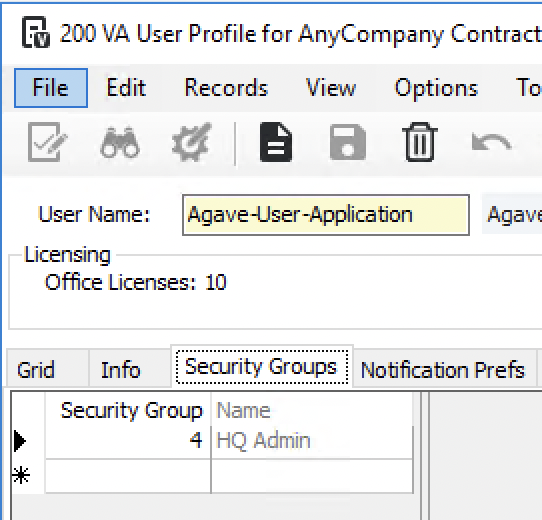
- Go to the Security Groups tab and add this user to the Security Group with the appropriate permissions:
- Press Save:
SQL Server Error: Cannot open database "Viewpoint". Make sure the database exists and you can access it.
This error occurs when Agave Sync cannot connect to your Vista database. There are typically two reasons for this:
- If you are on the on-premise version of Vista, your on-premise database might be undergoing some maintenance (e.g. from an overnight reboot or backup).
- If you are on the cloud or hosted version of Vista, Trimble Support might have missed whitelisting a static IP address. To fix this error, we recommend re-completing Step 2 in our connection guide.
AP Invoices
How is the Batch Month Determined When Syncing AP Invoices?
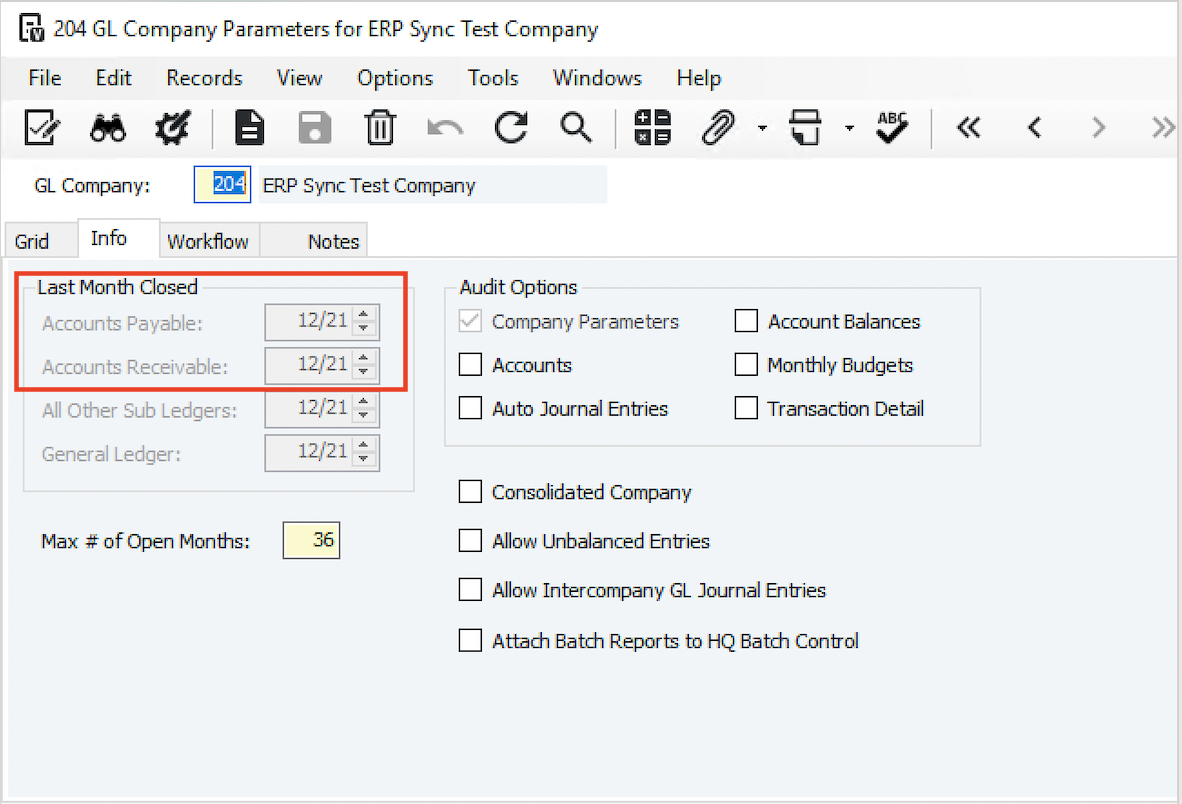
When syncing AP Invoices to Vista, we use the latest open AP Batch month. This is the month after the last closed month in GL Company Parameters.
Using the Accounts Payable Last Month Closed from the below screenshot as an example, if an AP Invoice was synced to Vista on 2/5/2022, the Batch Month would be set as "1/22" because this is the month after the last month closed for Accounts Payable (i.e. 12/21):
AR Invoices
How is the Batch Month Determined When Syncing AR Invoices?
When syncing AR Invoices to Vista, we use the latest open AR Batch month. This is the month after the last closed month in GL Company Parameters.
Using the Accounts Receivable Last Month Closed from the below screenshot as an example, if an AR Invoice was synced to Vista on 2/5/2022, the Batch Month would be set as "1/22" because this is the month after the last month closed for Accounts Receivable (i.e. 12/21):
AR Payments
How is the Batch Month Determined When Syncing AR Payments?
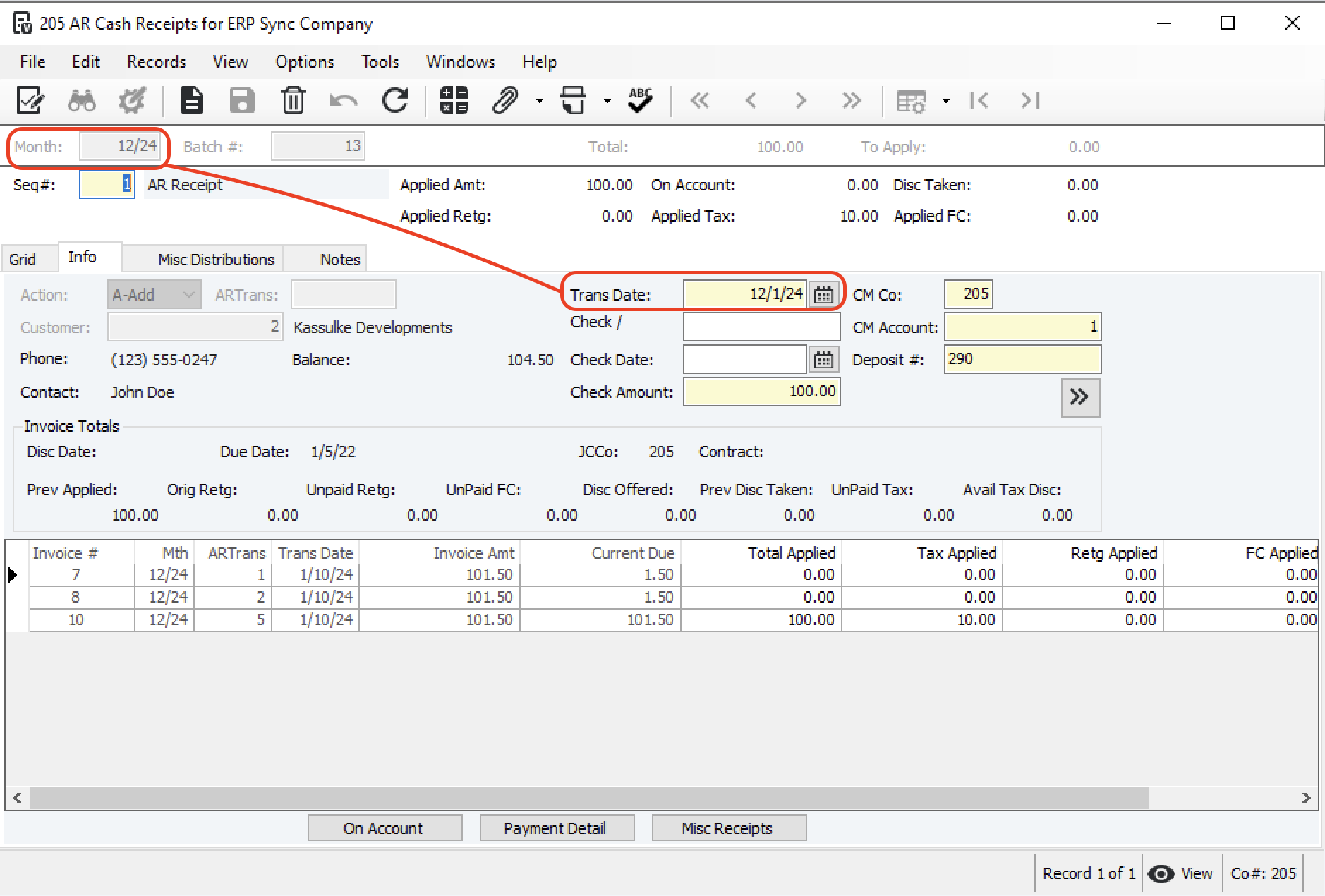
When syncing AR Payments (AR Cash Receipts) to Vista, we use the Transaction Date to determine the Batch Month.
For example, if an AR Payment has a date of "12/1/2024" the Batch Month will be set to "12/24".
Budget Line Items
Partial Cost Code Matches
When Budget Line Items are synced to Vista, a Phase Code (Cost Code) is added for a Project (i.e. to JC Job Phase Codes). In order for it to be added, it must either:
- Fully-match a Phase Code in the Company list of Phase Codes (i.e. in JC Phase Codes), or
- Match the first N characters of a Phase Code in the Company-list of Phase Codes, where N is determined by the below setting in Vista JC Company Parameters.
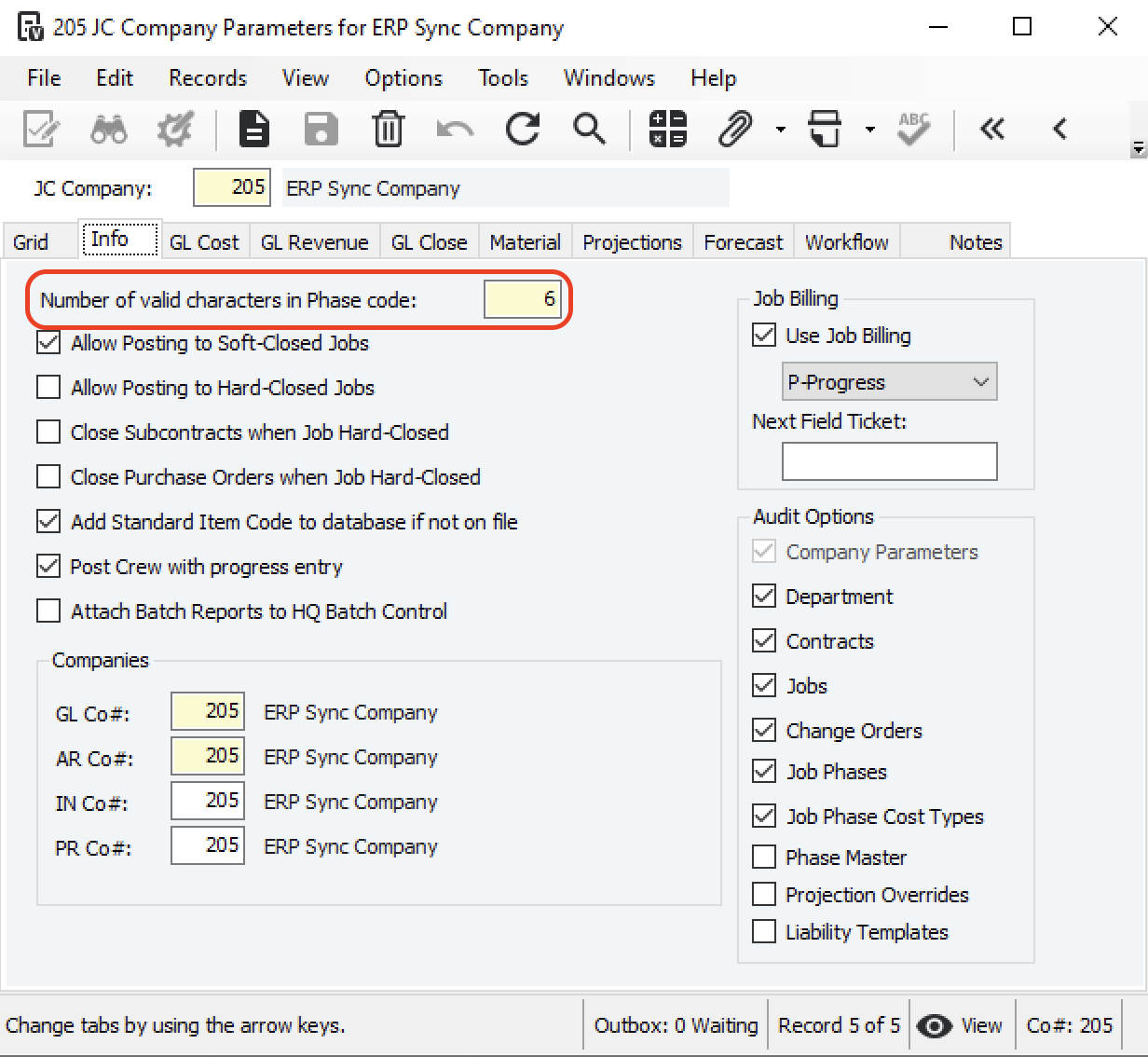
In the above example, if the first six characters of a Phase Code in a Budget Line Item match a Phase Code in the Company list, Vista will consider the Phase Code valid and add it to the Project's list of Phase Codes (i.e. to JC Job Phase Codes).
Locked Job Phases
You may encounter an error like the following when attempting to sync Budget Line Items:
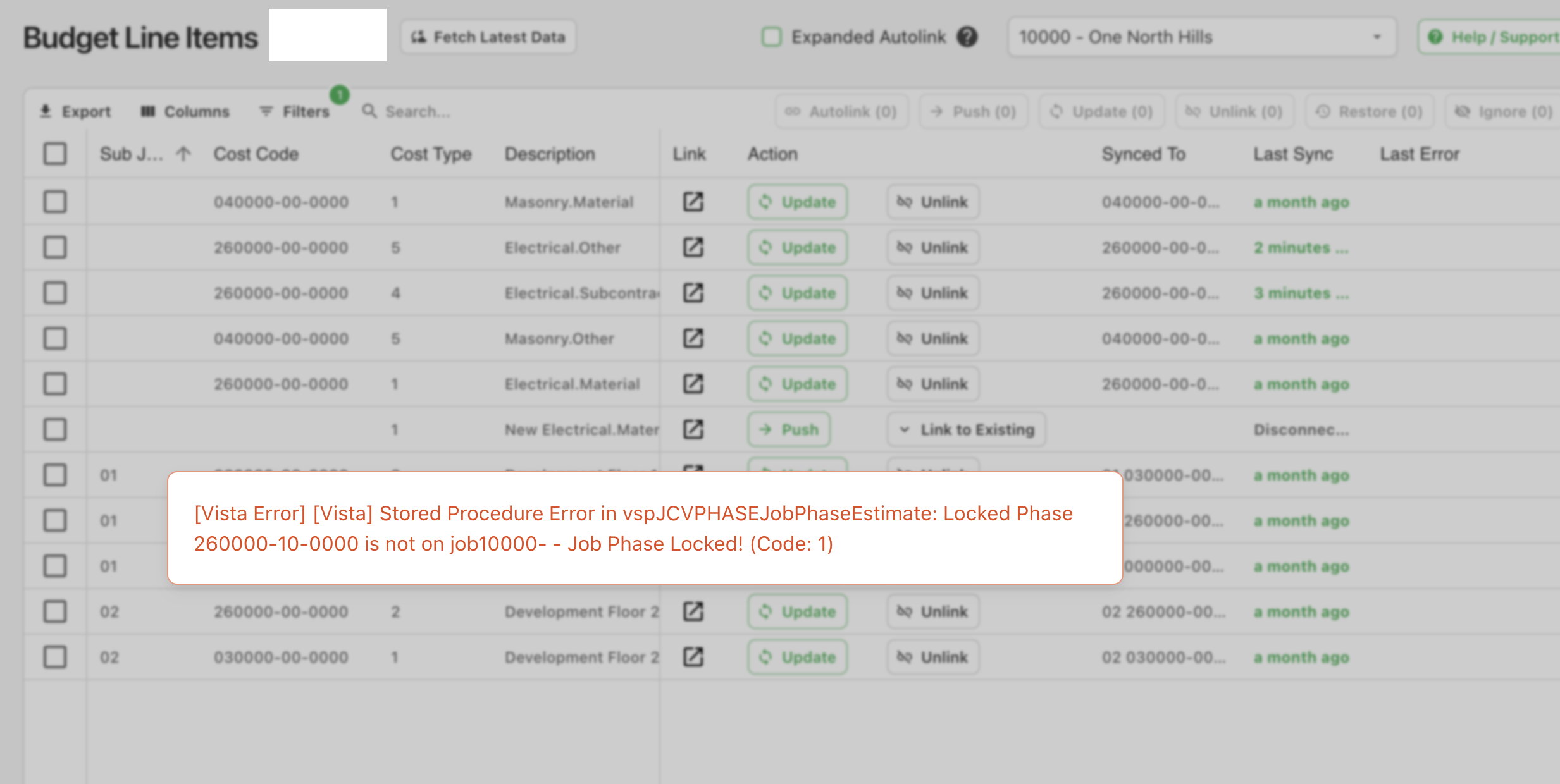
This error is from a setting on the Job being enabled that locks Phases for the Job so that only those phases/cost types assigned to this job (in JC Job Phases or JC Job Original Job Estimates) can be used when posting committed or actual costs in the Accounting modules.
To resolve this error:
- In Vista's Job Cost module, go to JC Jobs and then the the Job record.
- Unselect the "Phases on This Job Are Locked" checkbox:
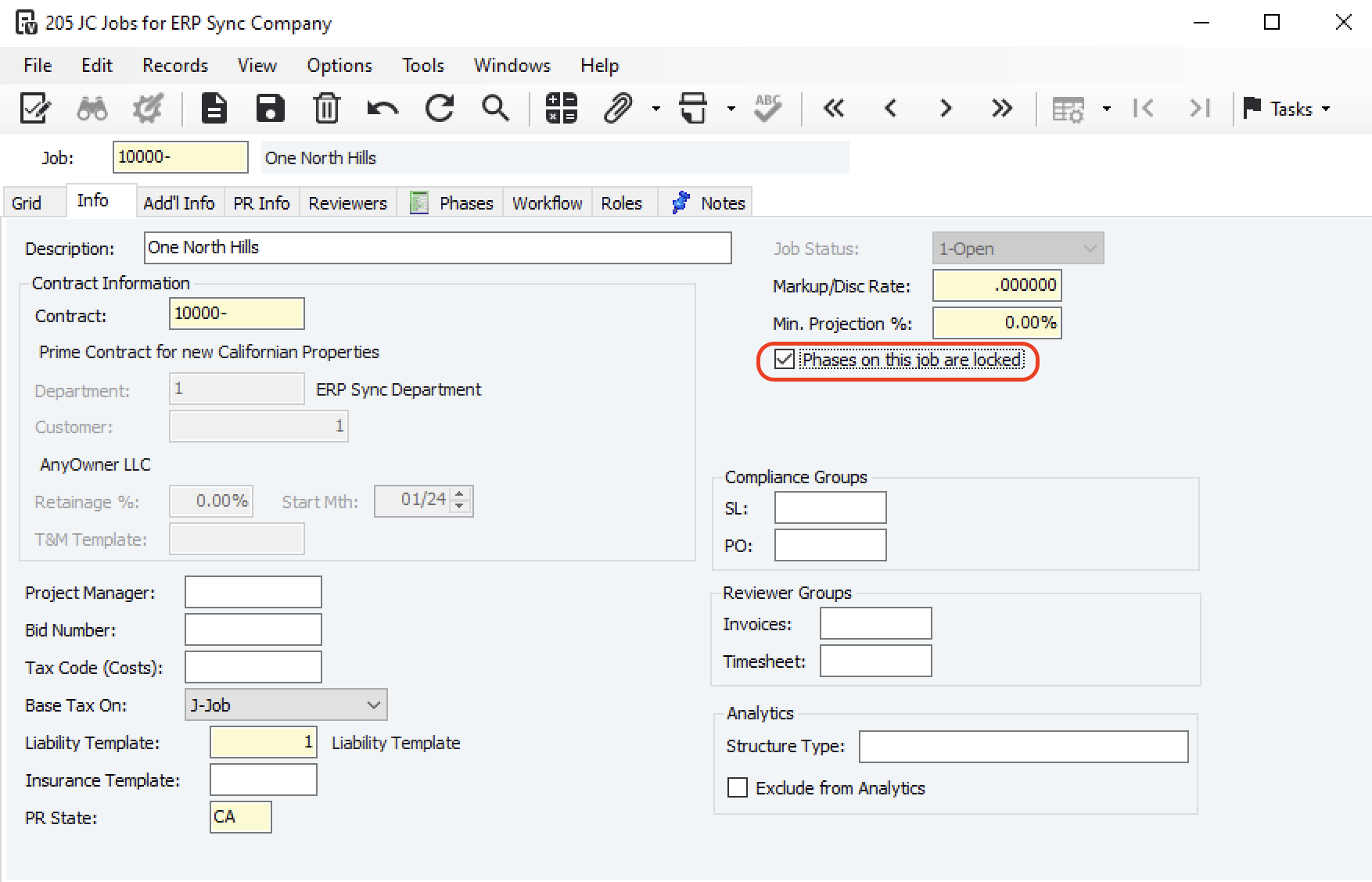
- Resync the record.
Can I sync "Hours" instead of "Units" to or from Vista?
Yes. Your Agave Account Manager can enable a setting that allows you to sync "Hours" instead of "Units" (Quantities) for Budget Line Items in Vista. This can be configured for specific Cost Types you choose (e.g. "Labor").
Sub Jobs
Partial Cost Code Matches
When Budget Line Items are synced to Vista, a Phase Code (Cost Code) is added for a Project (i.e. to JC Job Phase Codes). In order for it to be added, it must either:
- Fully-match a Phase Code in the Company list of Phase Codes (i.e. in JC Phase Codes), or
- Match the first N characters of a Phase Code in the Company-list of Phase Codes, where N is determined by the below setting in Vista JC Company Parameters.
In the above example, if the first six characters of a Phase Code in a Budget Line Item match a Phase Code in the Company list, Vista will consider the Phase Code valid and add it to the Project's list of Phase Codes (i.e. to JC Job Phase Codes).
Common Errors
Locked Job Phases
You may encounter an error like the following when attempting to sync Budget Line Items:
This error is from a setting on the Job being enabled that locks Phases for the Job so that only those phases/cost types assigned to this job (in JC Job Phases or JC Job Original Job Estimates) can be used when posting committed or actual costs in the Accounting modules.
To resolve this error:
- In Vista's Job Cost module, go to JC Jobs and then the the Job record.
- Unselect the "Phases on This Job Are Locked" checkbox:
- Resync the record.
Timecard Entries
How does Agave Sync determine the Batch ID when syncing Timecard Entries to Vista?
Agave Sync determines the Batch ID by:
- Checking for an Existing Batch ID: Agave Sync looks for an open Batch ID with the correct Batch Month, PR End Date, and PR Group. If it finds one created by the Agave Vista user, it uses that Batch ID.
- Creating a New Batch ID if None Exists: if no suitable Batch ID exists, the Agave Sync Vista user creates a new Batch ID for the first synced timecard. This newly created Batch ID is then used for subsequent syncs.
How does Agave Sync determine the PR End Date?
Agave Sync will default to Saturday of each week as the PR End date.
If you use a different day of the week than Saturday, let your Agave Account Manager know and they can apply a setting to use that day.
How is the Batch Month determined When Syncing Timecard Entries?
When syncing Timecard Entries to Vista, Agave Sync uses the month of the PR End Date.
For example, if a Timecard Entry has a date of "2/28/2025", but the PR End Date is "3/3/2025", the Batch Month will be set to "3/25".
How does Agave Sync Determine the PR Pay Sequence?
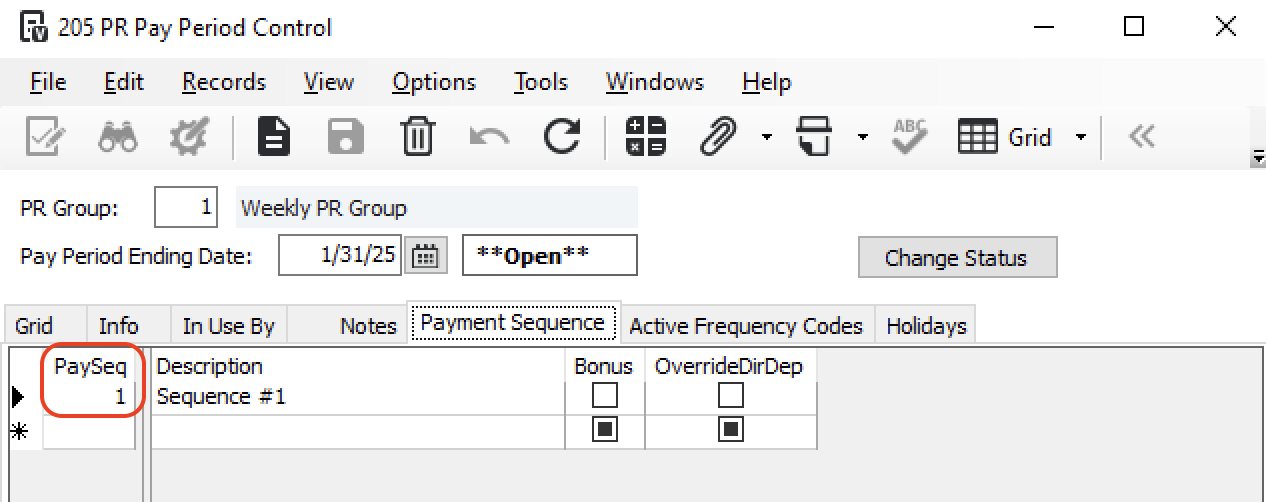
Agave Sync applies a default Pay Sequence for all Timecards synced from your PM System to Vista.
You can determine your Pay Sequence by going to PR Pay Period Control, selecting the relevant PR Group, and pressing the Payment Sequence tab:
Unit of Measure
Adding Units of Measure to Vista
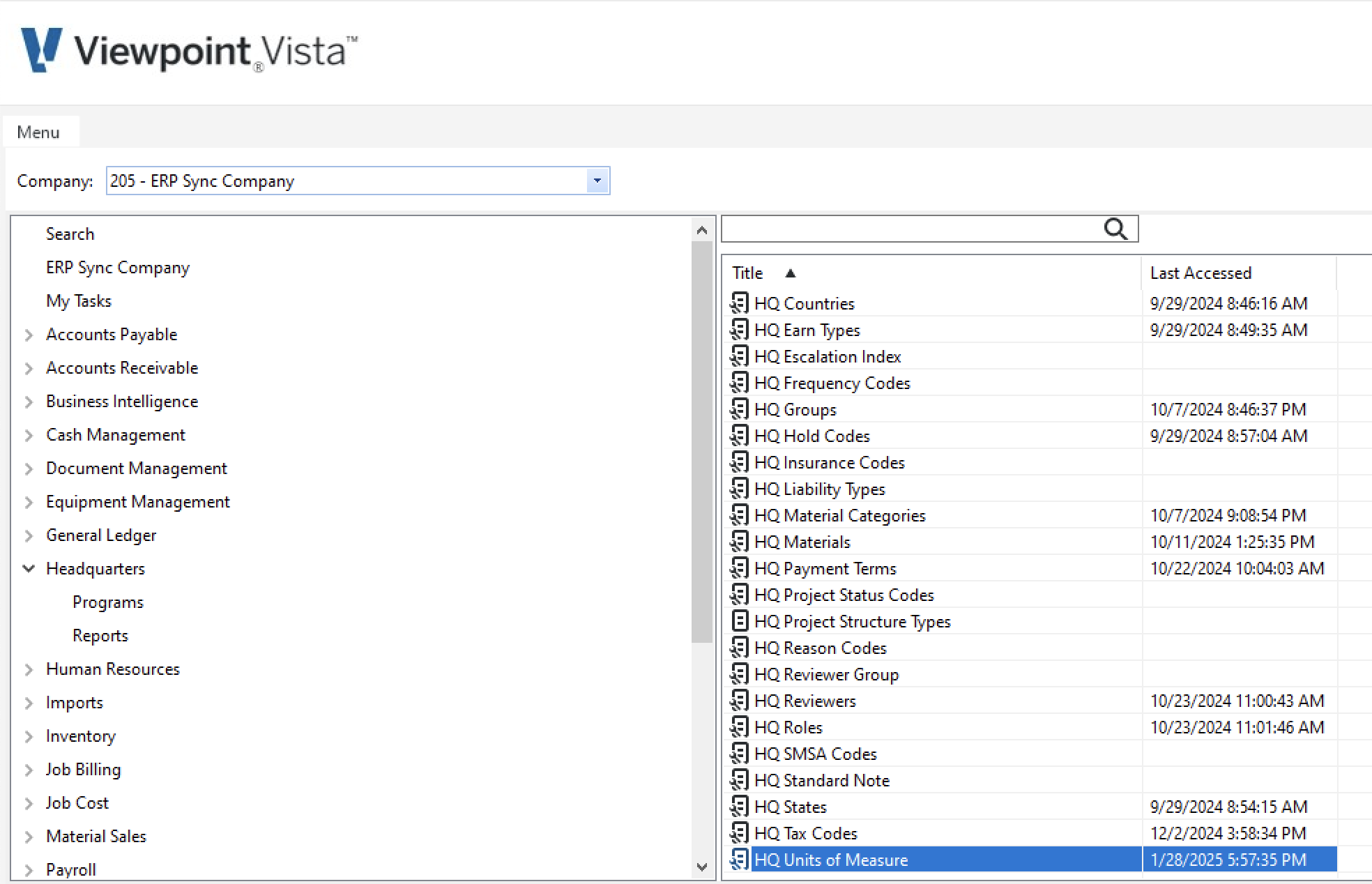
If you receive an error like the following: "The Unit of Measure associated with this model has not been synced", it's possible the Unit of Measure may not exist in Vista. To fix this error:
- In Vista, go to Headquarters-->HQ Units of Measure:
- Select New Record:
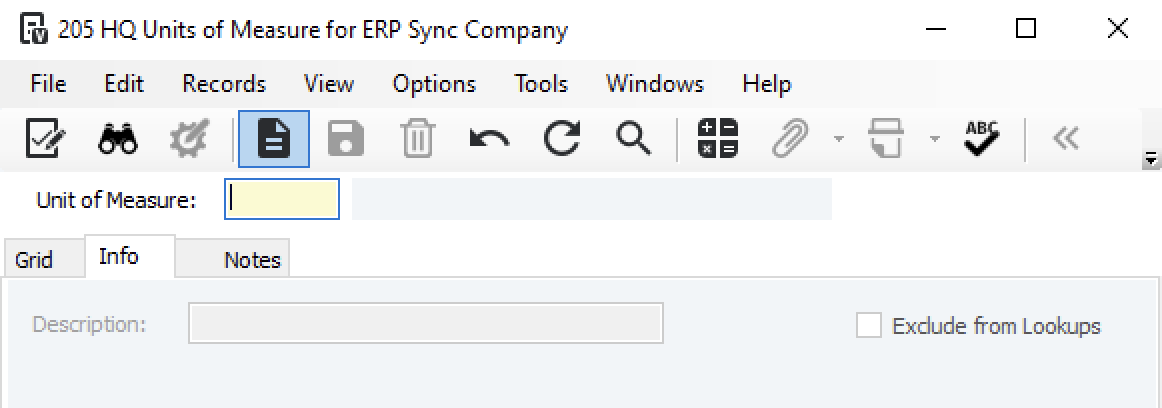
- Enter details for the new Unit of Measure and press Save Record:
