Subcontracts
Agave Sync allows you to sync Foundation Purchase Orders and Procore Commitments (Subcontracts).
Visual Mapping
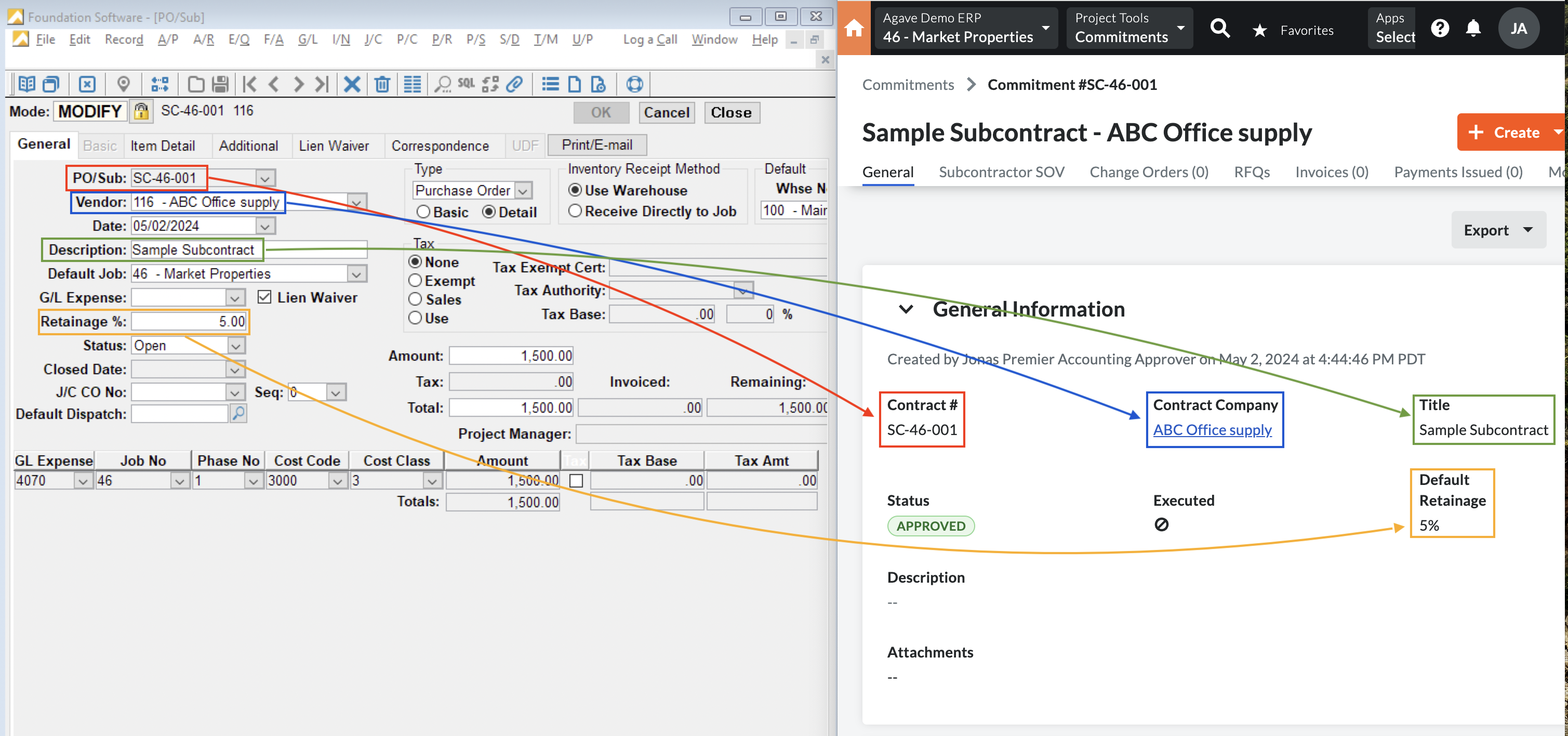
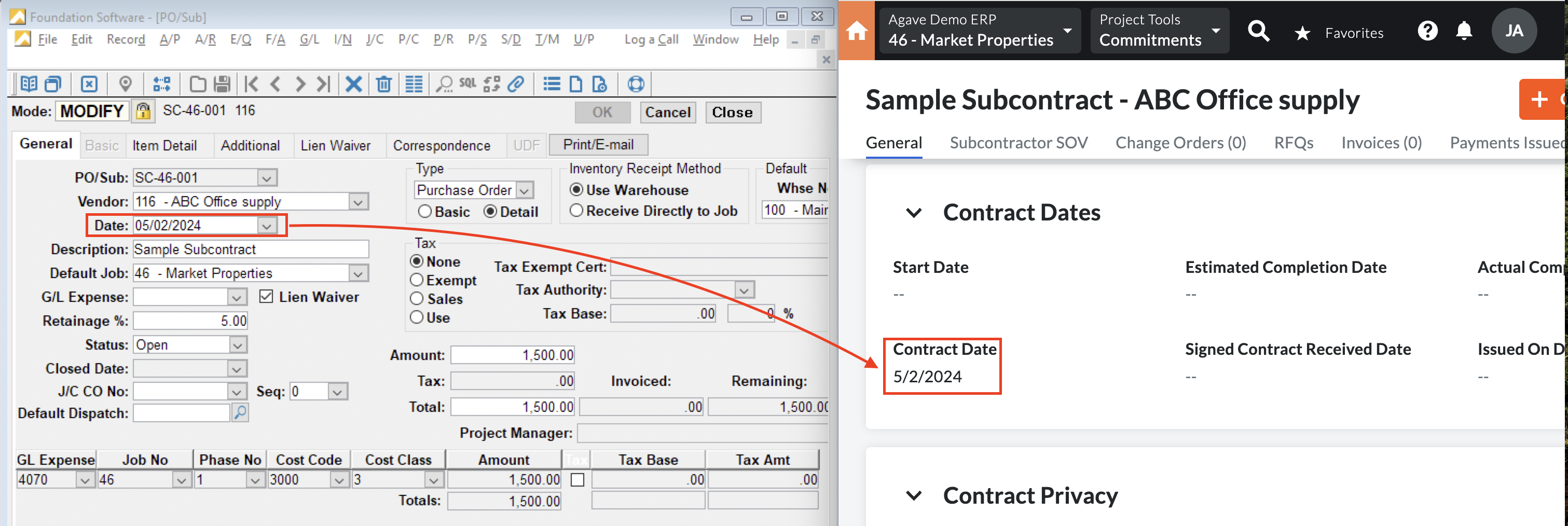
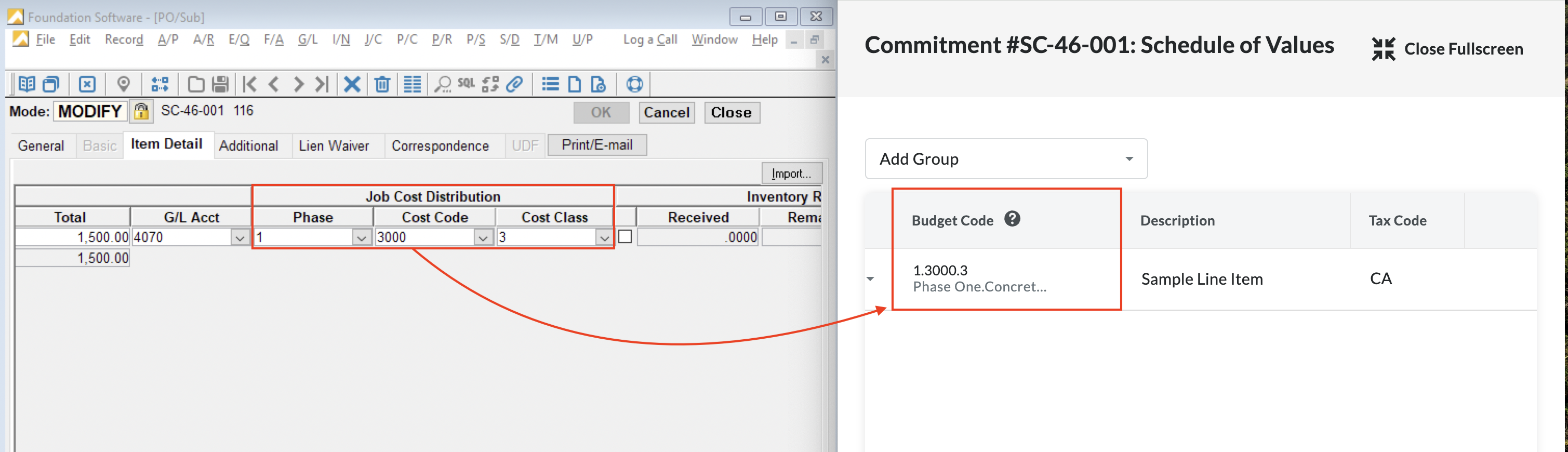
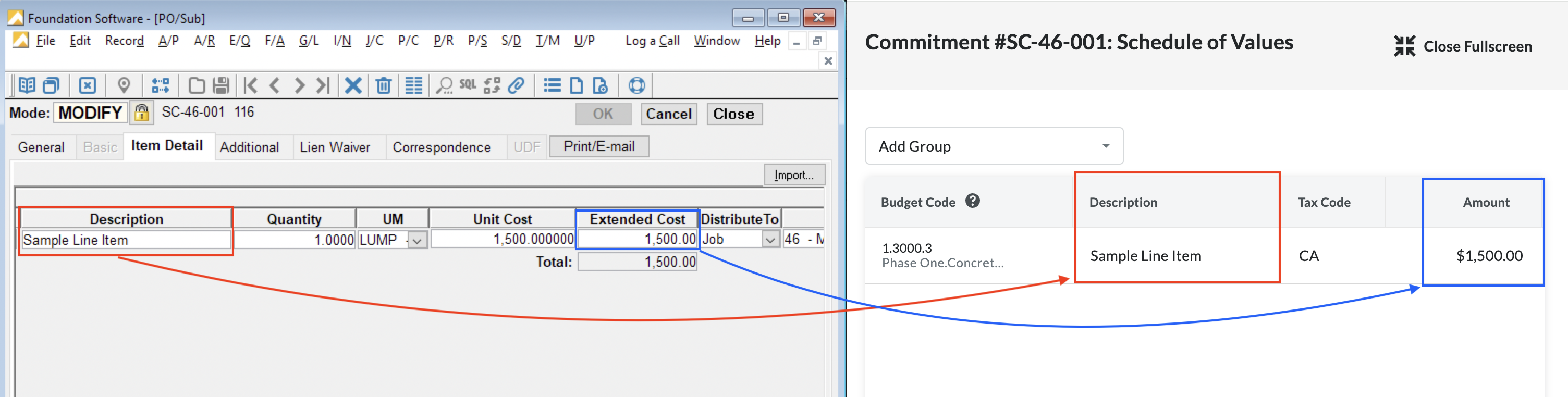
Video Tutorial
Exporting Subcontracts to Foundation
After exporting a Purchase Order, Subcontract, or Purchase Order/Subcontract Change Order, you can find them in Foundation by following these steps:
- From the Foundation homepage, go to PO/Subcontract --> PO/Sub and Change Order Sync:
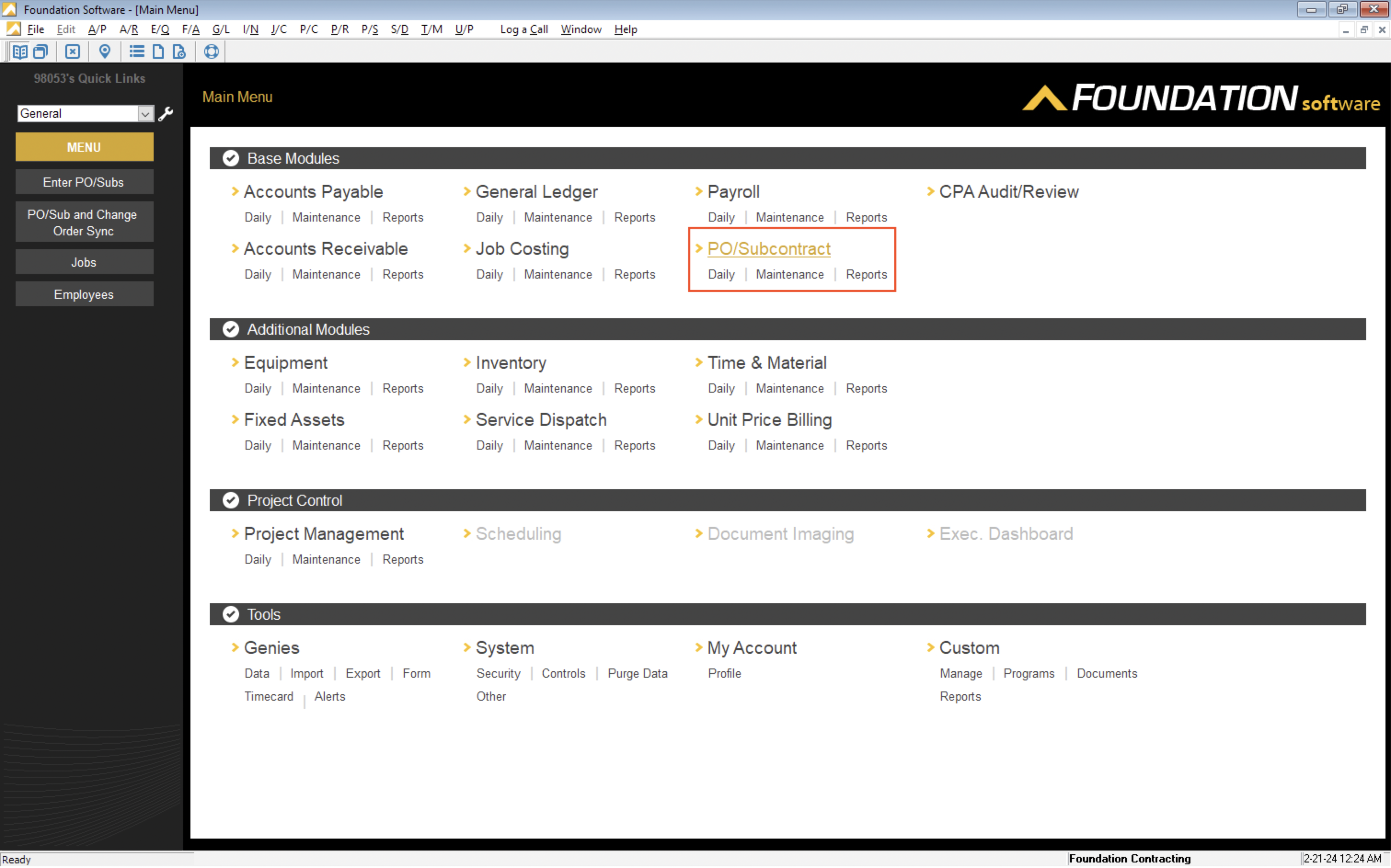
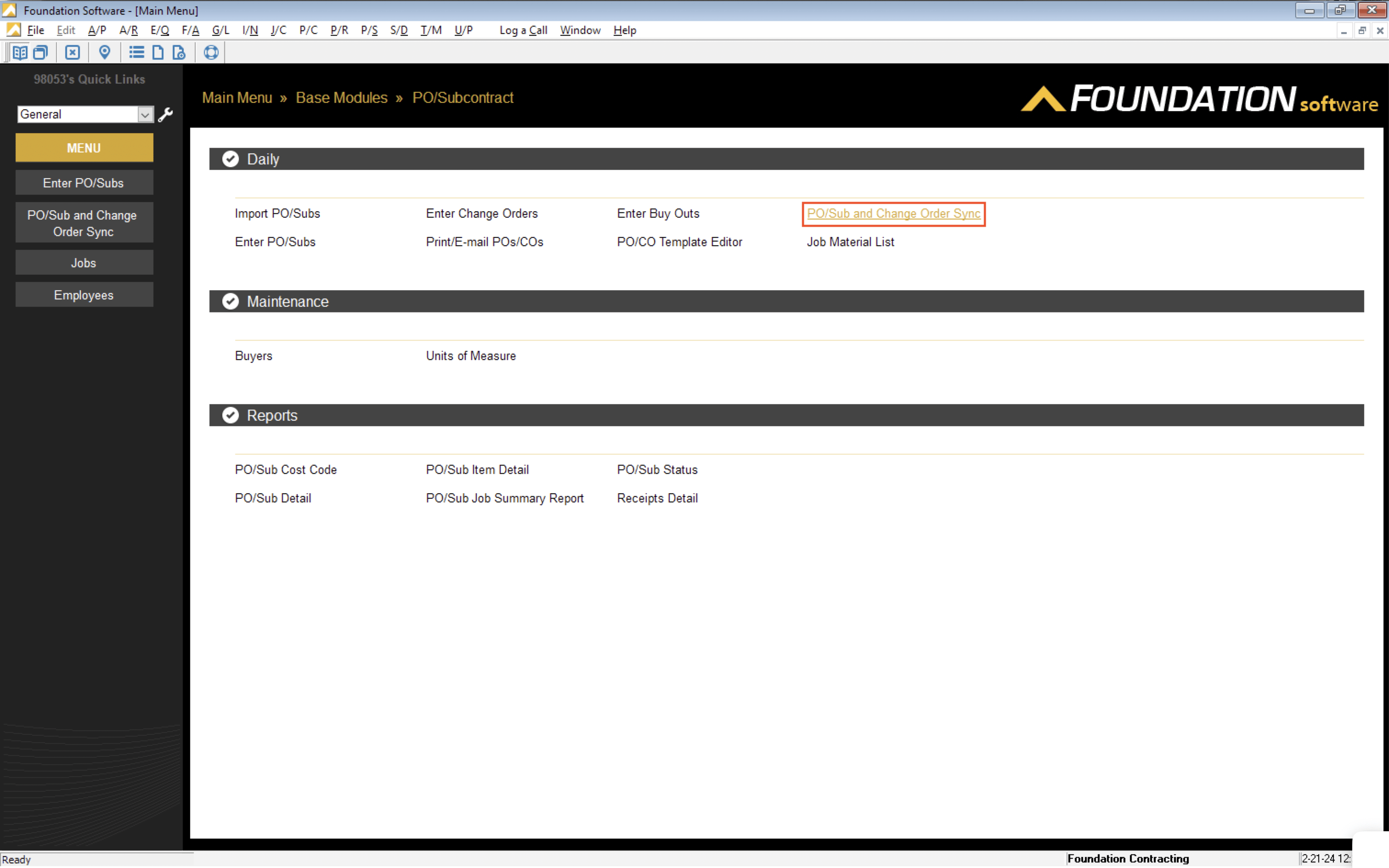
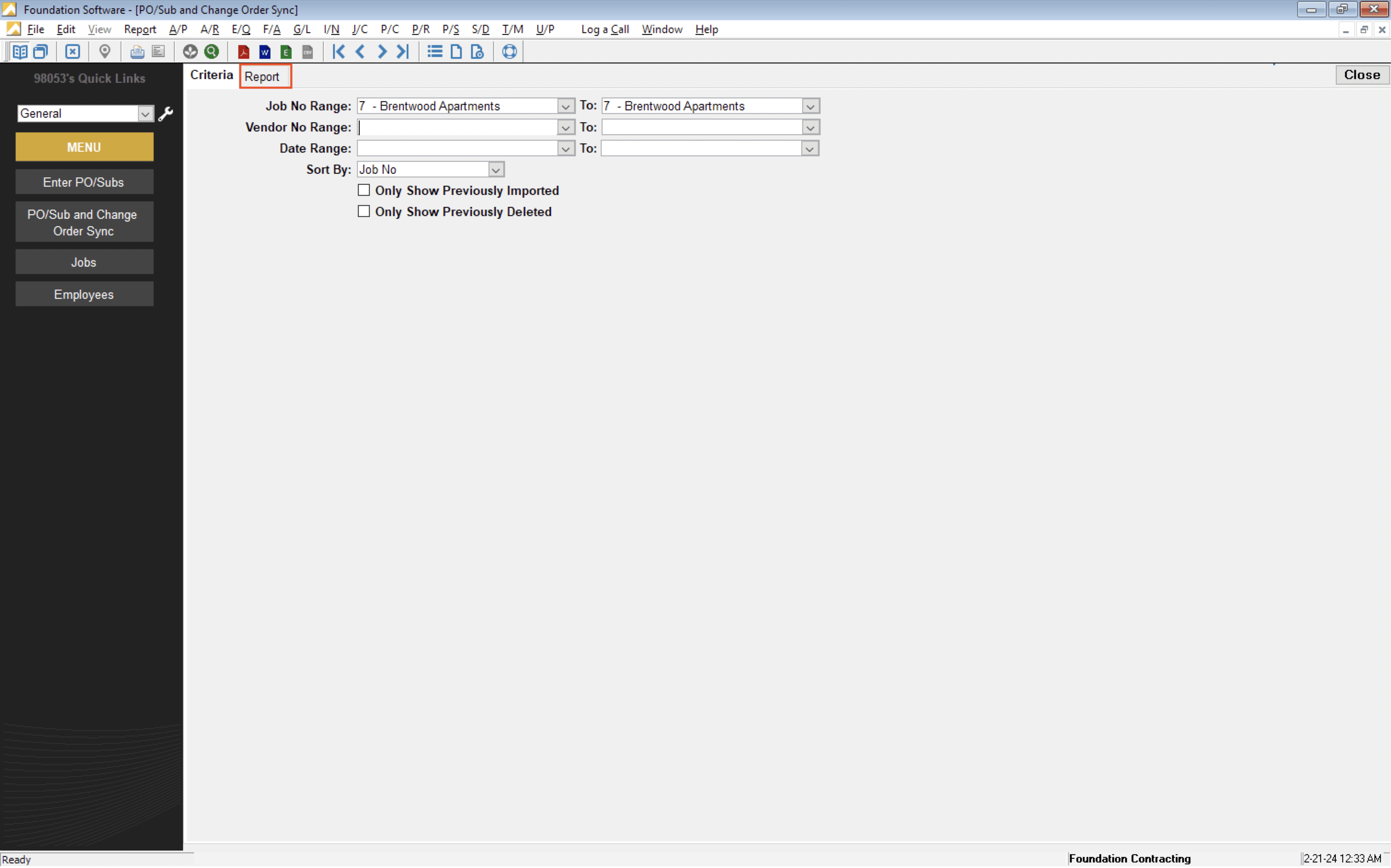
- Select the Report tab. Alternatively, you can apply specific filters (e.g. to Jobs like the below screenshot) to make sure you return Subcontracts that meet your needs.
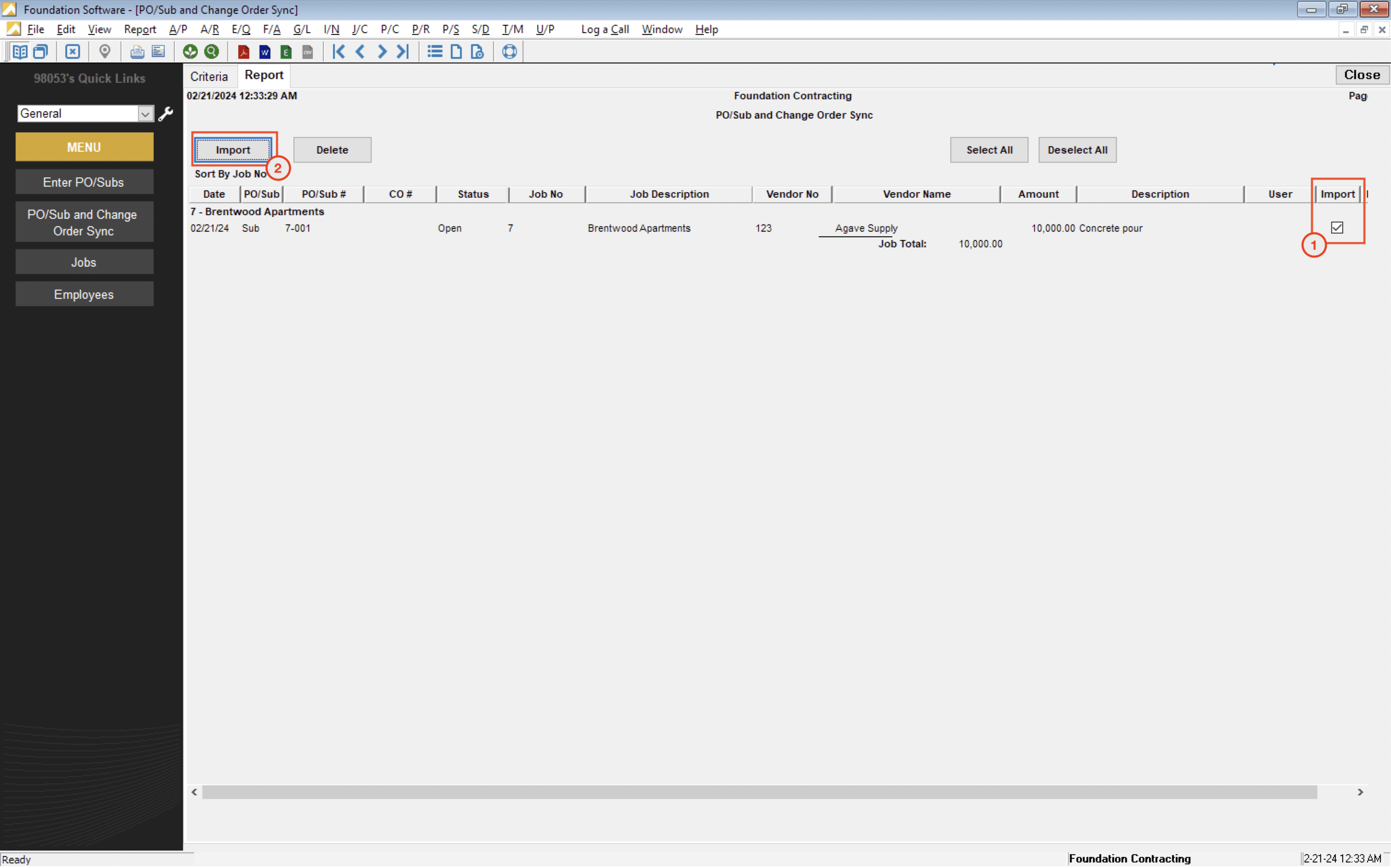
- In the Report tab, select the "Import" checkbox for the Subcontract, and then press the Import button:
- After importing, press the OK button to confirm there are no validation errors or issues.
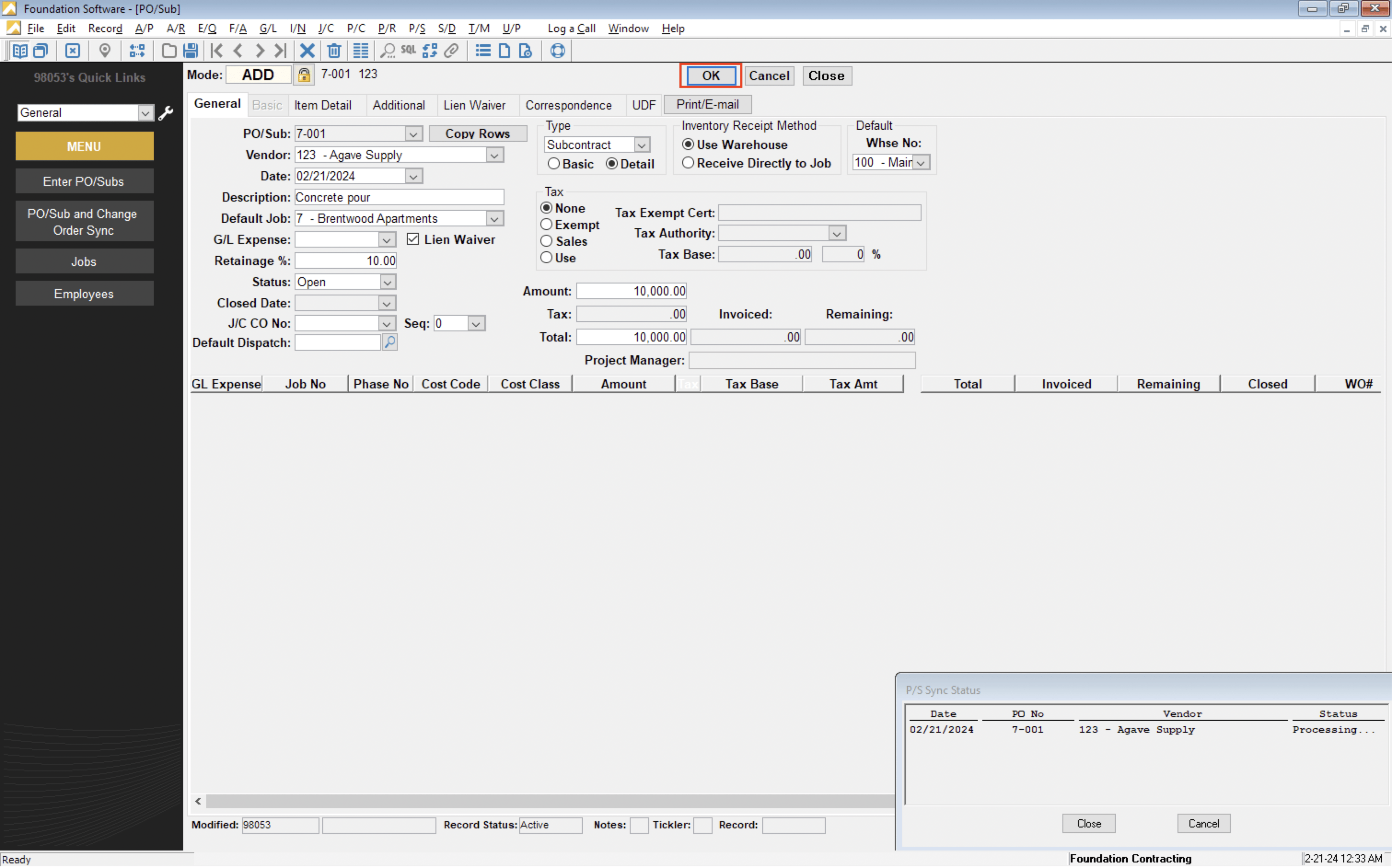
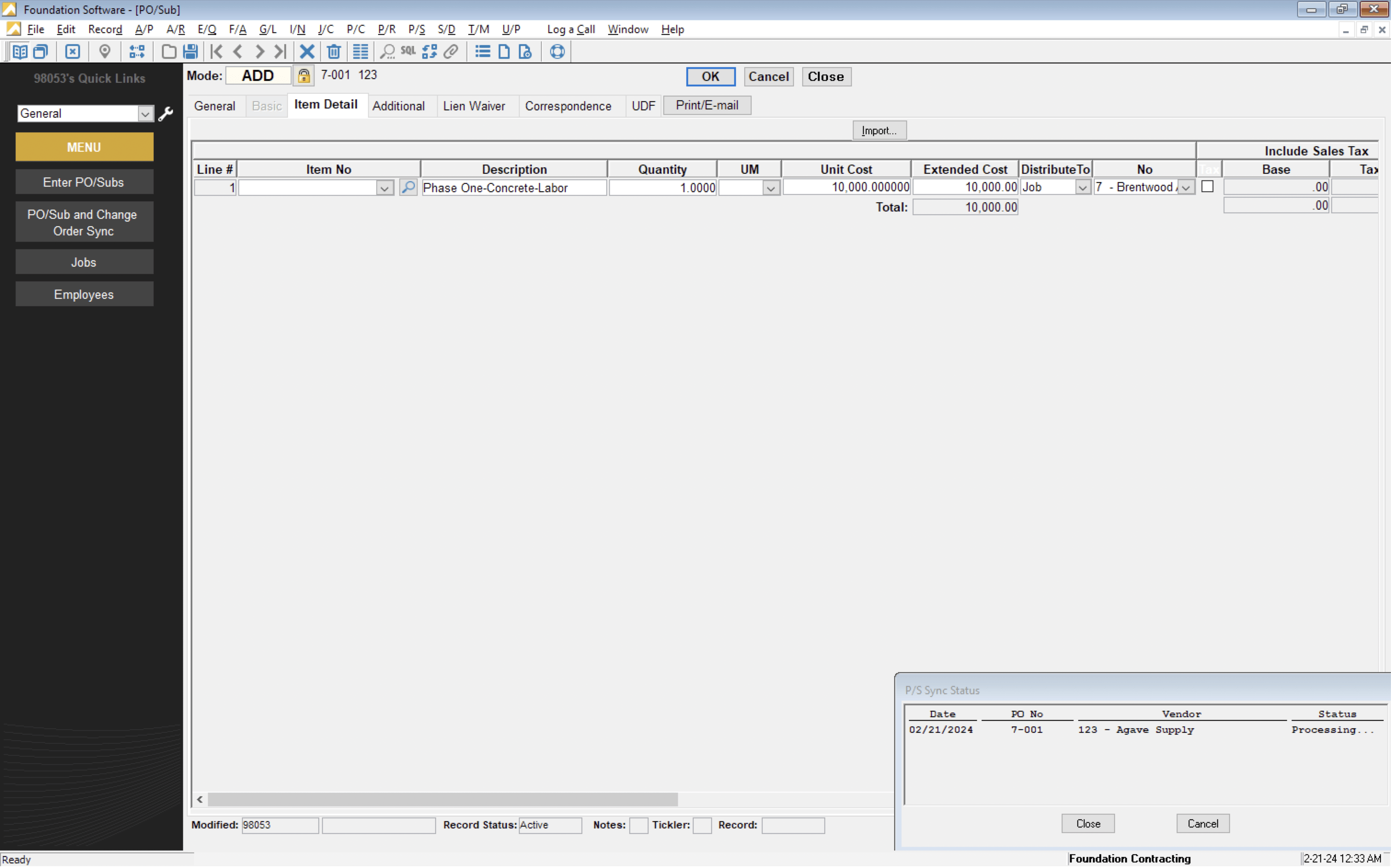
You can also check the Item Detail tab to confirm that line items imported as expected:
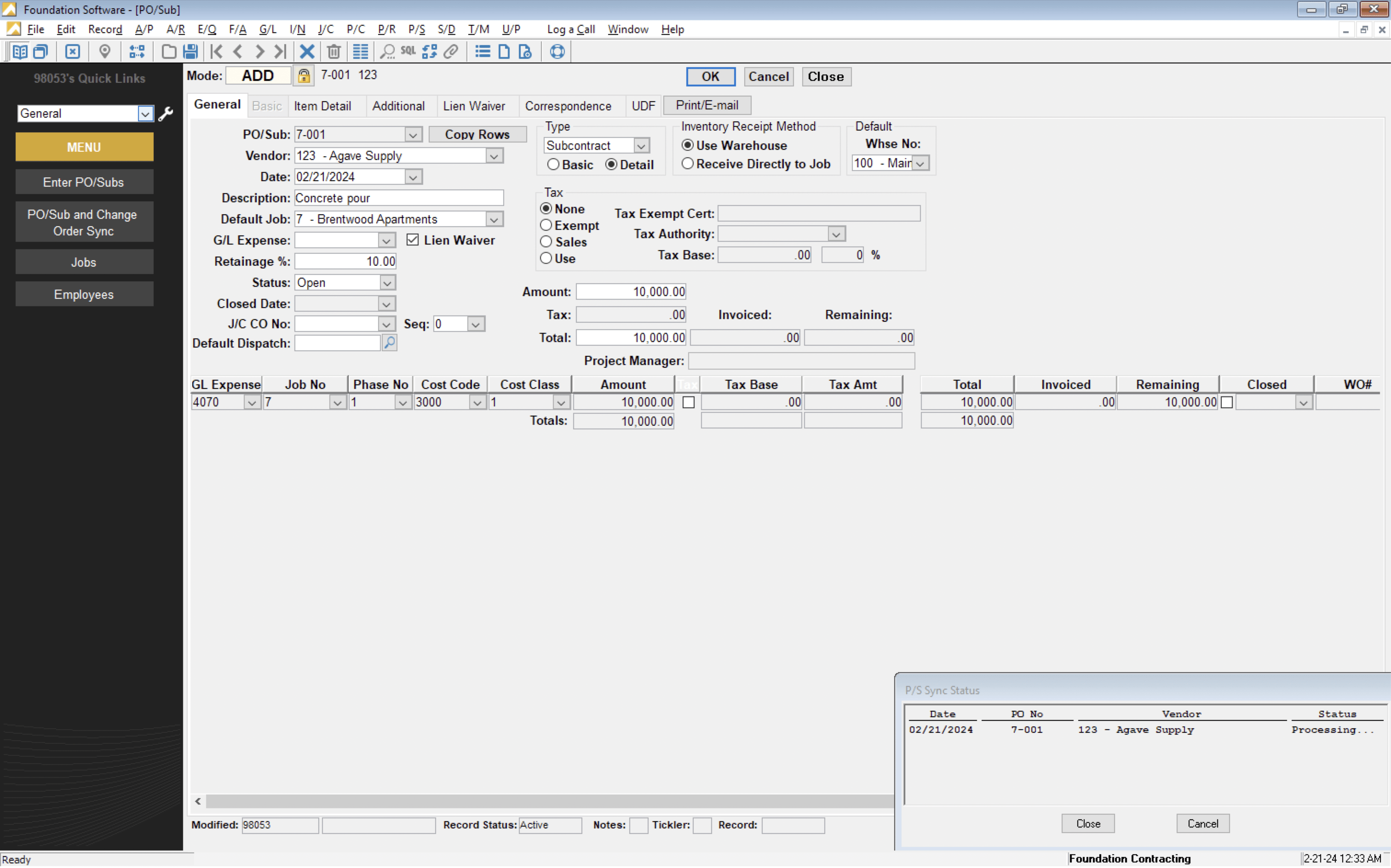
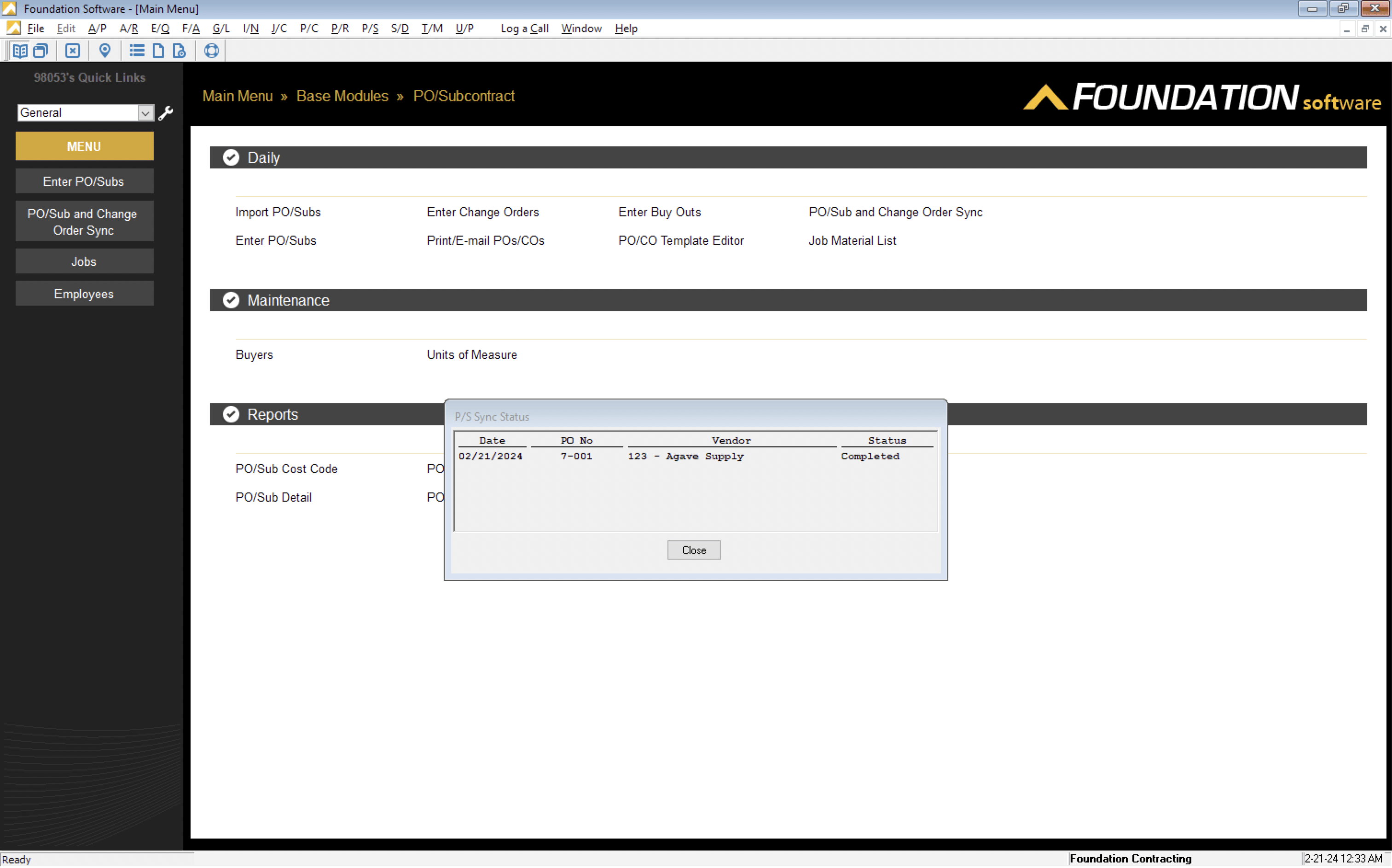
- Press OK again. If there are no issues, you will see a confirmation that the Purchase Order or Subcontract has successfully imported into Foundation.
Purchase Order or Subcontract Line Item Ledger Account
Since most Project Management systems do not have a Ledger Account, Agave will default to the Ledger Account associated with the Cost Type (Cost Class). The default Ledger Account associated with the Cost Type can be found below:
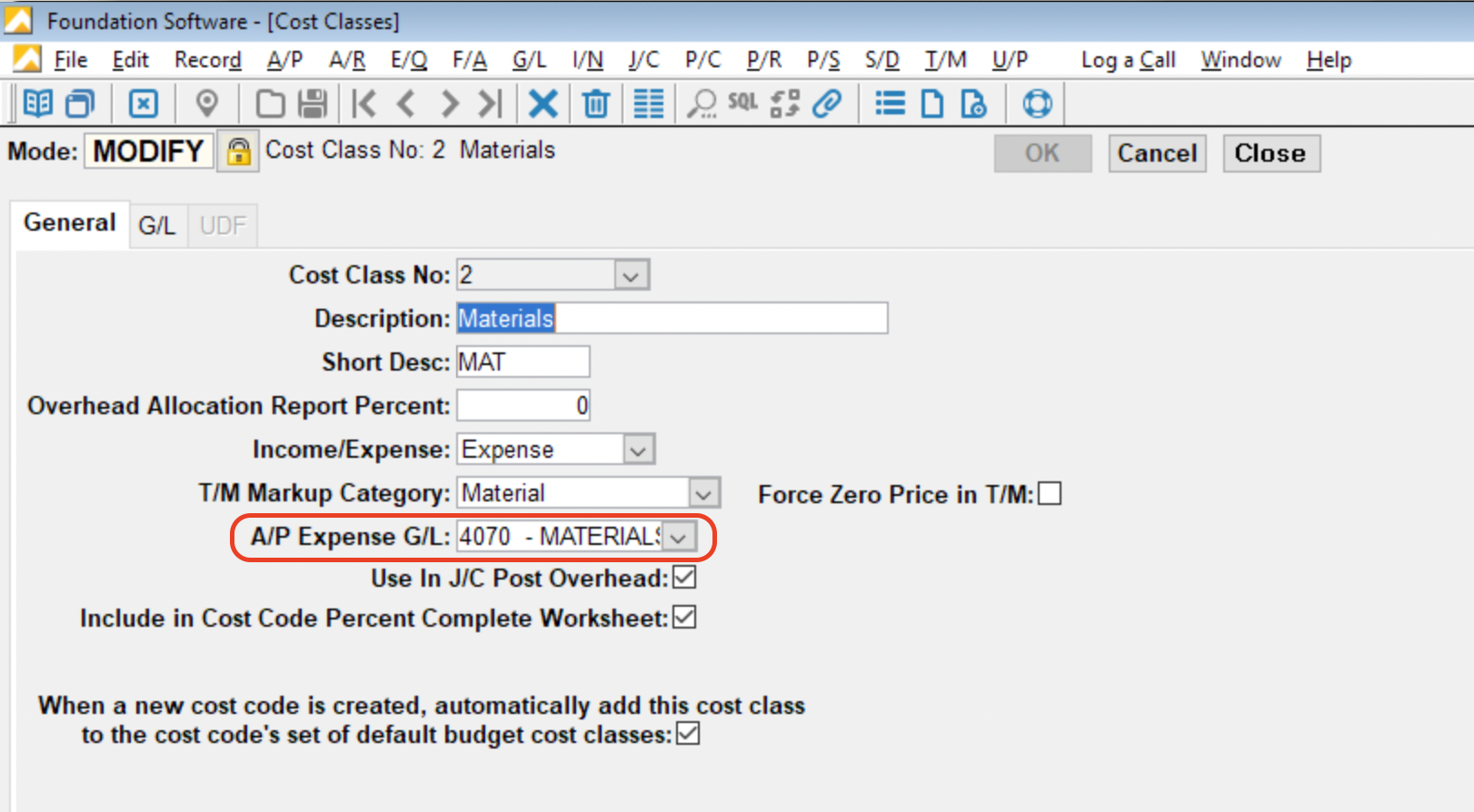
We recommend assigning a Default General Ledger Account for each Cost Type. This will prevent the need to manually input the Ledger Account in Foundation for each Purchase Order, Subcontract, or Subcontractor Change Order you export to Foundation.
FAQs and Common Errors
Why am I getting an error saying a record already exists even though I deleted it?
You may have deleted a record but still receive an error saying the record exists after re-syncing it (example below). Alternatively, You may need to modify and re-sync a Purchase Order, Subcontract, or Purchase Order/Subcontract Change Order record in the Project Management system after it has been exported to Foundation.
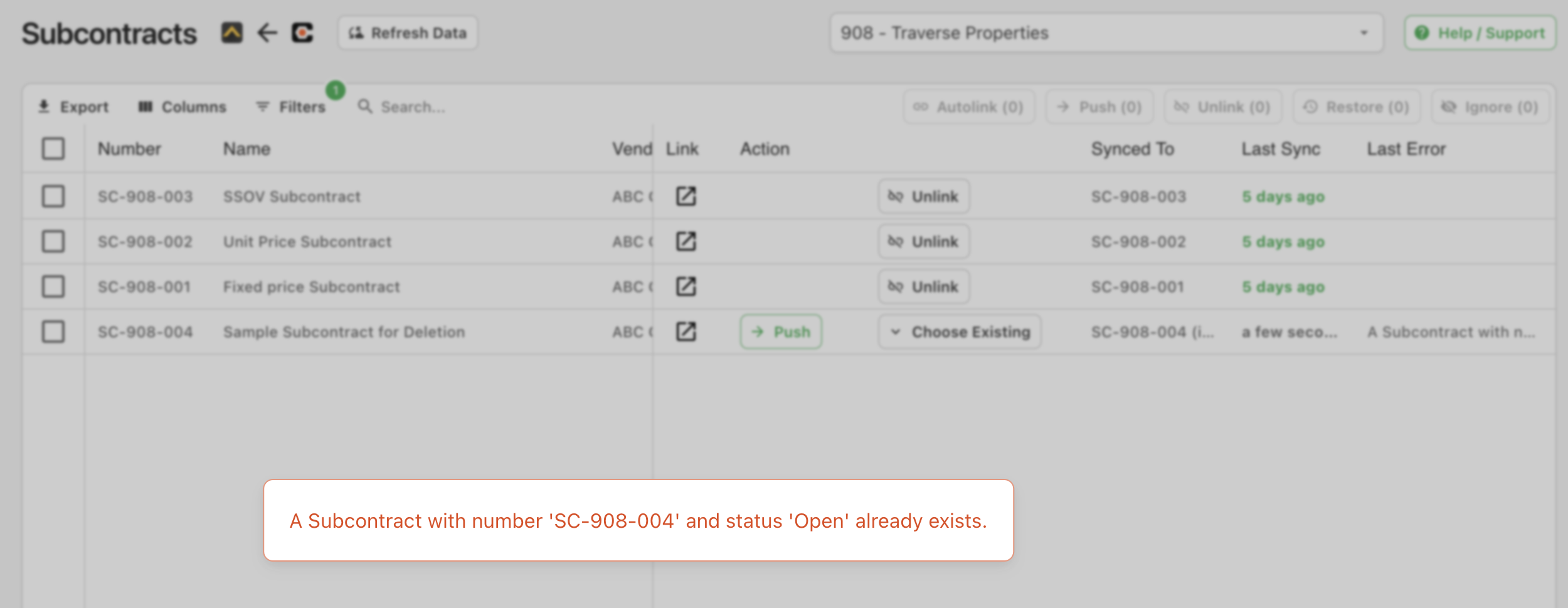
Depending on the status of the export, you have a two options:
If the record has not been imported in Foundation (i.e. it has a status of "Imported" or is in the PO/Sub and Change Order Sync view):
- From the main menu, select PO/Subcontract
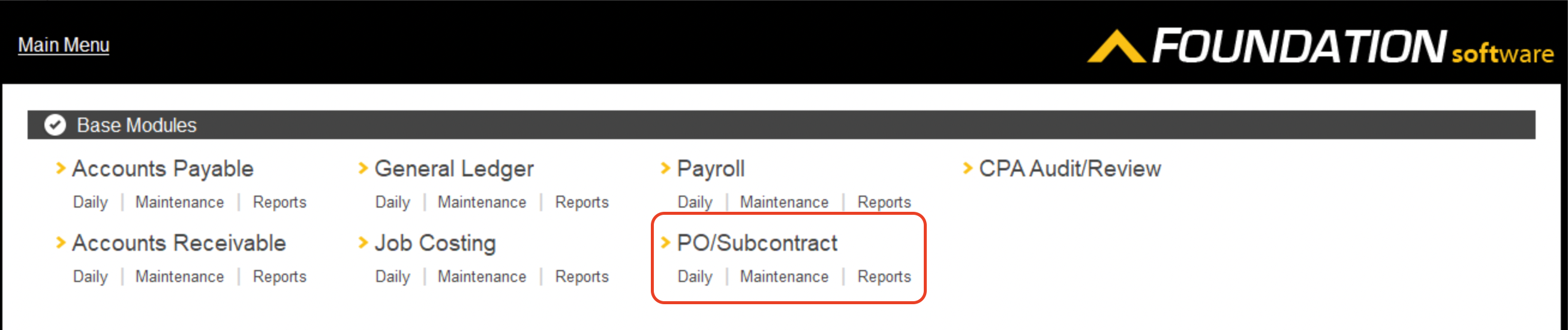
- Select the PO/Sub and Change Order Sync view
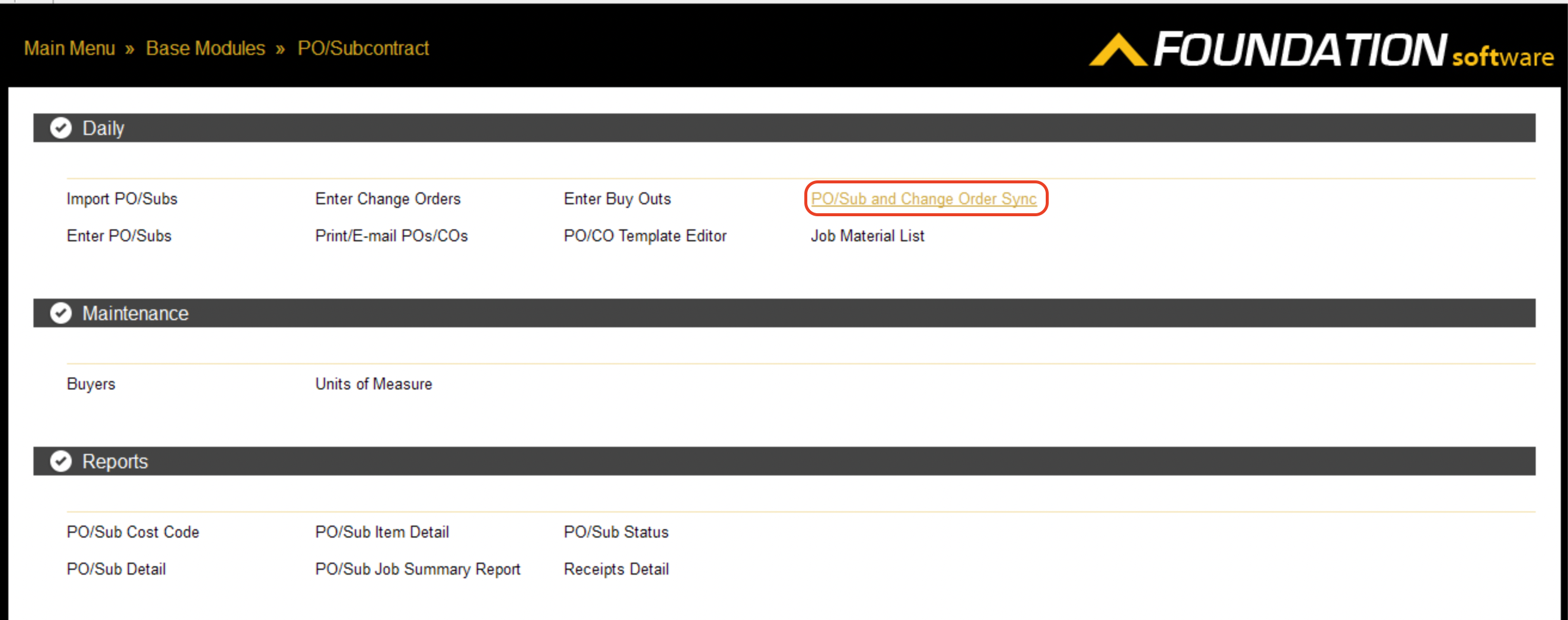
- Press Report, then select the Delete checkbox. Then press Delete
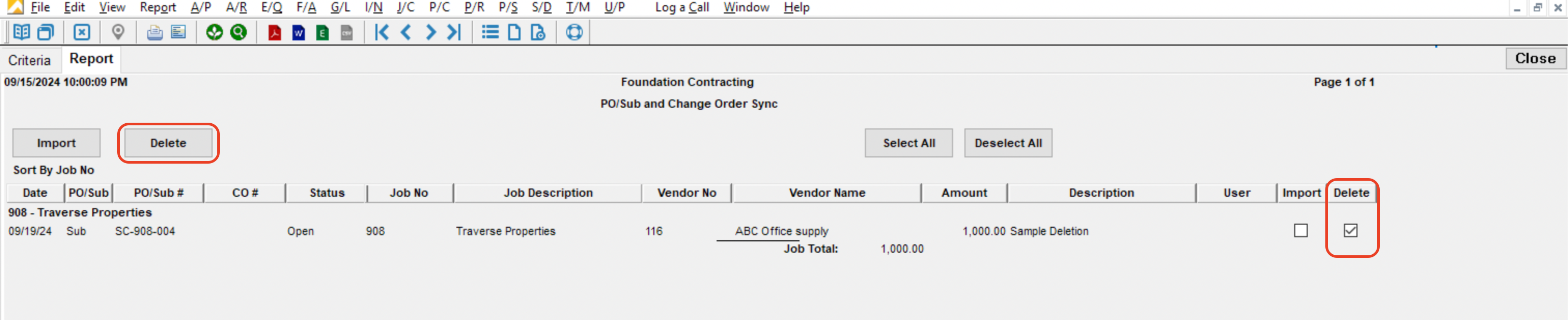
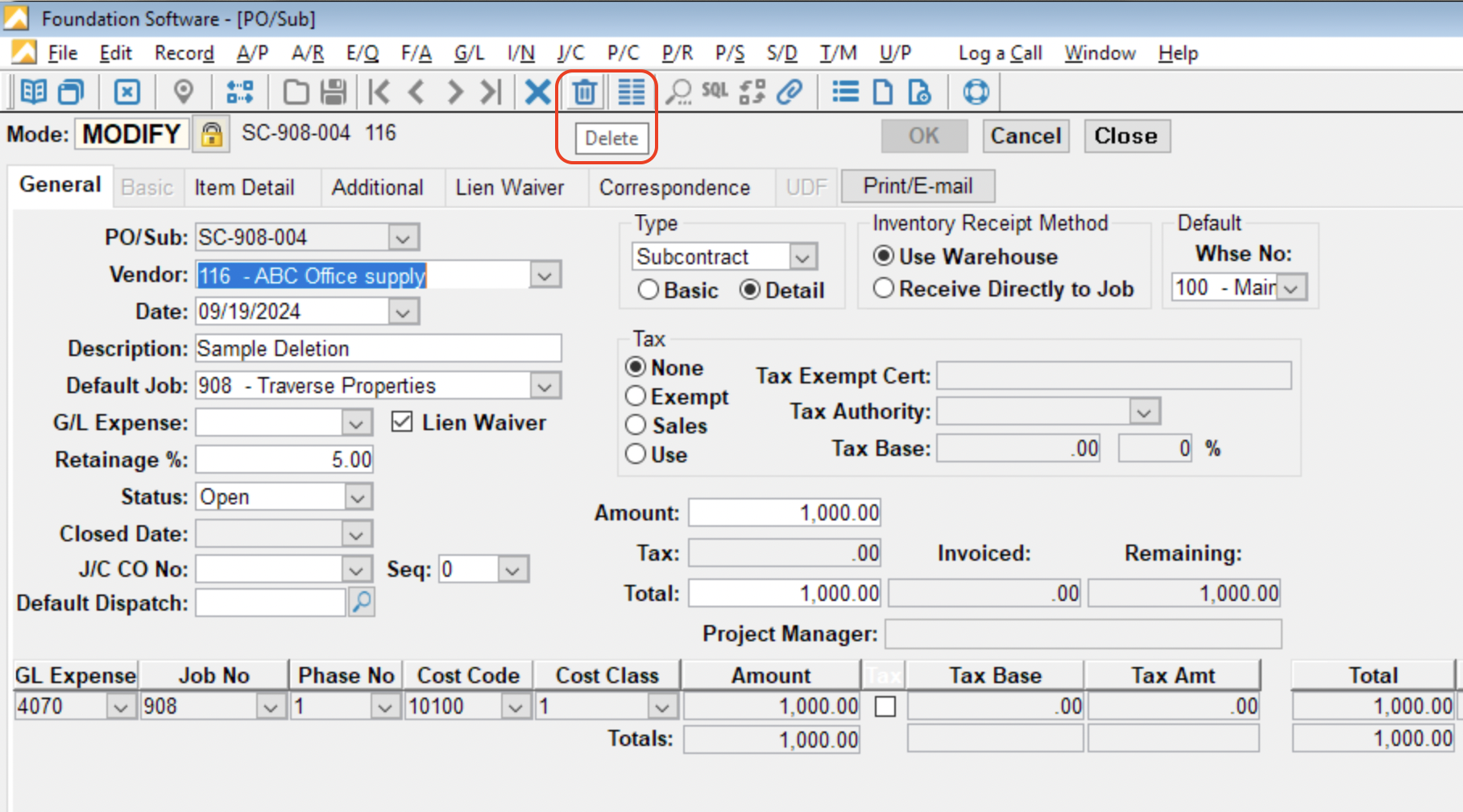
If the record has been imported in Foundation (i.e. it does NOT have a status of "Imported" or is visible in either the Enter PO/Subs or Enter Change Orders views), you can either modify the record manually with details from your Project Management system, or:
- Delete the record from either the Enter PO/Subs or Enter Change Orders views. You can do this by pressing the trashcan icon in the toolbar.
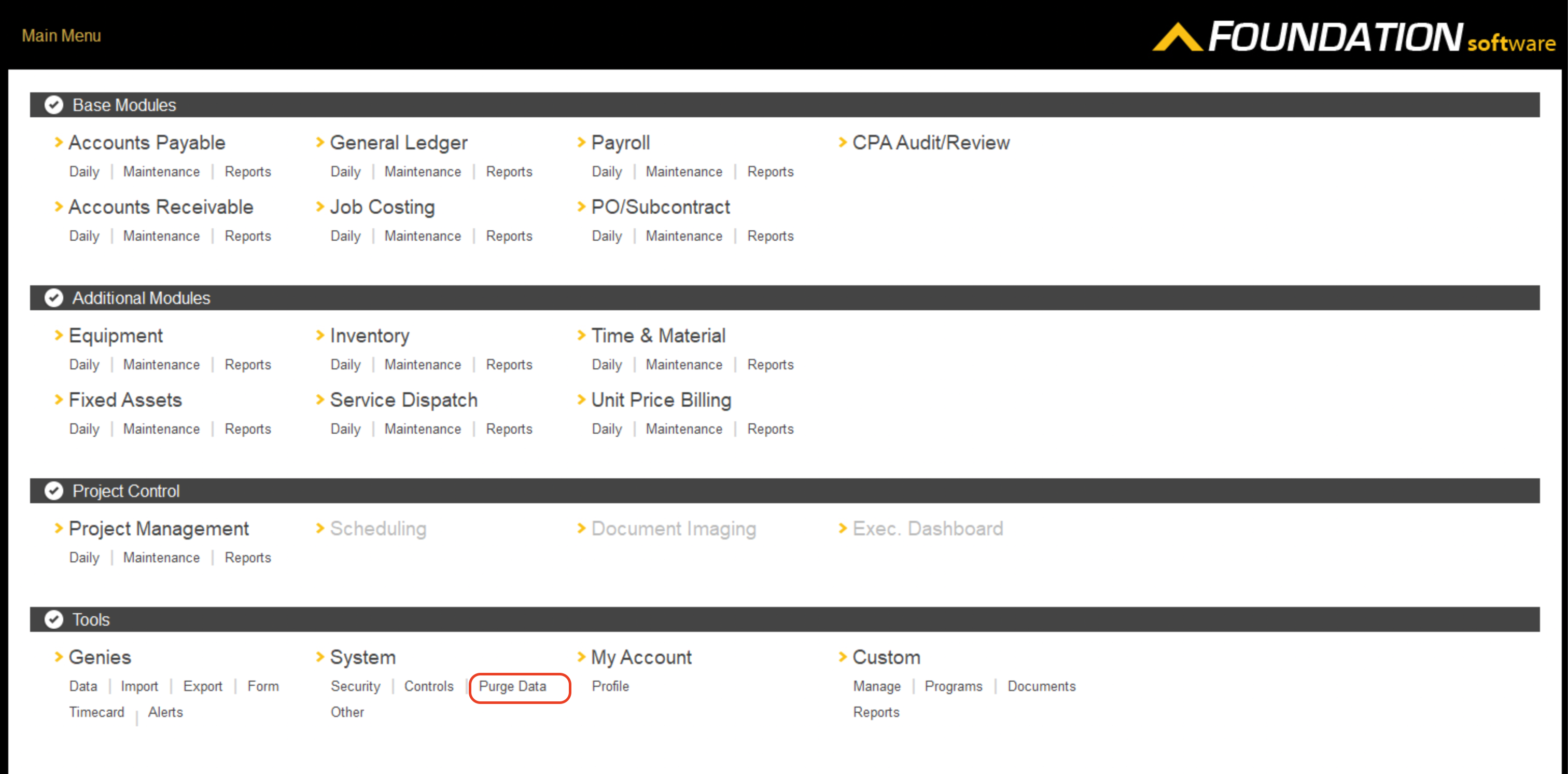
- From the main menu, select Controls --> Purge Data.
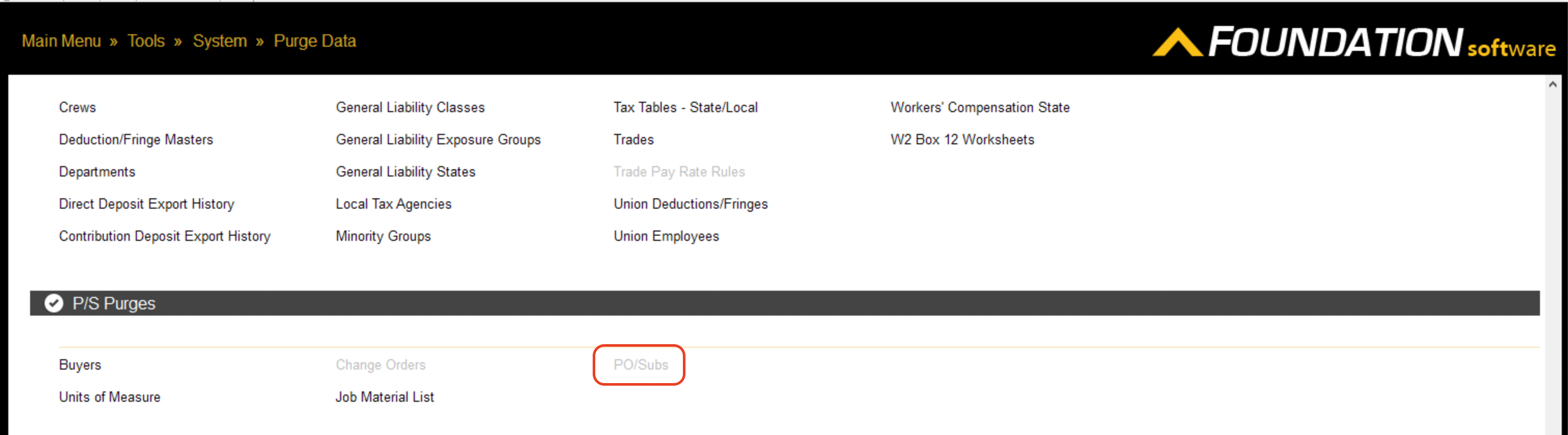
- Scroll down to the P/S Purges section and select PO/Subs.
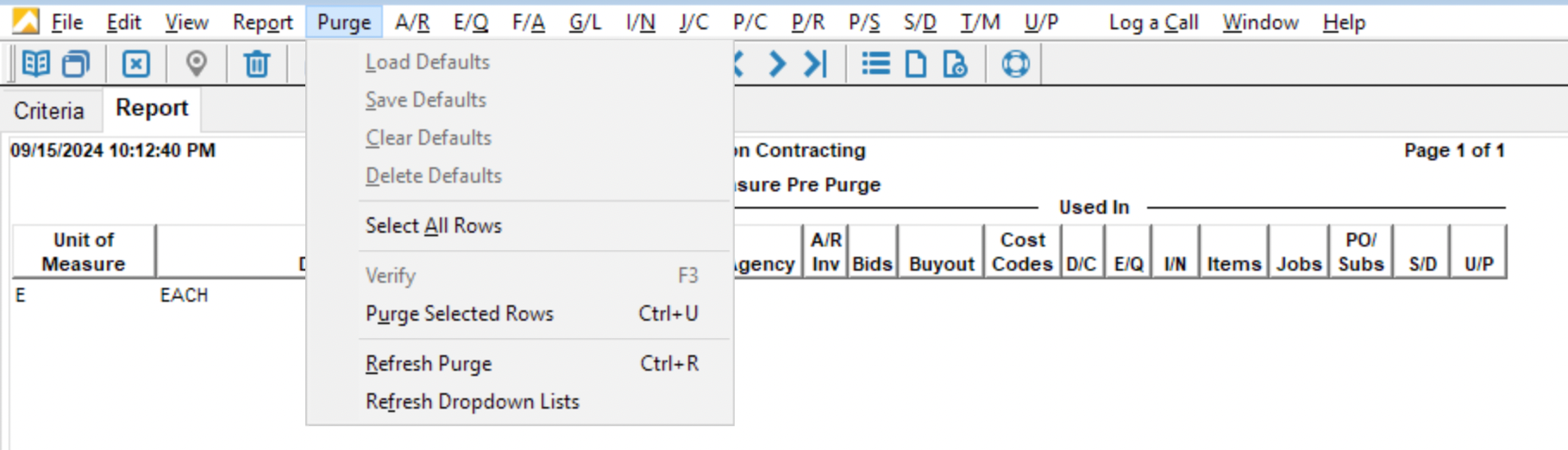
- In the Criteria tab, input the criteria for your report, then press the Report tab. Assuming the records match what you want to delete, either press "Ctrl + U" or Purge --> Purge Selected Records in the toolbar.
Why is my Subcontract ID conflicting with an existing Purchase Order in Foundation?
Foundation has a 10-character limit for Purchase Order and Subcontract IDs, and stores both POs and Subcontracts in the same table. If a Purchase Order or Subcontract is synced from Procore and the ID is longer than 10 characters, only the last 10 characters will be used in Foundation.
This can cause ID conflicts when syncing both POs and SCs on the same job. Procore's default naming convention is <record type>-<job number>-<sequence> (e.g. PO-12345-001 and SC-12345-001), but because Foundation truncates from the left, the record type prefix gets cut off — making both IDs appear identical (e.g. both become -12345-001).
Recommendation: Before syncing the first PO or SC on a job, manually change the Procore commitment's # field to a format like <job number><sequence><record type> (e.g. 1234501PO and 1234501SC). This keeps the record type identifier at the end where it won't be truncated, preventing conflicts. Once you manually change the format on a commitment, all future commitments of that type on the same job will automatically increment using the new format.
Error: The name field is required for Subcontracts.
Foundation requires a date field when creating Subcontracts.
To resolve this error:
-
Go to the Subcontract in Autodesk Build or Procore.
-
Add a value to the "Title" or "Name" field.
Error: The Executed Date Field is Required.
This error occurs when your ERP requires a date for when the Subcontract was executed. Agave Sync uses the Contract Date field in Procore for this date.
To resolve this error:
-
Go to the Subcontract in Procore.
-
Scroll down to the Contract Dates section.
-
Add a date under Contract Date:
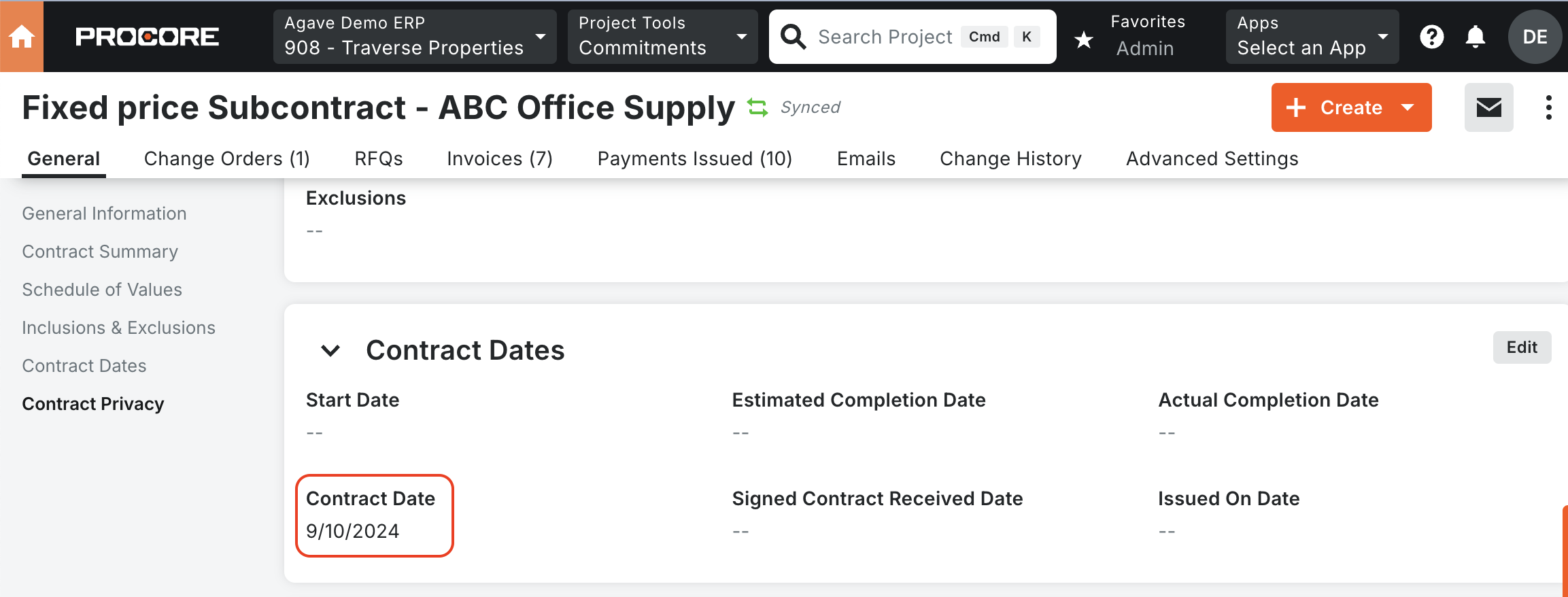
To avoid this error, we recommend making the Contract Date field required. See Procore's Guide on how to make this field required.