Prime Contract Change Orders
Agave Sync allows you to sync Foundation Job Costing Change Orders and Procore Prime Contract Change Orders.
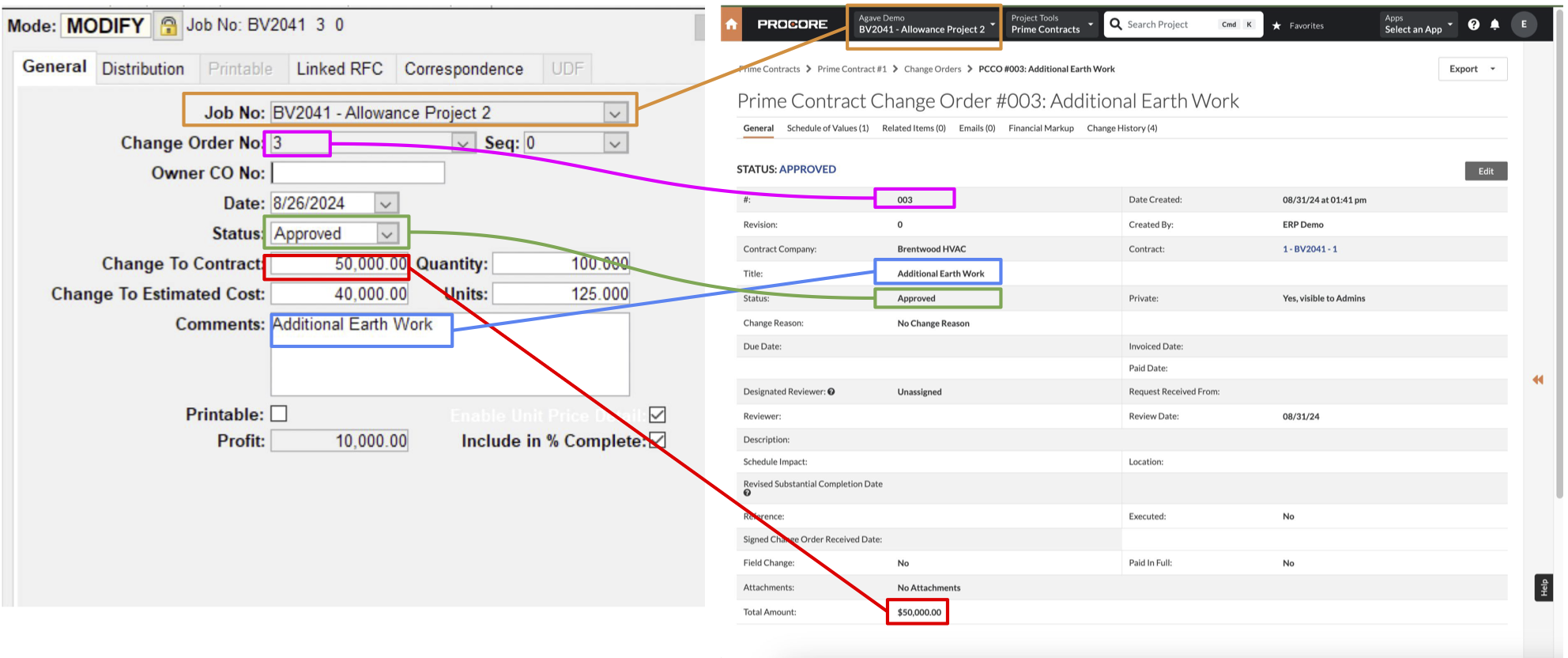
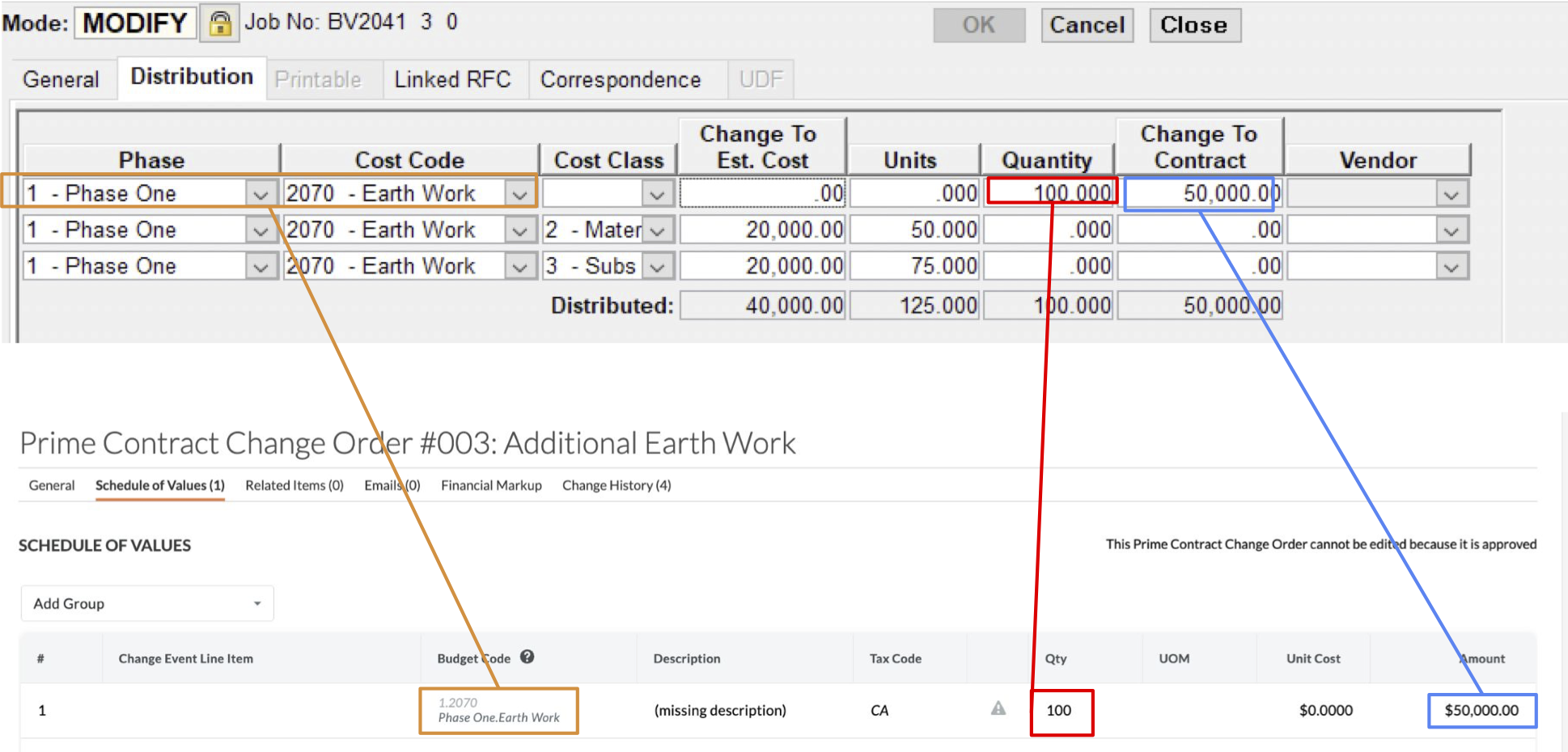
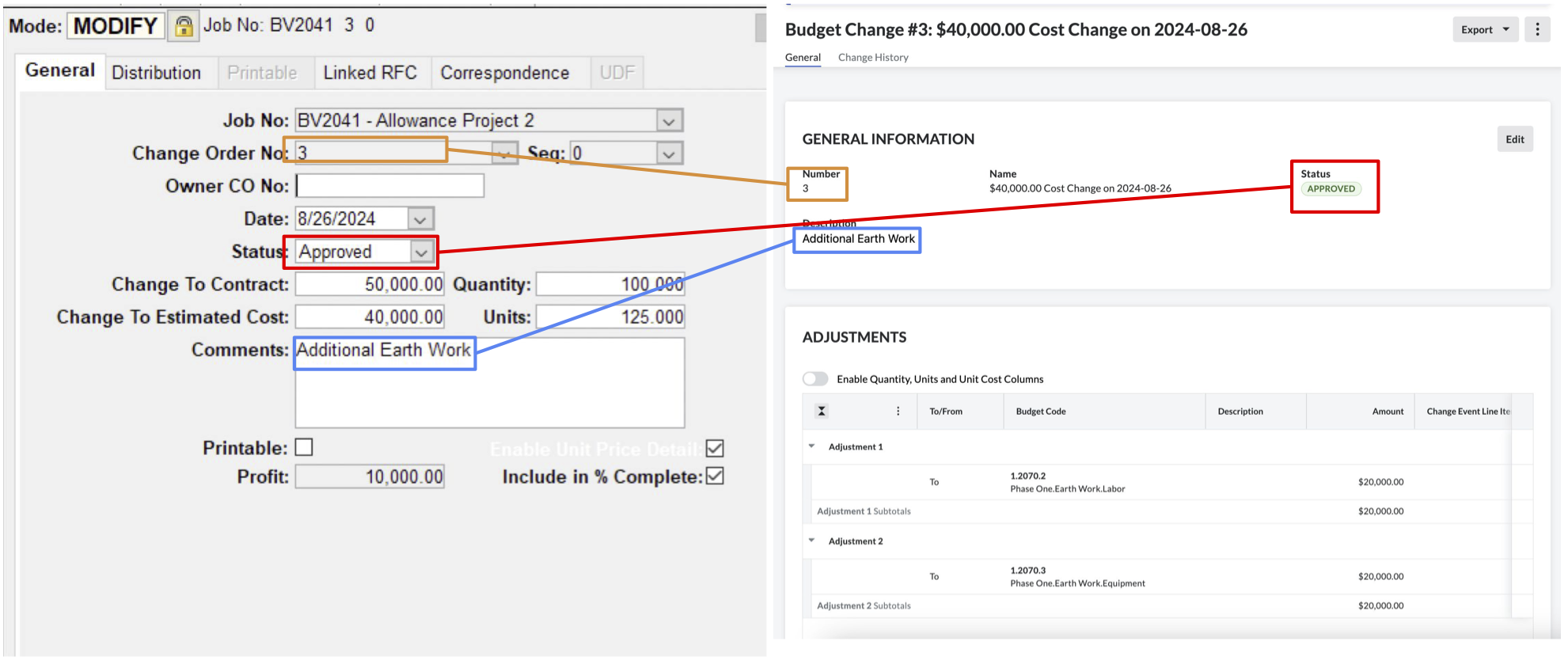
Visual Mappings
Prime Contract Changes - Revenue
Budget Changes - Cost
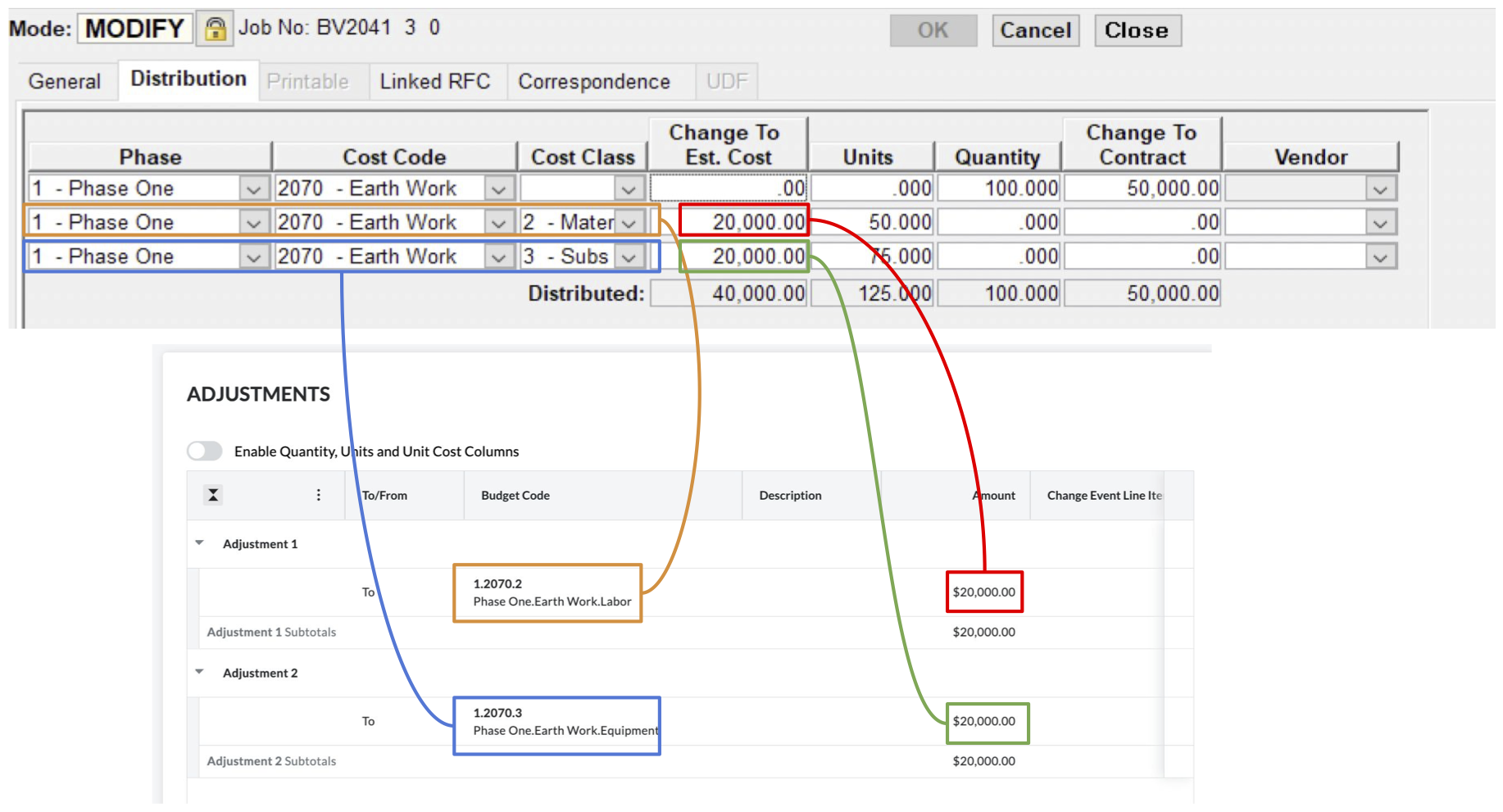
Procore to Foundation
Exporting Prime Contract Change Orders to Foundation
To set up Prime Contract Change Order imports to Foundation, you will need to follow the below steps:
Create DataGenie Importer for J/C Change Orders
If you have not yet set up a Data Genie for Imports in Foundation:
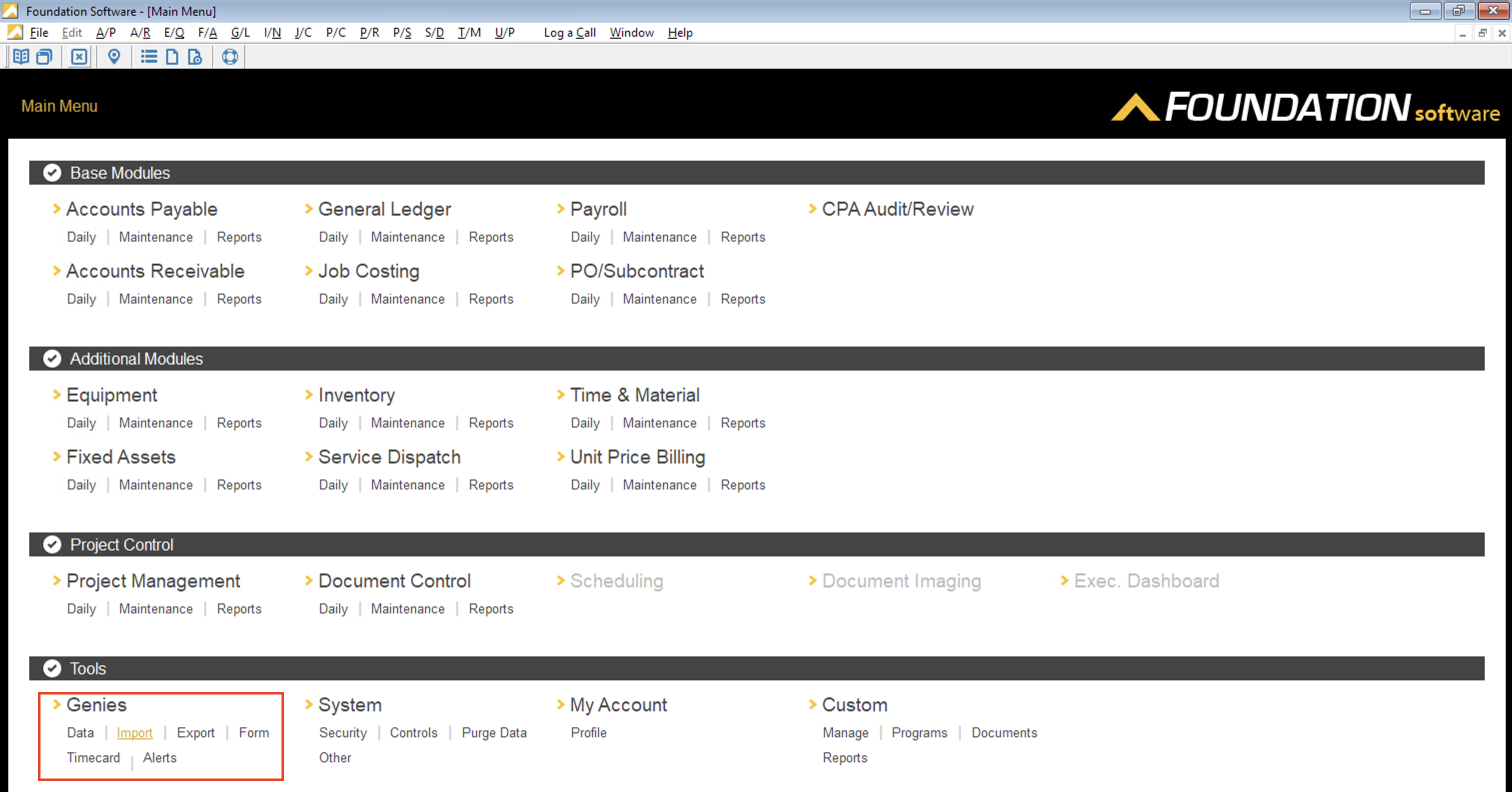
- From the Foundation homepage, go to Genies --> Import:
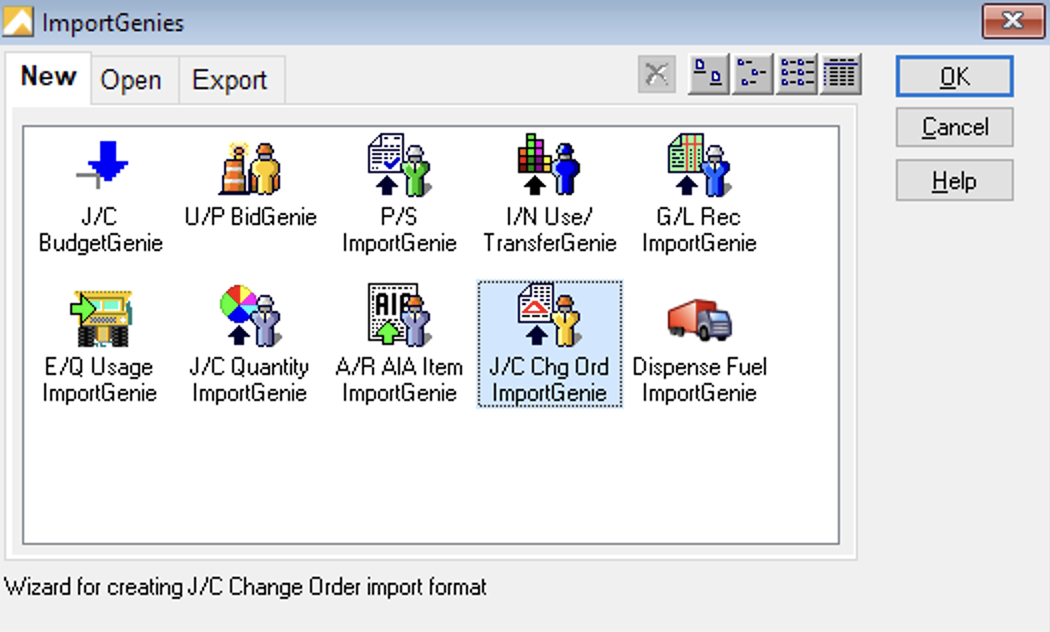
- In the ImportGenies window, select J/C Chg Order Import genie and then OK:
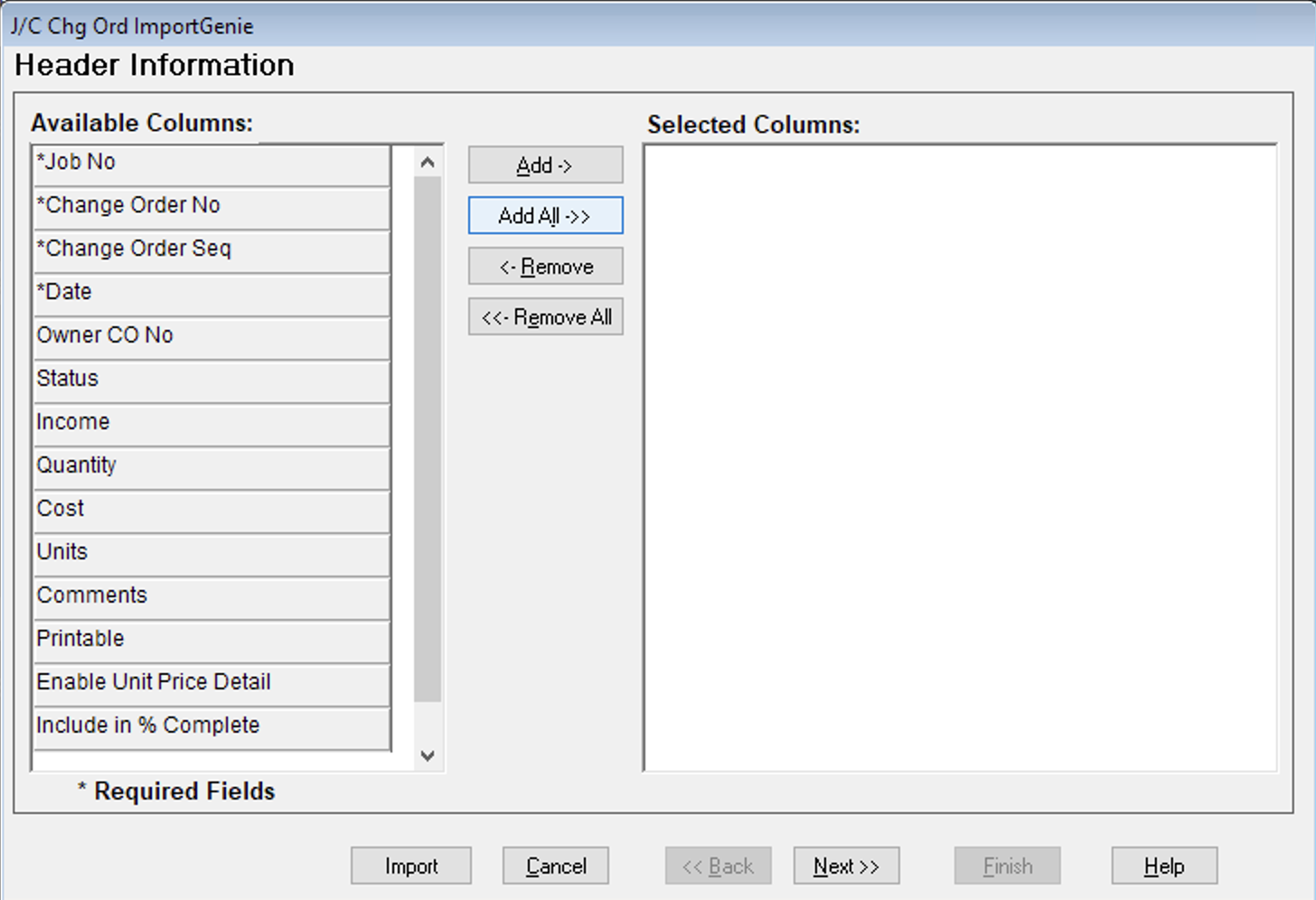
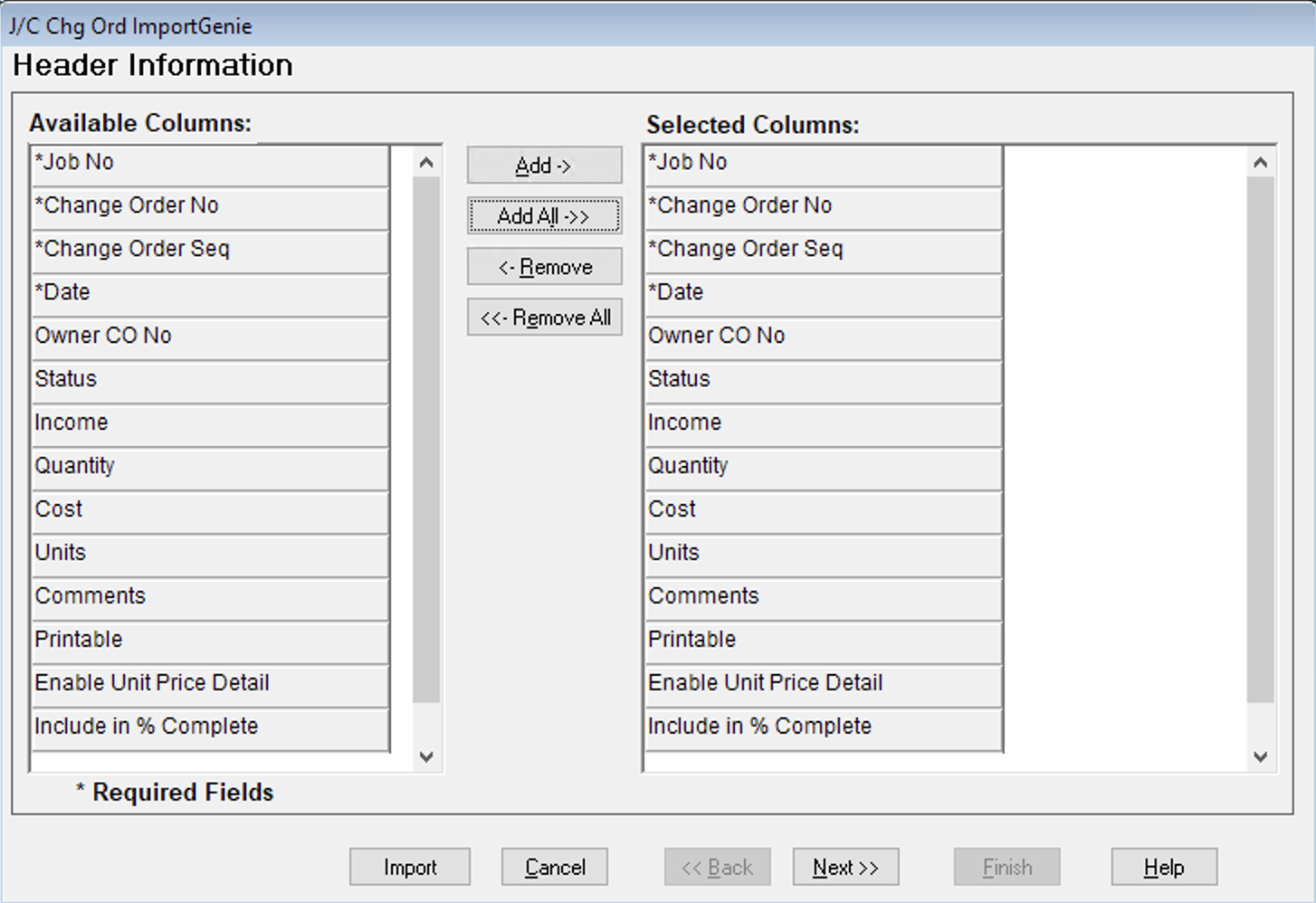
- For Header Information, select Add All and then press Next:
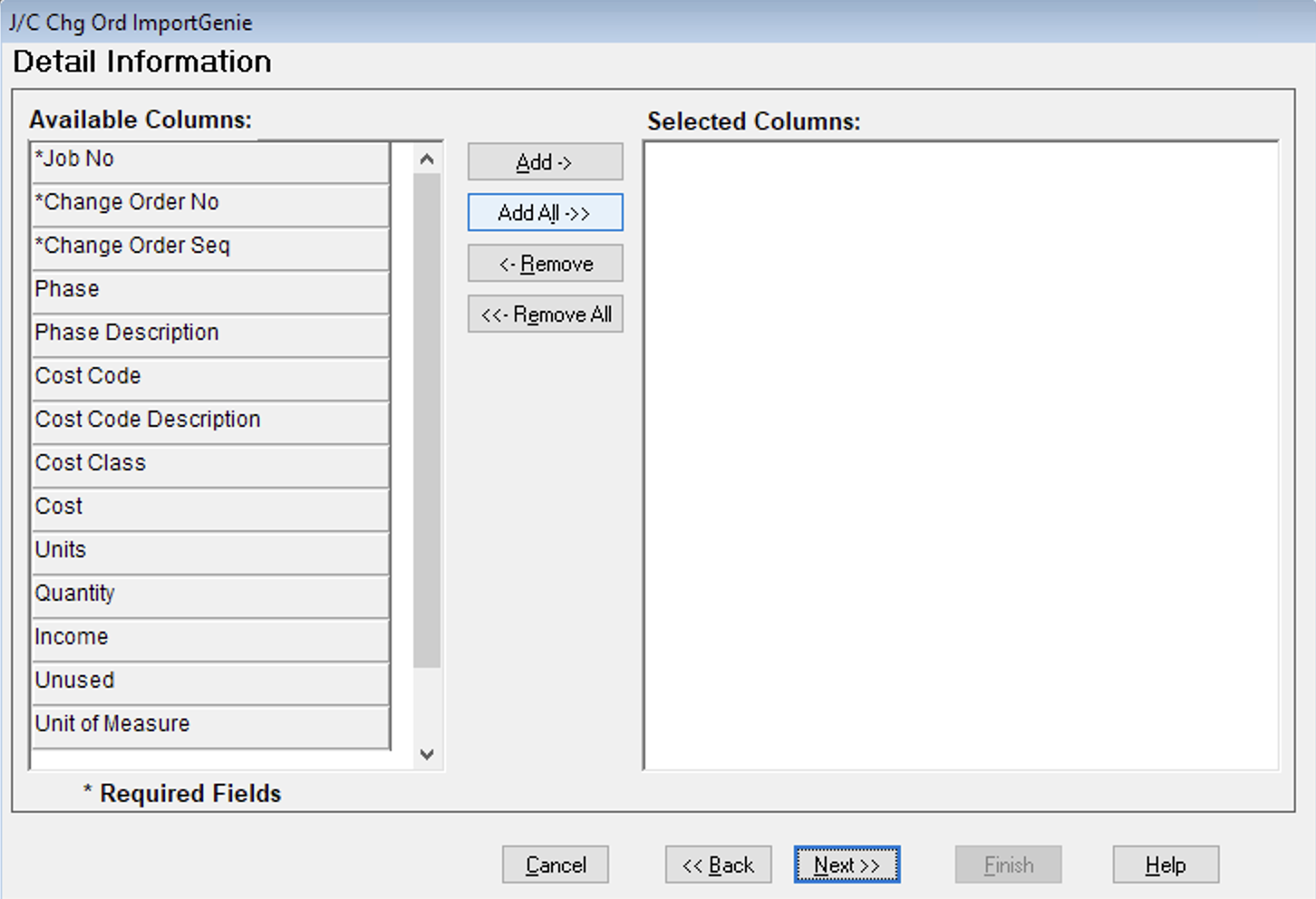
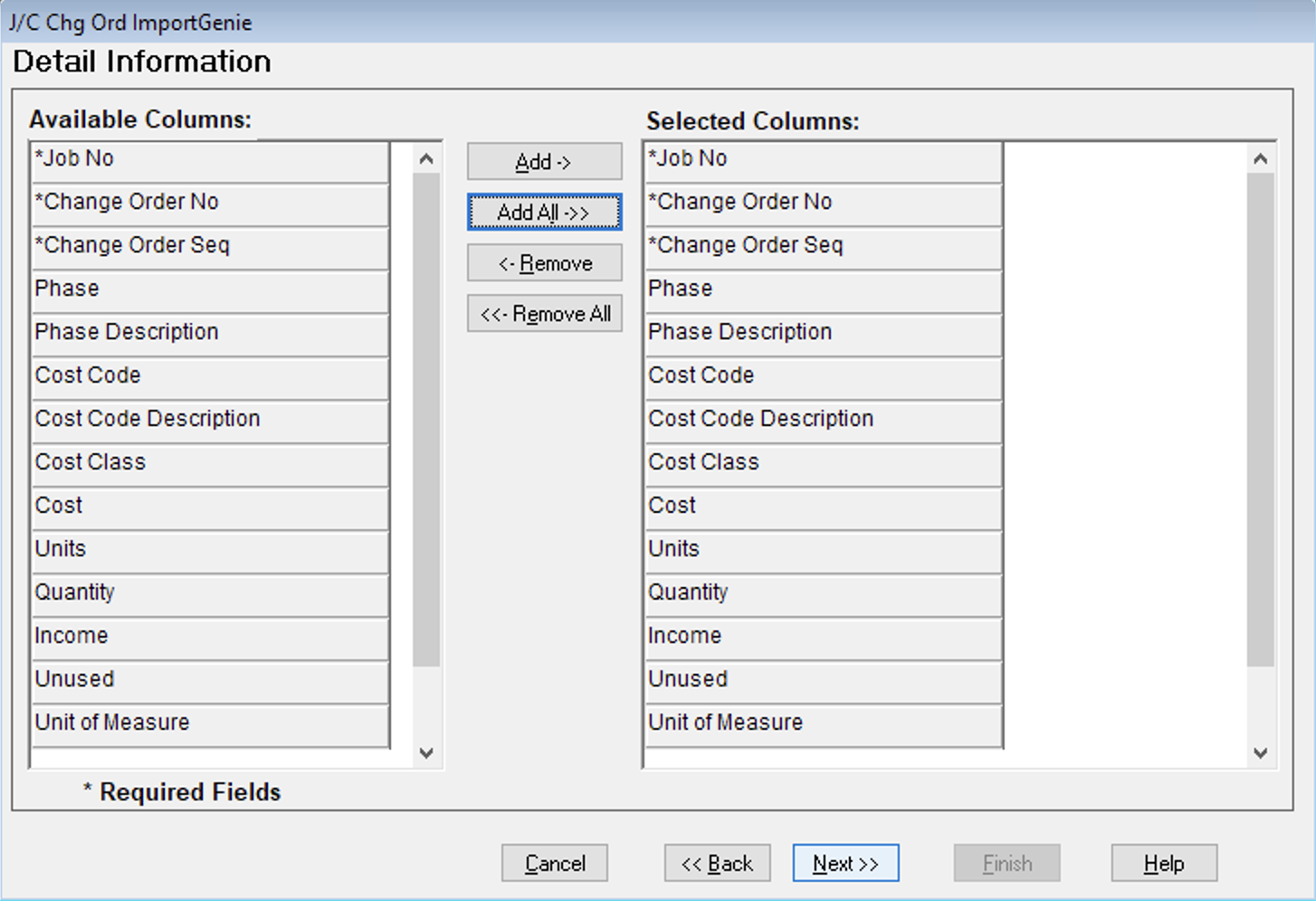
- For Detail Information, select Add All and then press Next:
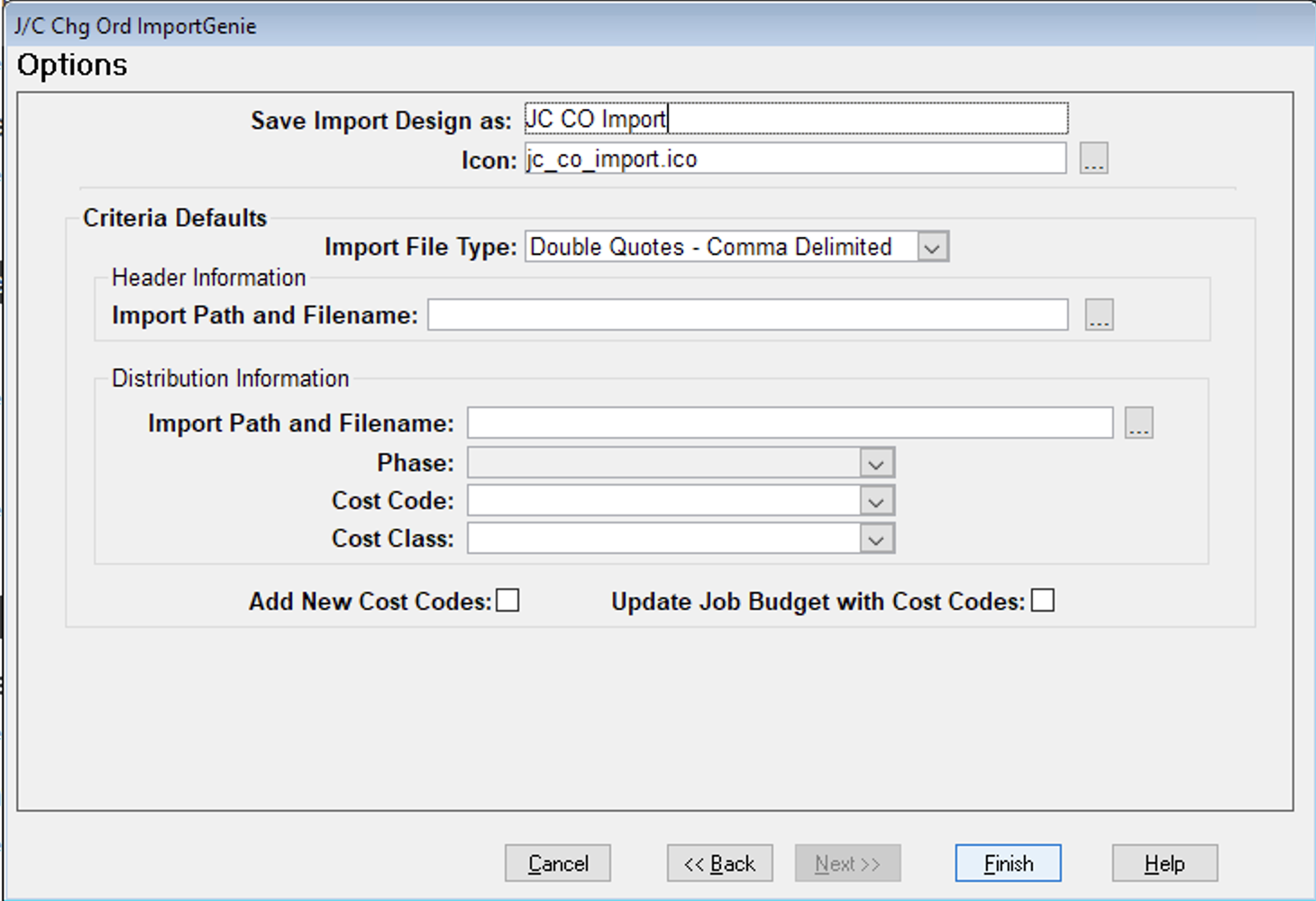
- Add a memorable name (e.g. JC CO Import). You can leave the remaining fields blank and press Finish:
Import Prime Contract Change Orders into Foundation
Let's say I want to export the following PCCO to Foundation from my Project Management system:
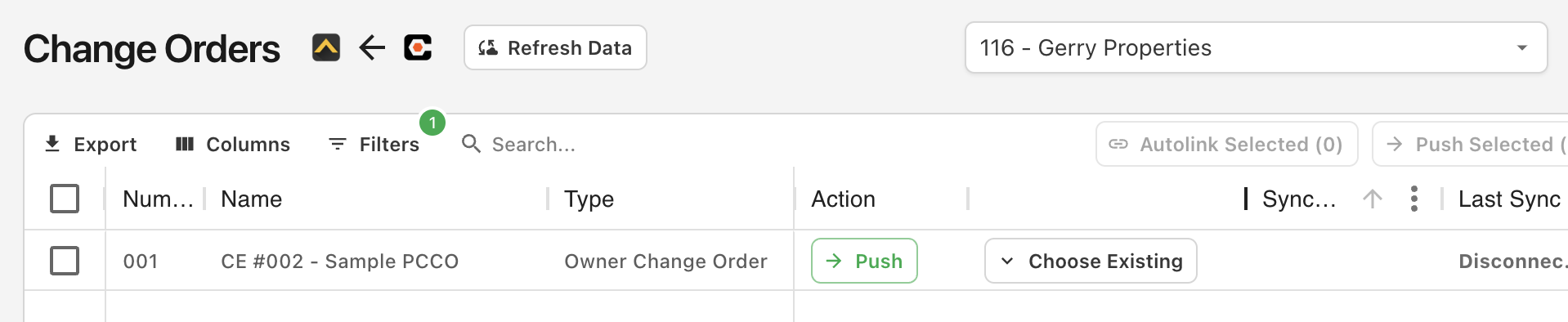
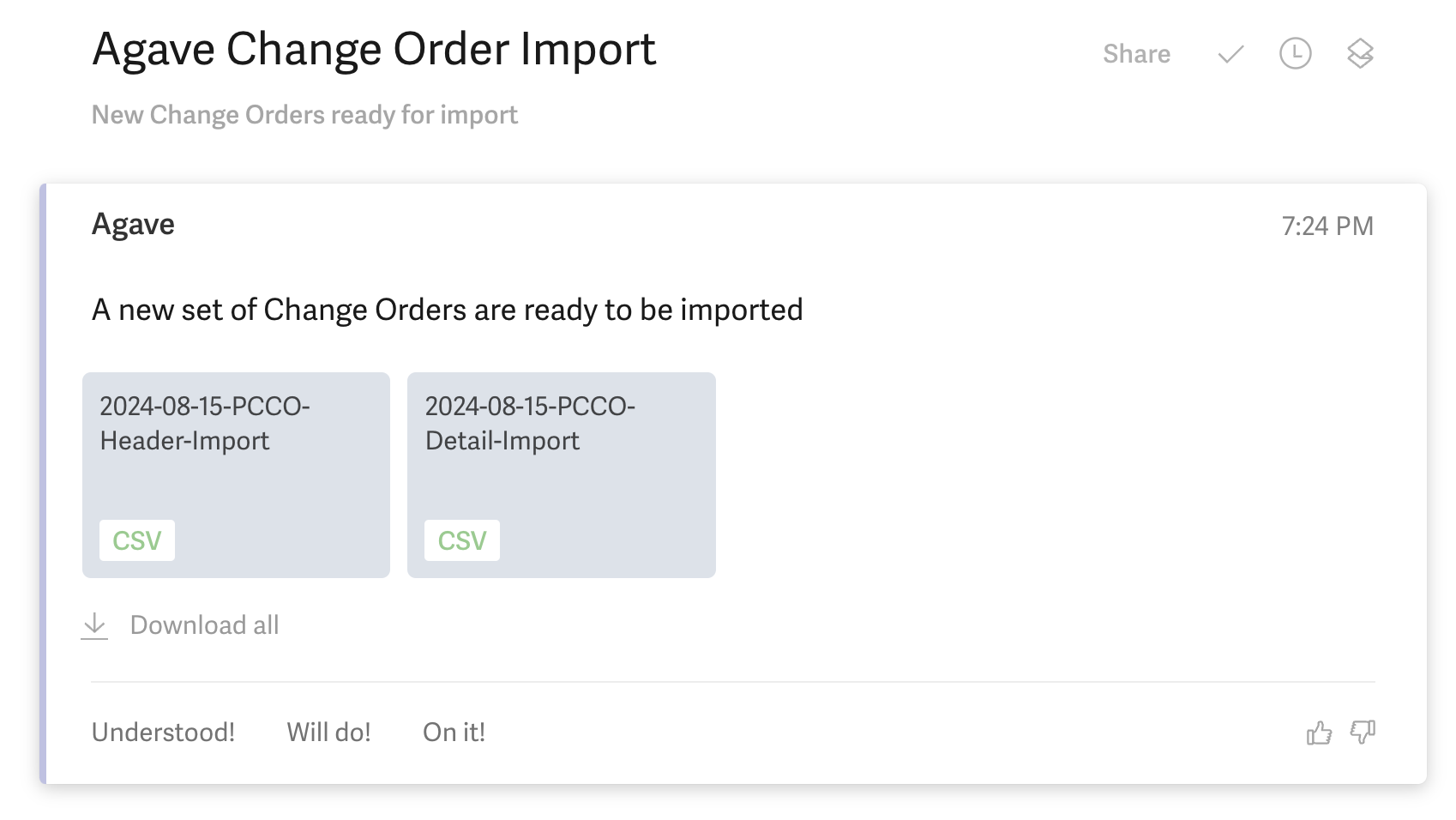
- After exporting a PCCO, you should receive an email with two TXT files that you can import to Foundation (one for the headers, one for the line items). Open the email and download the files to your downloads folder:
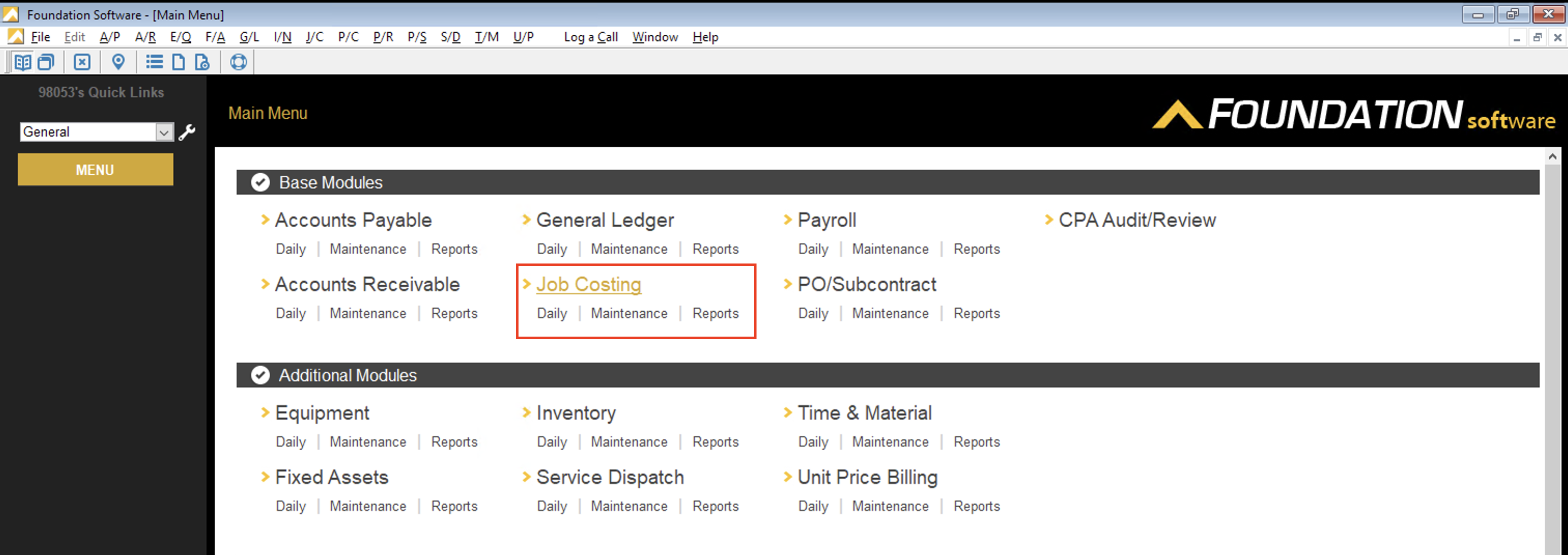
- Go to the Foundation homepage and select Job Costing:
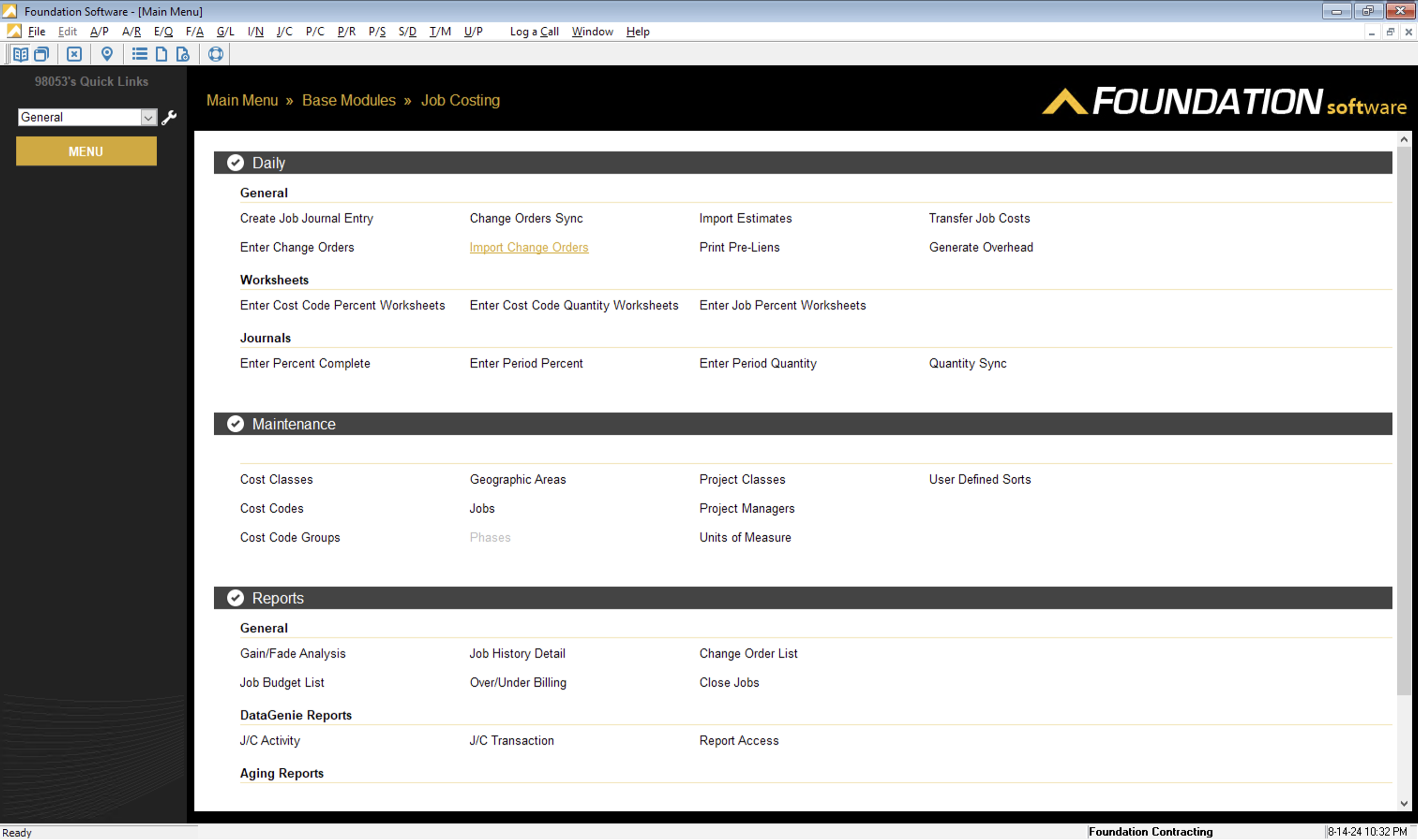
- Under Daily, select Import Change Orders:
- Under the Criteria tab:
- For Import Name, select the DataGenie you created for Job Cost Change Order imports.
- Under Header Information, for Import Path and Filename, select the filepath for the TXT file you downloaded from the email in step 1 above. If you downloaded the file to your Downloads folder, the filepath is likely "M:\Users\Your PC Name\Downloads\date-PCCO-Header-Import.txt (e.g. "M:\Users\John\Downloads\2024-08-15-PCCO-Header-Import.txt").
- Under Distribution, for Import Path and Filename. If you downloaded the file to your Downloads folder, the filepath is likely "M:\Users\Your PC Name\Downloads\date-PCCO-Detail-Import.txt (e.g. "M:\Users\John\Downloads\2024-08-15-PCCO-Detail-Import.txt").

- Select the Report tab. An import will now begin. If the import is successful, you will see a message like the below:
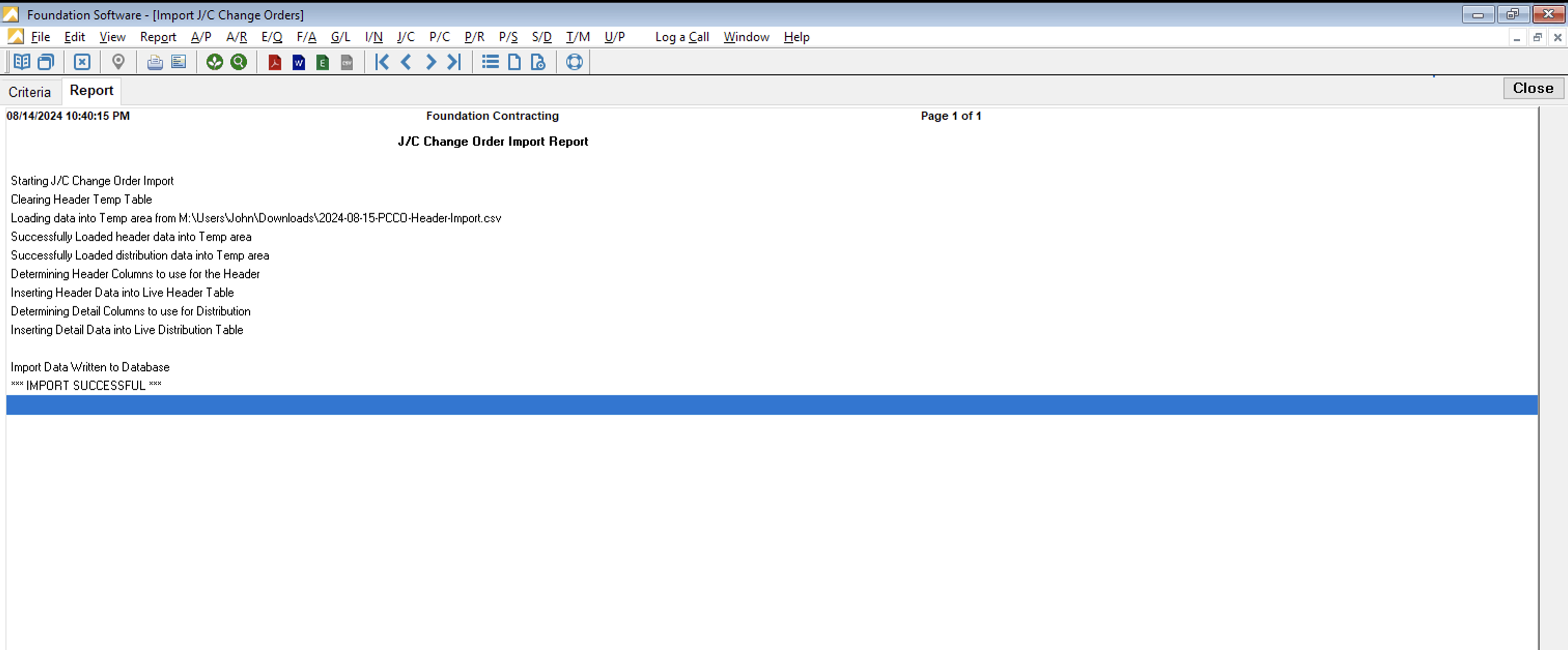
- To confirm the Prime Contract Change Order imported successfully, go to the Enter Change Orders window in Job Costing.
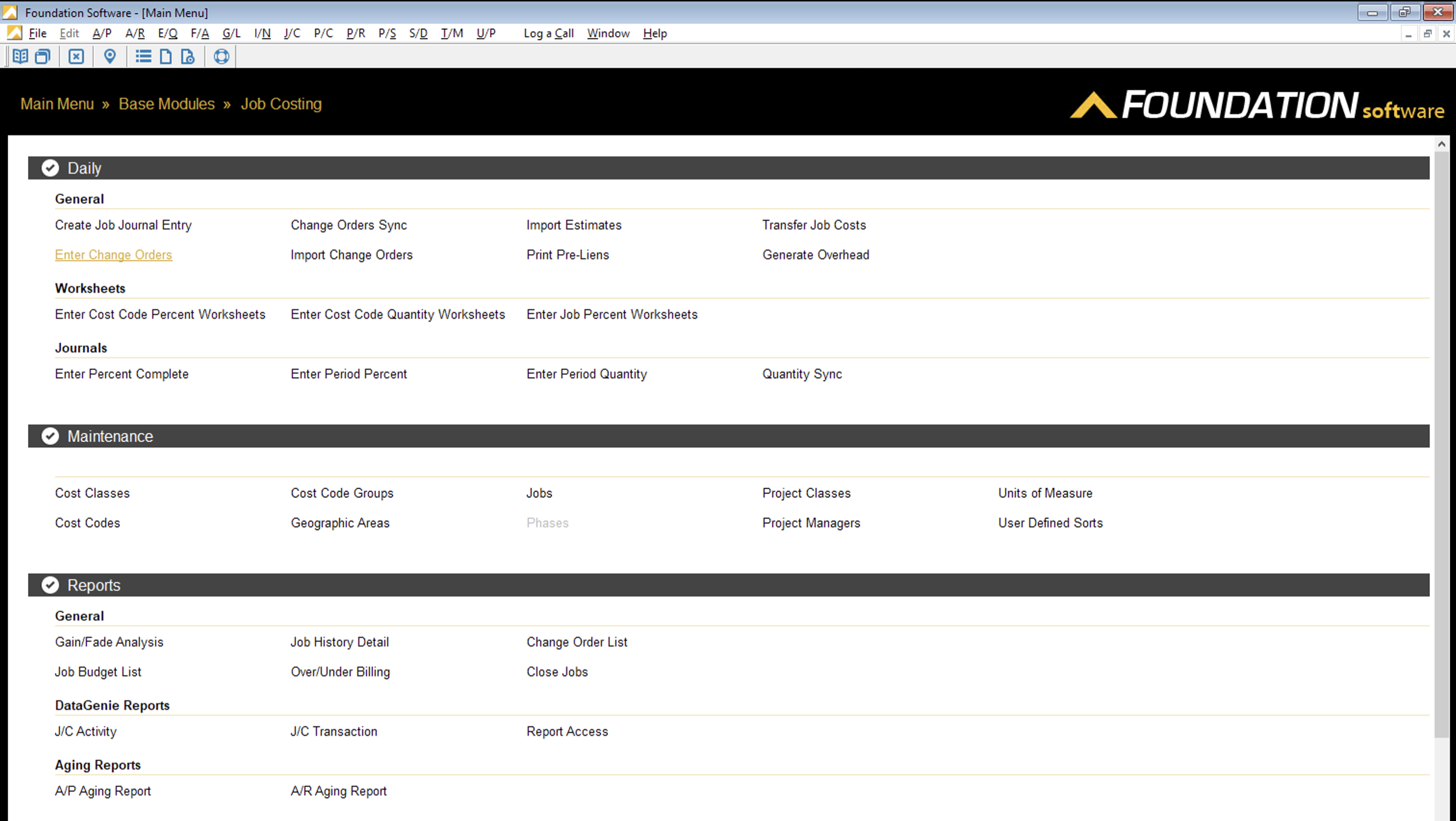
- Enter the Job No and Change Order No for the Prime Contract Change Order you imported.
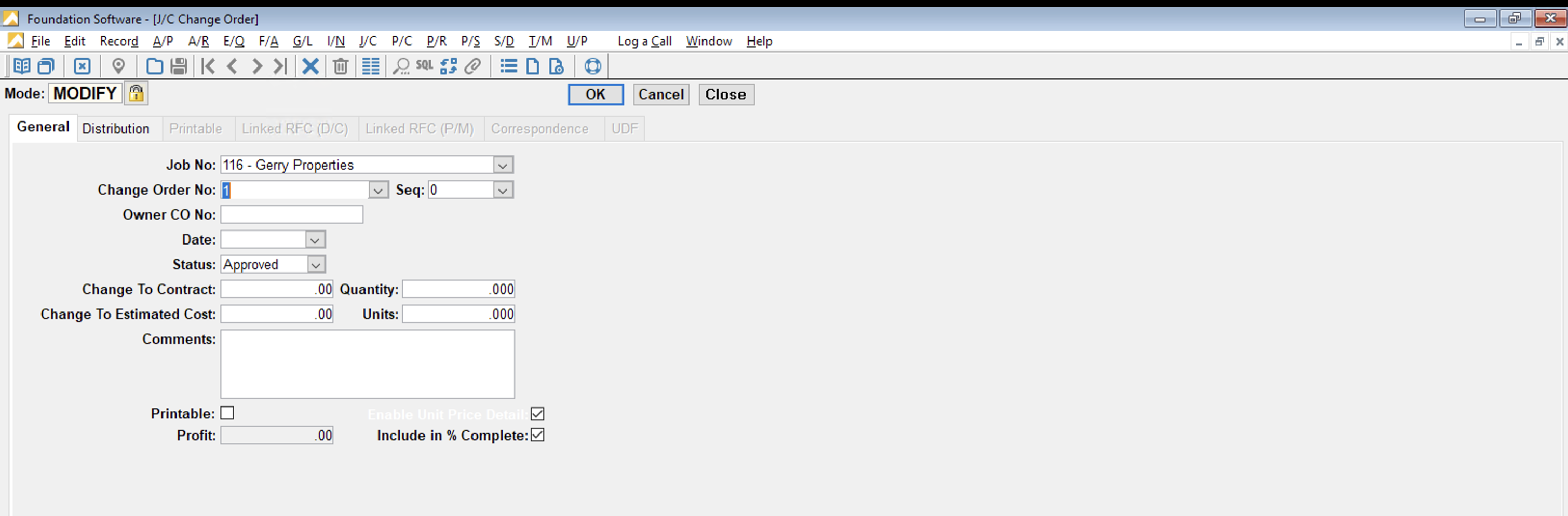
- Go to Record and select Retrieve:
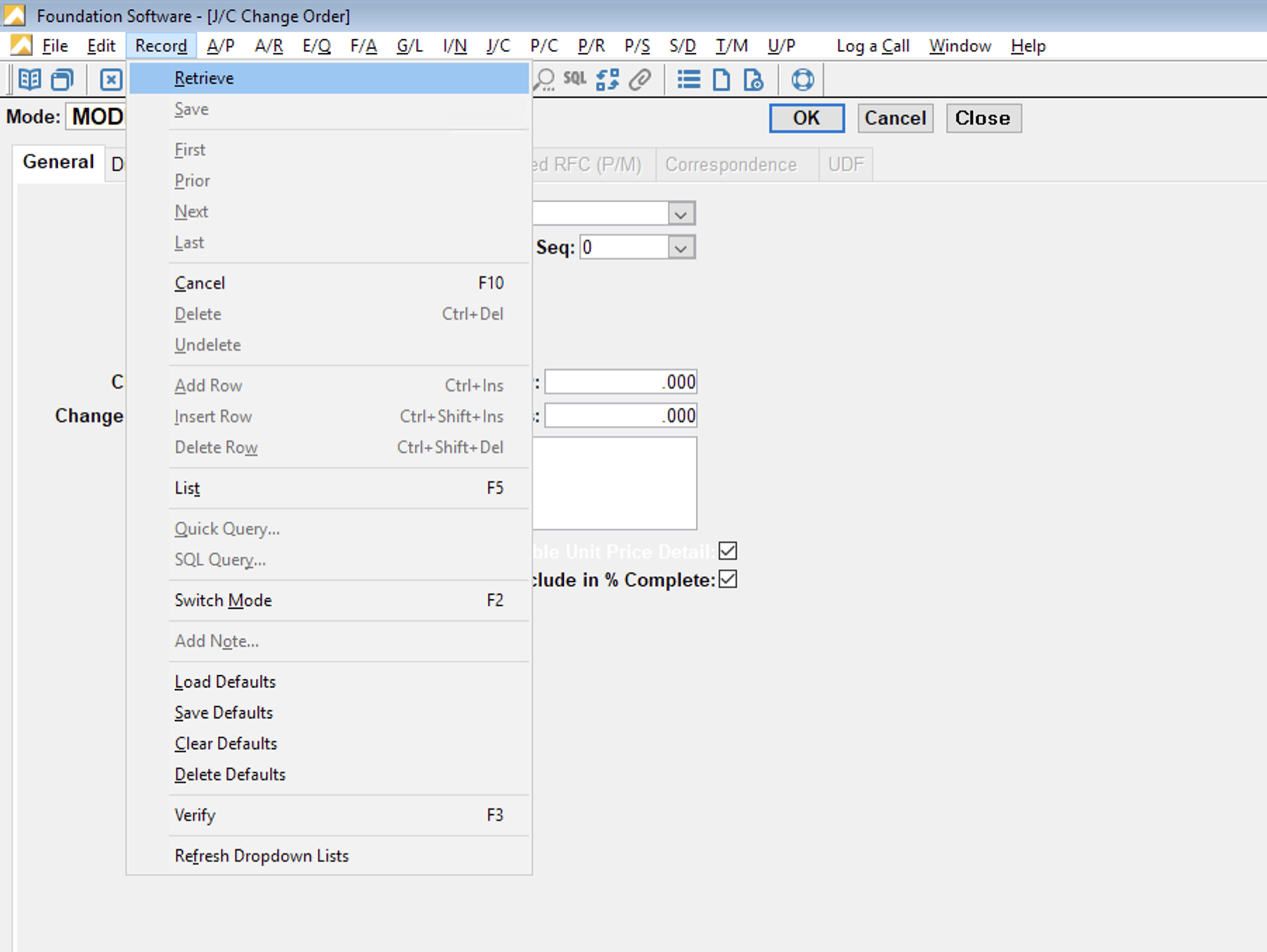
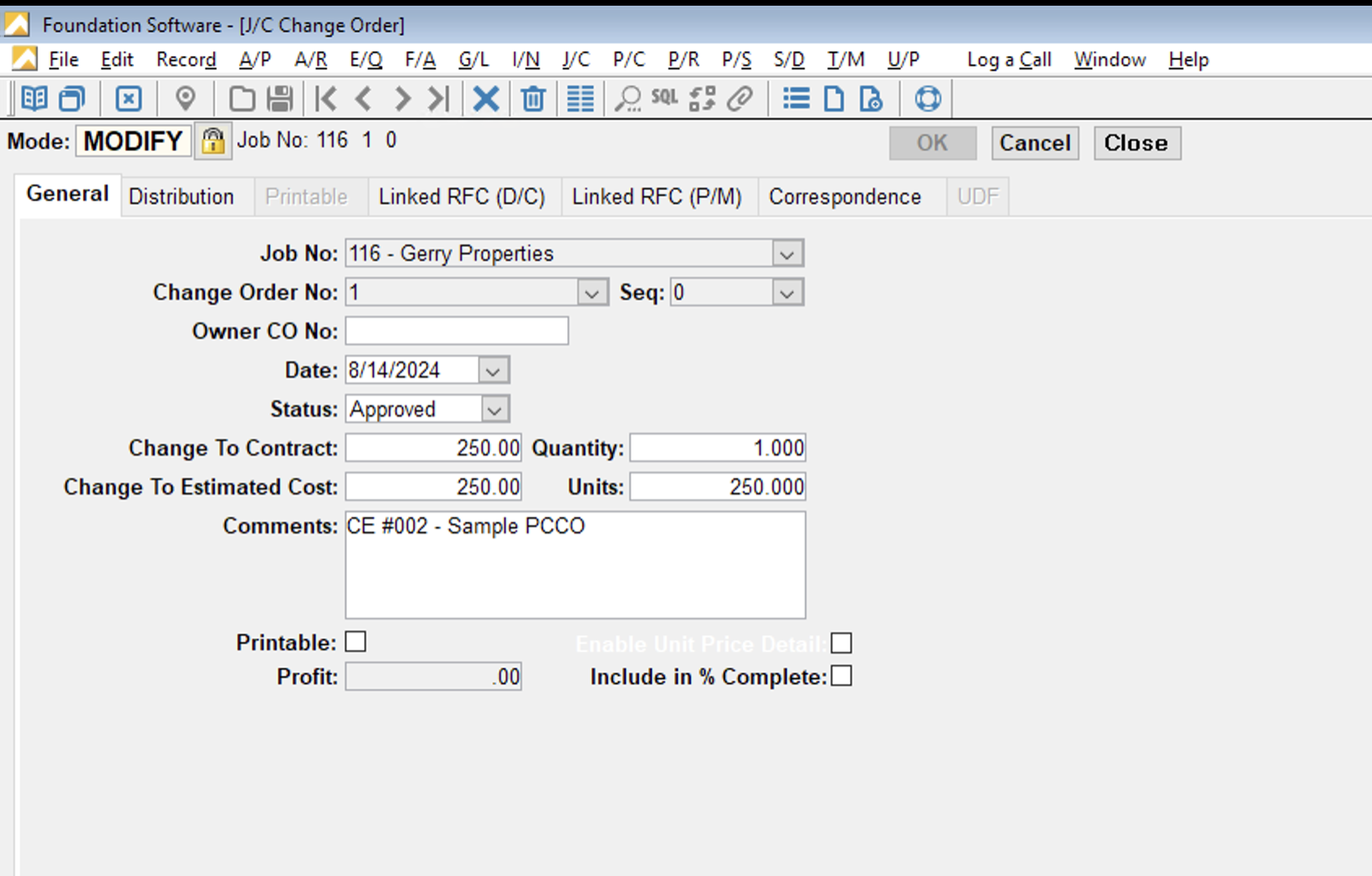
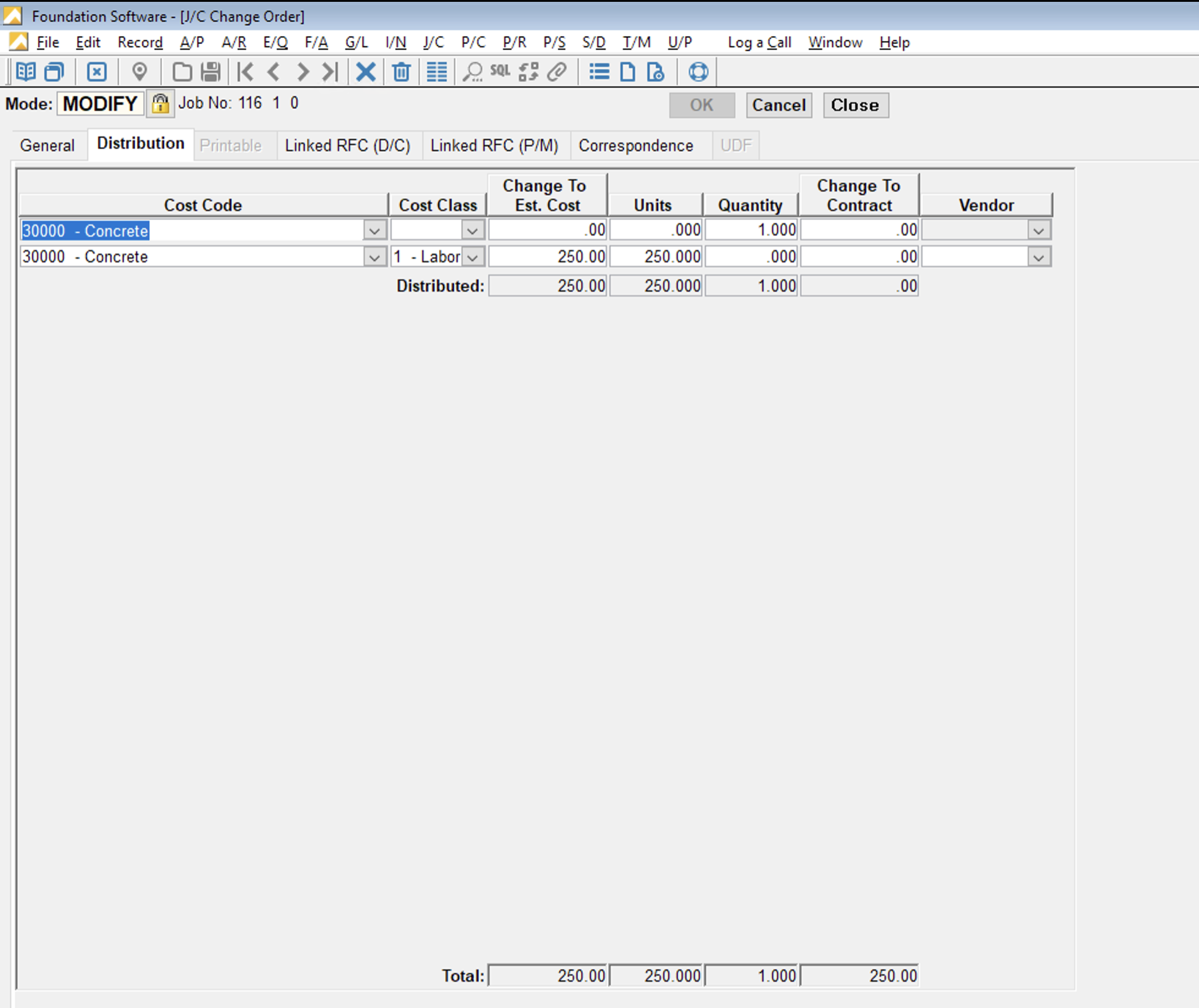
The Prime Contract Change Order Header and Line Items will now display in Foundation:
Setting Cost and Revenue Amounts from Procore
When syncing Prime Contract Change Orders from Procore to your ERP, you may want to distinguish between Cost and Revenue amounts so that Profit (Revenue − Cost) can be calculated accurately on the Change Order.
Agave Sync supports two approaches for determining how cost and revenue are derived.
Available Approaches
1. Use Procore’s Markup Tool (Default)
If you use Procore’s Markup Tool, Agave Sync will automatically handle the separation of cost and revenue.
- Horizontal and vertical markup amounts will:
- Be excluded from creating Cost or Estimate amounts in the ERP
- Be included only in the Revenue amount
- Non-markup amounts will continue to generate both cost and revenue as expected
- This approach is enabled by default and requires no additional configuration
Best used when:
- You are already using Procore’s native markup functionality
- Markup represents pure revenue (no associated cost)
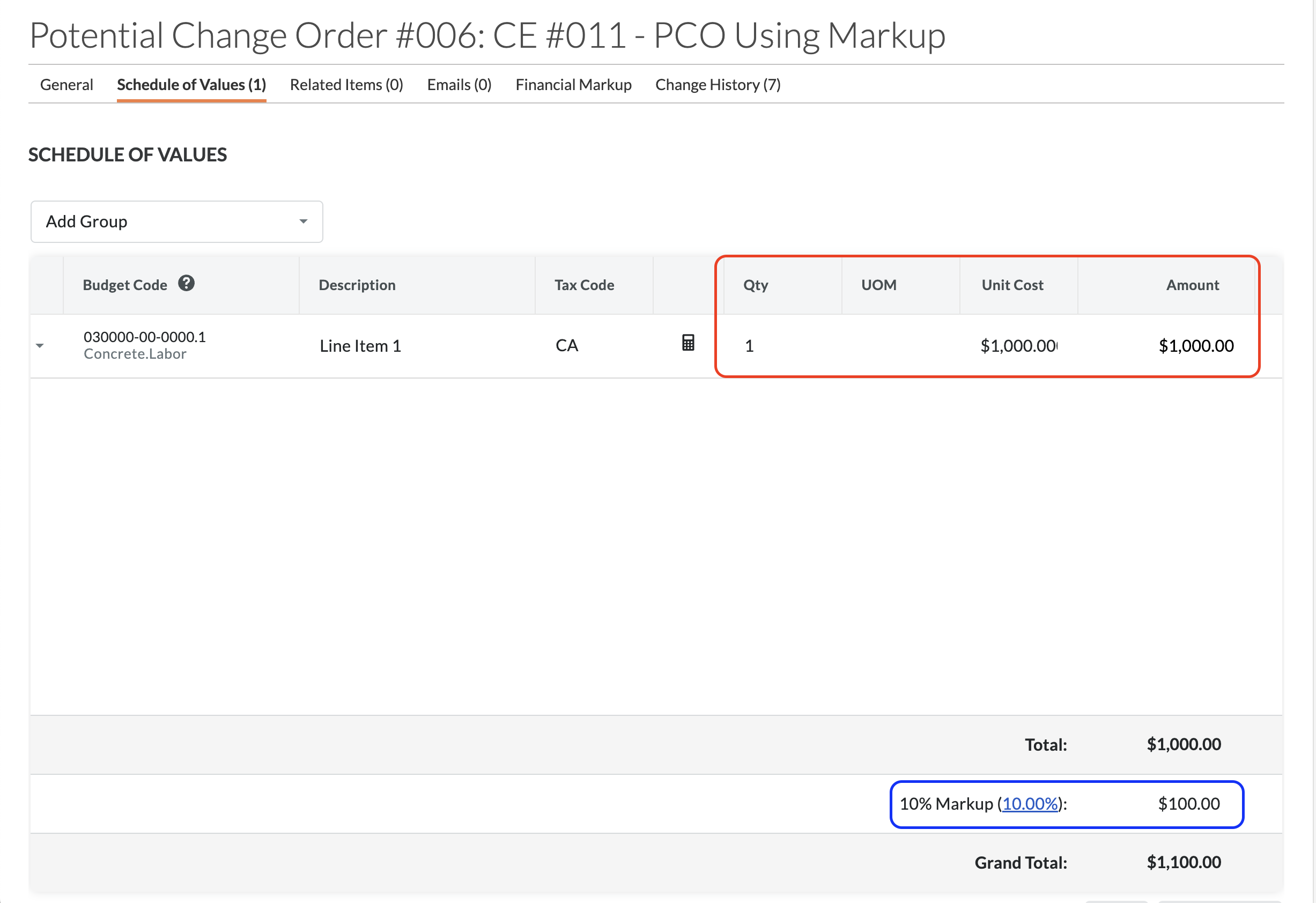
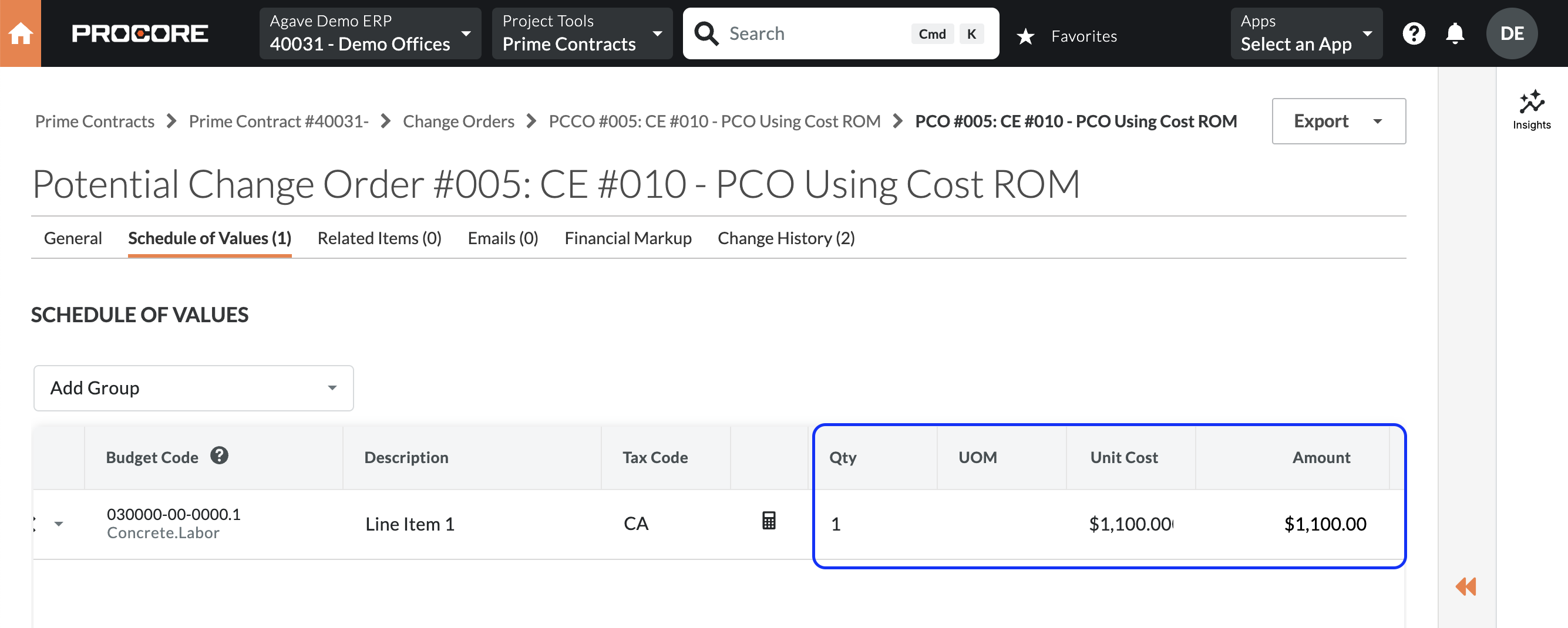
In the below example, the Cost or Estimate amount is equal to the PCO Line Item amount total (see red rectangle), while the Revenue amount is equal to the PCO Line Item amount total plus any markup amounts (see blue rectangle):
2. Use the Cost ROM from the Associated Change Event
If you do not plan to use Procore’s Markup Tool but still want to separate cost and revenue, Agave Sync can use the Cost ROM from the Change Event associated with the Prime Contract Change Order as the source of the Cost amount.
- Revenue continues to come from the Prime Contract Change Order
- Cost is derived from the associated Change Event’s Cost ROM
- This approach must be enabled by your Agave Account Manager
Considerations and limitations:
- A Cost ROM can be updated after it has been associated with a Prime Contract Change Order that has already synced
- Cost ROM values can be difficult to surface or reconcile in Procore’s Budget View
Best used when:
- You are not using Procore’s Markup Tool
- You maintain reliable and stable Cost ROMs on Change Events
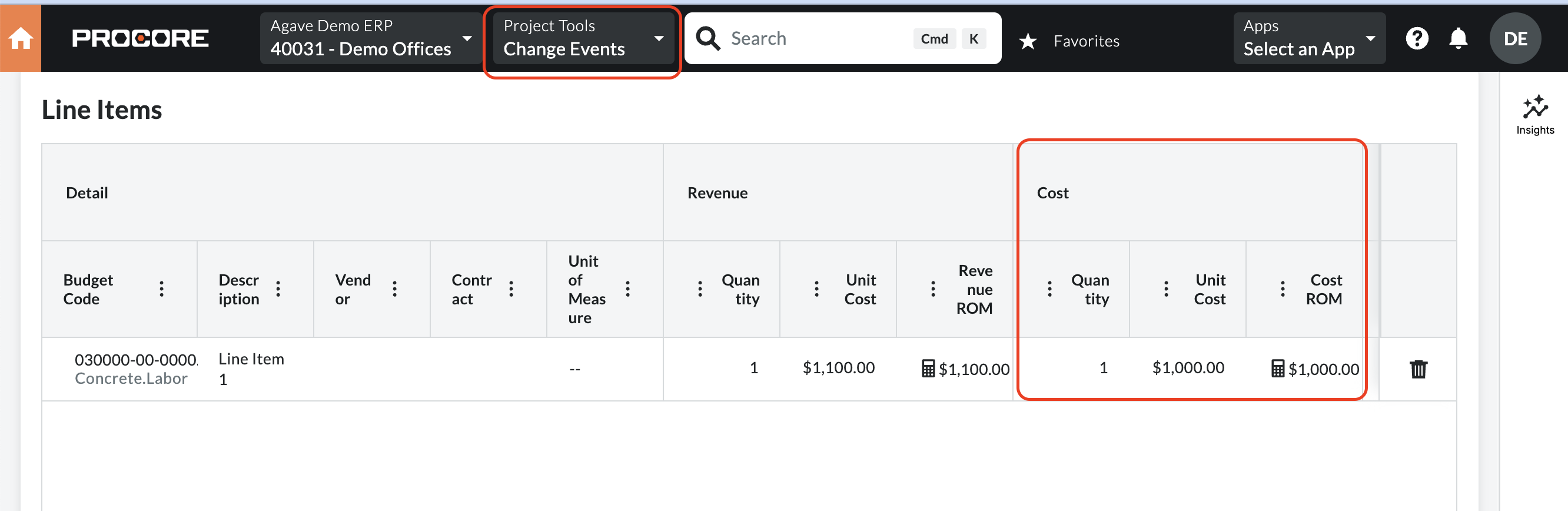
In the below example, the Cost or Estimate amount is equal to the Change Event Cost ROM (see red rectangle), while the Revenue amount is equal to the PCO Line Item amount total (see blue rectangle):
Foundation to Procore
Overview
In Foundation, Change Orders have two types of line items:
- Changes to the Contract (denoted in red) - Entered in the "Change to Contract" column. May have a Phase/Cost Code depending on the AR Distribution Setting, but will not have a Cost Type.
- Changes to the Cost Budget (denoted in blue) - Entered in the "Change to Est. Cost" column. Will have a Phase/Cost Code and Cost Type.
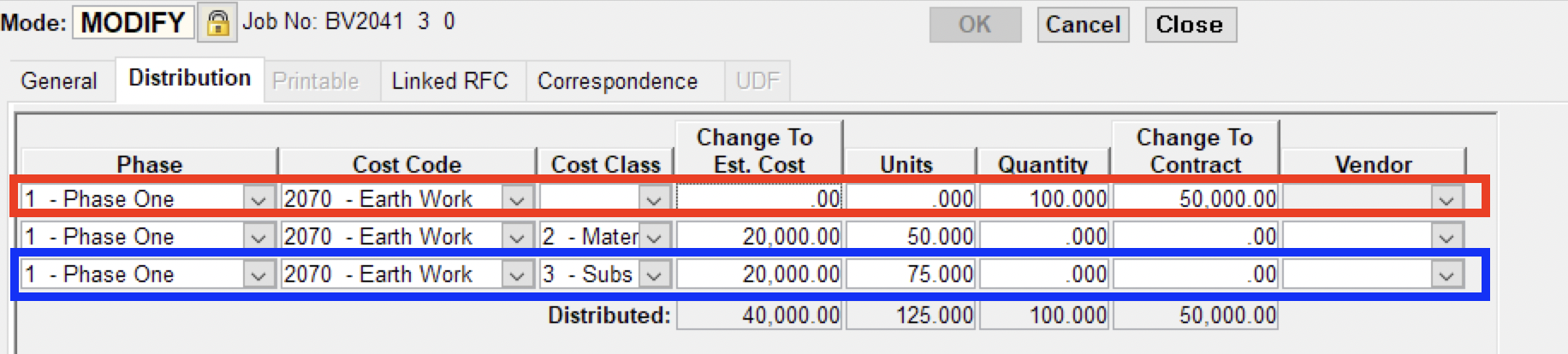
To ensure that the Cost/Revenue changes are reflected in Procore and not double counted on either the Revenue or Cost Budget, Agave Sync creates two records in Procore: a 1-tier Prime Contract Change Order for the revenue and a Budget Change for the cost.
Source System Settings
Procore
Update these settings on the Project Template and any projects for which you plan to import Change Orders:
- Require Net Zero Budget Change Amounts - Since Budget Changes will contain increases/decreases to the budget based on the Foundation Change Order, this must be un-checked.
- 1-Tier Change Orders (Optional) - Foundation Change Orders are synced with a single tier. Enabling this setting ensures the Prime Contract and Change Order views in Procore are tailored to the 1-tier structure.
Foundation
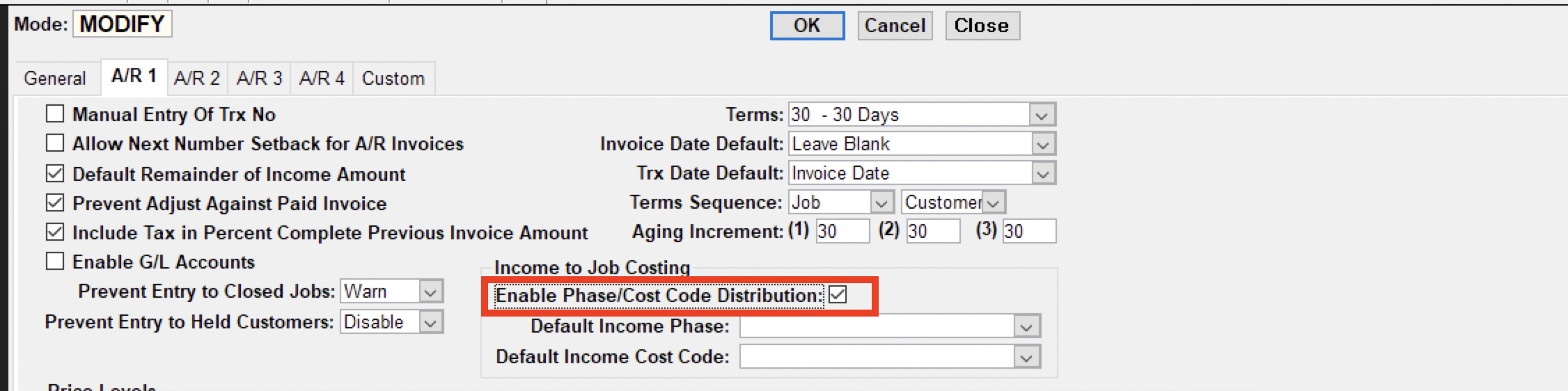
- Enable Phase / Cost Code Distribution - In the AR Control file, the "Enable Phase / Cost Code Distribution" setting determines whether Phases and Cost Codes are used on AR Invoices, Prime Contracts, and Change Order revenue lines. If this is not enabled, your Prime Contract Change Order Revenue lines will not have a budget code when synced to Procore.
Recommended Changes to the Procore Budget View
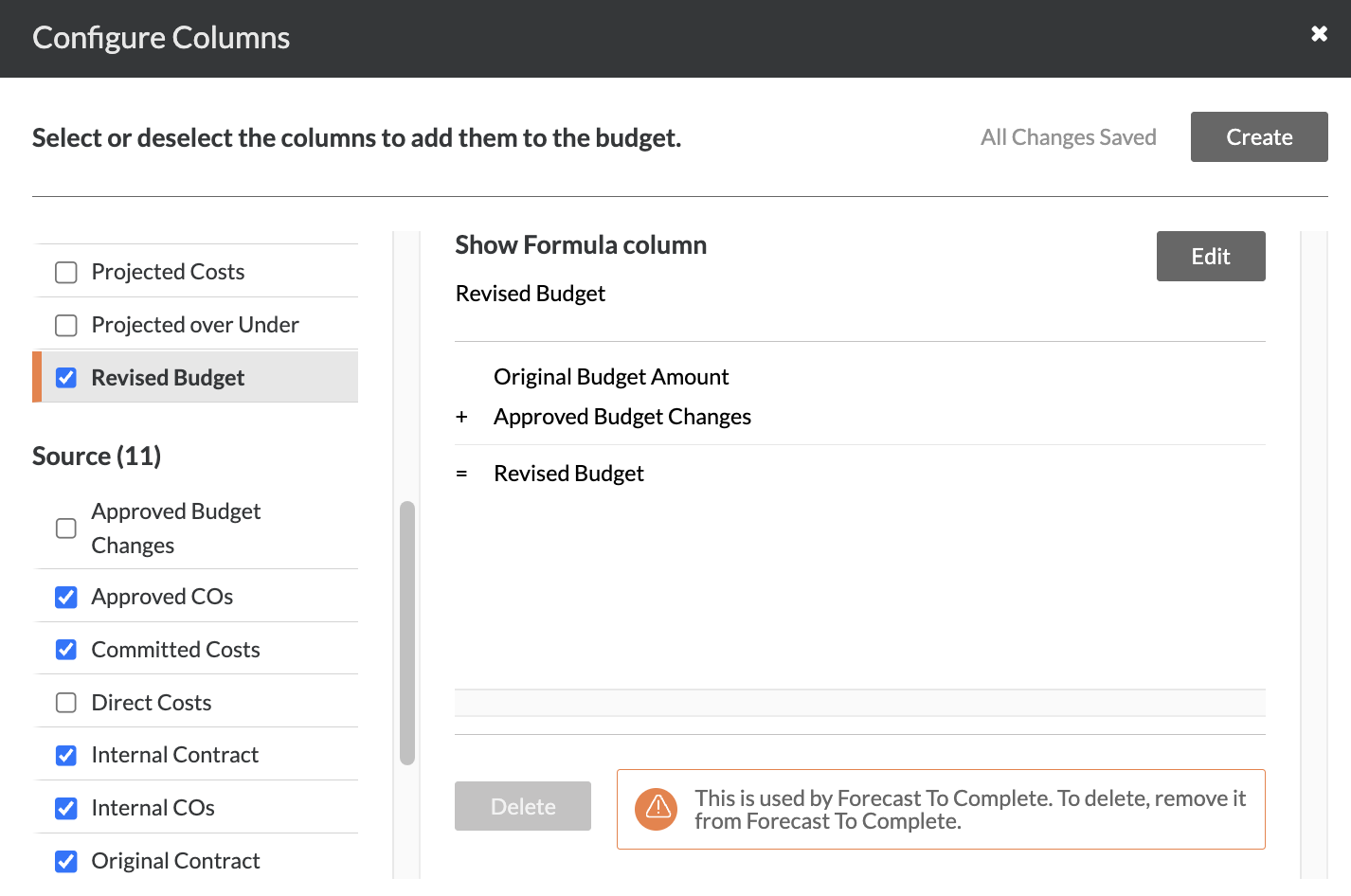
By default, the Revised Budget calculation includes both Approved COs and Approved Budget Changes:
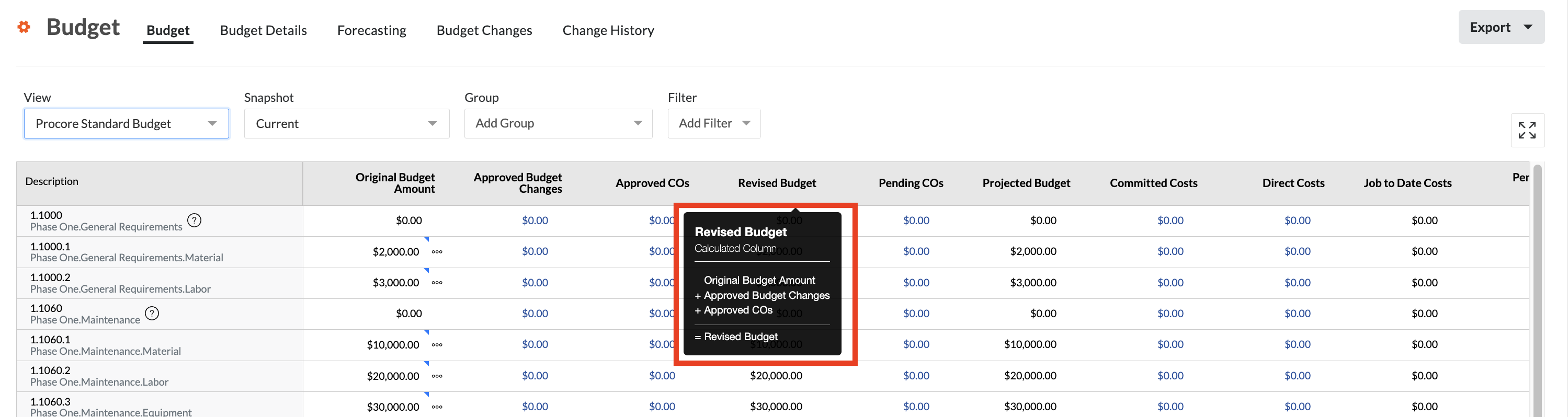
You may want to configure the budget view to remove Approved COs, since they will duplicate costs:
Q: Why aren't my PCCO Line Items coming across?
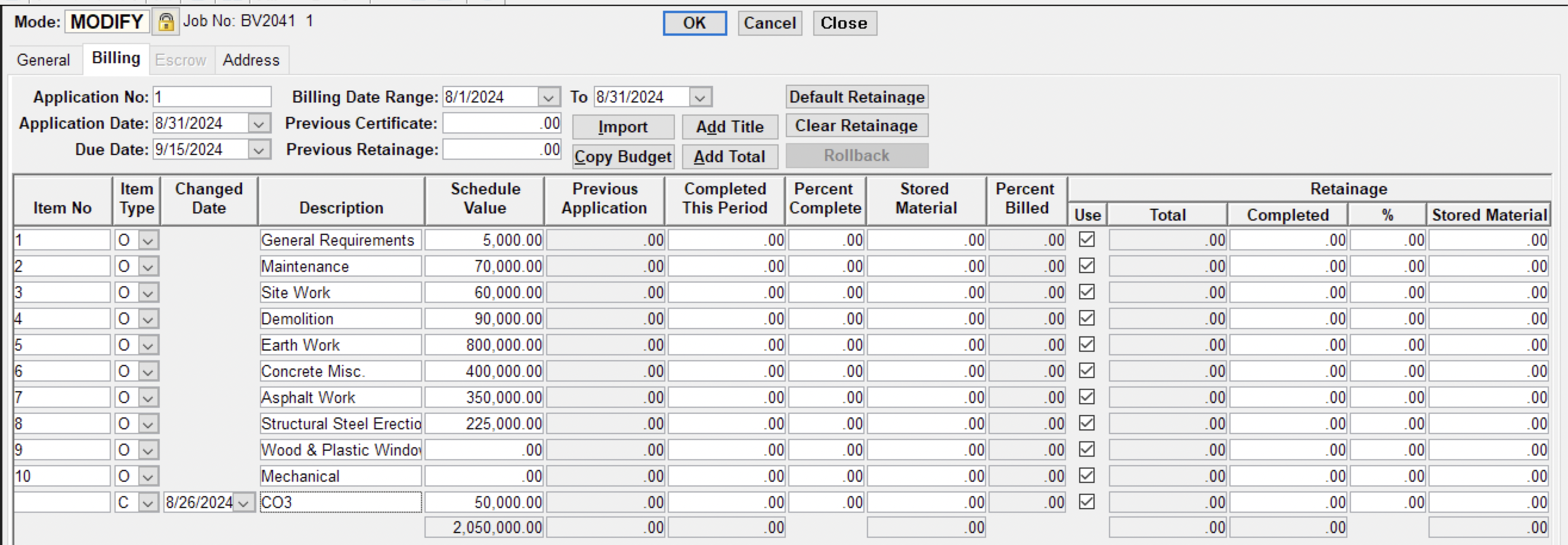
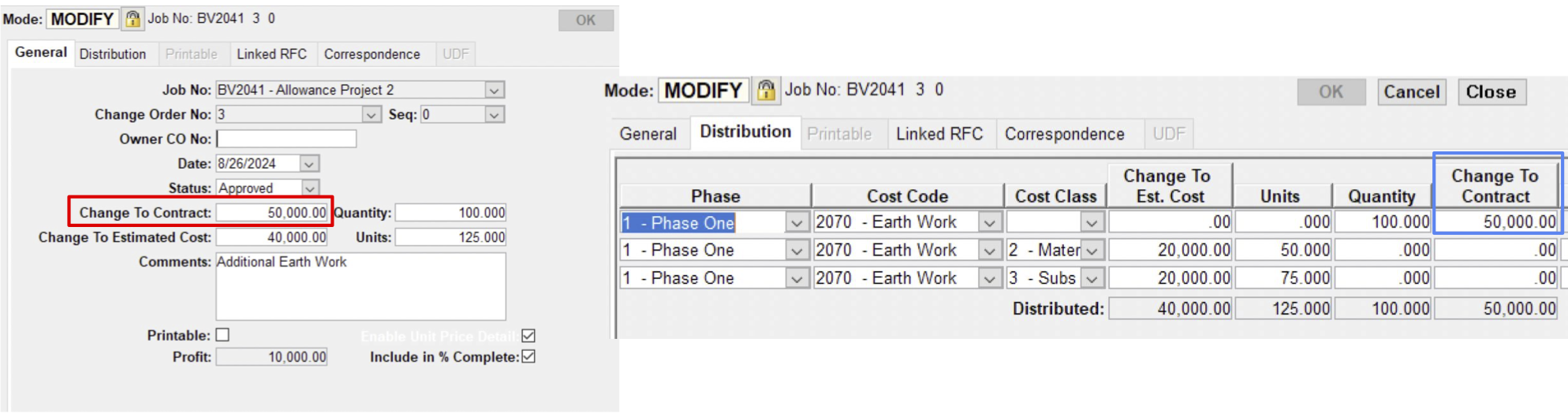
In order for Agave to match PCCO Line Items on the AIA Billing form with the Change Order, the revenue change must be added to the distribution (blue box), not just the header (red box):
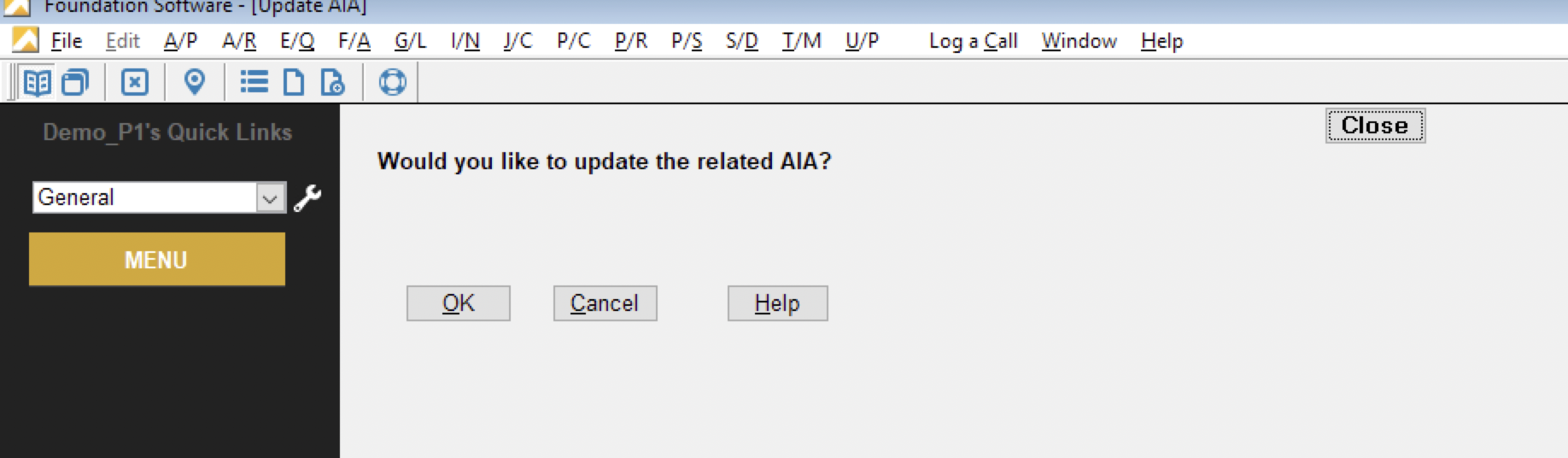
Then, the changes must be posted to AIA Billing:
Ensure they are reflected/saved on the AIA Billing Schedule of Values: