Purchase Orders
Visual Mapping
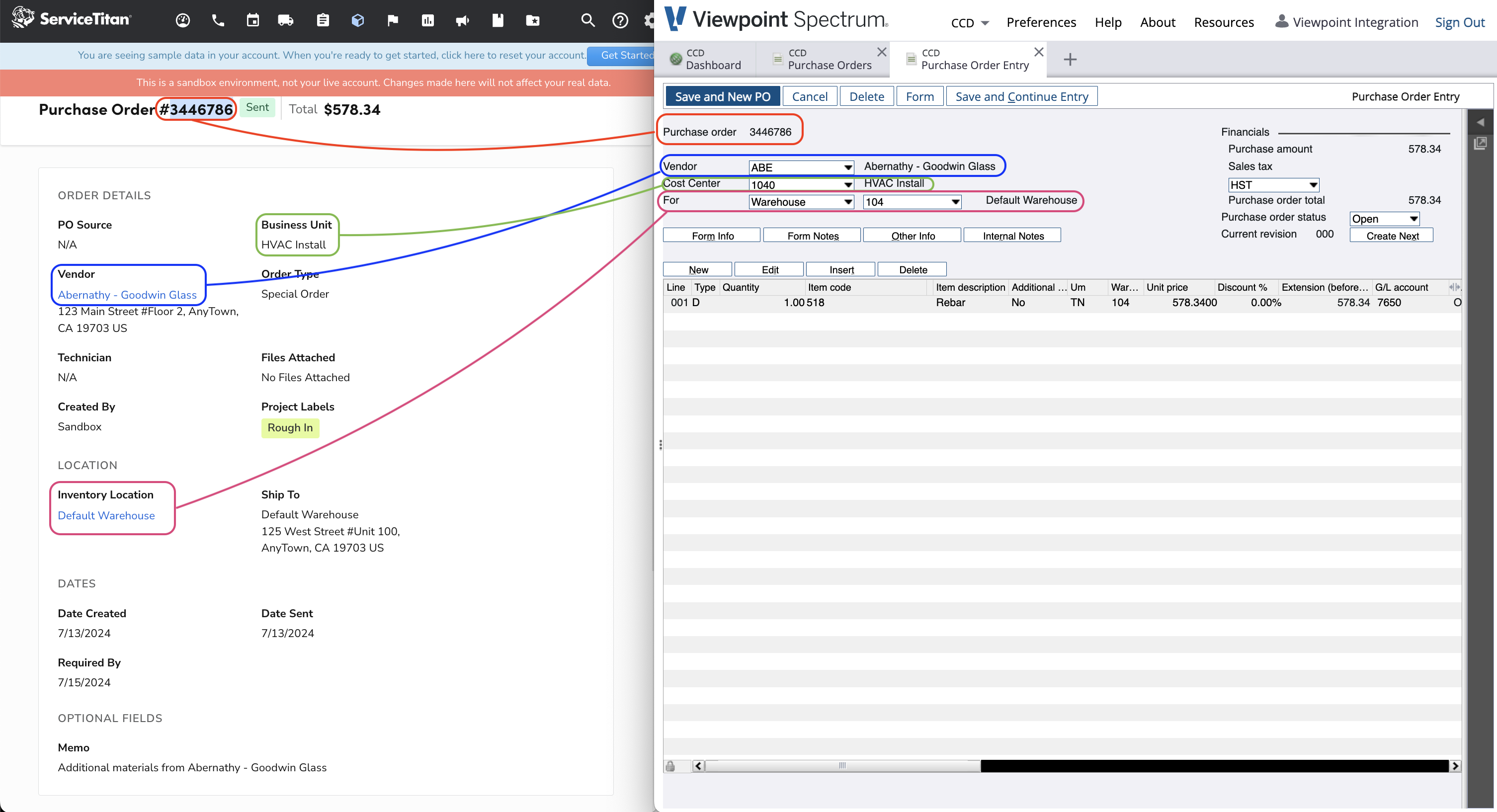
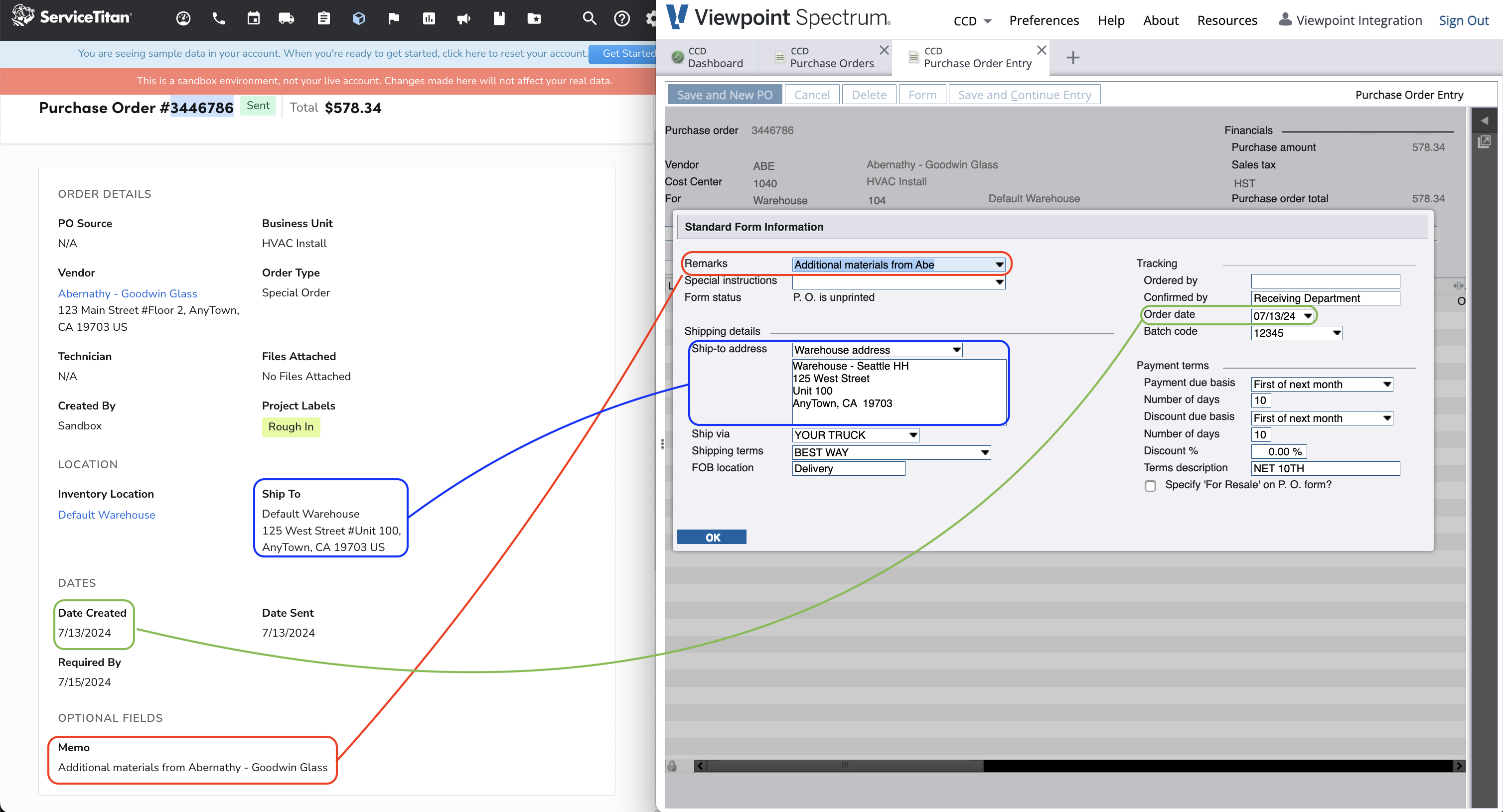
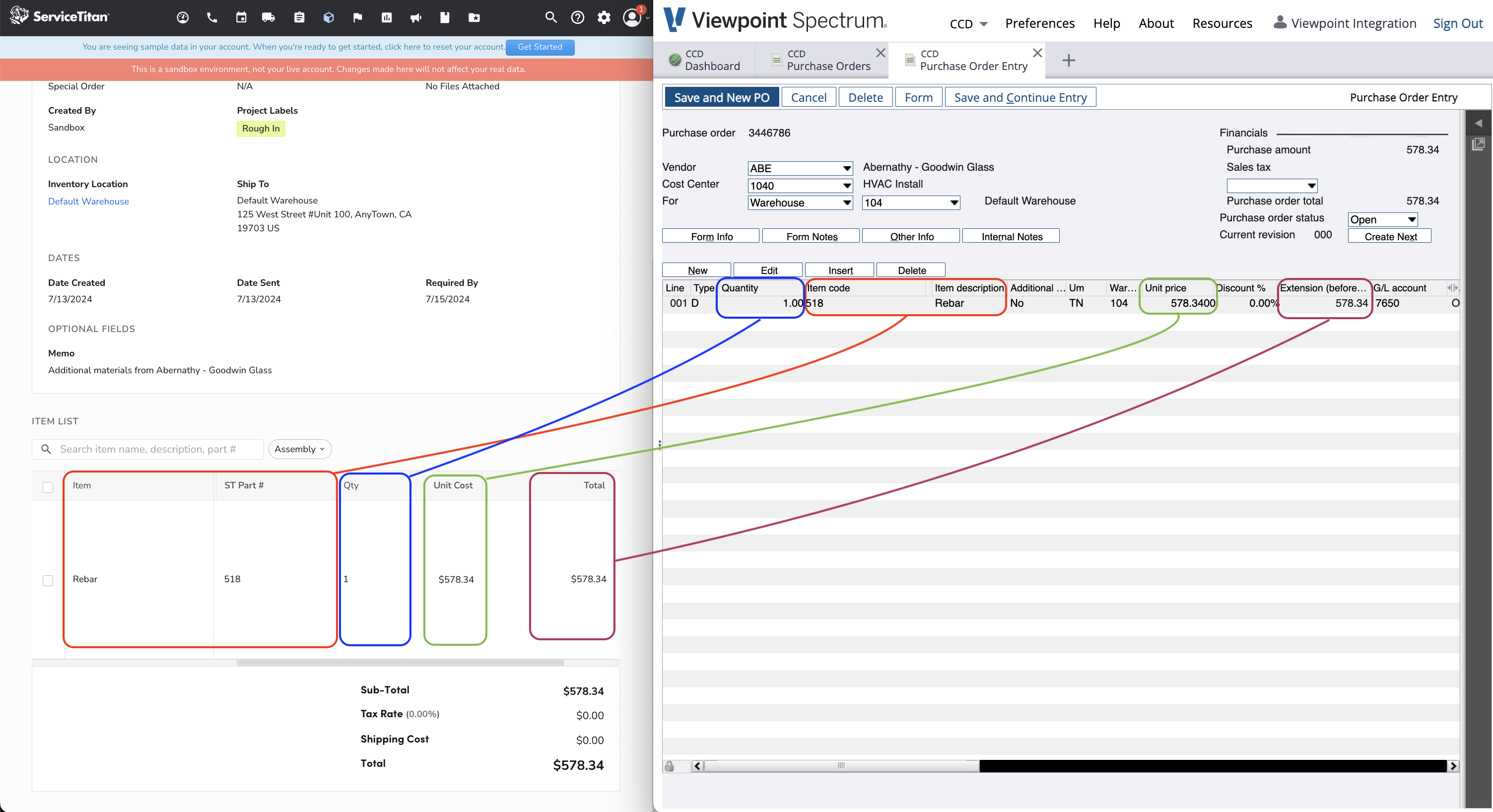
Common Errors and FAQs
What Info-Link Tables do I need?
The following Info-Link tables are required when syncing Purchase Orders from or to Spectrum:
- PO_PURCHASE_ORDER_HEADER_MC
- PO_PURCHASE_ORDER_DETAIL_MC
For details on enabling Info-Link tables for your user, see Steps 2.7 in our Spectrum authentication guide.
Error: Invalid GL Account for Job/Phase/Cost Type
If you receive the error Invalid GL Account for Job/Phase/Cost Type, it is because we are unable to determine the Ledger Account for a Purchase Order Line Item when it is synced to Spectrum.
Since your Project Management system does not have a General Ledger and General Ledger Accounts are required for creating Purchase Orders in Spectrum, Agave Sync will use one of the following General Ledger Accounts if available:
- The Cost Type's Default General Ledger Account in Spectrum (if available)
- A default Expense General Ledger Account value you provide your Agave Account Manager (e.g. "5150" for "Material Expenses"), or
- The Vendor's Default General Ledger Account in Spectrum (if available)
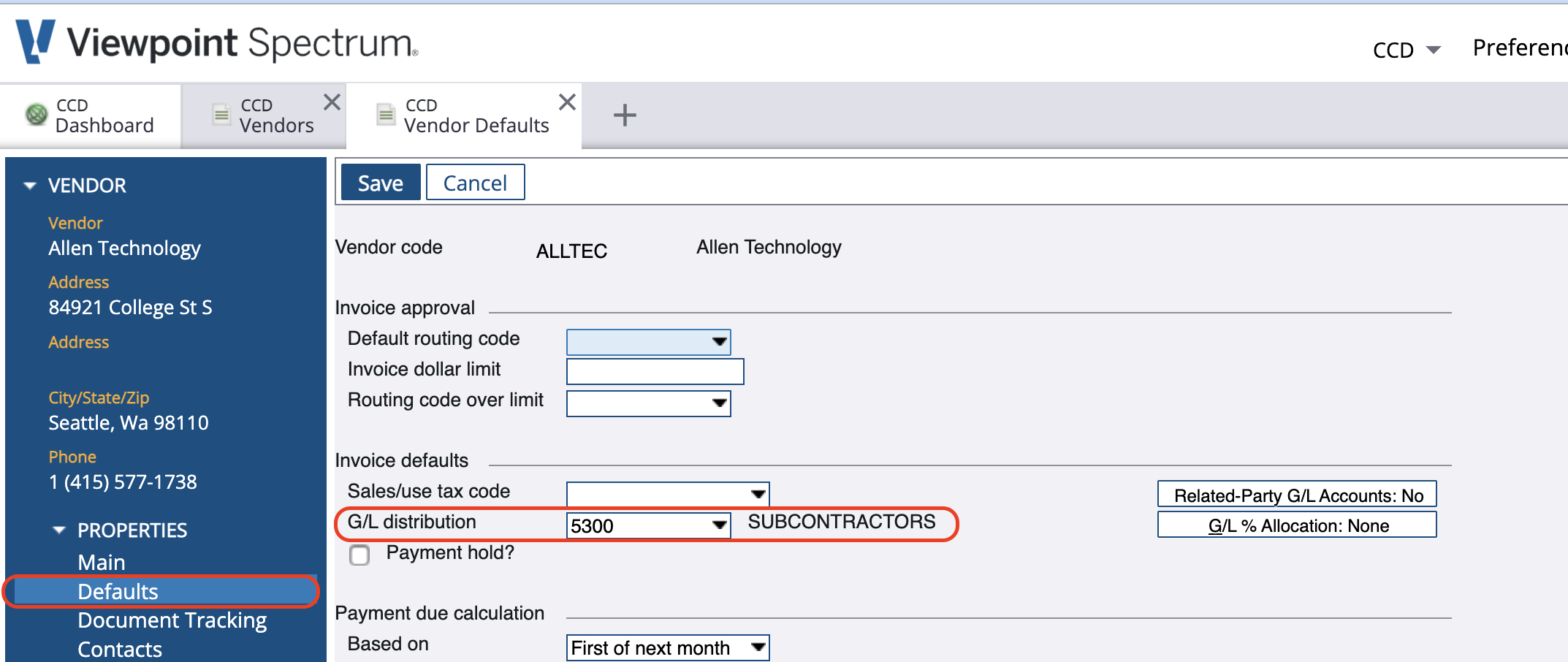
Setting a Vendor's Default General Ledger Account
To set a Vendor's Default General Ledger Account:
- From the Spectrum Sitemap, go to Accounts Payable-->Maintenance-->Vendors:
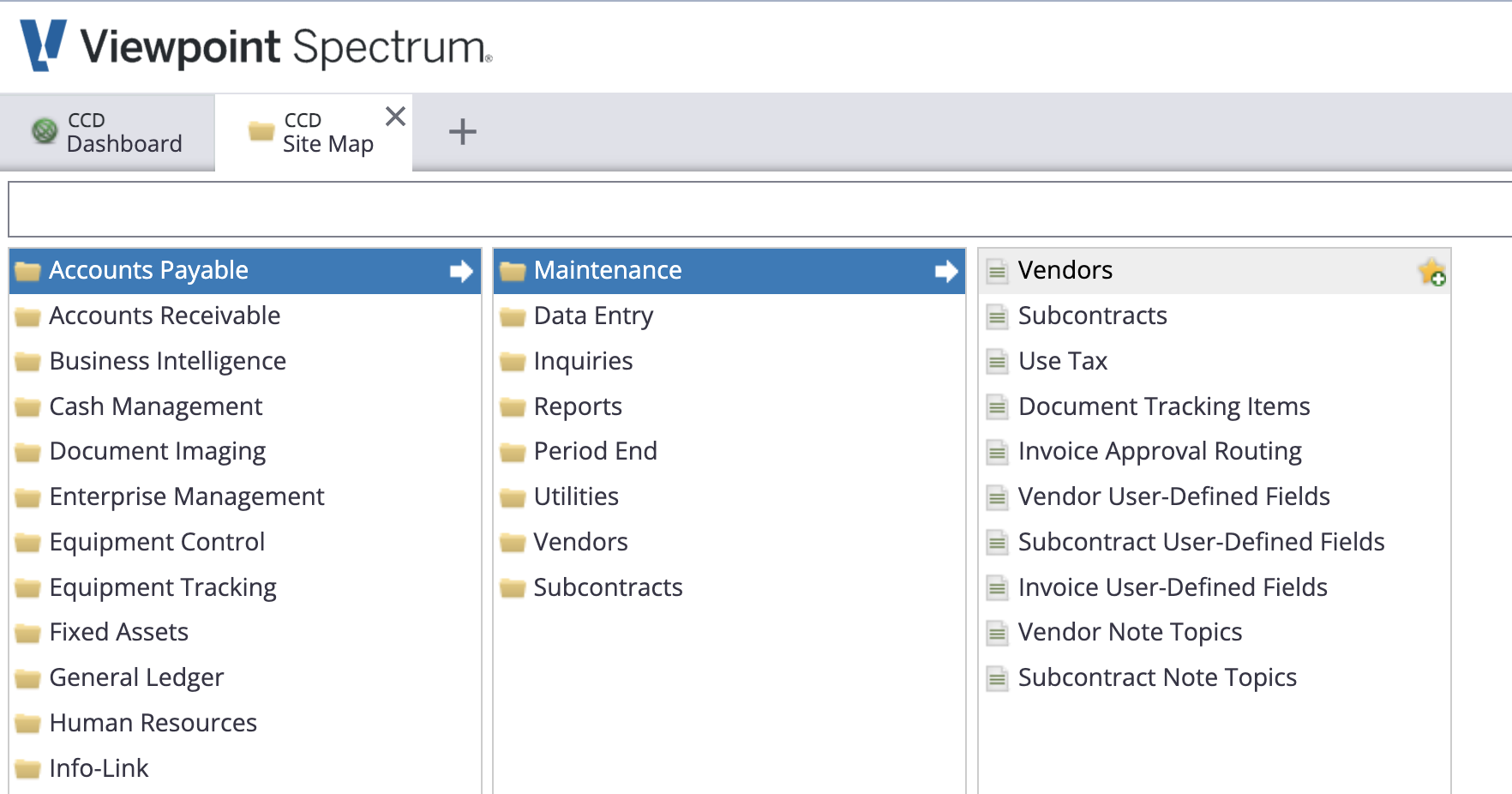
- Select a Vendor, then press Defaults and enter a value for G/L Distribution:
Setting a Cost Type's Default General Ledger Account
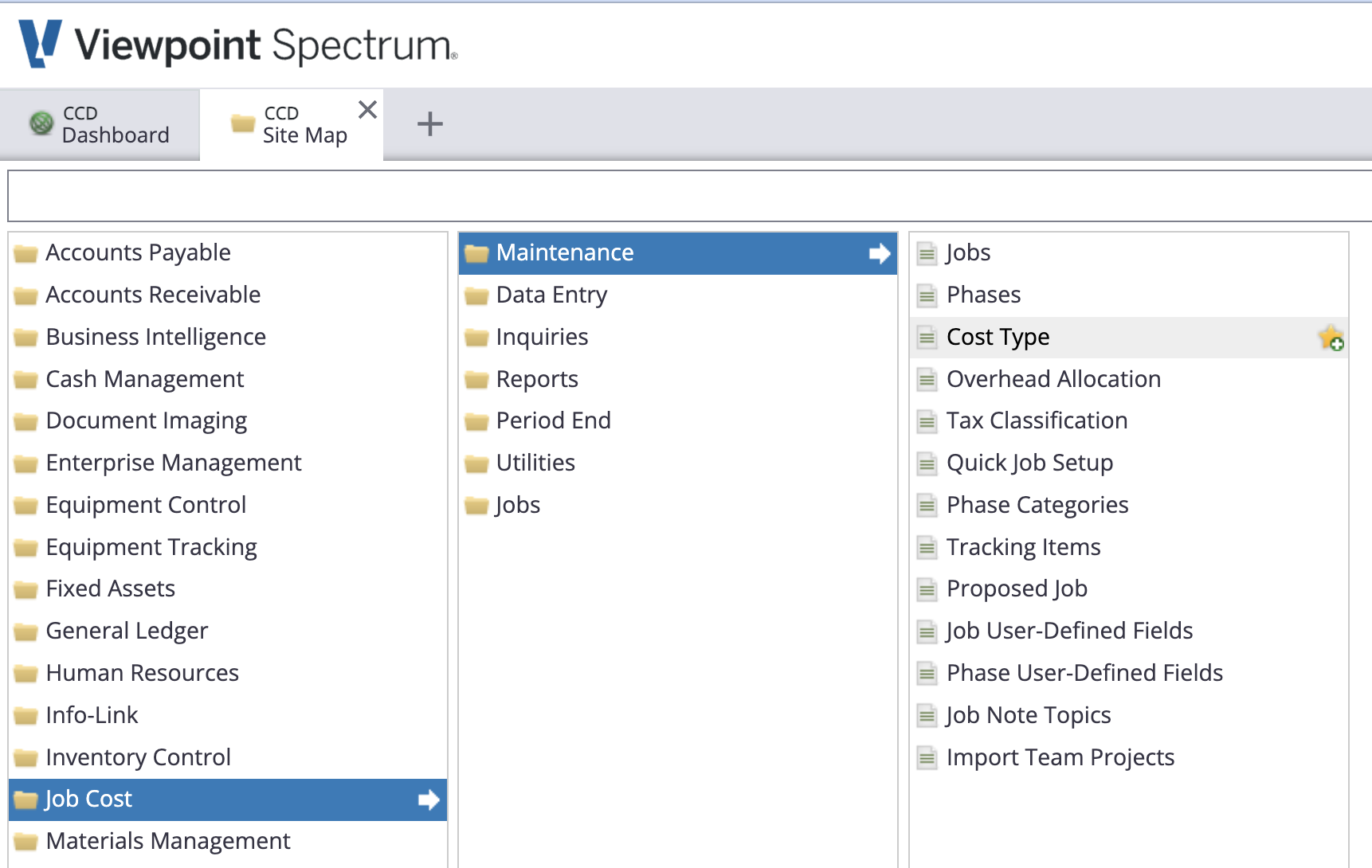
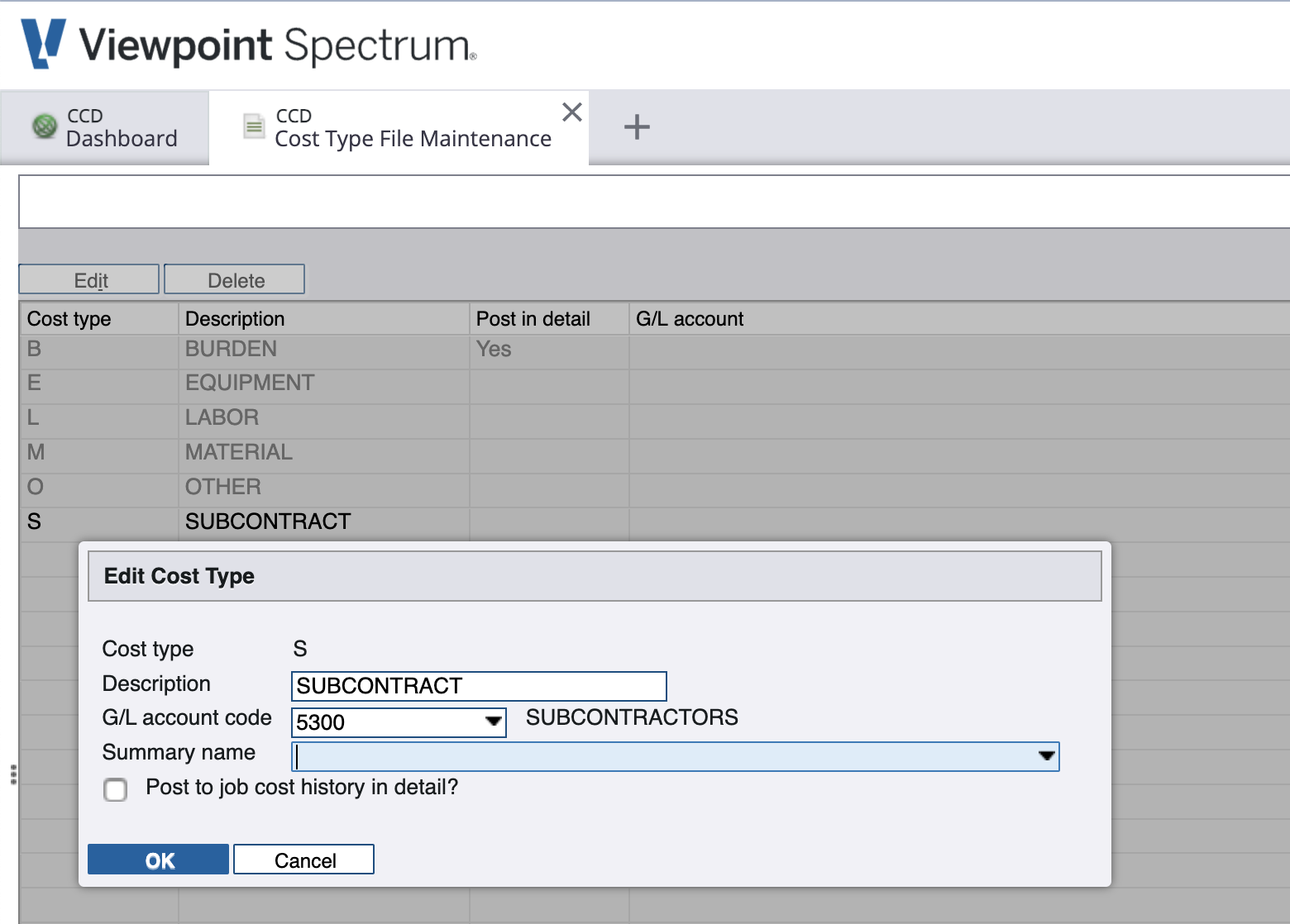
To set a Cost Type's Default General Ledger Account:
- From the Spectrum Sitemap, go to Job Cost-->Maintenance-->Cost Type:
- Select a Cost Type, then press Edit and enter a value for G/L Account Code:
Error: Value contains invalid character(s)?
This is most commonly due to a special character in the Vendor Code in Spectrum. Per Spectrum's documentation, special characters cannot be used in the Vendor and Customer Codes in their Web Services.
Although you can use these characters in the Vendor Code in Spectrum's interface, the Web Service will reject any Contracts, Changes, or Invoices for these vendors.
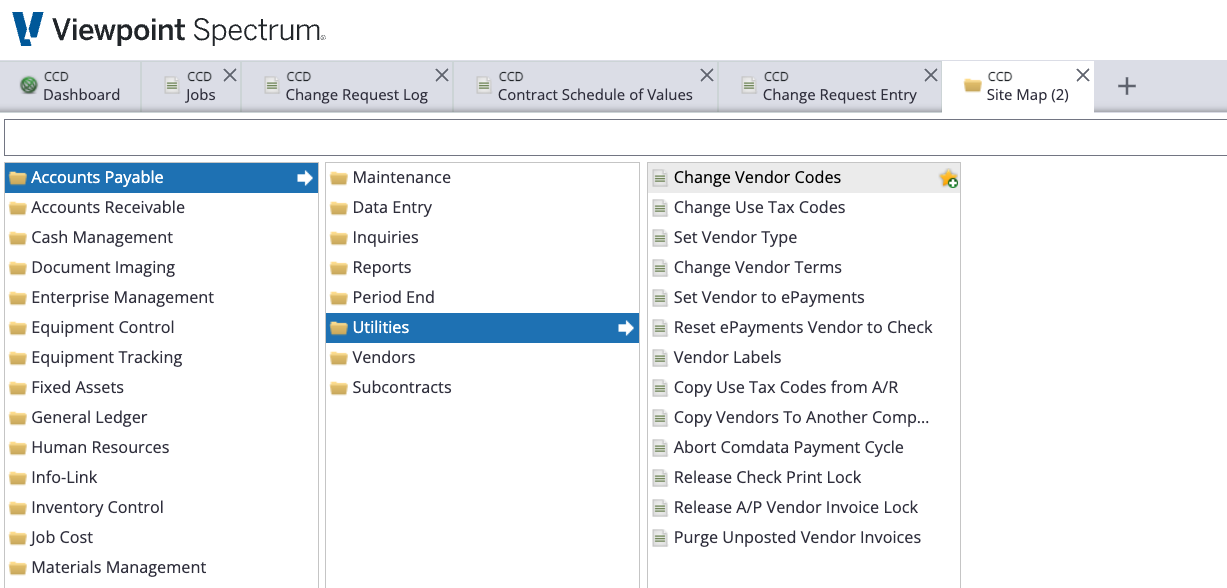
You can resolve this by changing the Vendor Code to not use the special character in Accounts Payable > Utilities > Change Vendor Codes:
Note that you will then need to do a one-time re-link of the Vendor in Agave.
Locked Tables
You may encounter an error like the following when attempting to sync a record (e.g. a Purchase Order):
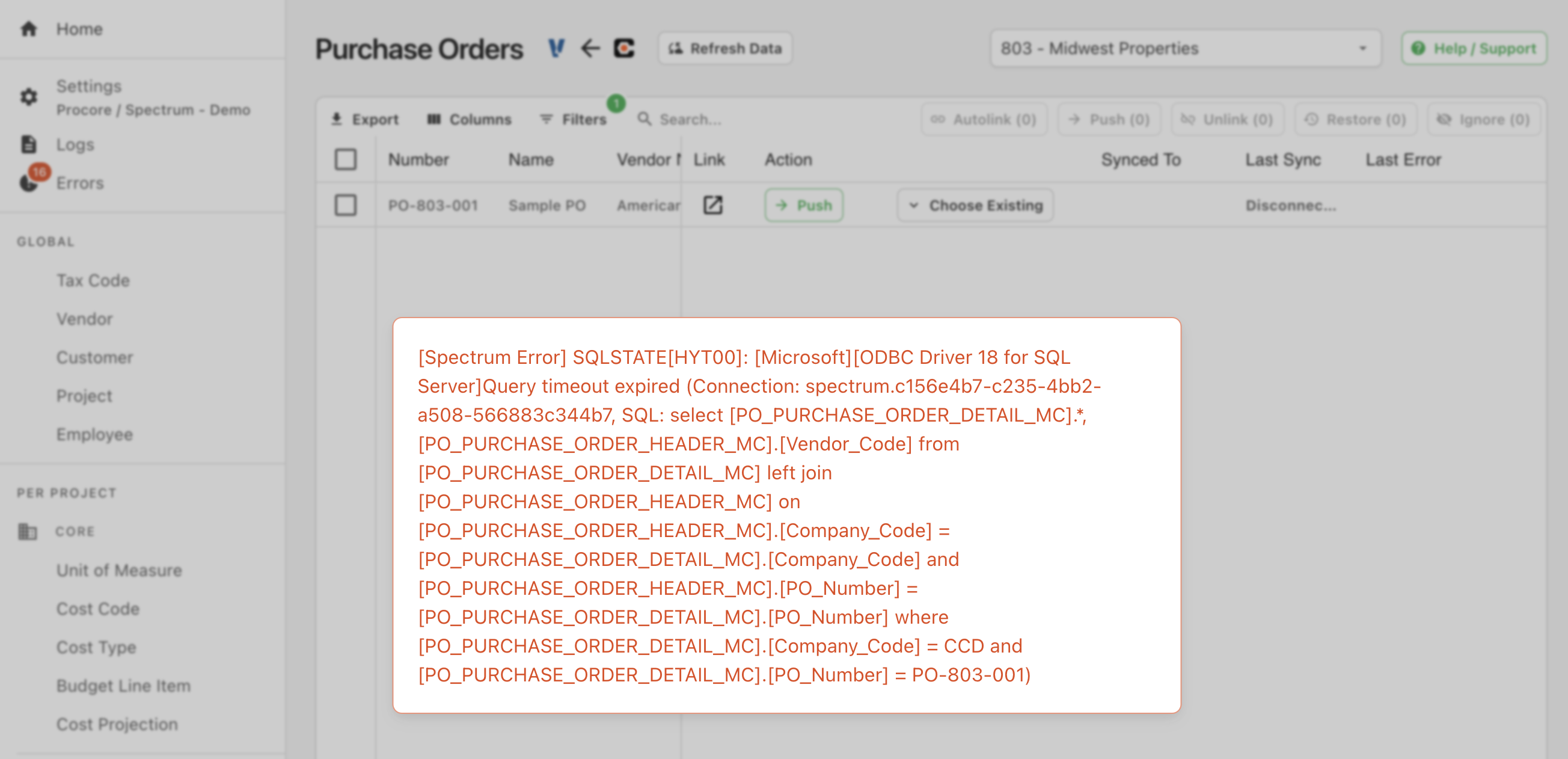
This error is from another Viewpoint Spectrum User having a window with this record open, which causes the table for the record to be locked.
To unlock the table:
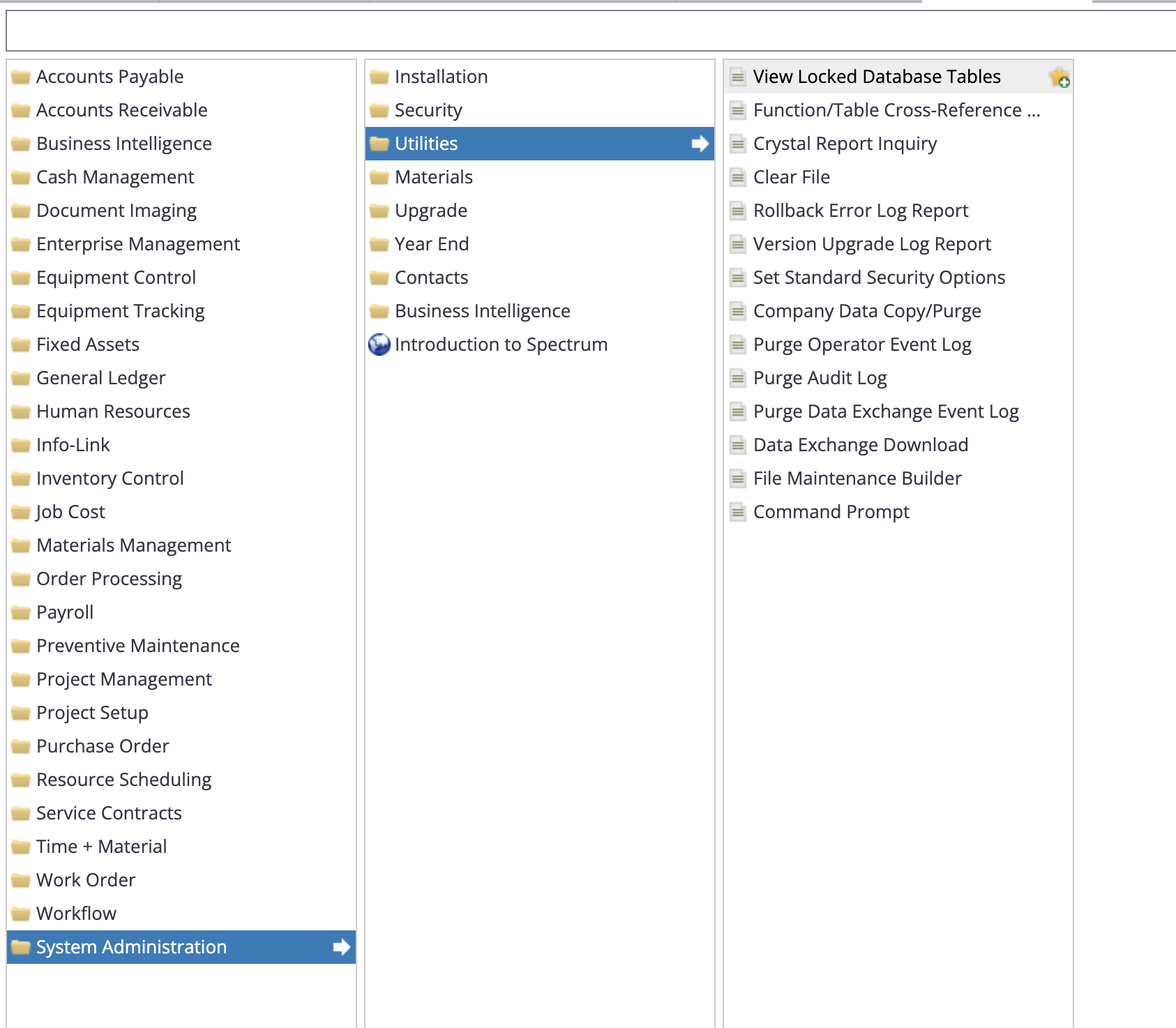
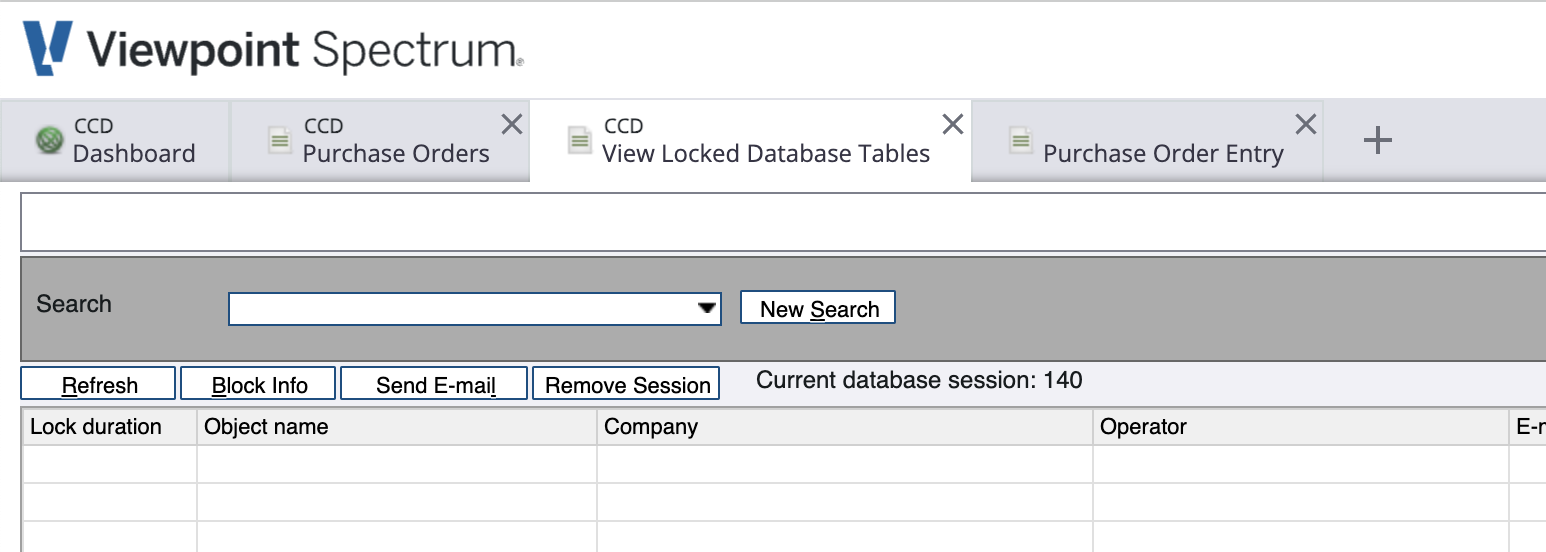
- From the Sitemap, go to System Administration-->Utilities-->View Locked Database Tables:
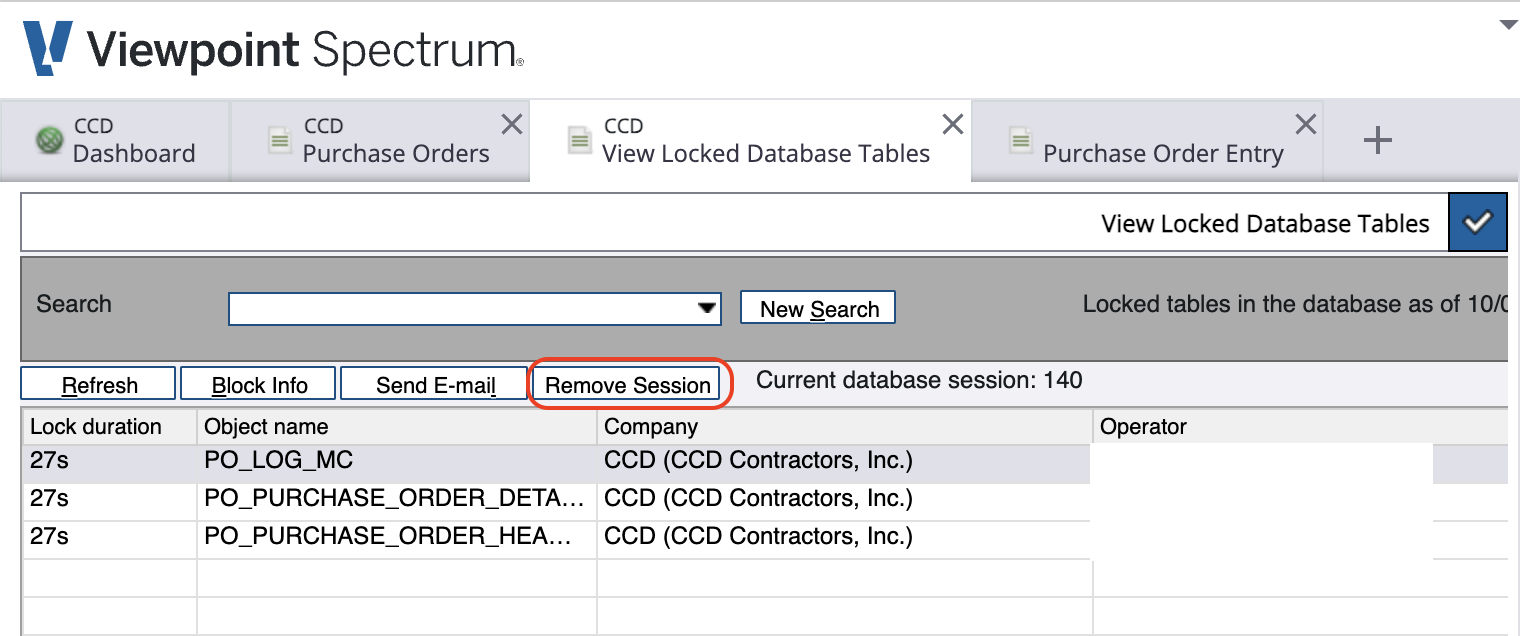
- Here you can see a list of locked tables. You can either email the Spectrum User that has locked the table, or alternatively press Remove Session:
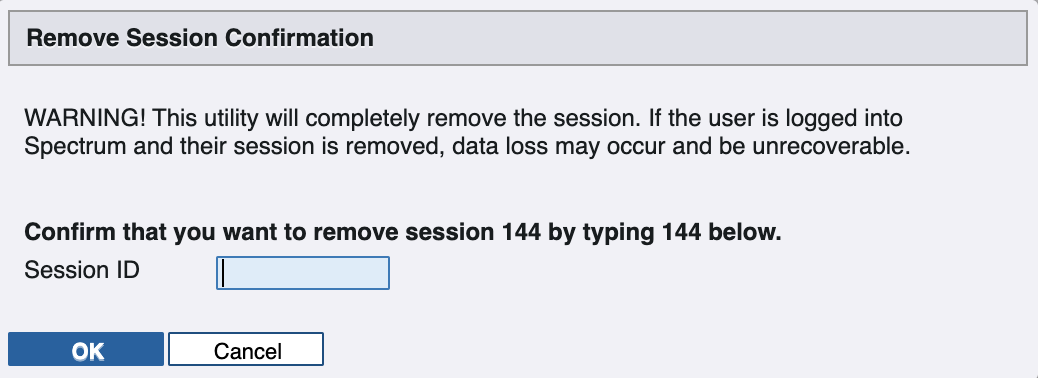
- If you selected Remove Session, input the Session ID and press OK:
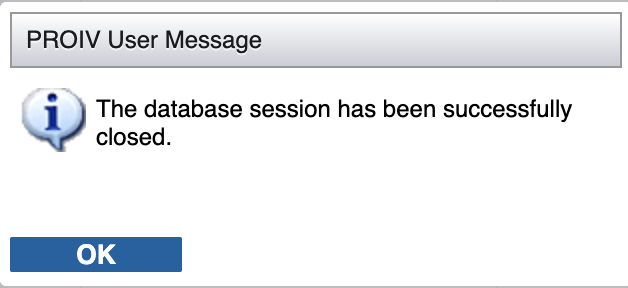
- A window will appear confirming you have removed the session. Returning to the View Locked Database Tables page will show no sessions.
Default General Ledger Accounts
Spectrum requires a General Ledger (GL) Account when creating Purchase Order Line Items. Since ServiceTitan does not have this input, we use the following logic to determine the GL Account for a Purchase Order Line Item:
- Use the Vendor's Default GL Account in Spectrum. To find or add this value, go to the Defaults tab in the Vendor view in Spectrum.
- If 1 does not exist, we use the Default GL Account you provide us. This value can be set by your Agave Account Manager.
Purchase Order Status
When exporting a Purchase Order from ServiceTitan to Spectrum, the Purchase Order is created with a status of "Open".