Job Costs (Direct Costs)
Agave Sync allows you to import ComputerEase Job Cost Detail (jcdetail) to Procore Direct Costs.
If you are syncing Subcontract and/or Purchase Order Invoices from Procore, you can choose to exclude their related Job Costs from your data. This prevents the same costs from being counted twice. Contact your Agave Account Manager if you would like to enable this filter.
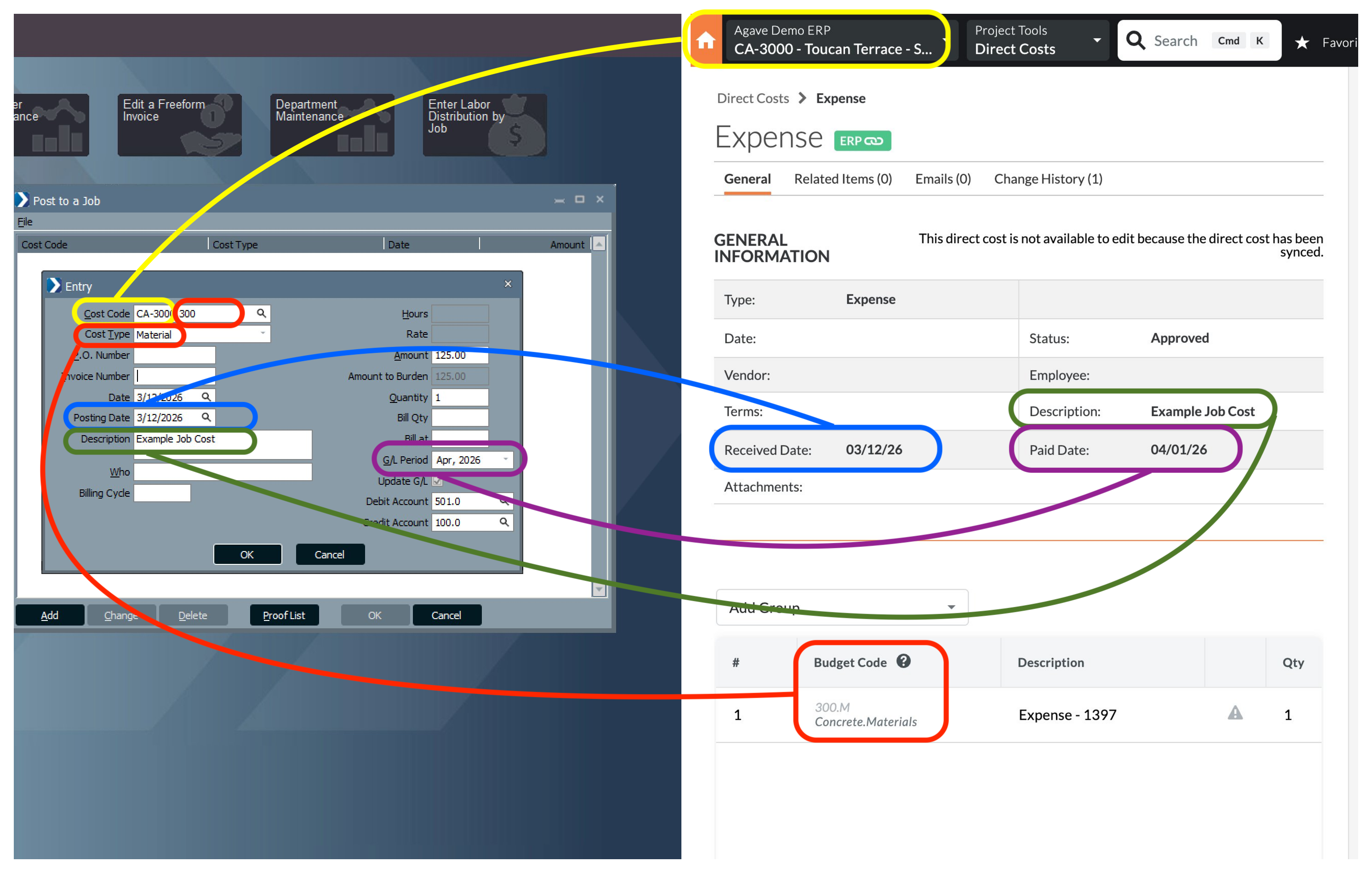
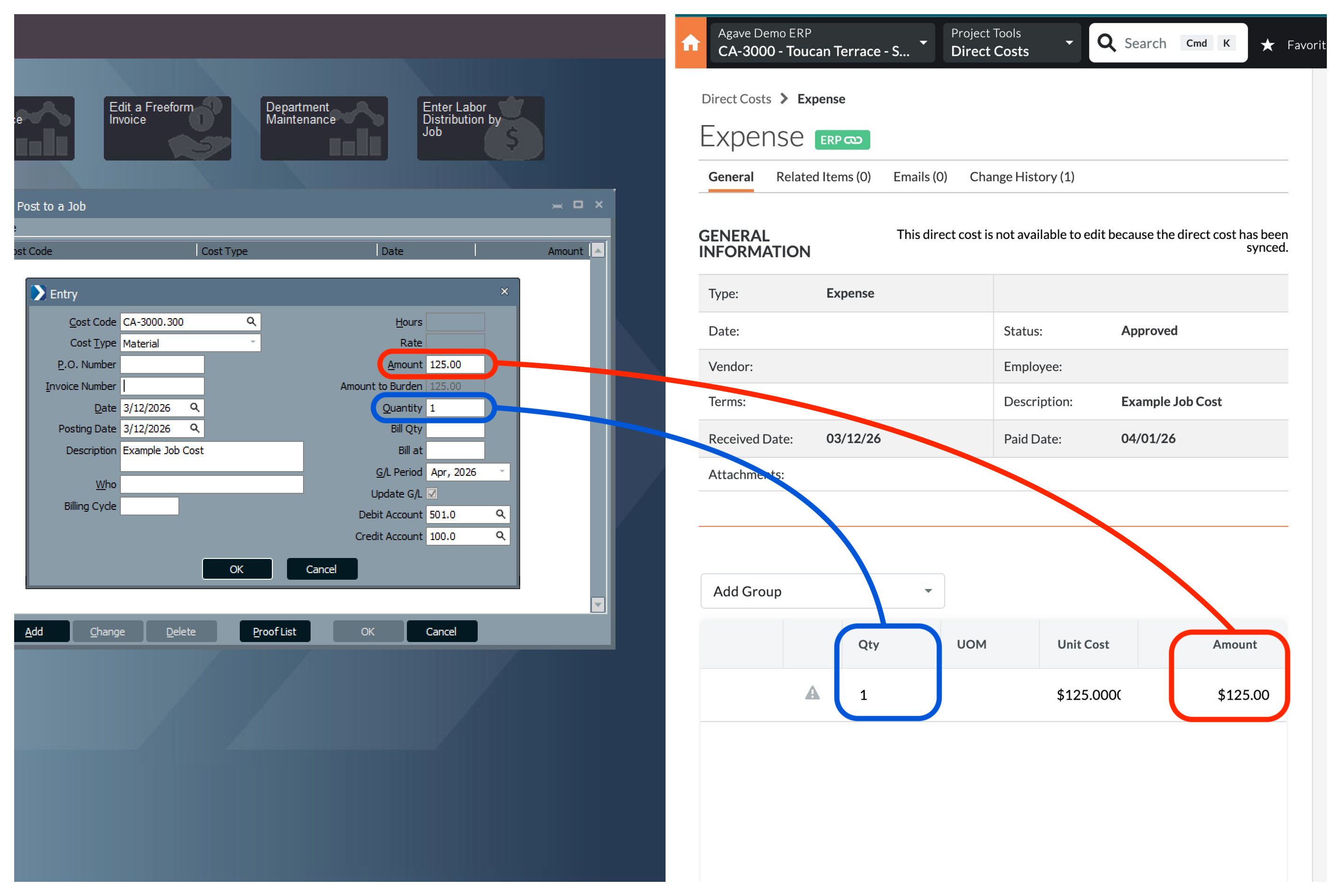
Visual Mapping
FAQs and Common Errors
What are prerequisites to syncing Job Costs?
You must have the following synced before you can sync Job Costs:
- A Project (Job)
- Sub Jobs (Phases), if applicable
- Cost Codes (Categories)
- Cost Types
- A Vendor (required for Accounts Payable type Job Costs)
Additionally, only Posted Job Costs will sync from ComputerEase. If a Job Cost has not been posted, it will be skipped.
A Budget Line Item with the Sub Job, Cost Code, and Cost Type is not a prerequisite to syncing Job Costs. If a Budget Line Item does not exist for a Job Cost, Procore will create one with a $0 original amount when the Job Cost is imported.
How do ComputerEase Job Cost Types map to Procore Direct Cost Types?
Job Costs (Direct Costs) can have one of the following values for "type" in Procore:
- Payroll: for Job Costs with ComputerEase types 1–4 (Payroll-related).
- Subcontractor Invoice: for Job Costs from ComputerEase's Accounts Payable module that reference a Purchase Order (i.e., have a
ponumpresent). - Expense: for all other Job Costs, including Accounts Payable costs without a commitment and non-payroll types 5–16.
ComputerEase cost types outside the 1–16 range are internal-only and will not sync to Procore.
What happens with Payroll descriptions?
For Payroll Job Costs (types 1–4), the description field is intentionally replaced with a generic "Type - Number" format. This prevents accidentally exposing employee salary data in Procore.
What if a Vendor is not synced?
If a Job Cost references a Vendor that has not been synced to Procore, the Vendor name will be appended to the Job Cost name in parentheses — for example, "Job Cost Name (Vendor Name)". This allows the Job Cost to sync while indicating which Vendor it relates to.
For Accounts Payable Job Costs, the Vendor must be synced before the Job Cost can sync. See the "Vendor Can't Be Blank" error below.
How is the Accounting Date determined?
ComputerEase stores the GL period in YYYYMM format. Agave converts this to the first day of the month (e.g., 202501 becomes 2025-01-01) and maps it to the Payment Date field on the Procore Direct Cost.
Can I accumulate multiple Cost Types into a single Cost Type for Job Costs?
Yes, your Agave Account Manager can configure cost type translation settings that remap ComputerEase Cost Types before they are synced to Procore. This is useful for scenarios where you want to track related Job Costs under one Cost Type in Procore (e.g., accumulate all Labor-related Cost Types into a single Labor Cost Type).
Deleting Job Costs
You may unintentionally sync Job Costs to Procore. Instead of manually unlinking and deleting them, you can use Agave Sync to delete Job Costs you have synced to Procore in bulk.
To delete Job Costs you have synced to Procore:
-
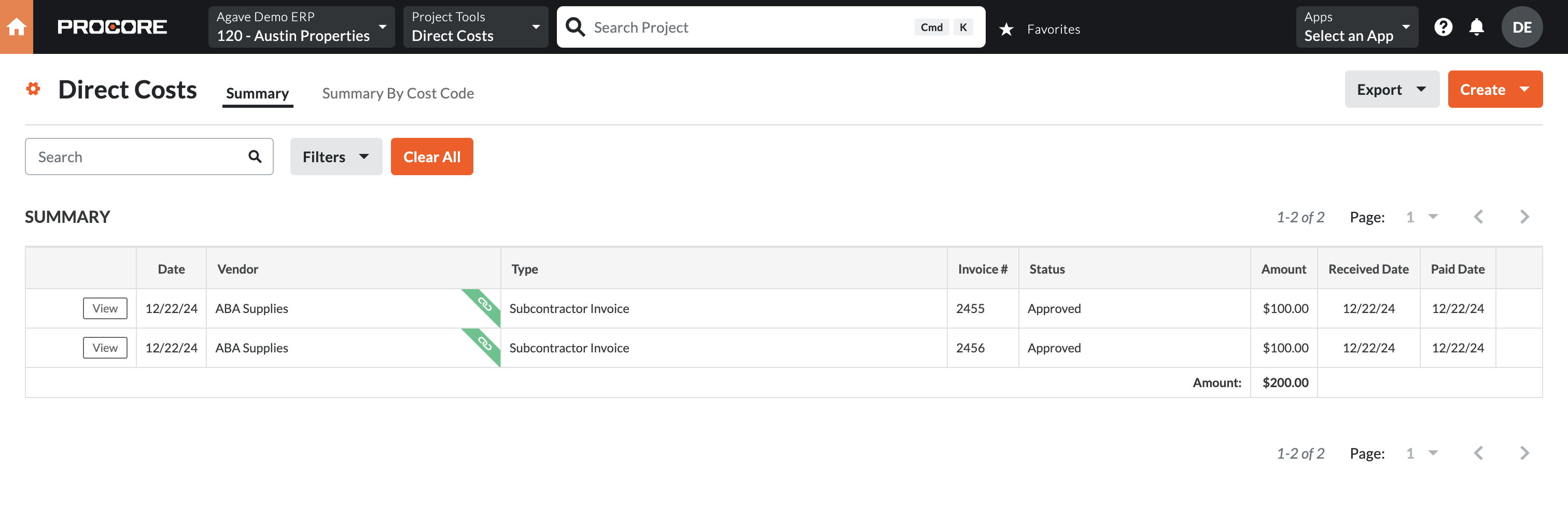
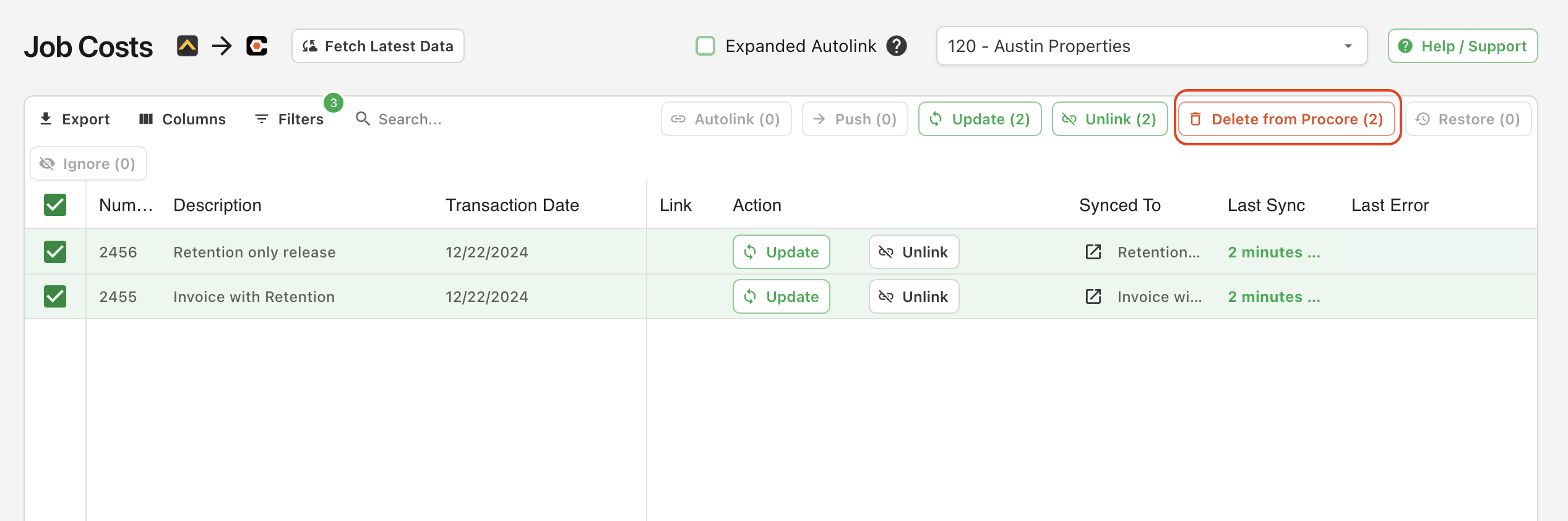
Identify the Job Costs you would like to delete:
-
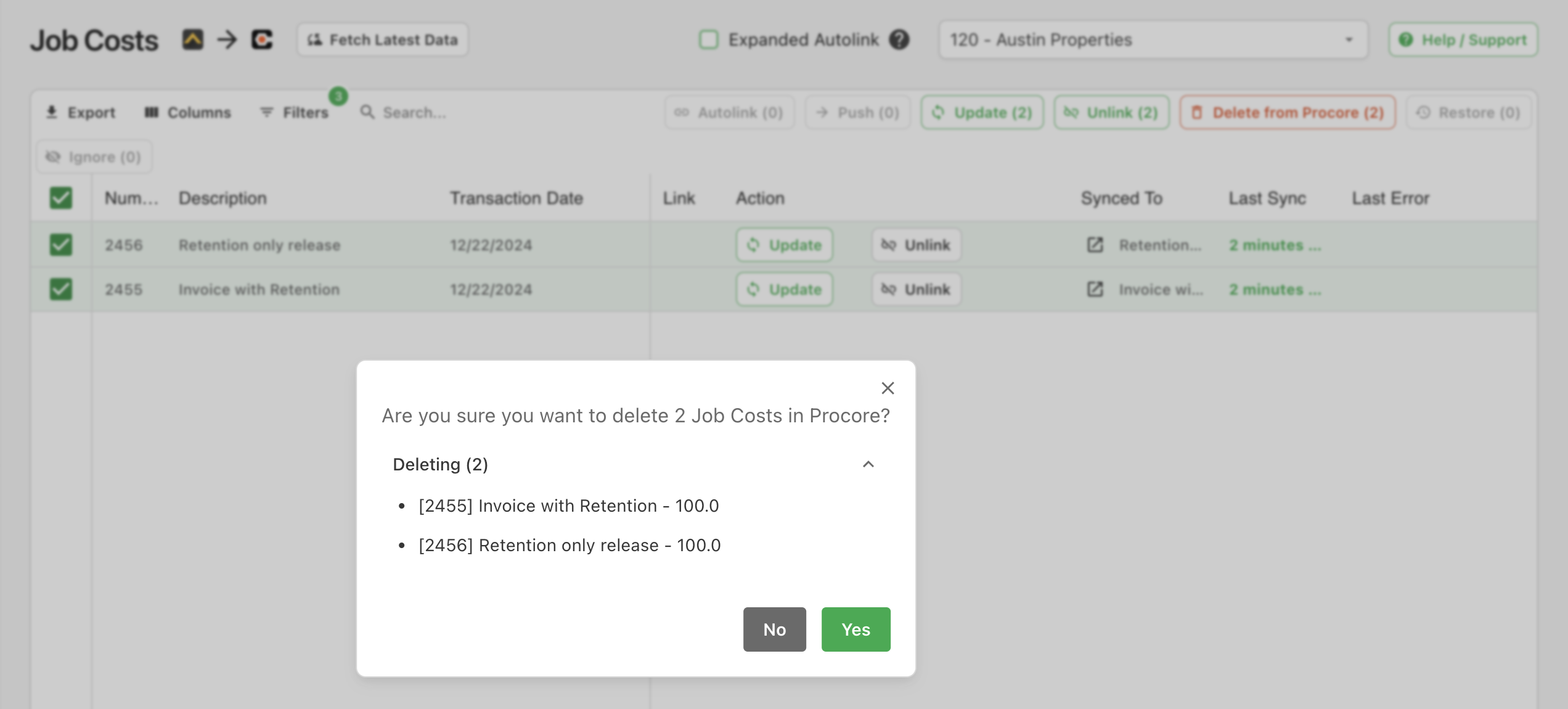
In Agave Sync, select those Job Costs and press Delete from Procore:
-
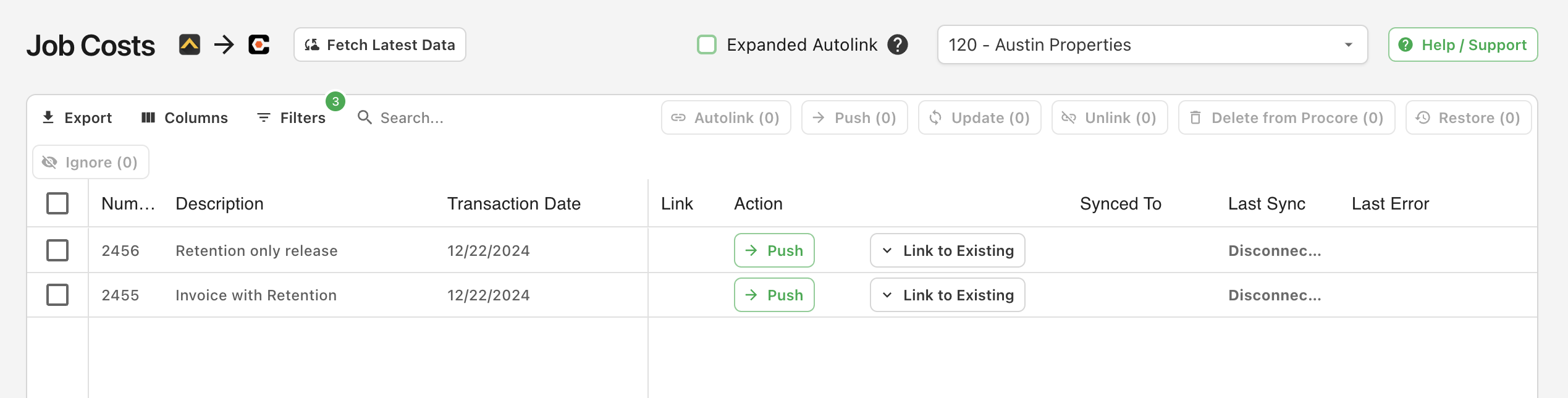
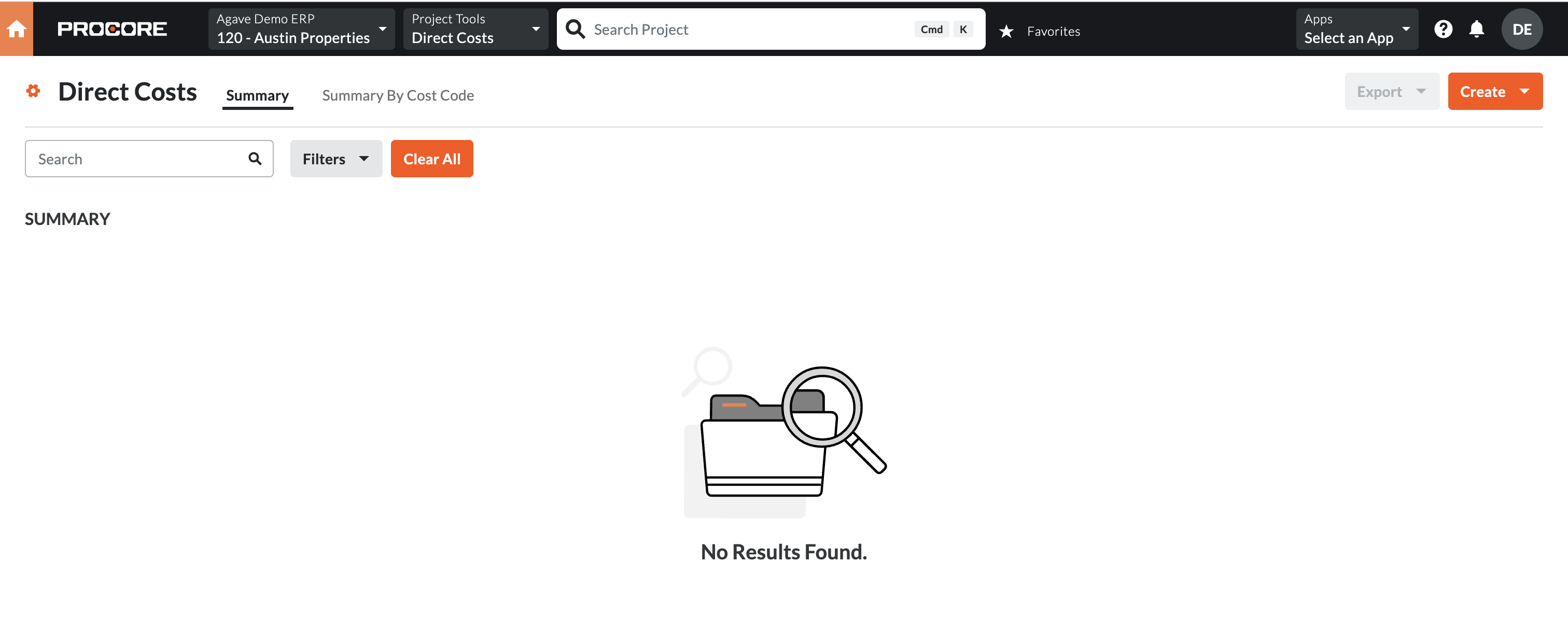
The Job Costs will now appear as syncable but they will no longer exist in Procore:
Agave Sync will delete the Job Costs in Procore, but not in the original source system (i.e. your accounting system).
Error: Vendor Can't Be Blank
The error [Procore Error] vendor: can't be blank occurs when trying to sync an Invoice or Subcontract Invoice Direct Cost without a Vendor, which Procore requires.
To resolve the issue:
- If the Vendor already exists in Procore, ensure it is linked to the corresponding Vendor in your ERP system.
- If the Vendor does not exist in Procore, sync the Vendor from your ERP system to Procore before attempting to sync the Direct Cost again.
Budget View Configuration
This is applicable to users that create AP Invoices against Purchase Orders or Subcontracts directly in their accounting system (rather than Procore).
Importing Direct Costs for Commitment Invoices
If you enter your AP Invoices for commitments directly into your accounting system, Agave imports the posted costs into Procore to update your Job to Date Cost total. They are set to type Subcontractor Invoice to differentiate them from typical Direct Costs:
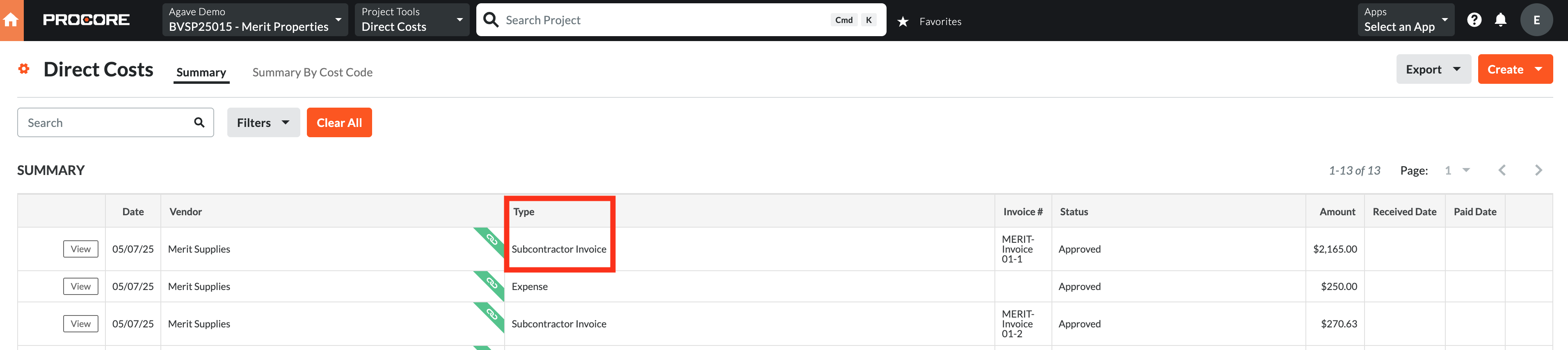
Procore's default "Projected Cost" calculation (Committed Costs + Direct Costs + Subcontractor Invoices) will then double-count costs against any commitments, as they are included in both the commitment and the synced Direct Cost.
How to Correct the Projected Cost Calculation in the Budget View
You can update the Procore Budget view to exclude Direct Costs of type Subcontractor Invoice and have an accurate Projected Cost total with the following steps:
For information on configuring Procore Budget views, see their documentation here.
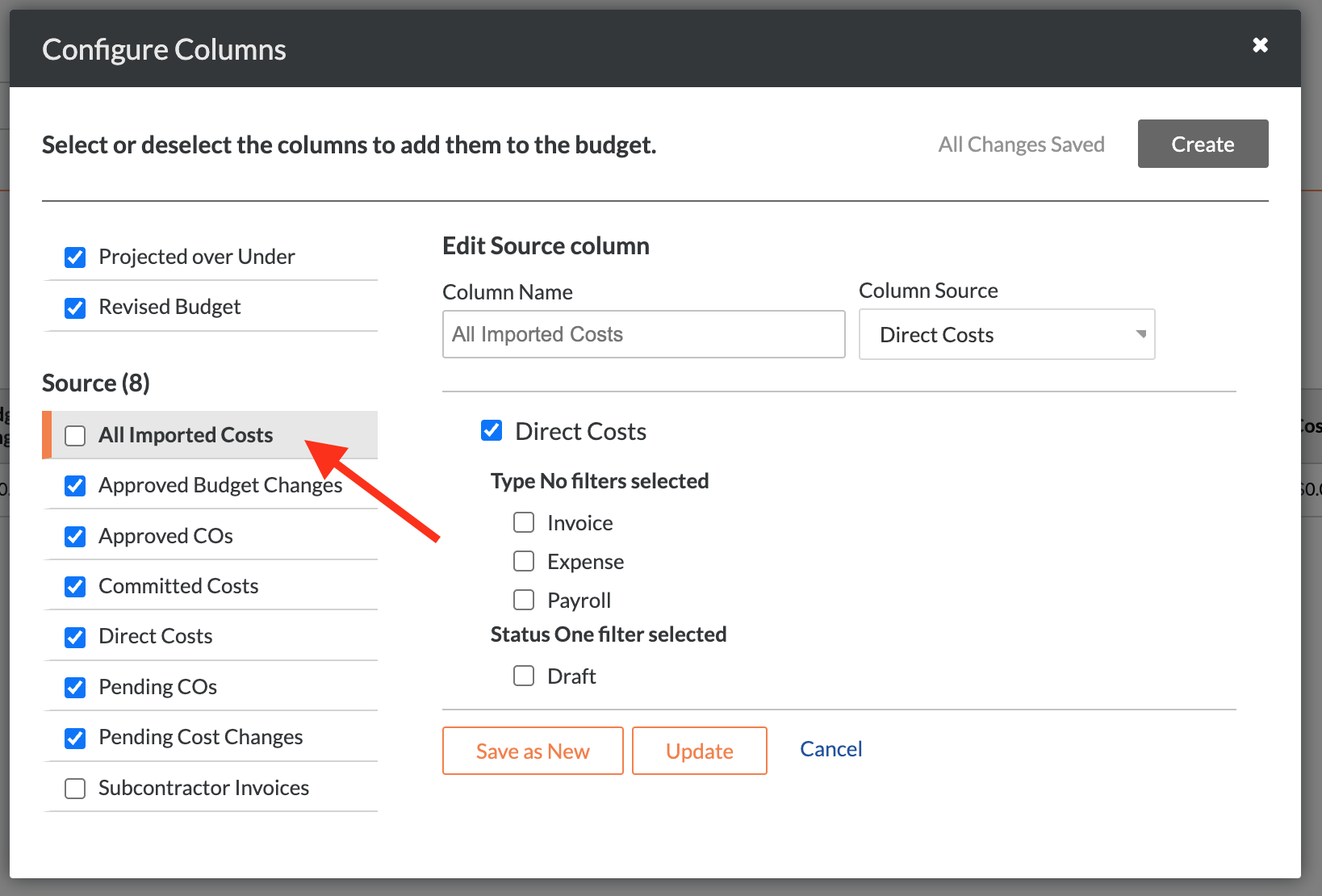
1. Add a Column for all Imported Costs
Create a source column called "All Imported Costs" that equals the sum of all Direct Costs. This column can stay hidden (deselected); it will only be used for calculations in other columns.
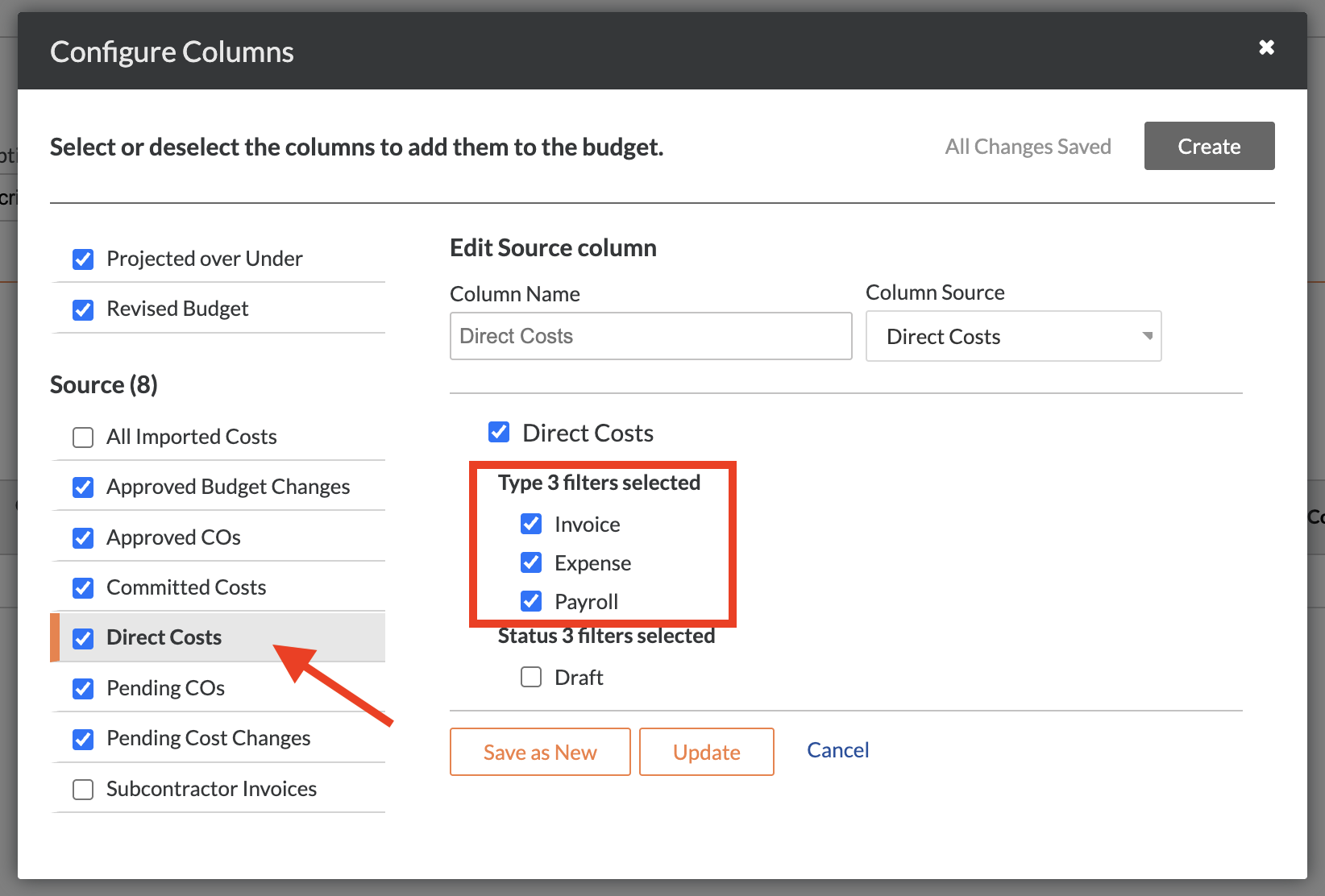
2. Update the "Direct Cost" Column to Exclude the "Subcontractor Invoice" Type
Edit the pre-existing Direct Cost column to use the "Type" filters. Selecting the checkboxes for the non-Subcontractor-Invoice types will exclude the duplicative costs from the definition:
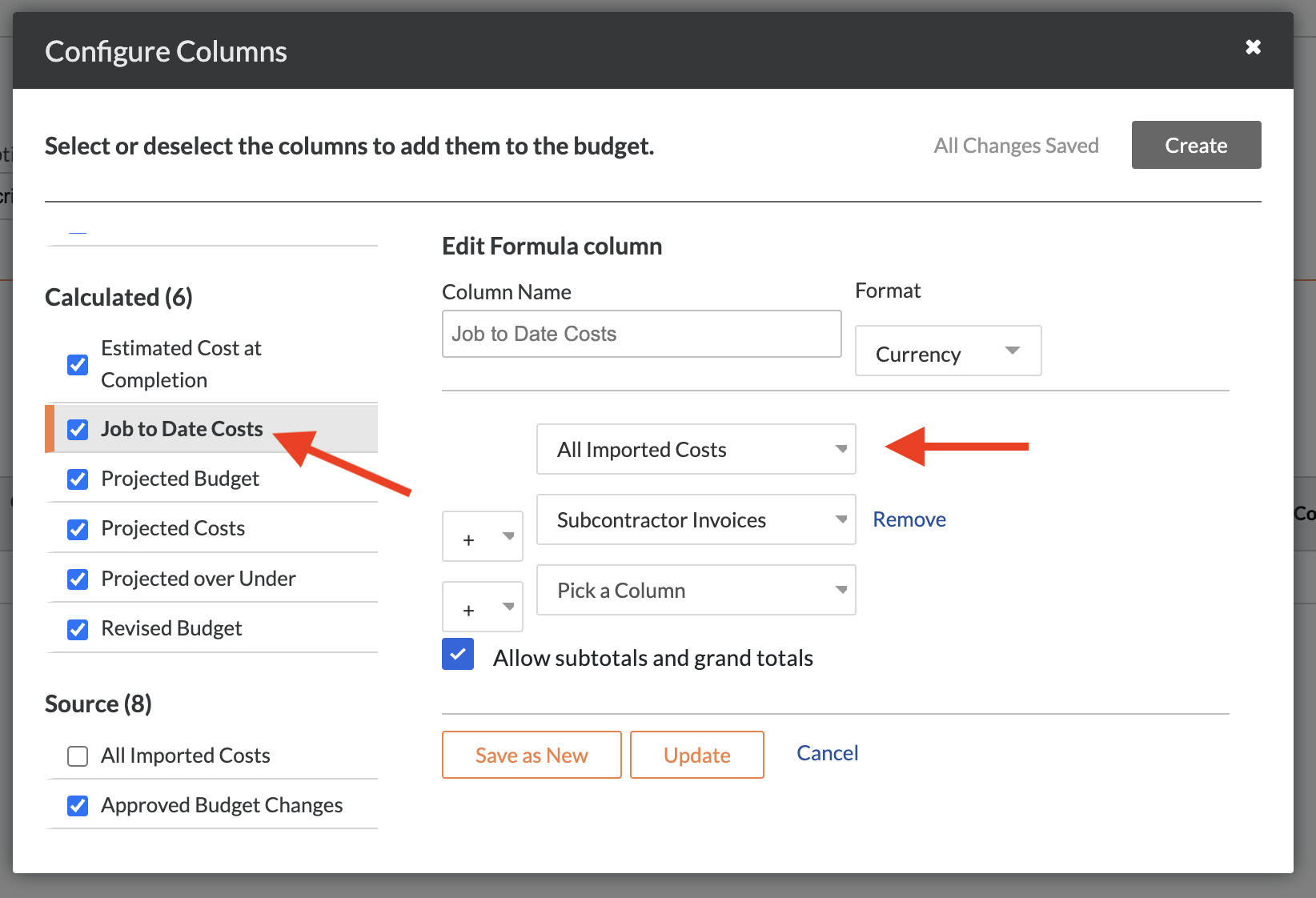
3. Update the "Job to Date Cost" Column to use "All Imported Costs"
Edit the pre-existing "Job to Date Cost" column to use the "All Imported Costs" column instead of "Direct Costs" to ensure that it includes all costs.