Timecard Entries (Labor Distribution)
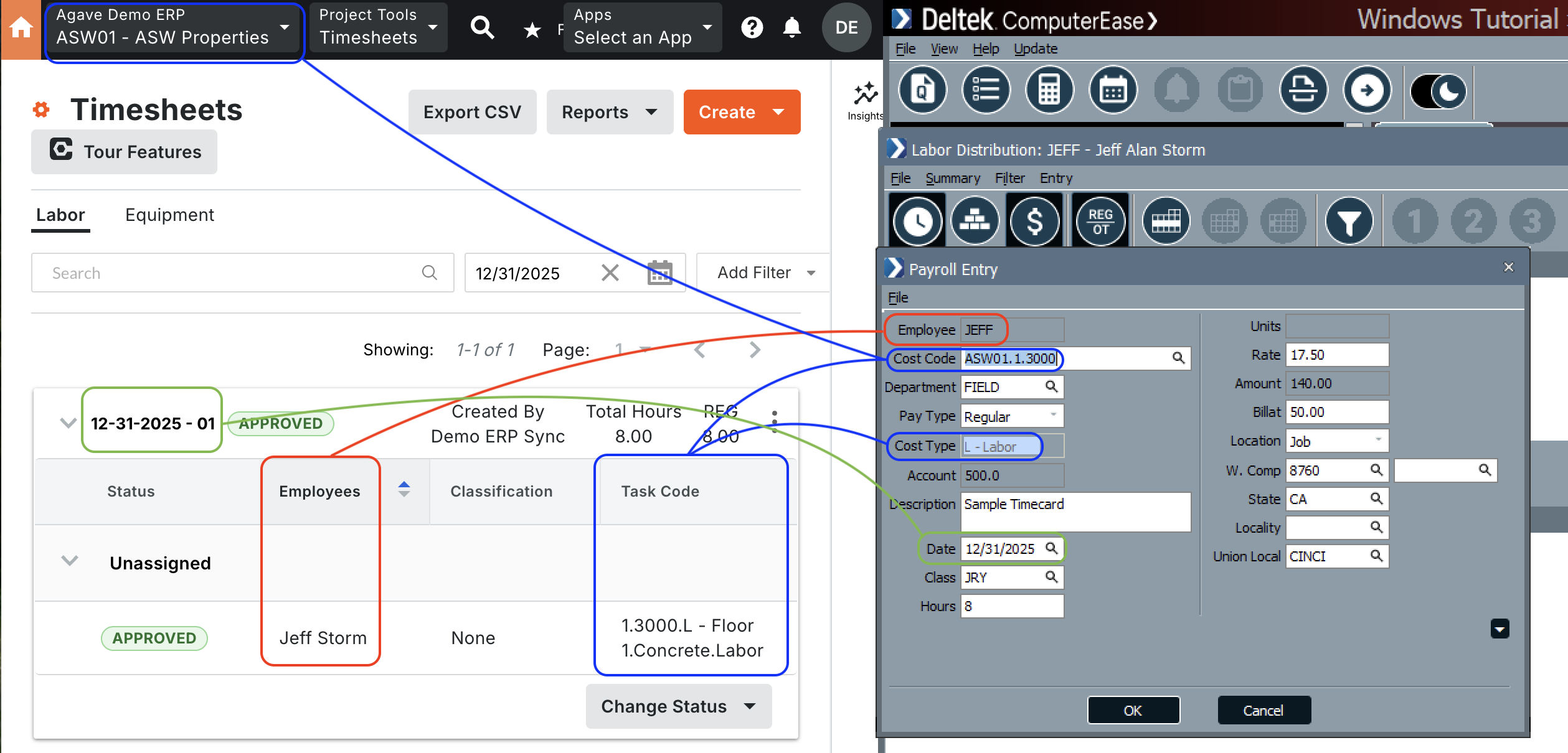
Agave Sync allows for you to sync Procore Timecsheets to ComputerEase Labor Distribution.
Visual Mapping

Video Tutorial
Common Errors and FAQs
What are pre-requisites to syncing Timecard Entries from Procore to ComputerEase?
All of the following associated records must be synced beforehand:
- The Employee,
- The Project (Job),
- The Sub Job (Phase) if applicable,
- The Cost Code (Category), and
- The Cost Type.
Additionally, you will need to link up your ComputerEase Pay Types to Procore Time Types.
How can I get my Timecard Entry hours to appear in my Budget in Procore?
After importing Timecards from your ERP, you will need to configure your Budget View to use the hours from your Timecard Entries to have them appear in your Budget in a Procore Project.
To configure your Budget View to include these hours:
-
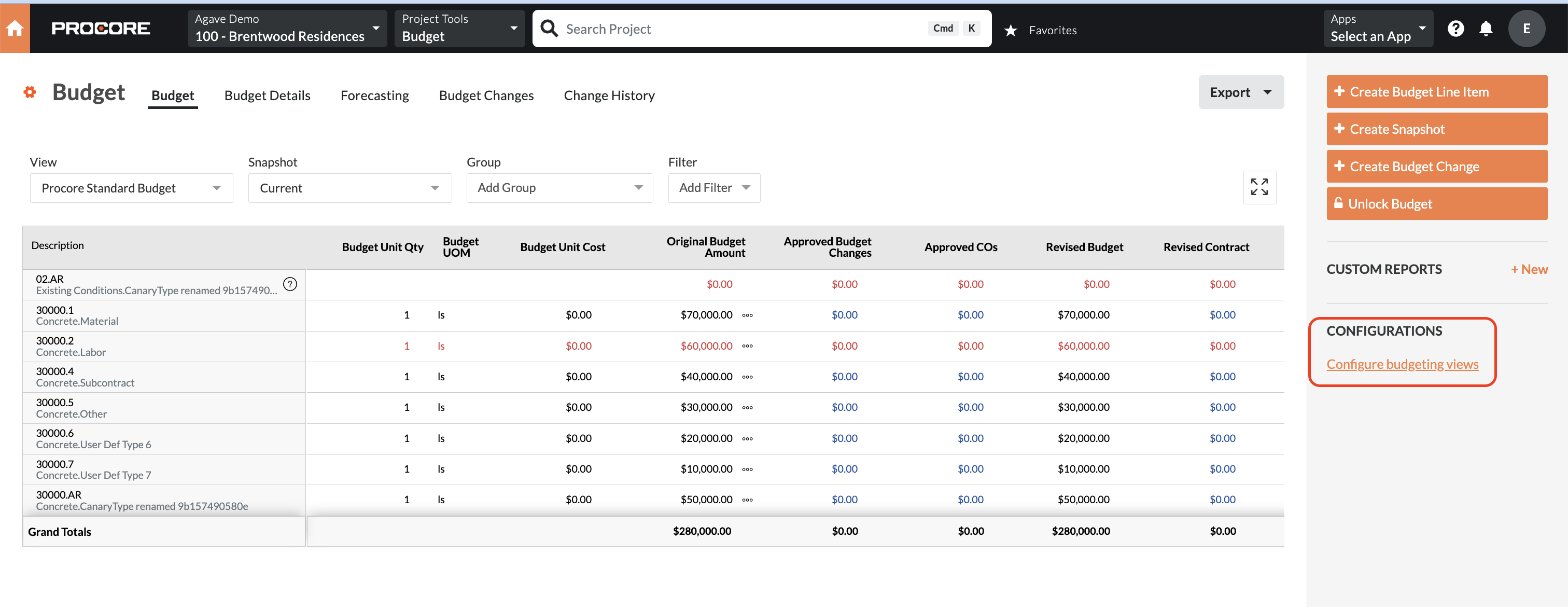
On a given Budget View, select Configure budgeting views:
-
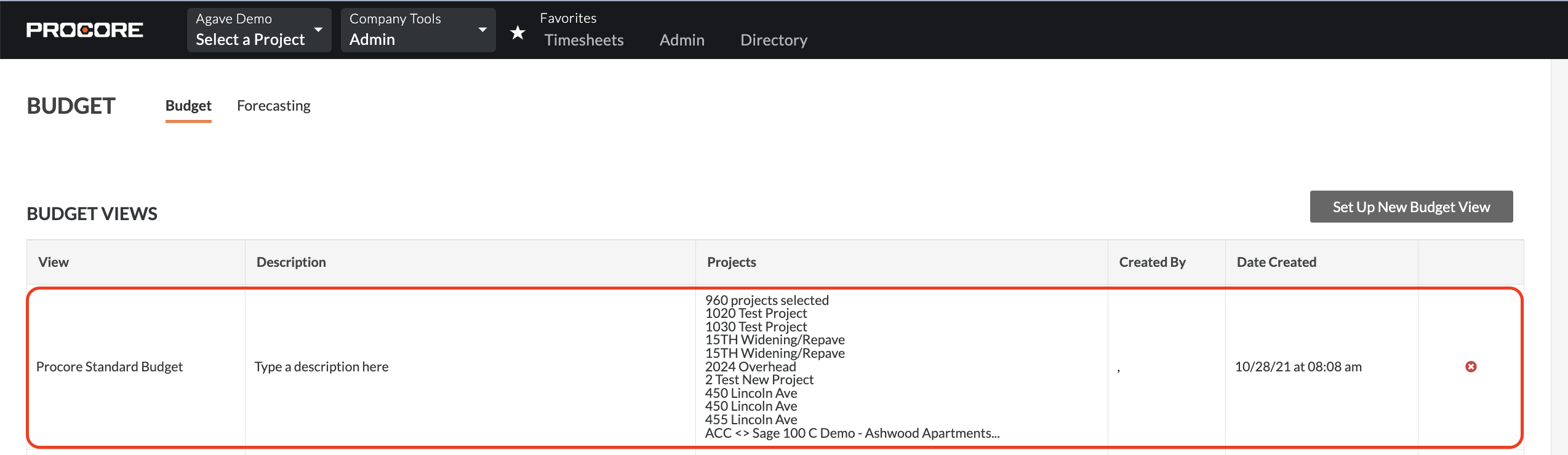
Select the Budget View you would like to configure:
-
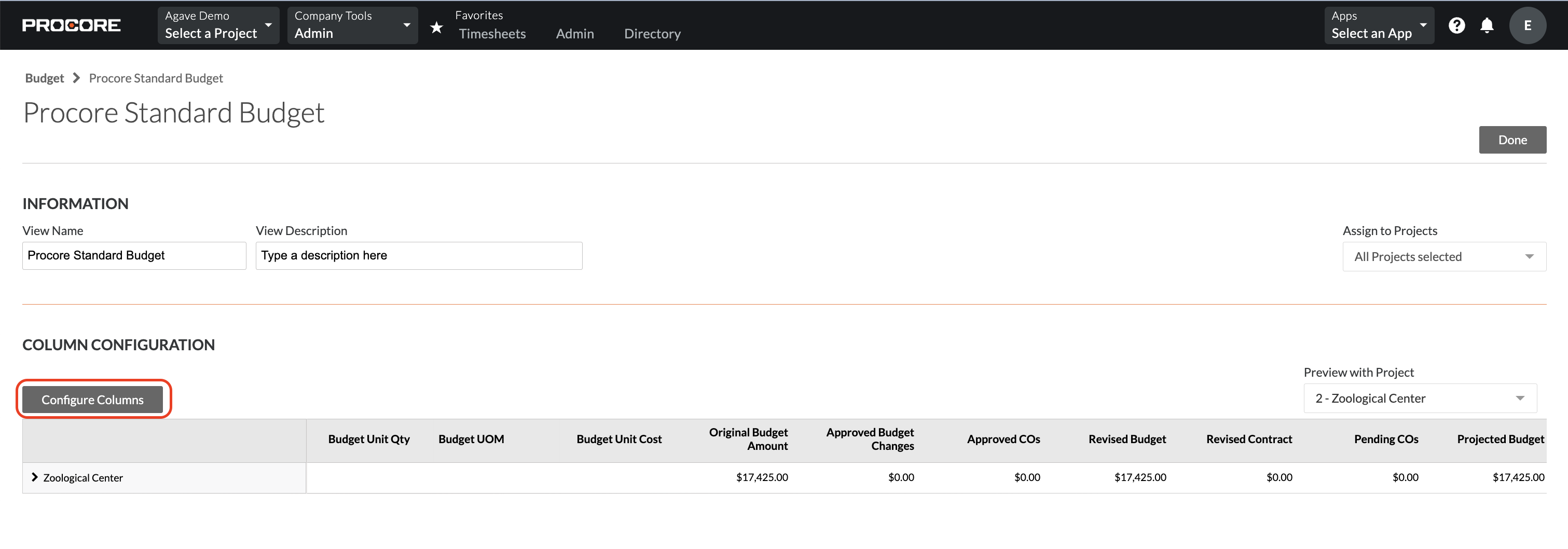
Press Configure Columns:
-
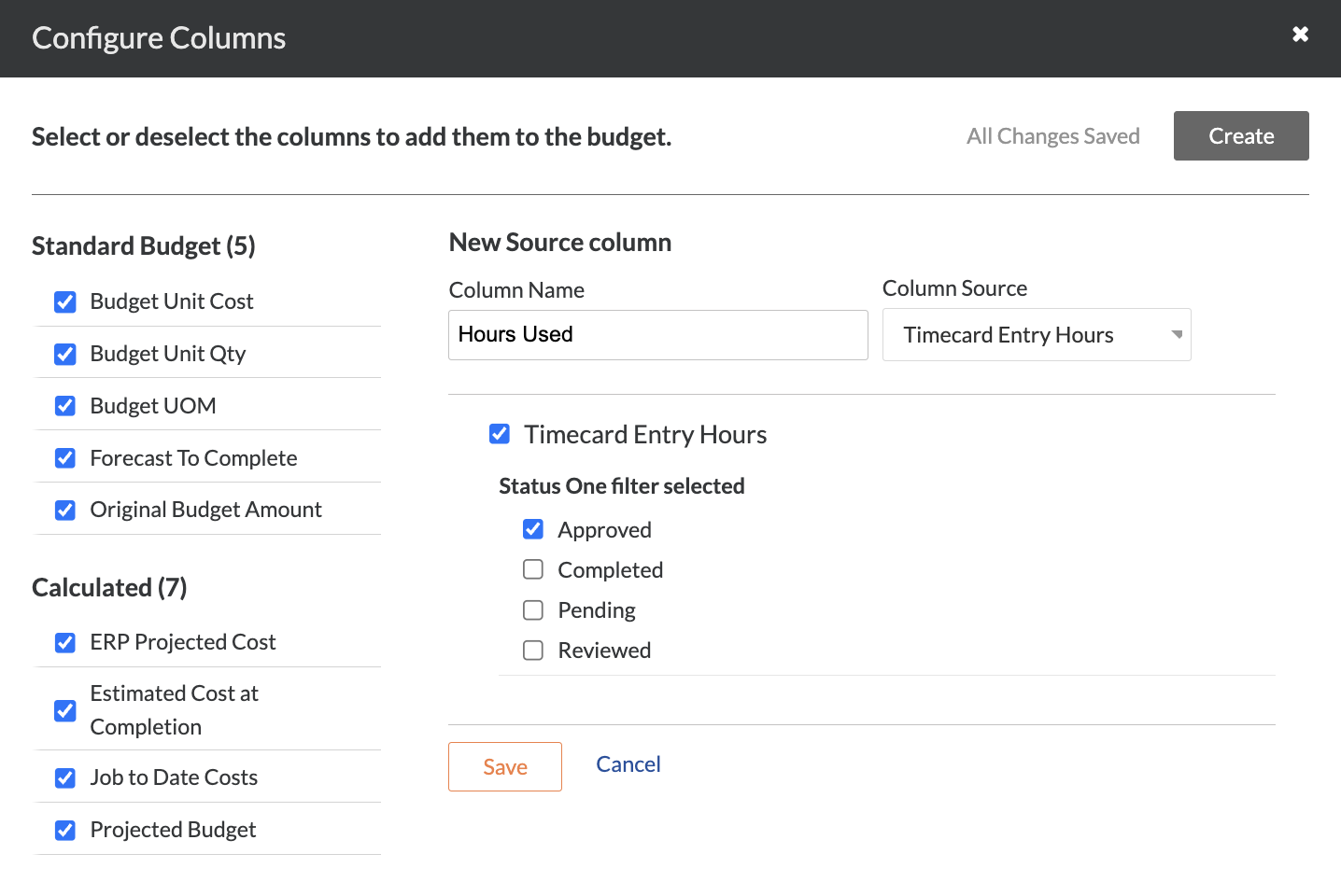
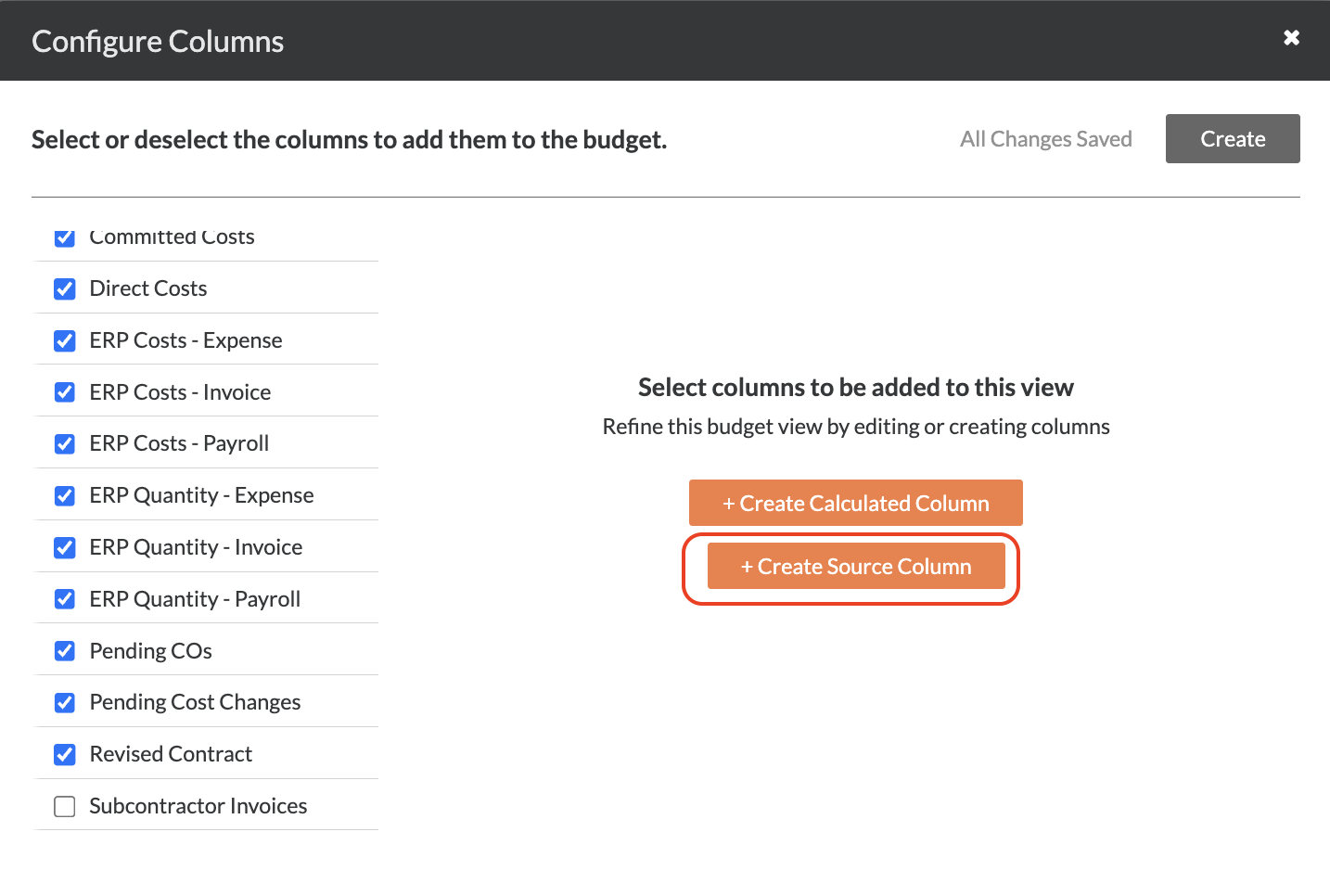
Select the existing Hours Used column (if you have already created one), or press Create Source Column
-
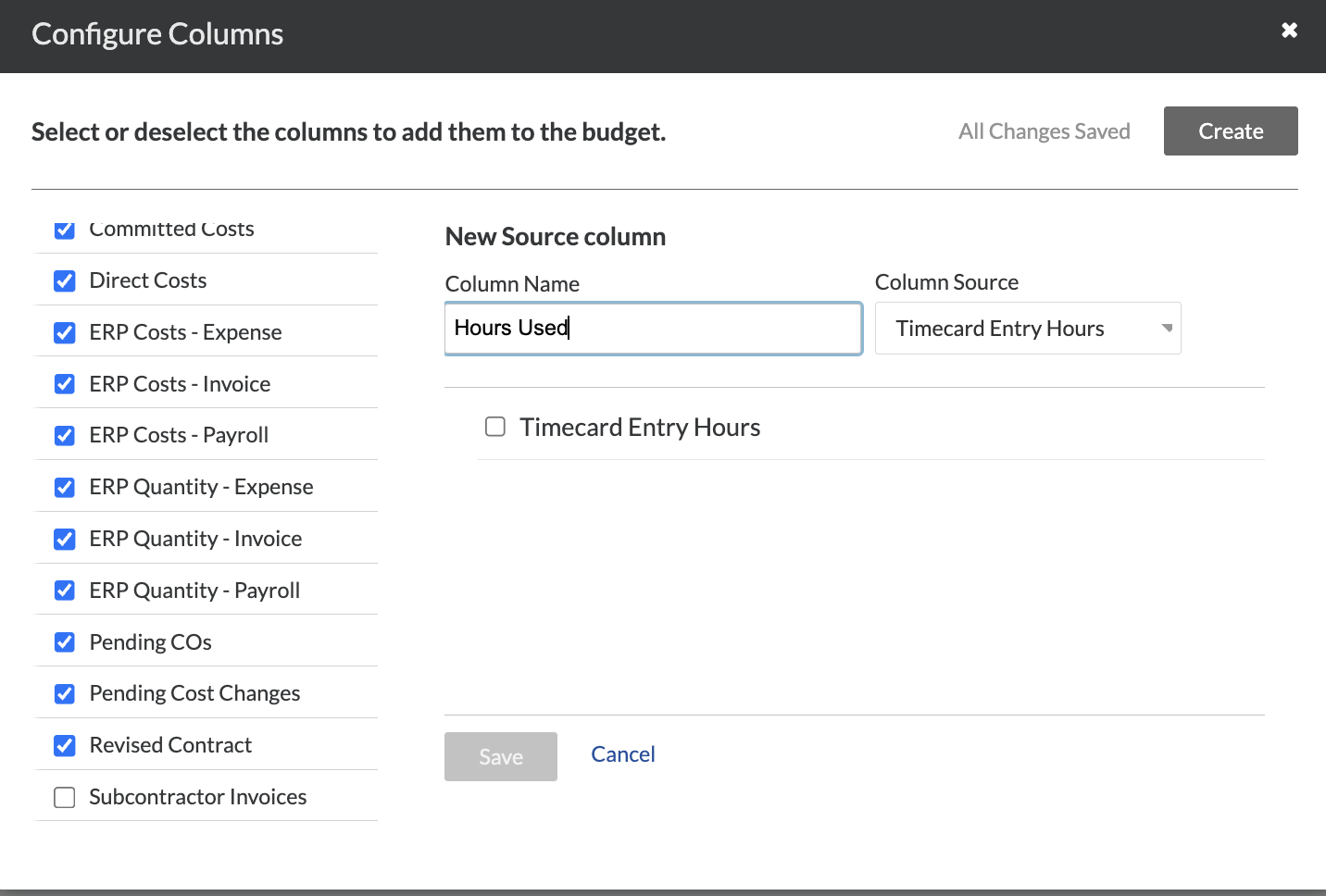
Enter a value for Column Name (e.g. "Hours Used"), then select Timecard Entry Hours for the Column Source:
-
Check the box for Timecard Entry Hours, then check the *Approved box. Then press Save