Prime Contract Change Orders (JC Change Orders)
Agave Sync allows you to sync Autodesk Build Owner Change Orders to Vista PM Approved Change Orders.
Agave Sync exports Prime Contract Change Orders to Vista in an Interfaced or Posted status by default.
Visual Mapping
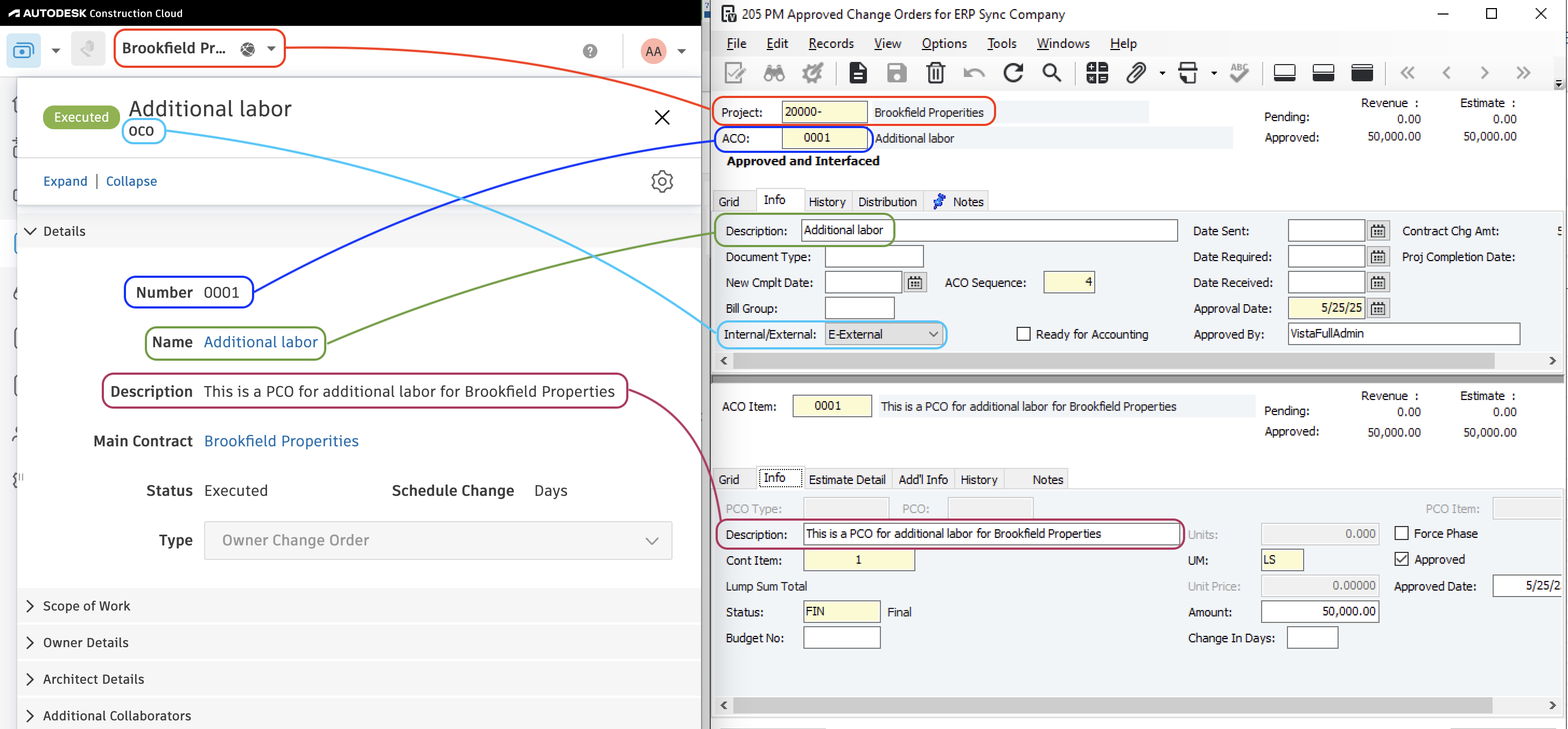
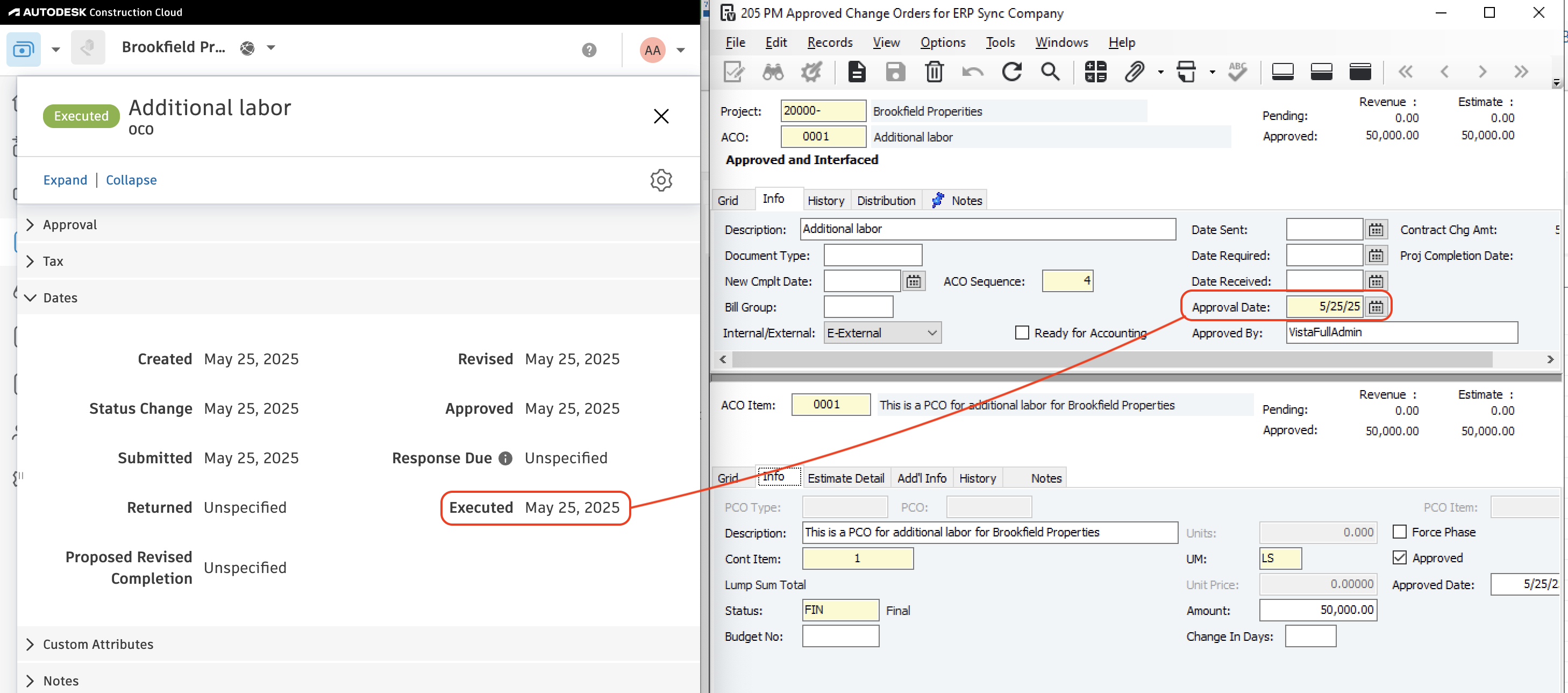

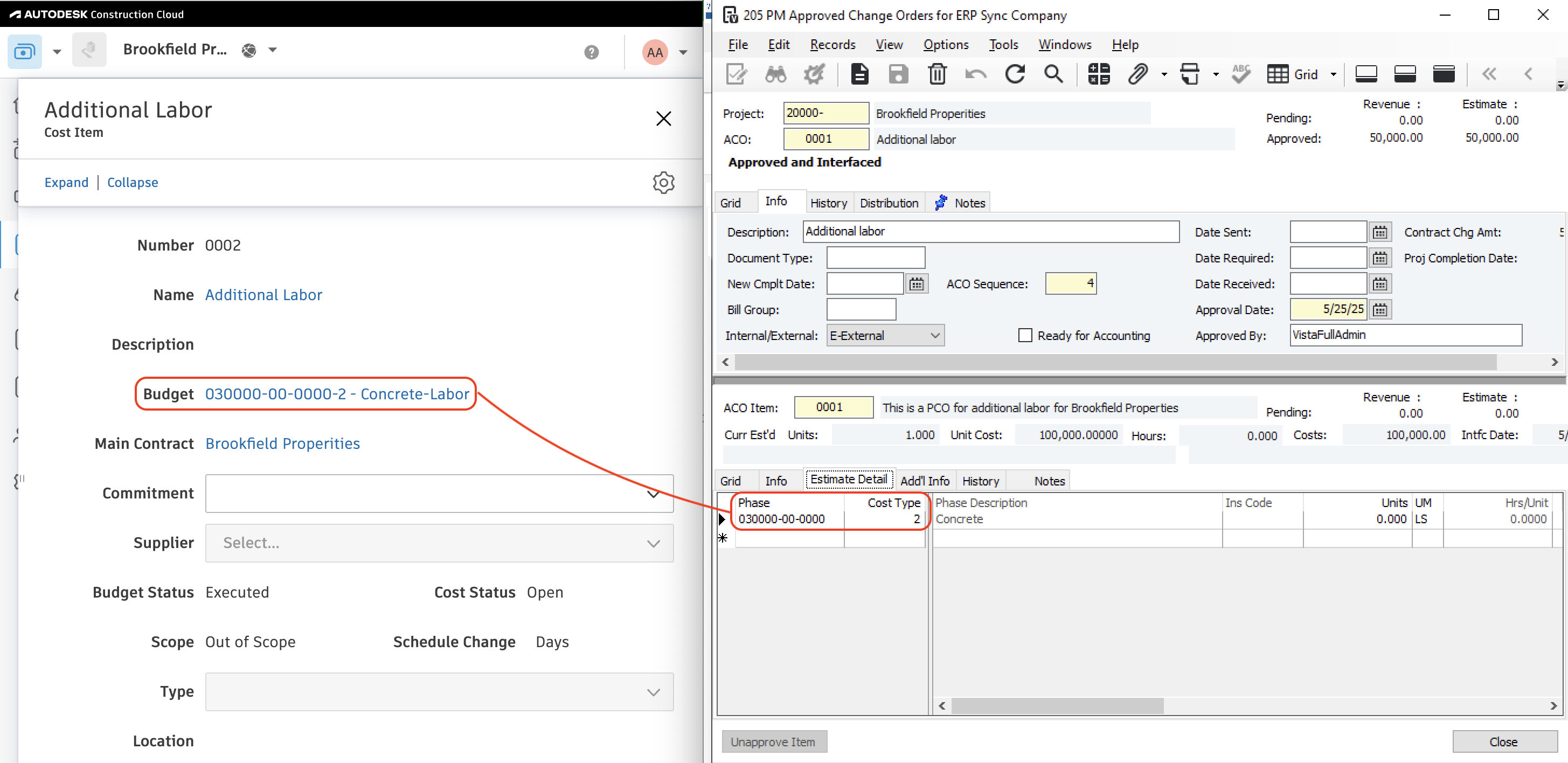
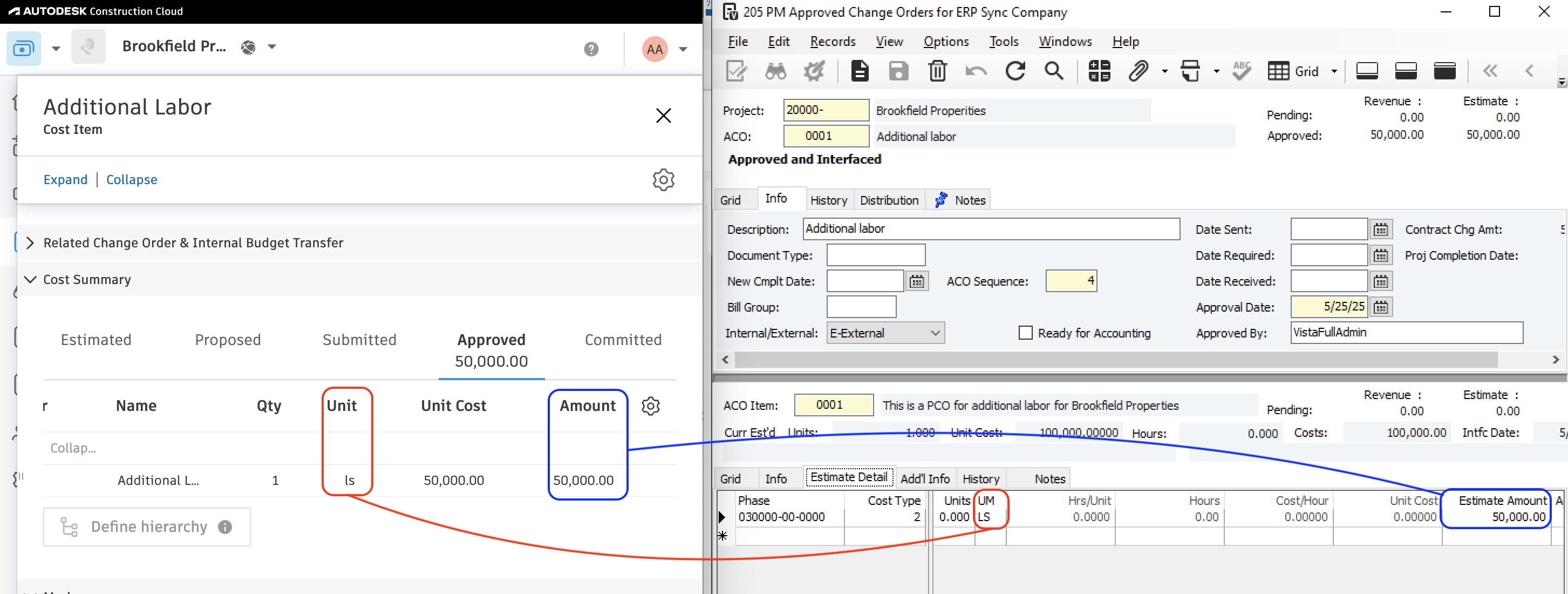
Video Tutorial
Common Errors and FAQs
How does Agave Sync associate an Autodesk Build Owner Change Order with a Vista JC Contract Line Item?
Agave Sync can either:
- Always reference the first JC Contract Line Item when creating an Prime Contract Change Order. This approach is useful for cases where you have single-line or lump sum JC Contracts in Vista.
- Generate a new Prime Contract Line Item for each Owner Change Order Line Item. This approach is useful when you have multiple Line Items on the JC Contract, and need to bill them separately when creating an AR Invoice (Budget Payment Application) in Autodesk Build.
Add a custom field for setting the Interface date in Vista
By default, Agave Sync uses the Executed Date of the Owner Change Order in Autodesk to determine the batch month in Vista. If an Owner Change Order is executed at the start of a new month but should be included in the prior month's billing or reports in Vista, you can override the batch month by adding a custom date field to the Owner Change Order in Autodesk.
To add the custom field in Autodesk:
- In your Project, navigate to Cost Management → Settings → Change Orders and scroll to the Custom Attributes section at the bottom.
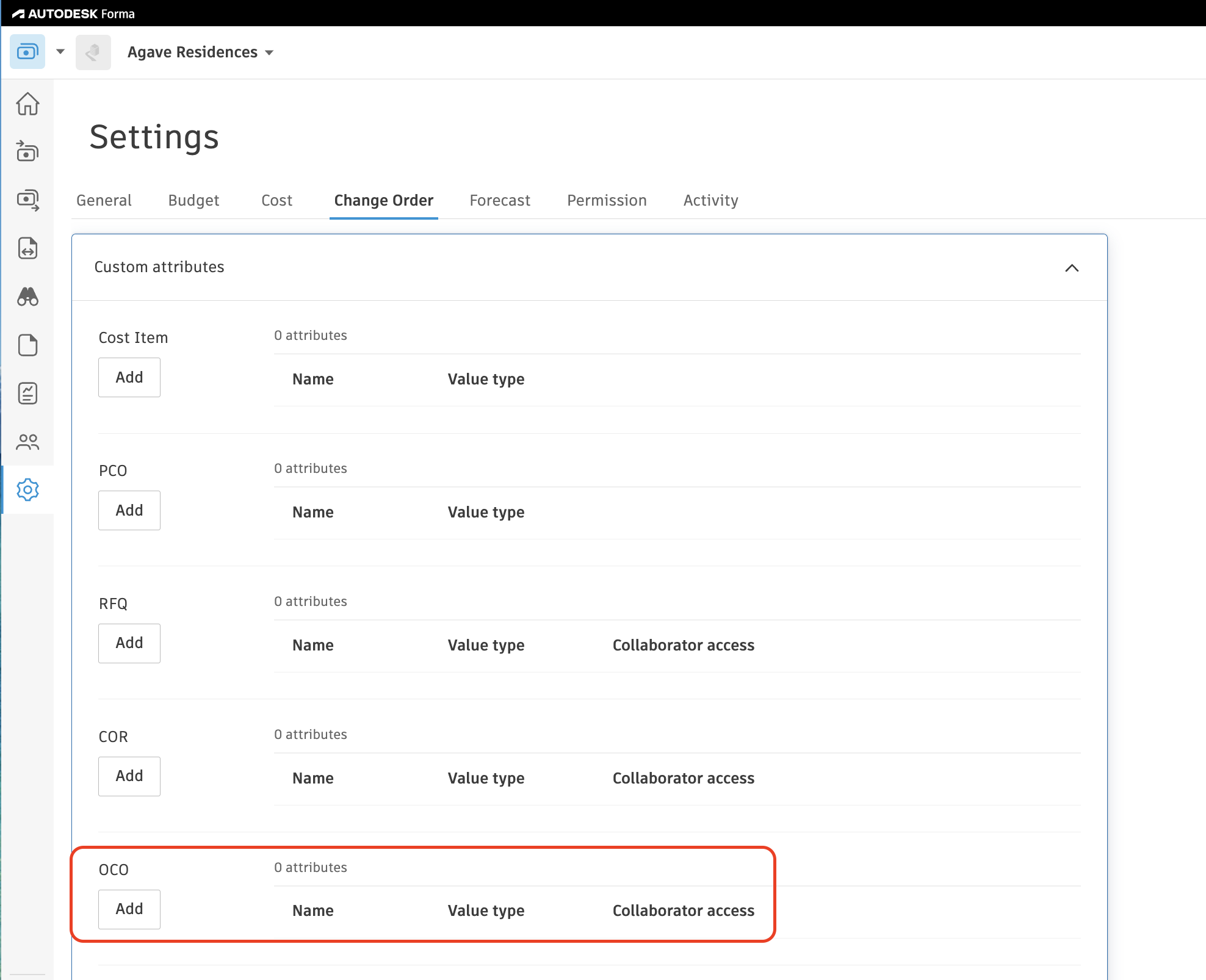
- Under OCO, click Add and create a new Date attribute. Name it GL Posting Date (or any label that's familiar to your team).
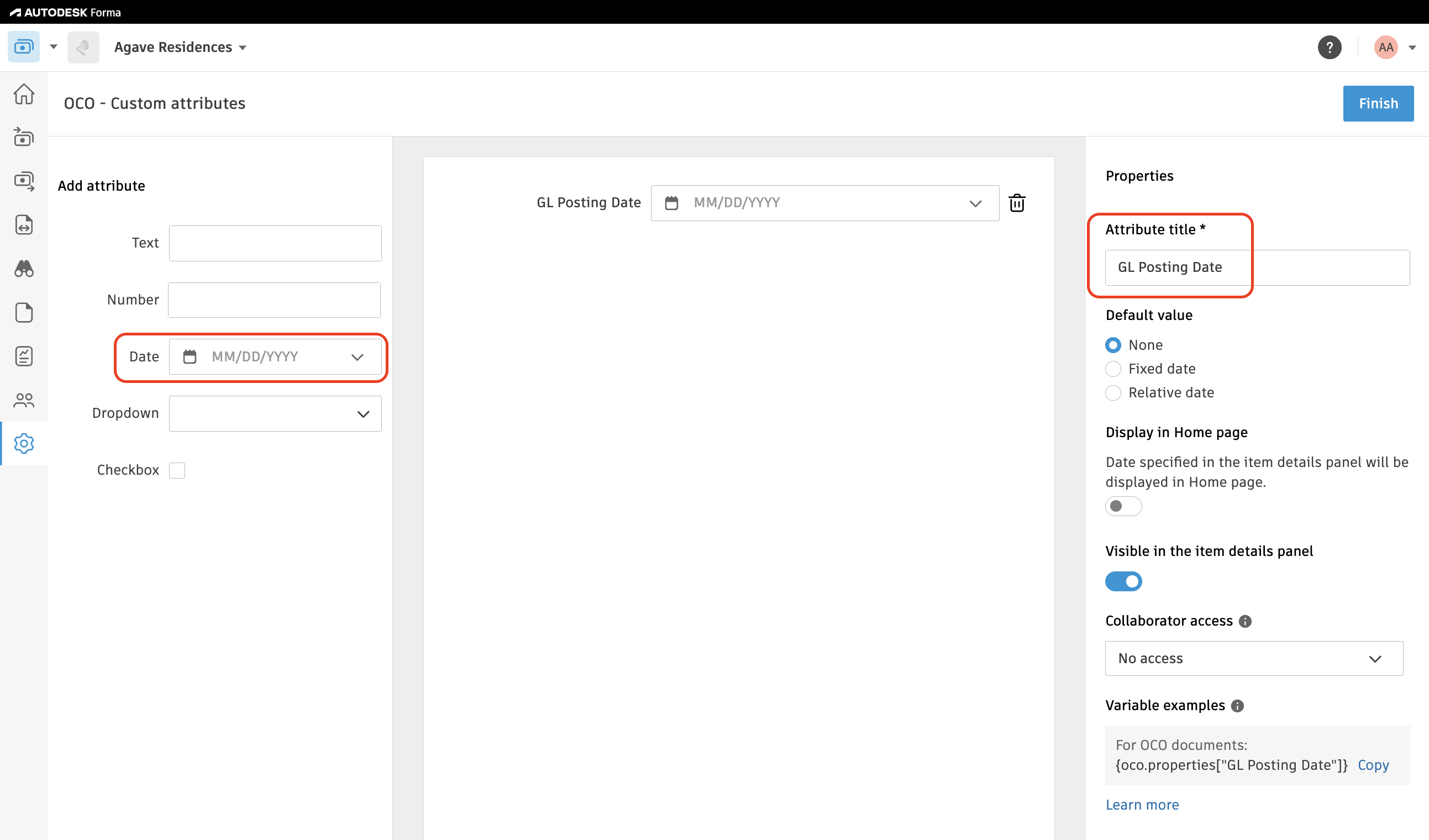
- Let your Agave Account Manager know the field has been added, and they'll map it to the Vista batch month for you.
We recommend adding this custom field to your Autodesk Project Template(s) so it's automatically included in every future Project.
Does Agave Support Syncing Sub-items from Autodesk Build?
Yes, Agave supports syncing one level of sub-items from Autodesk Build for the following record types:
- Subcontracts
- Purchase Orders
- Change Orders
- AP Invoices
- Prime Contracts
- Prime Contract Change Orders
- AR Invoices
To enable syncing for sub-items, ask your Agave Account Manager to enable it for you.
How It Works
Autodesk Build records have a hierarchical structure with:
- Root items — parent line items
- Sub-items — child line items
- Sub-sub items — which are explicitly filtered out (only one level of nesting is supported)
Agave Sync will include root items and their direct sub-items when syncing. Any items nested deeper than one-level are excluded.
Differentiating Revenue and Cost Amounts When Syncing Owner Change Orders from Autodesk
When syncing Owner Change Orders from Autodesk to your ERP, you may want to separate cost and revenue amounts so that profit (i.e. revenue − cost) can be calculated correctly.
By default, a Change Order line item may generate both cost and revenue in the ERP. Agave Sync provides two ways to mark certain line items as revenue-only, meaning they generate revenue but no cost.
Available Approaches
1. Revenue-only Cost Code
A specific Cost Code can be configured as revenue-only.
- Line items using this Cost Code will:
- Generate revenue
- Not generate cost
- Configuration is enabled by your Agave Account Manager
Best used when:
- Markups, fees, or similar items are tracked using dedicated Cost Codes
- You want the rule to apply regardless of Cost Type
2. Revenue-only Cost Type
A specific Cost Type can be configured as revenue-only.
- Line items using this Cost Type will:
- Generate revenue
- Not generate cost
- Configuration is enabled by your Agave Account Manager
Best used when:
- Markups or fees are categorized by Cost Type (e.g.,
Markup,Fee) - You want consistent behavior across multiple Cost Codes
Important Notes
- These settings must be enabled by your Agave Account Manager
- Once configured, the rules are applied automatically during syncs