Authentication
Connecting to Cloud Versions of Vista
The below provides an overview of how to connect to cloud or hosted versions of Vista. It takes about 15-30 minutes to complete.
Step 1: Create an Agave User in Vista
The first step is to create a dedicated User to connect to Agave Sync. We recommend using a dedicated User for the integration, so you can track activity from your integration with your PM system.
To create a dedicated User, you can follow Trimble's guide. We recommend naming this user "Agave-User".
Your password must meet the following criteria:
- Be at least 8 characters long
- Contain at least one letter, one number, and one special character (e.g. !, @, #, $, etc.)
- Not be part of an online data leak
- We use Have I Been Pwned to securely check your password, without sending us your actual password to their servers. See here for more information.
Step 2: Create a Ticket with Viewpoint Support Requesting Permissions
If you are using a hosted (cloud) version of Viewpoint Vista, you will need to open a case with Viewpoint Customer Support to add Agave's static IP addresses to your Vista TLS Database Endpoint IP whitelist:
-
Log in to your Customer Support account.
-
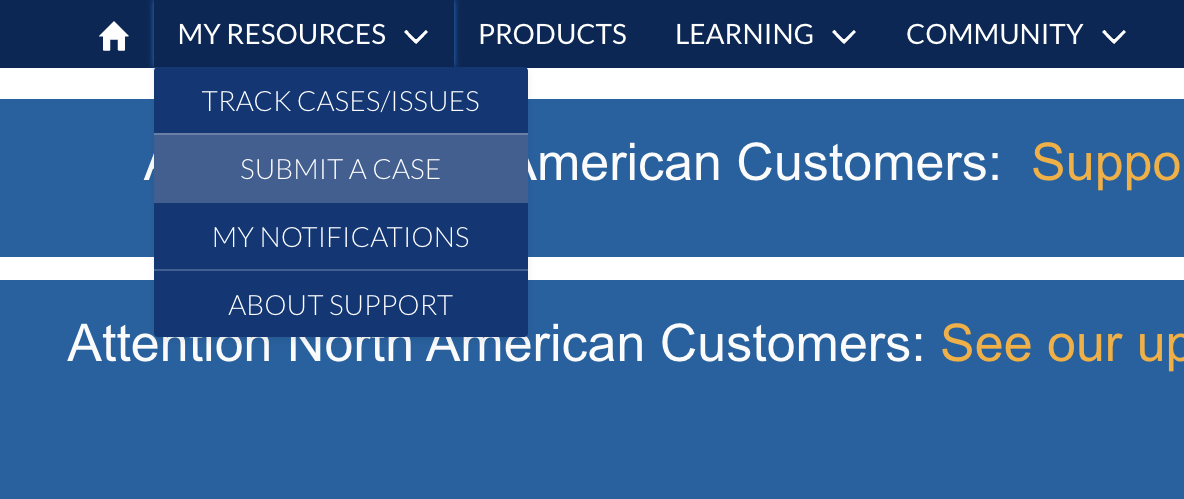
Select My Resources, then Submit a Case.
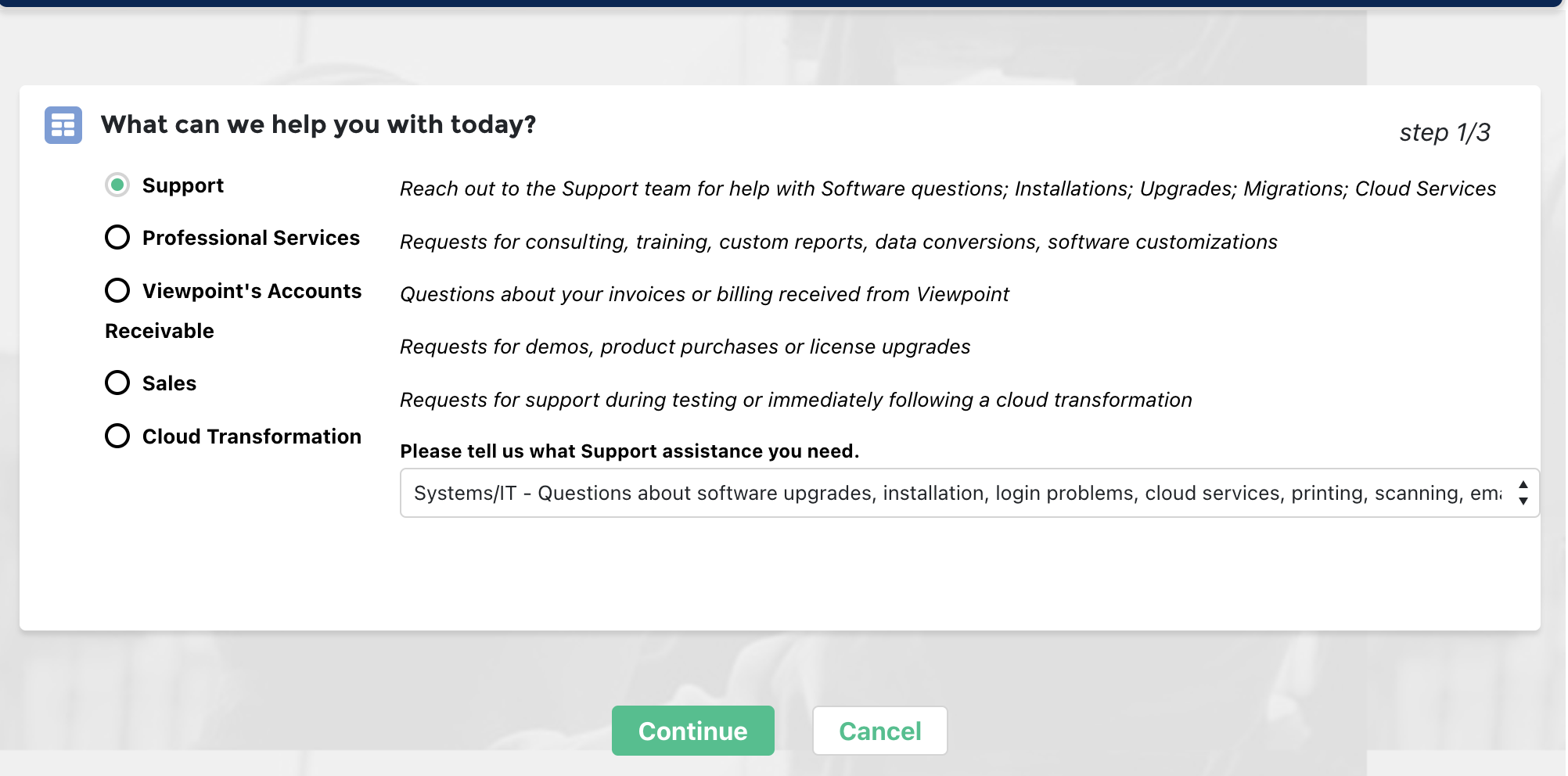
- Select Support, then Systems/IT.
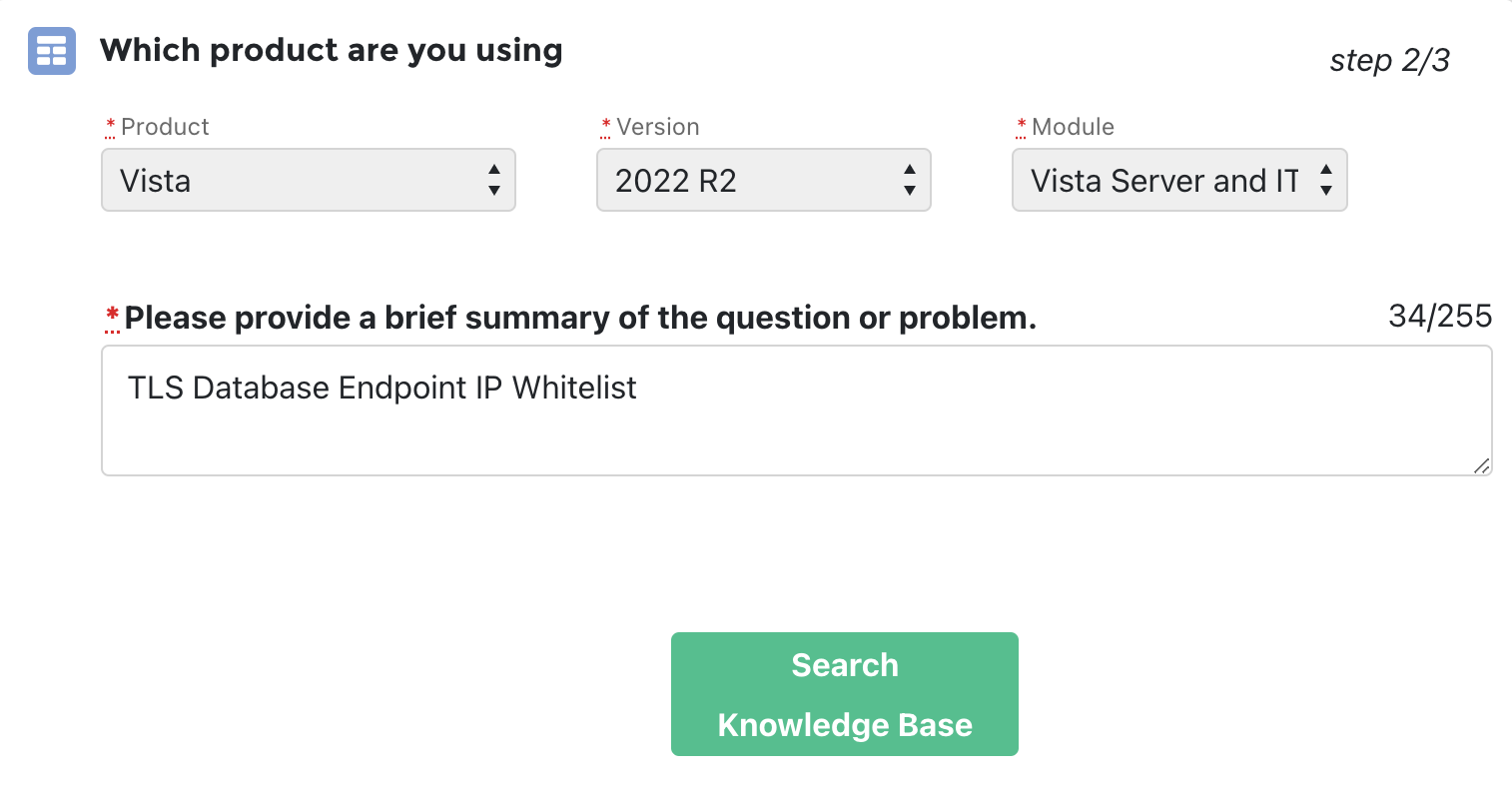
- Under Which product are you using?, input the following and select Search Knowledge Base:
- Product: select "Vista".
- Version: select the version of your Vista instance (e.g. 2022 R2).
- Module: select "Vista Server and IT Related".
- Brief Summary: input "TLS Database Endpoint IP Whitelist".
-
Scroll to the bottom of the page and press Continue to Case Creation.
-
Under Case Create, select a Priority. Under Description, add the following:
Hi - we are looking to whitelist our IPs for TLS Database Endpoint connectivity with our Vista instance. Here are our static IPs:
- 13.58.14.240
- 18.219.160.98
- 3.143.37.24
Could you also let us know what the database name and port are for our instance?
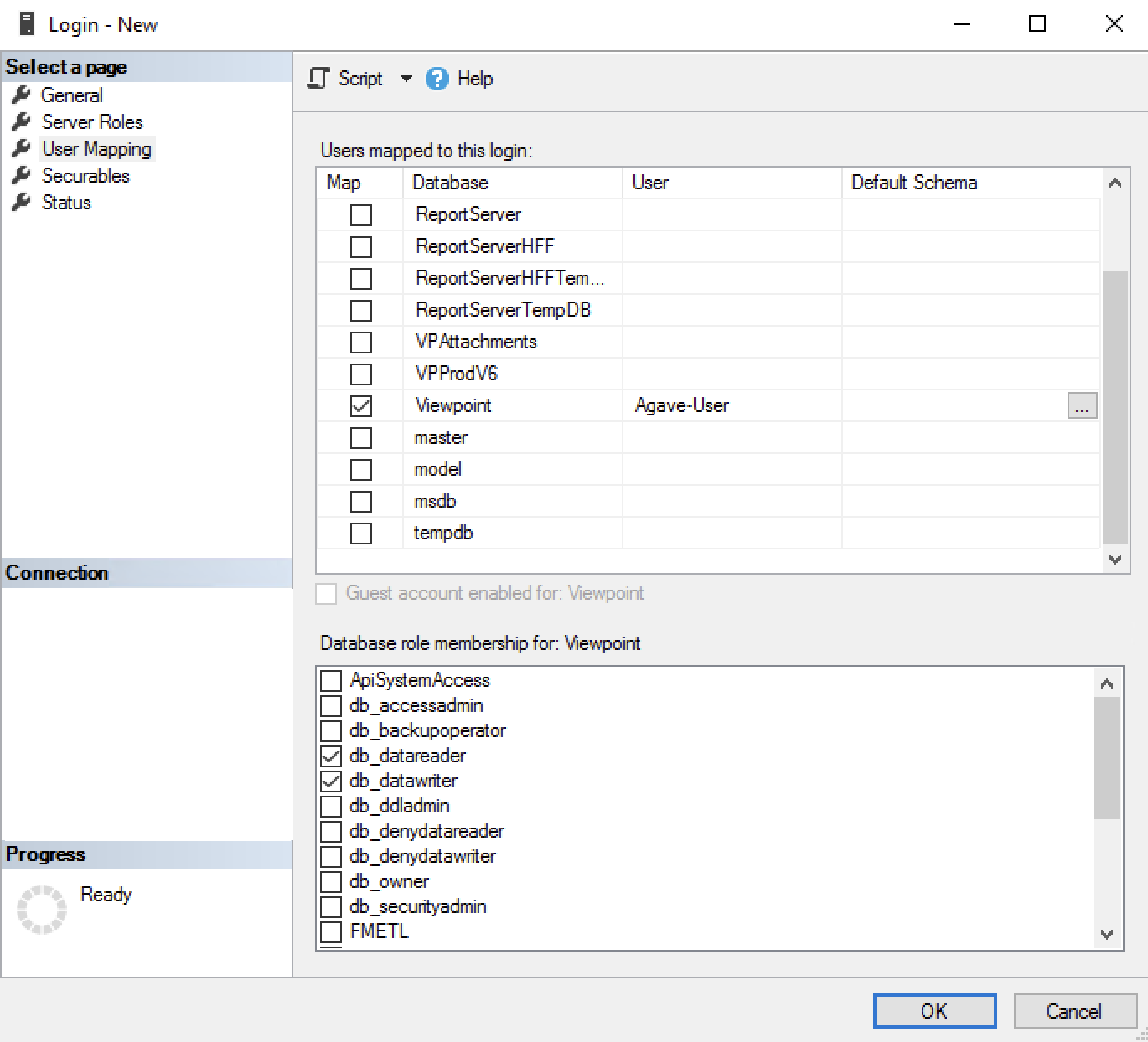
We are also looking to add the following permissions for the "Agave-User" in our Vista instance. Would it be possible to confirm that the following permissions have been added for the "Agave-User" to the Viewpoint and VPAttachments databases (see below screenshot from Microsoft SQL Server Management Studio)?
- db_datareader
- db_datawriter
- public
- VCSUsers
-
Press Submit.
-
After submitting a case, you should receive a response from Viewpoint Support within 24-48 hours confirming the connection the IP addresses have been whitelisted, the name of the database name and port, and that the permissions have been applied. Make a note of the hostname (e.g. {hostname}-sql.viewpointdata.cloud) and port number since you will need to use these to make the connection.
Step 3: Notify Agave to Make the Connection
Notify your Agave Account Manager that you are ready to connect Vista to your PM System!
Migrating from Vista On-Premise to Vista Cloud
If you are migrating from Vista on-premise to Vista Cloud on a live instance that is already connected to Agave Sync, the migration process is as follows:
- We will disable all automatic syncs.
- We will connect the new Vista Cloud account separately.
- We will swap the Vista Cloud account to your existing configurations.
- We will re-enable your automatic syncs.
Please reach out to your Agave Account Manager to coordinate the migration. We will handle the entire process to ensure a seamless transition with no data loss.
Connecting to On-Premise Versions of Vista
The below provides an overview of how to connect to on-Premise versions of Vista. It takes about 15-30 minutes to complete.
Step 1: Confirm you are on the Correct Versions of Microsoft Server and Microsoft SQL Server Management Studio
Agave Sync supports the following versions of Windows Server and Microsoft SQL Server Management Studio:
- Windows 10
- Windows 11
- Windows Server 2016
- Windows Server 2019
- Windows Server 2022
Agave follows Microsoft's Product Lifecycle policy for Windows.
As of October 2023, Windows 8.1 and Windows Server 2012 have reached end of support and do not receive security updates. If you are using either version, we recommend upgrading immediately. Agave does not support these versions of Windows.
For more information, see related Microsoft announcement.
Step 2: Whitelist Agave's Static IP Addresses
You will need to request your IT team whitelist Agave's static IPs both at the firewall and SQL Server level:
13.58.14.24018.219.160.983.143.37.24
This allows our servers to communicate with the Vista database hosted in your network.
If you are unable to authenticate with Agave Sync even after adding the above static IP addresses, we recommend following our guide on troubleshooting common issues with on-premise connections.
Step 3: Create an Agave User SQL User Account
After adding Agave to address your Vista TLS Database Endpoint IP whitelist, you will need to create a SQL User to be able to read and write data from and to your Vista Server.
-
Open Microsoft SQL Management Studio and log in to your Vista SQL Server.
-
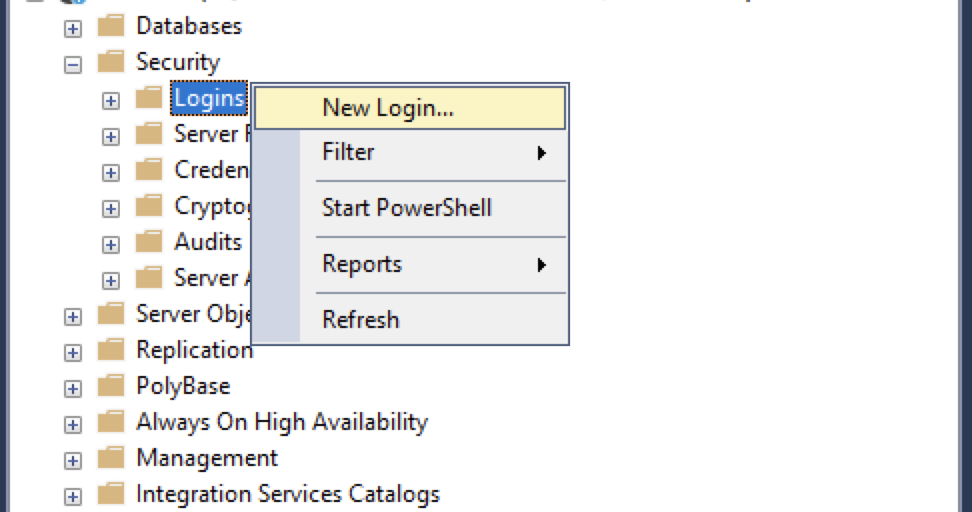
Select Security, right click Logins, then select New Login....
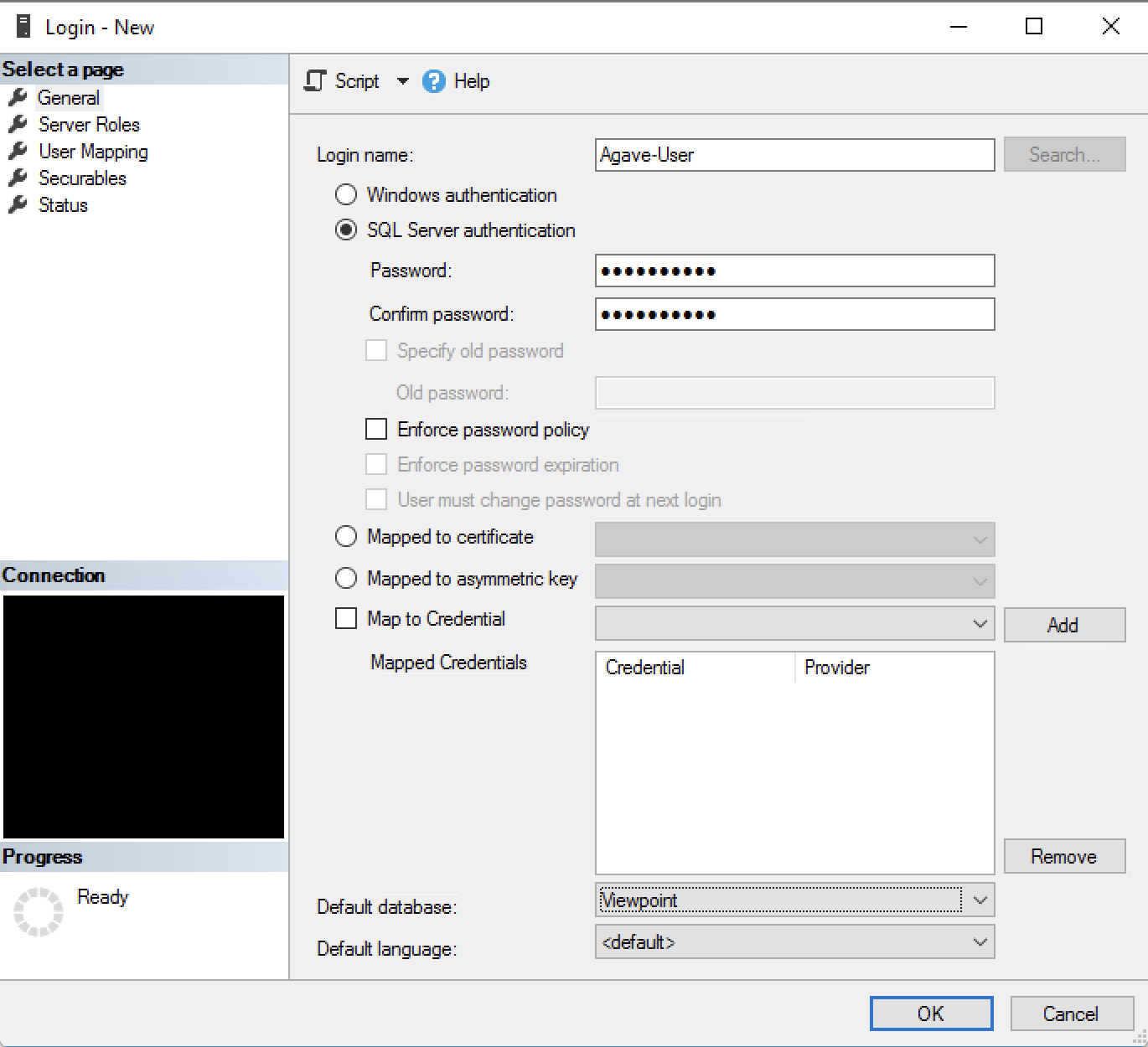
- Under General:
- Input a new Login name (e.g. "Agave-User").
- Select SQL Server authentication.
- Add details for a password.
- Unselect Enforce password policy.
- Set Default database to be "Viewpoint".
Your password must meet the following criteria:
- Be at least 8 characters long
- Contain at least one letter, one number, and one special character (e.g. !, @, #, $, etc.)
- Not be part of an online data leak
- We use Have I Been Pwned to securely check your password, without sending us your actual password to their servers. See here for more information.
-
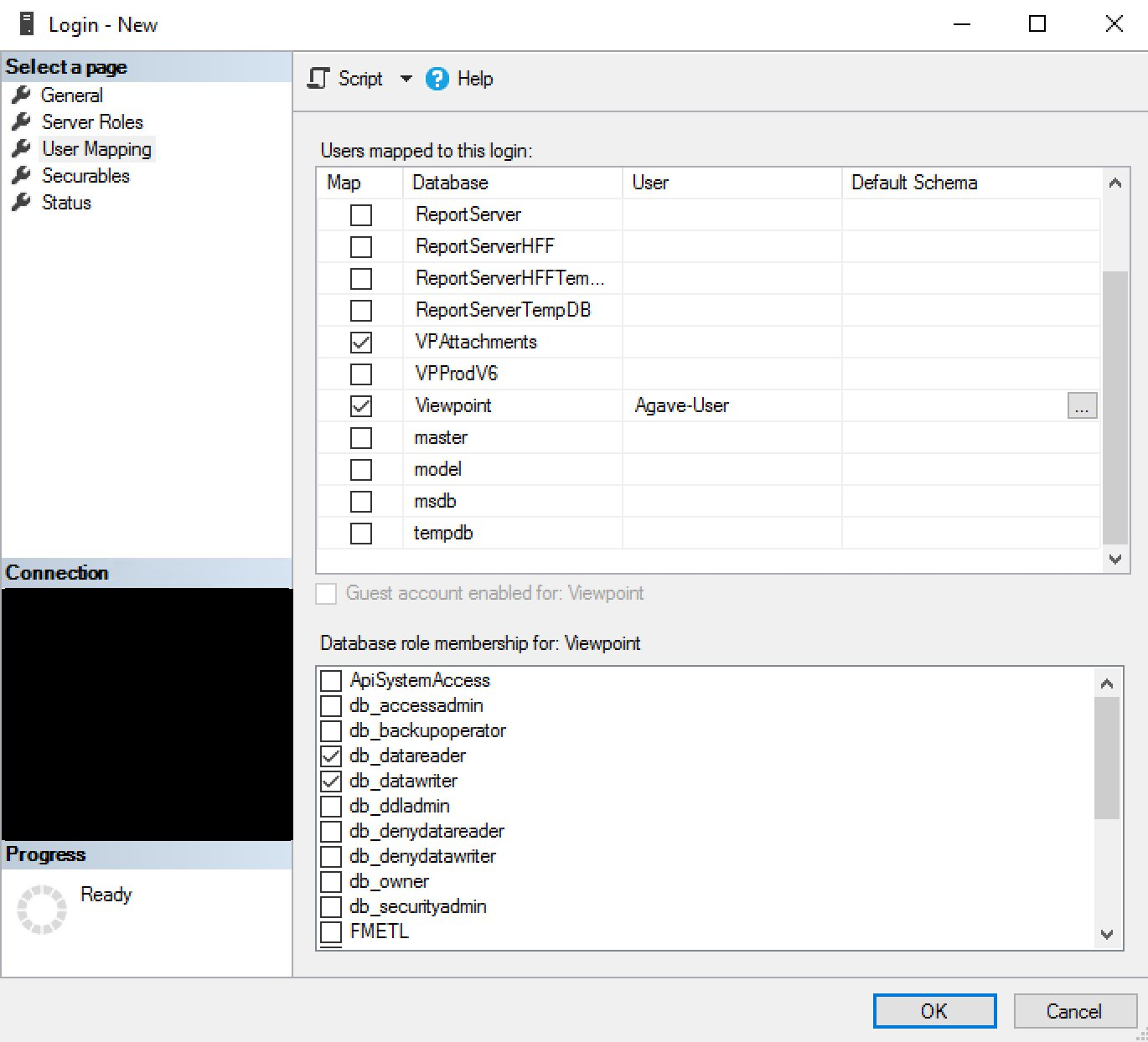
Under User Mapping, in the Database column select "Viewpoint" and "VPAttachments"
-
Select the following under Database role membership for Viewpoint and Database role membership for VPAttachments. Then select "OK".
- db_datareader
- db_datawriter
- public
- VCSUsers
Step 4: Notify Agave to Make the Connection
Notify your Agave Account Manager that you are ready to connect Vista to your PM System!
Frequently Asked Questions
1. How does Agave handle multi-company Vista environments?
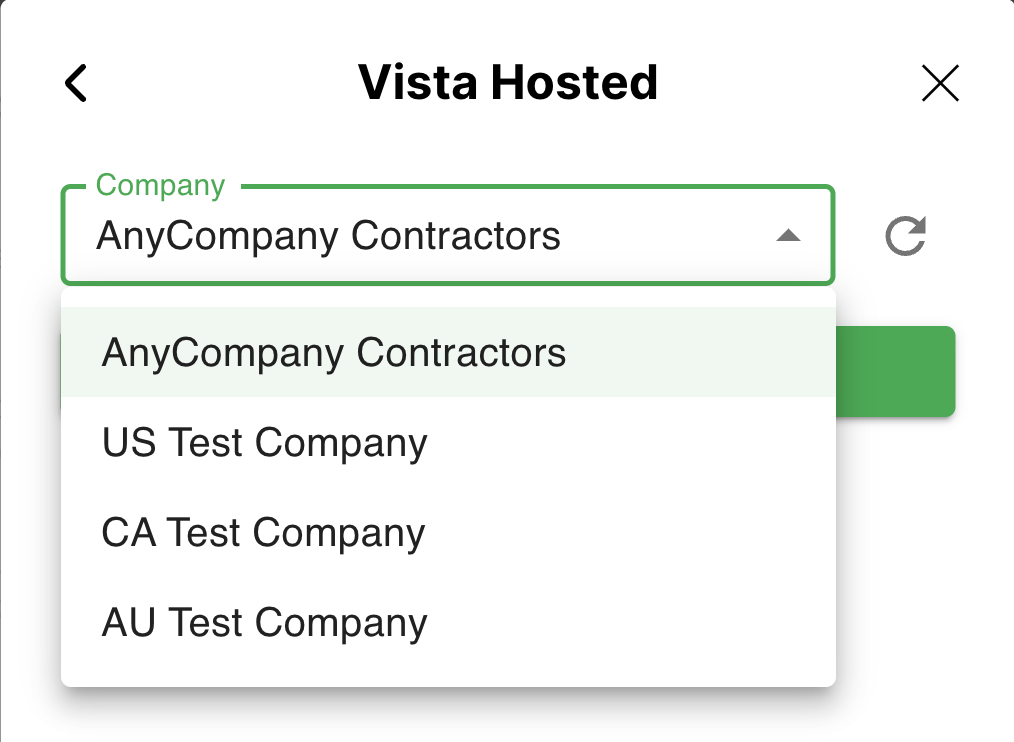
Our logic defaults to the Vista Company selected in our Agave Link component during the account-linking process (see example below). Some Vista Companies share files for certain data objects (e.g. Vendors, Customers, etc), so if the Vista instance is set up correctly then those should be shared across all of their Companies.
2. What Viewpoint Vista environments are supported?
The following Viewpoint Vista environments are supported:
| Environment | Supported? |
|---|---|
| On Premise | ✅ |
| Trimble Construction One (TC1) | ✅ |
| Viewpoint One (VP1) | ✅ |
| Vista On-premise | ✅ |
| Vista SaaS | ✅ |
| Viewpoint Enterprise Cloud (VEC - RDP) | ✅ |
| Viewpoint For Cloud (VFC) | ✅* |
* If your customer is on Viewpoint for Cloud, we need to perform a manual setup before they can connect their database. Please contact us for more information.