Frequently Asked Questions
Agave Connector
1. What versions of Sage 300 CRE do you support?
Agave supports versions 17.1 and above.
2. What versions of Windows do you support?
We support the following versions of Windows:
- Windows 10
- Windows 11
- Windows Server 2016
- Windows Server 2019
- Windows Server 2022
Agave follows Microsoft's Product Lifecycle policy for Windows.
As of October 2023, Windows 8.1 and Windows Server 2012 have reached end of support and do not receive security updates. If you are using either version, we recommend upgrading immediately. Agave does not support these versions of Windows.
For more information, see related Microsoft announcement.
3. Do I have to keep the Agave Connector running?
Yes. The Agave Connector needs to stay open to enable real-time data syncing.
4. How often does Agave sync my data?
Agave will attempt to sync your data every 15 seconds. Note, syncing can take longer depending on the amount of data being synced.
5. Do I need to disable my firewall?
No. You do not need to disable your firewall when using the Agave Connector.
Task Scheduler Issues
Connection missing after changing the task's user account
The Agave Connector's connection is tied to the Windows user profile it was configured under. If the scheduled task is set to run as a different Windows user than the one that originally set up the connection (for example, switching from a global admin account to a dedicated local admin account), the connector will launch unconfigured for that user and the previously created connection will not appear.
The user account under "When running the task, use the following user account" in the task's Security options (highlighted below) must be the same Windows user the connection was configured under.
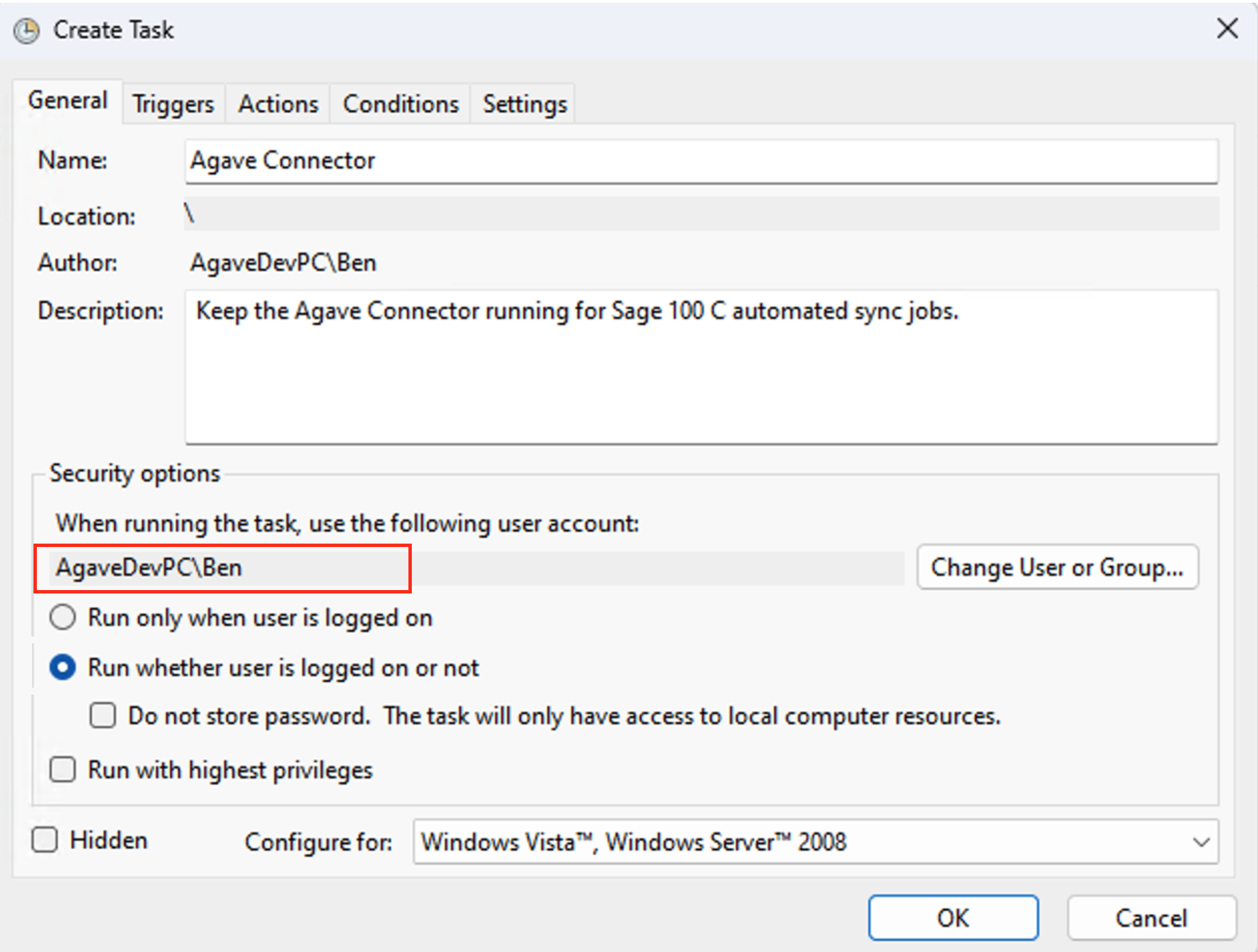
If you run the connector under a new user and the connection is missing, the connection must be re-established under that user:
- Delete (or end) the existing scheduled task that was created under the old user account.
- Log in to the machine as the Windows user the scheduled task will run under, and open the Agave Connector under that account.
- Contact your Agave Implementation Manager for a new Account ID and Token, enter them in the Agave Connector, and click Test Connection. Once confirmed, let your Agave Implementation Manager know so they can verify the connection.
- Recreate the scheduled task following the steps in Windows Task Scheduler, making sure the task's user account (set via Change User or Group in the "General" tab) matches the Windows user the connection was configured under.
Whenever the scheduled task's "run as" user changes, the connection must be reconnected under that same Windows account. The existing connection will not carry over to the new user.
Setting Up the US Date Time Format in Windows for Agave API Integration
To ensure proper functionality of the Agave API with Sage 300 CRE, it is crucial to configure the Windows system of the user who has the Agave connector installed to use the US date format in the Windows system. Follow the steps below to complete the setup.
1. Open Date and Time Settings
- Locate the time display on the taskbar at the bottom-right corner of your screen.
- Right-click on the time and select "Adjust date and time settings."
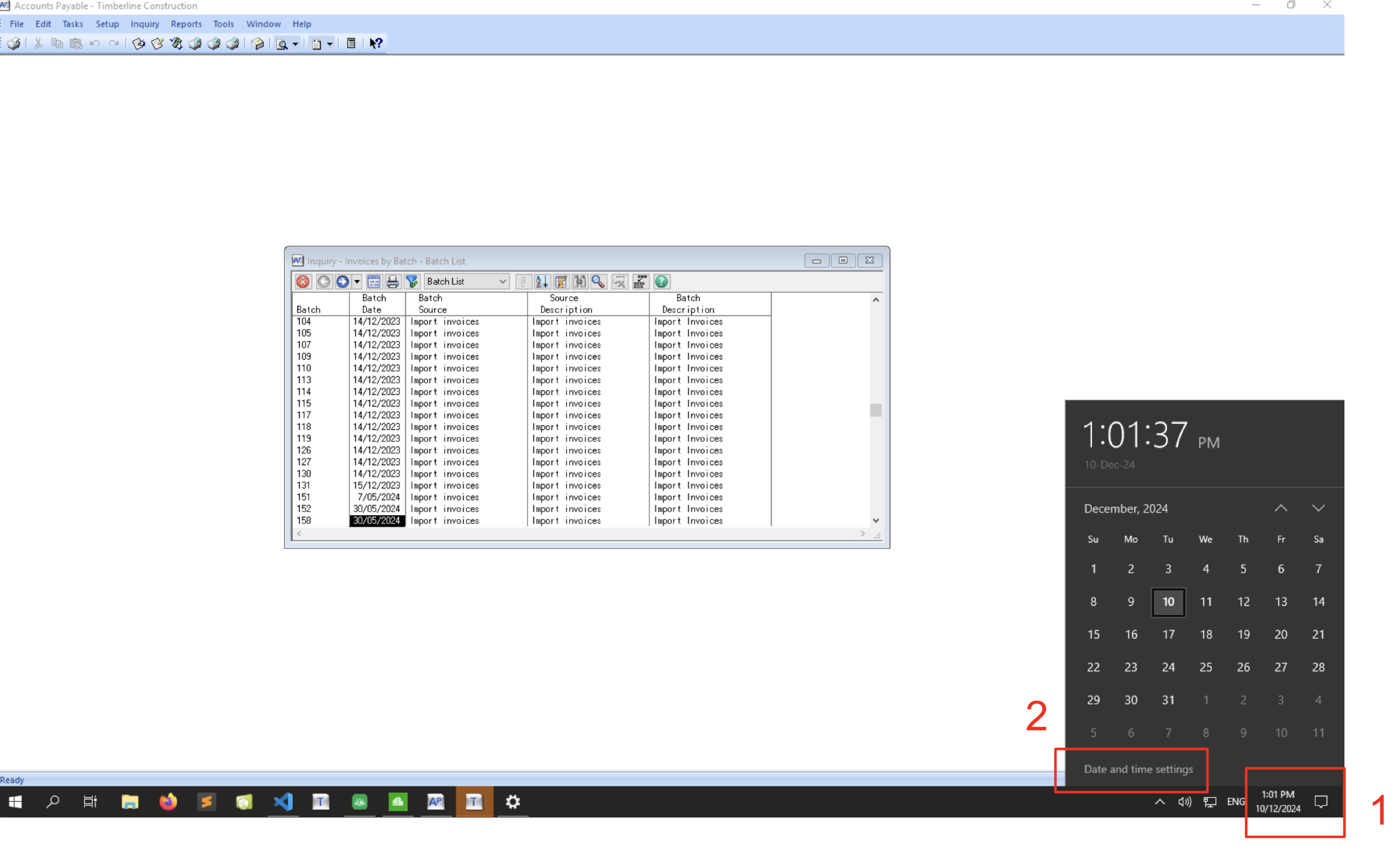
2. Change Country or Region to United States
- In the "Date and time settings" window, locate the "Region" or "Country/Region" option.
- Set the Country/Region to United States.
3. Set the Current Format to English (United States)
- Within the same settings window, locate the "Formats" section.
- Set the Current format to English (United States).
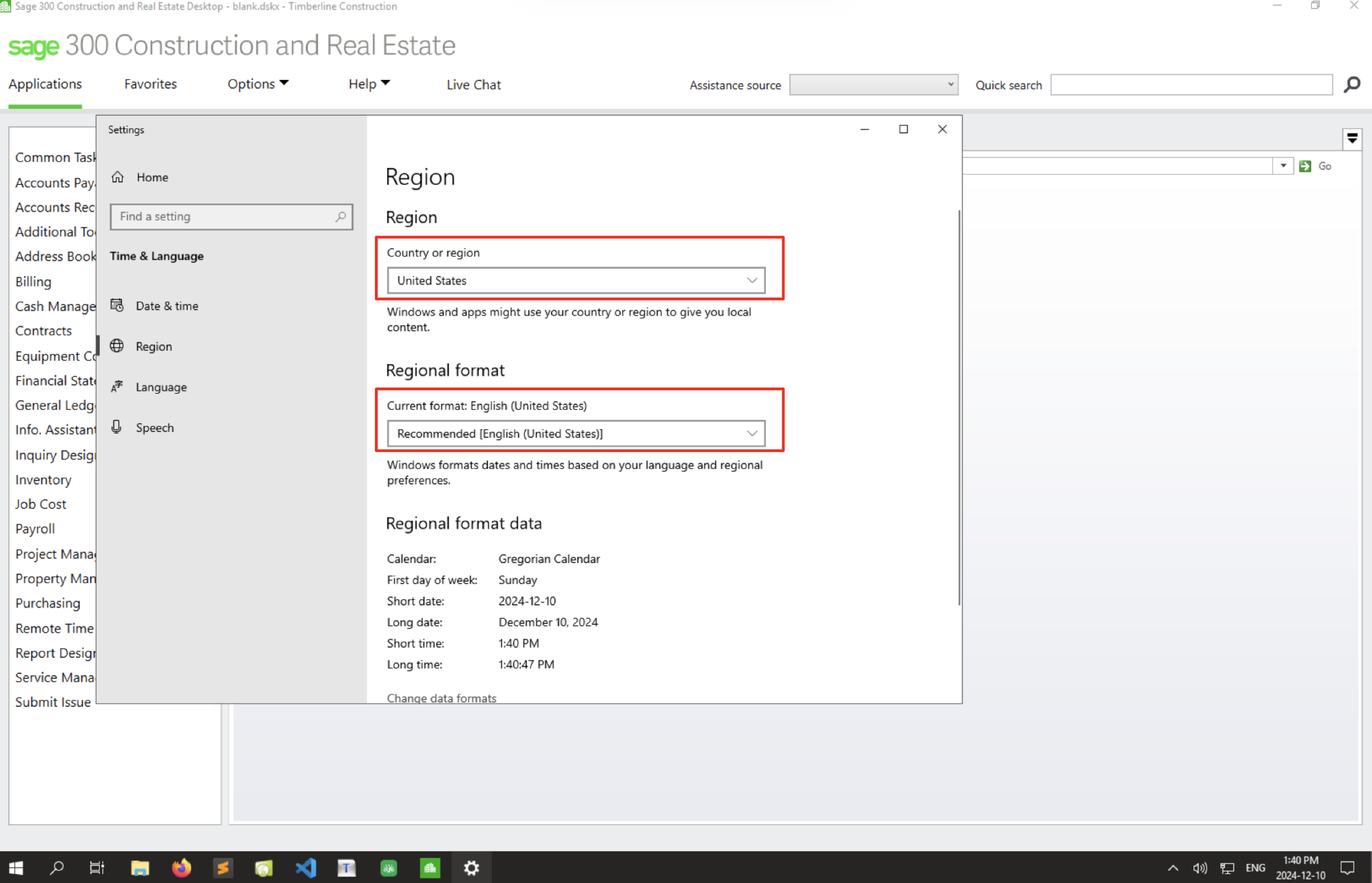
4. Adjust Date Formats
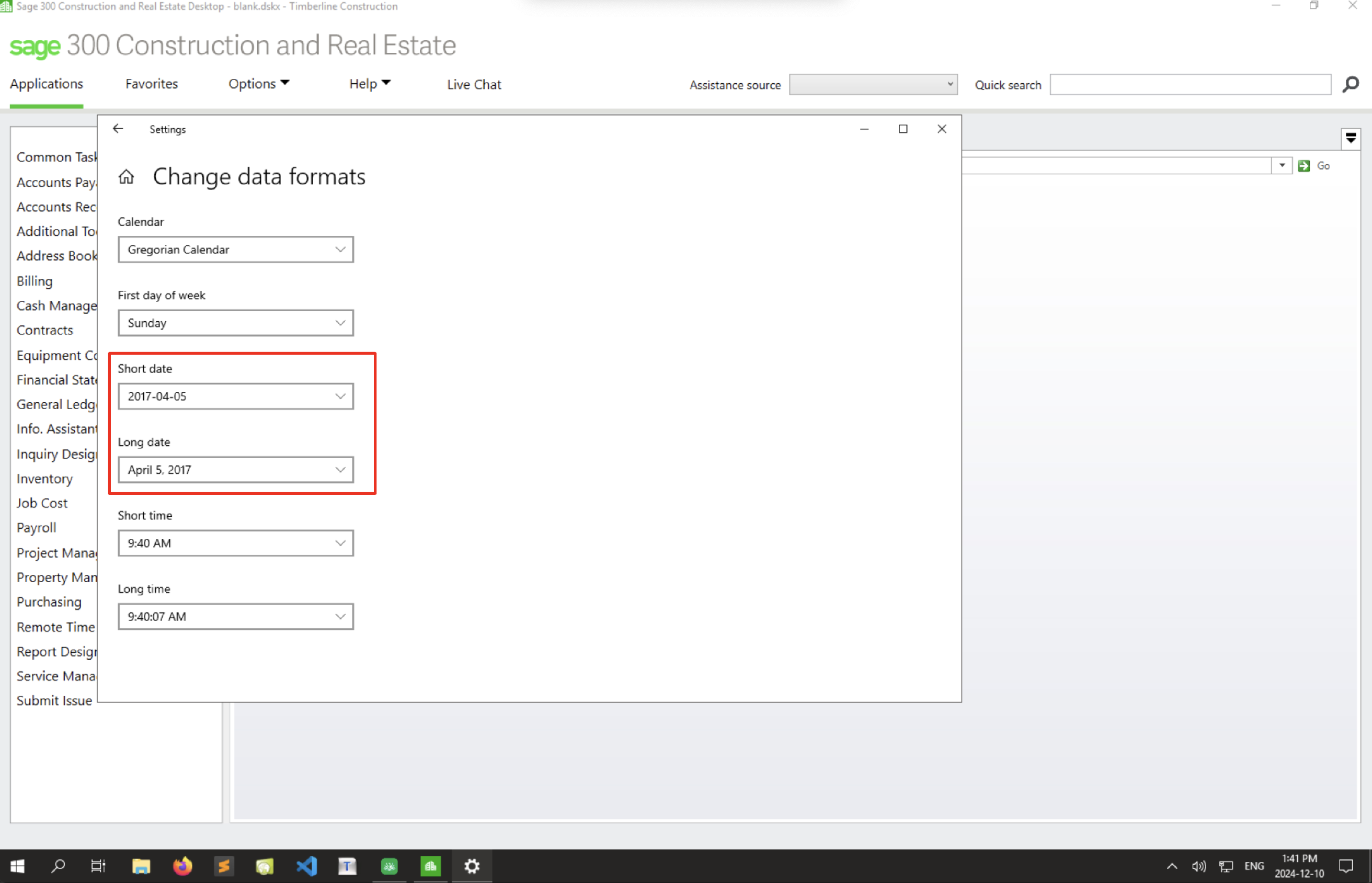
- Scroll down to the "Change date formats" section and select it.
- Ensure the Short Date and Long Date formats match the date format in the screenshot
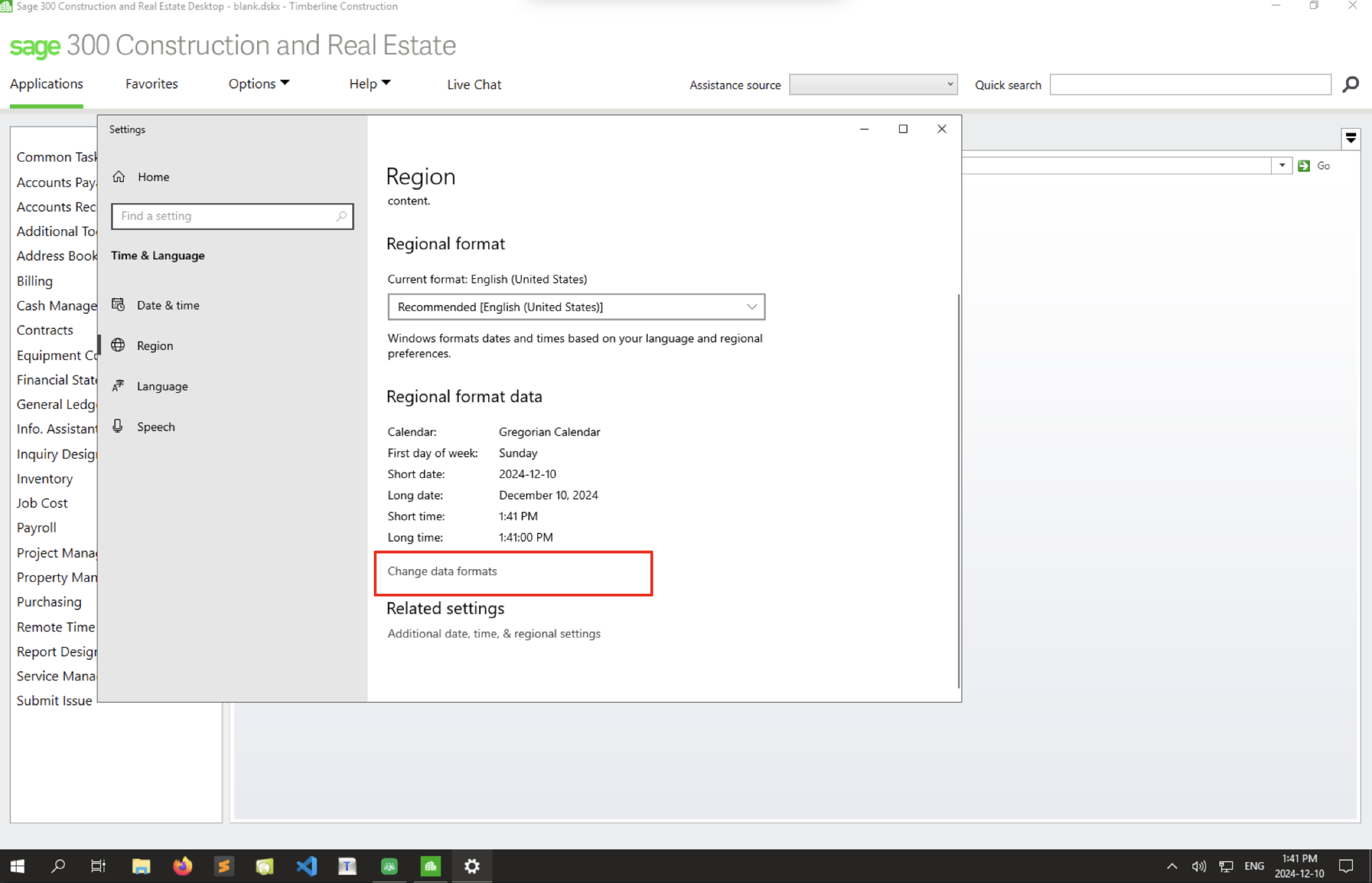
5. Restart Your System
- After completing the adjustments, turn off and restart your Windows machine.
6. Verify Sage 300 CRE Date Format
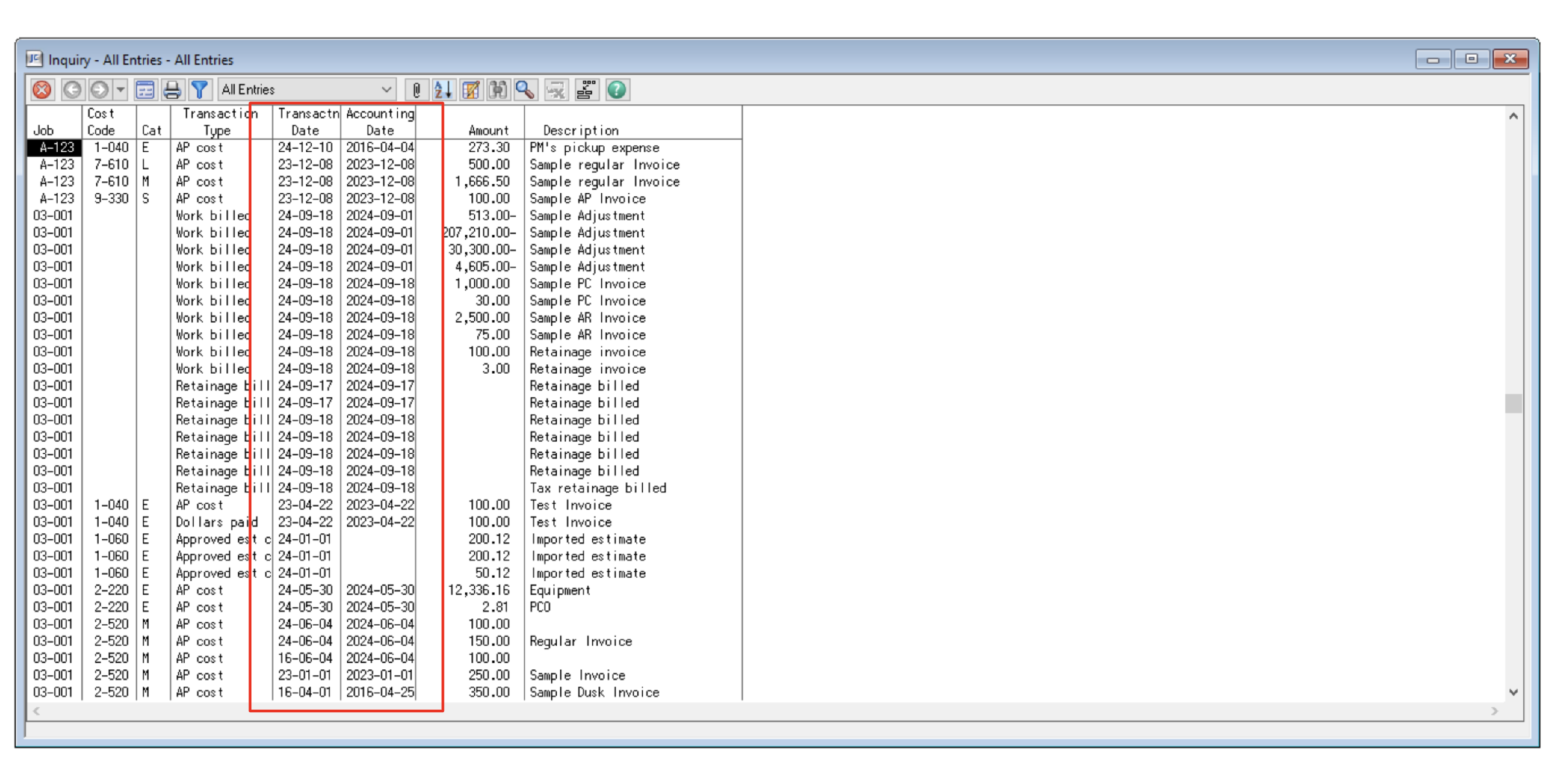
- Once your system restarts, open Sage 300 CRE.
- Ensure that dates appear in the
yyyy-mm-ddformat.
7. Install Agave Connector
- After confirming the date format is correctly set, download and install the Agave Connector on this Windows user account.
Table / Table View Issues
Unable to open the table MASTER_JCM_RECORD_XXX
[Sage 300 CRE Error] [0] [odbc] Error preparing the SQL statement: [31834:HY000] [Sage][SQLEngine] (31834) Unable to open the table MASTER_JCM_RECORD_1. The table is locked by another process.
You encounter this issue because Sage prevents multiple users from editing the same database to avoid conflicts.
To resolve it:
- Wait for the user occupying JC to finish, then retry later.
- If the issue persist, stop and re-run the Agave Connector background task in the Windows Task Scheduler on the machine you’ve installed it on
- If the issue still persist, restart the server machine
- The Agave Connector task in Windows Task Scheduler should re-run after the machine restarts. You can double-check to confirm.
Table or view not found
[Sage 300 CRE Error] [0] [odbc] Error preparing the SQL statement: [31740:42S02] [Sage][SQLEngine] (31740) Table or view not found: \FILE_PATH..MASTER_APM_RECORD_1
[Sage 300 CRE Error] [0] [odbc] Error preparing the SQL statement: [31740:42S02] [Sage][SQLEngine] (31740) Table or view not found: \FILE_PATH..MASTER_ARM_RECORD_1
You can try open AP Vendors or AR Customers in Sage 300 CRE with the user you've created for the integration and see if they are accessible in the application.
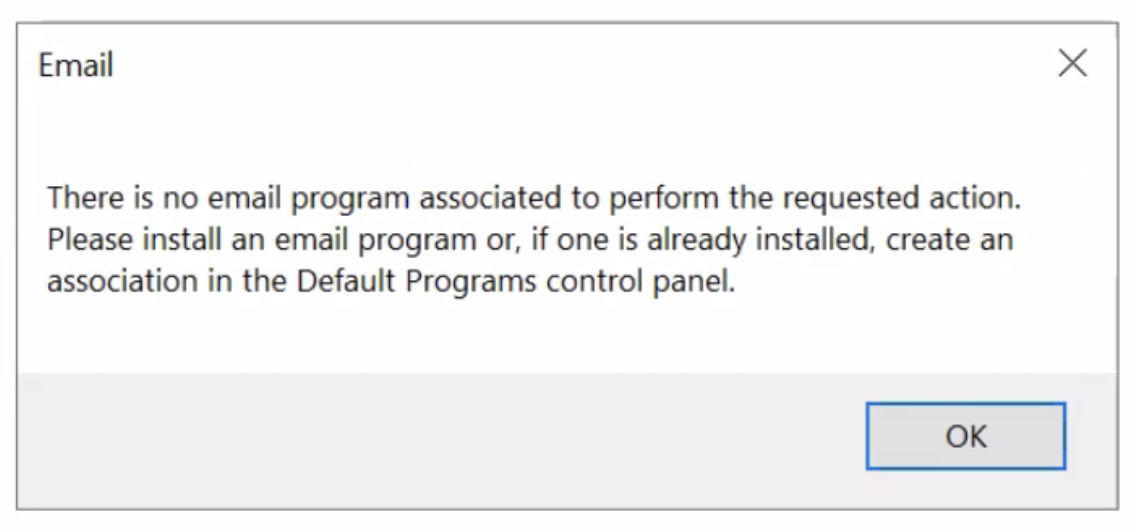
You might encounter pop-ups like the following. You can click "OK" to get through them, and retry.
File / Licensing Issue
Follow this guide if you get an error like this:
[Sage 300 CRE Error] [0] Macro execution failed with Sage300 error: Unable to open the xxx file. Opening this file requires the XXX application to be licensed.