Prime Contract Change Orders
Agave Sync allows you to either:
- Sync Sage 300 CRE JC Change Orders or PJ Change Requests to Autodesk Build Owner Change Orders, or
- Sync Autodesk Build Owner Change Orders to Approved Estimate Change Transactions and Approved Schedule Value Transactions in Sage 300 CRE.
Sage 300 CRE JC Change Orders
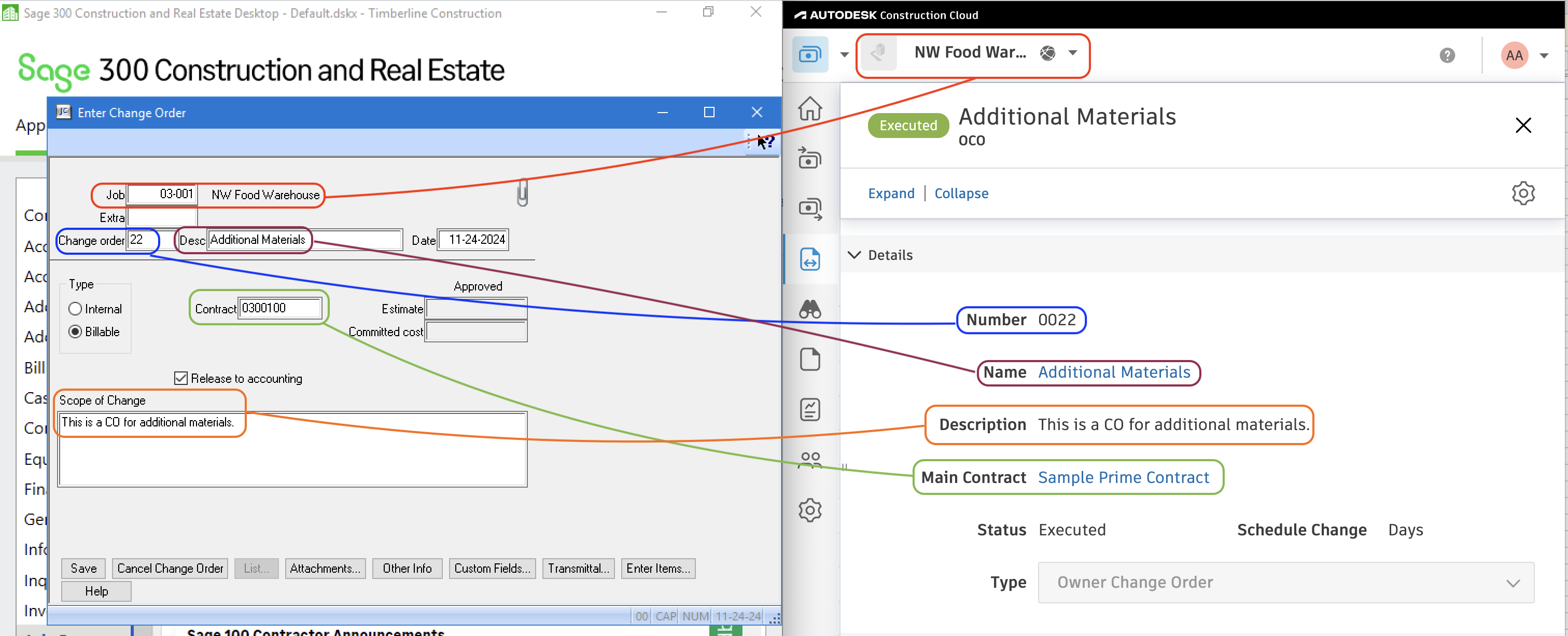
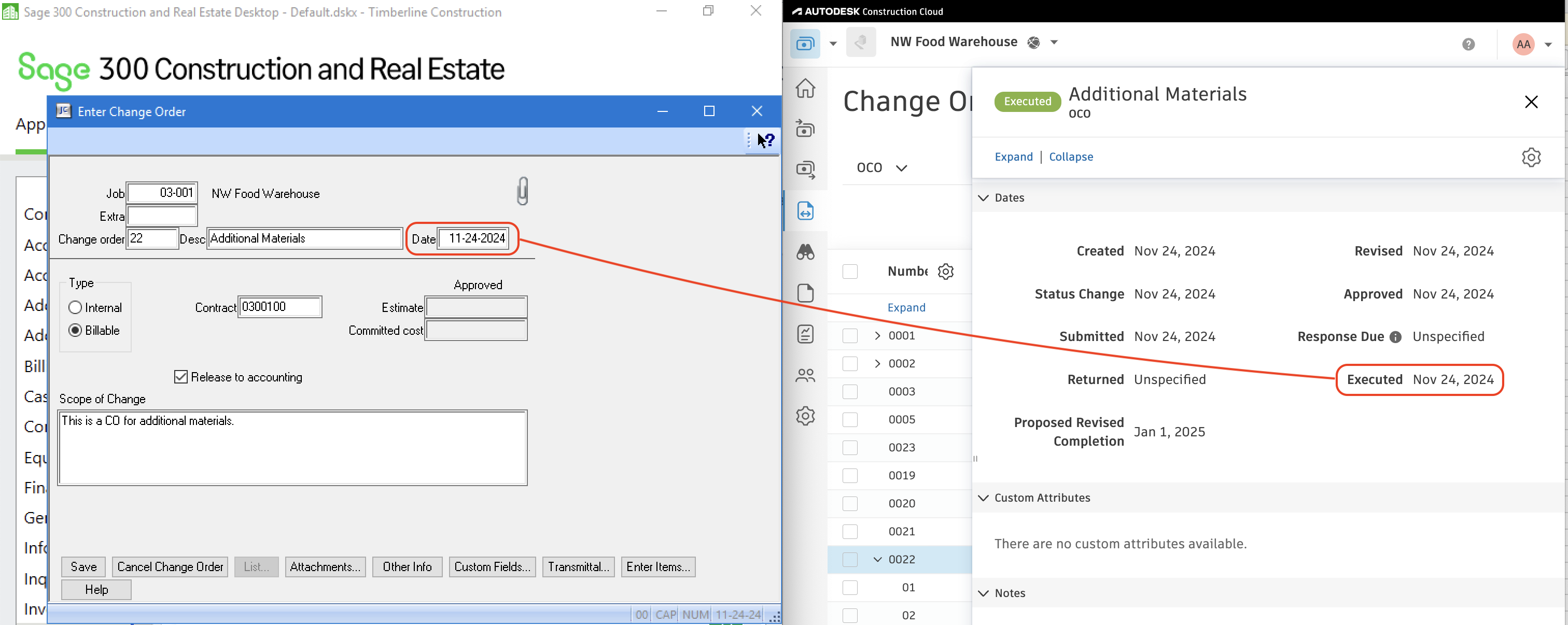
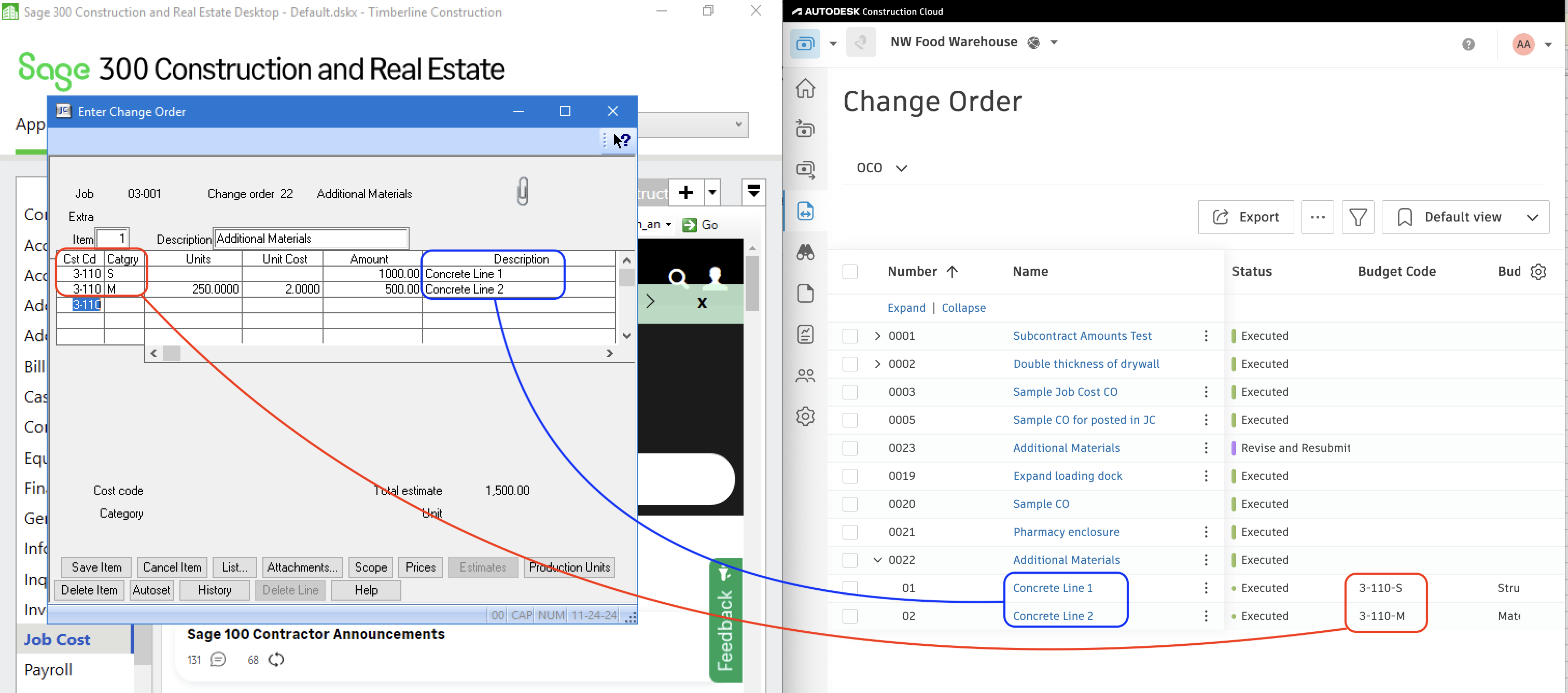
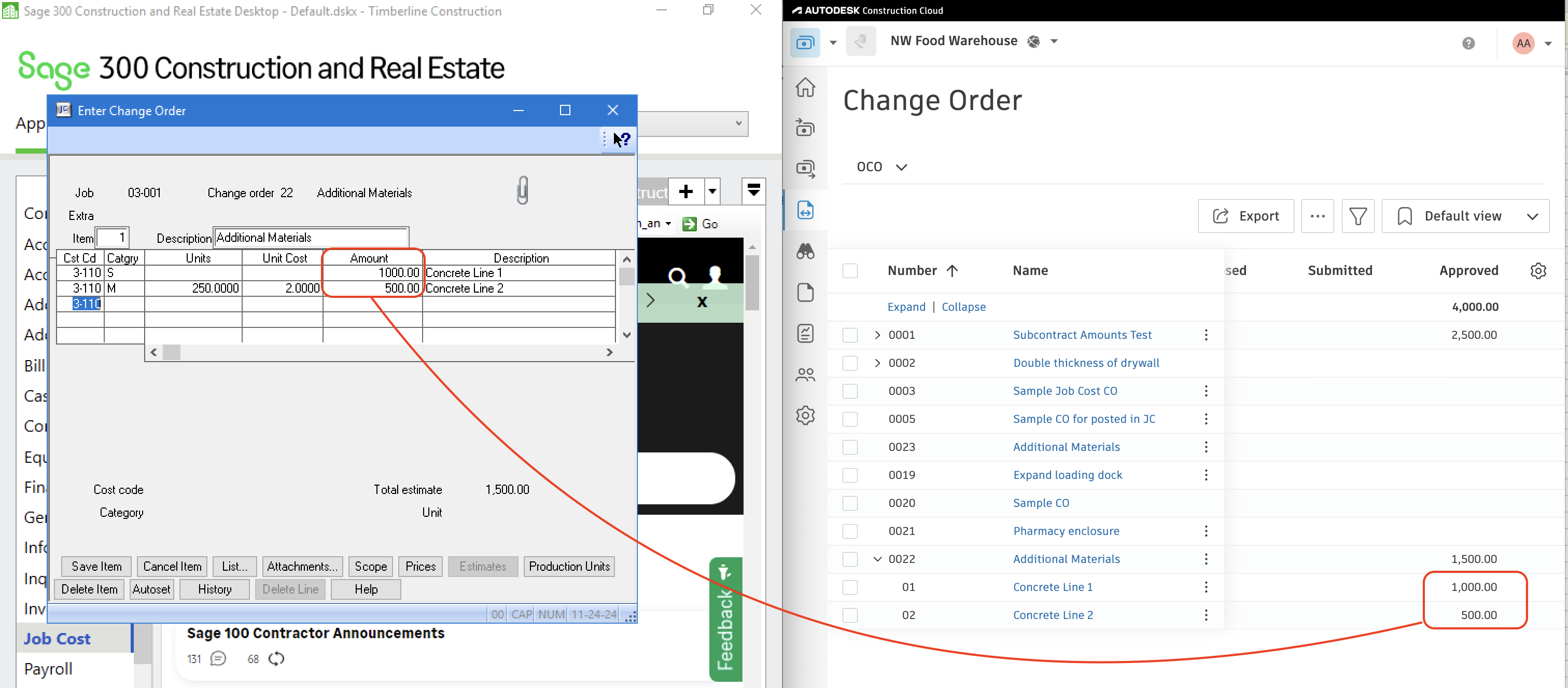
Sage 300 CRE PJ Change Requests
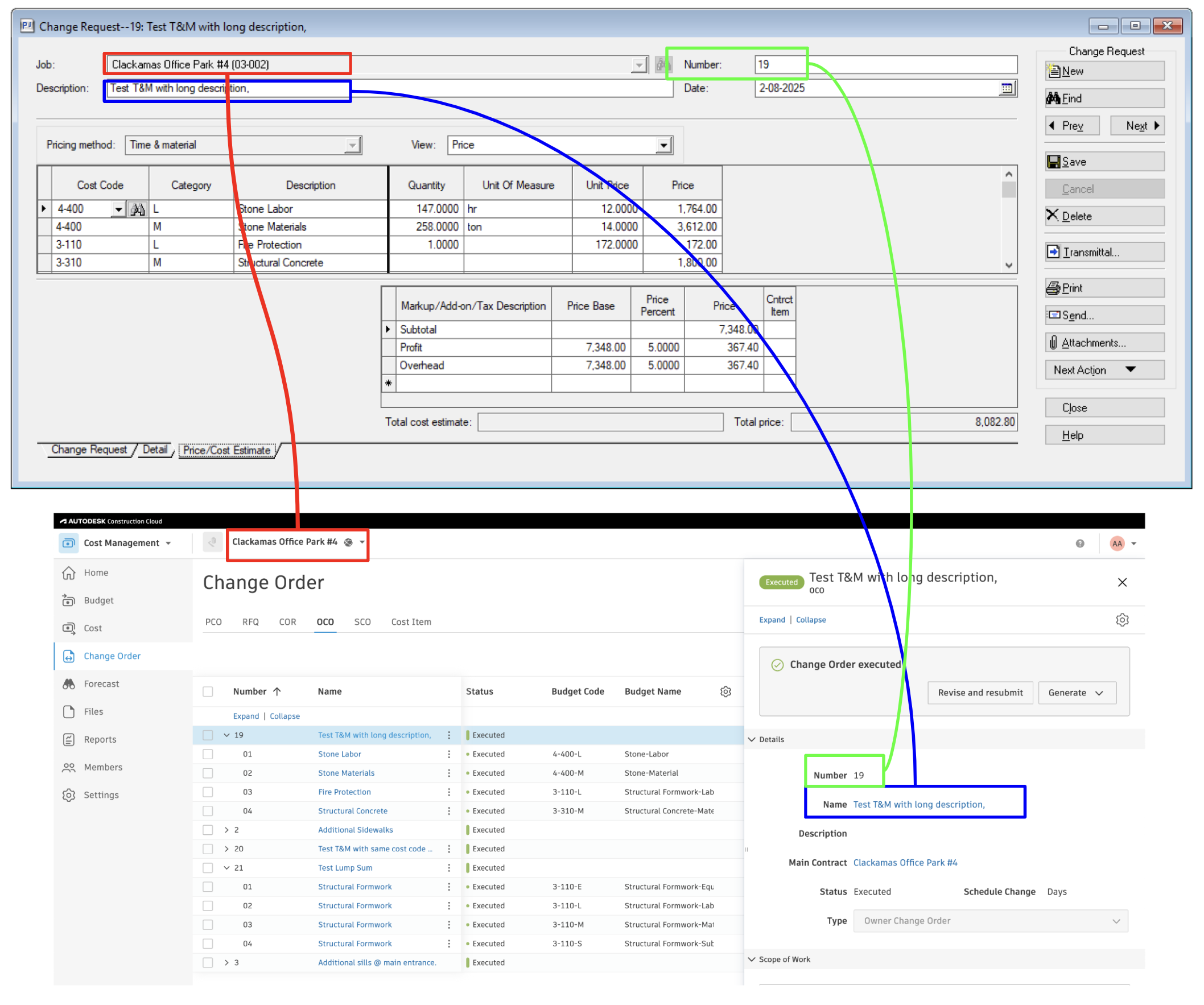
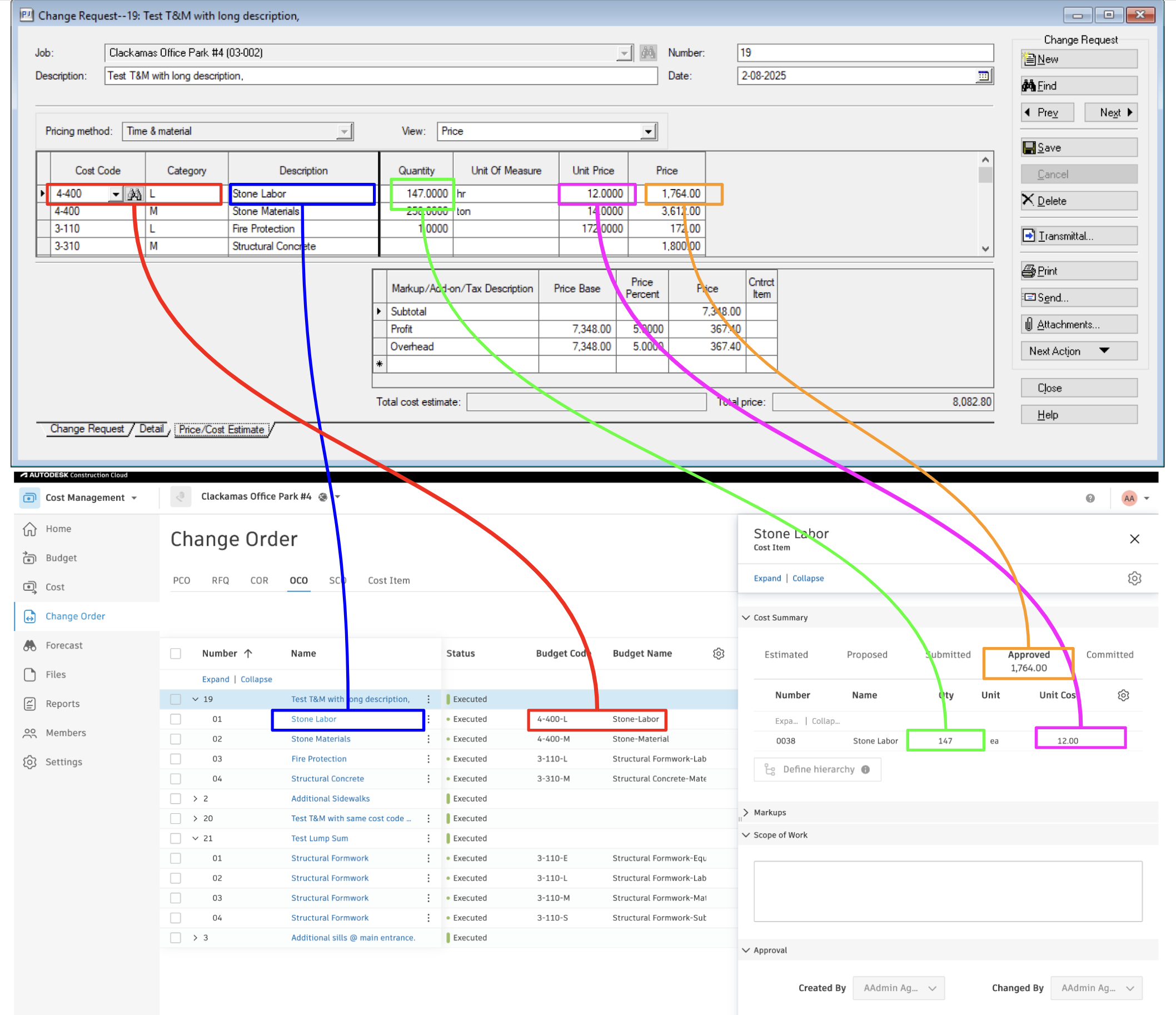
If Price Method is Time & Materials, Agave Sync will sync each line in Sage 300 CRE as 1 line to Autodesk Build.
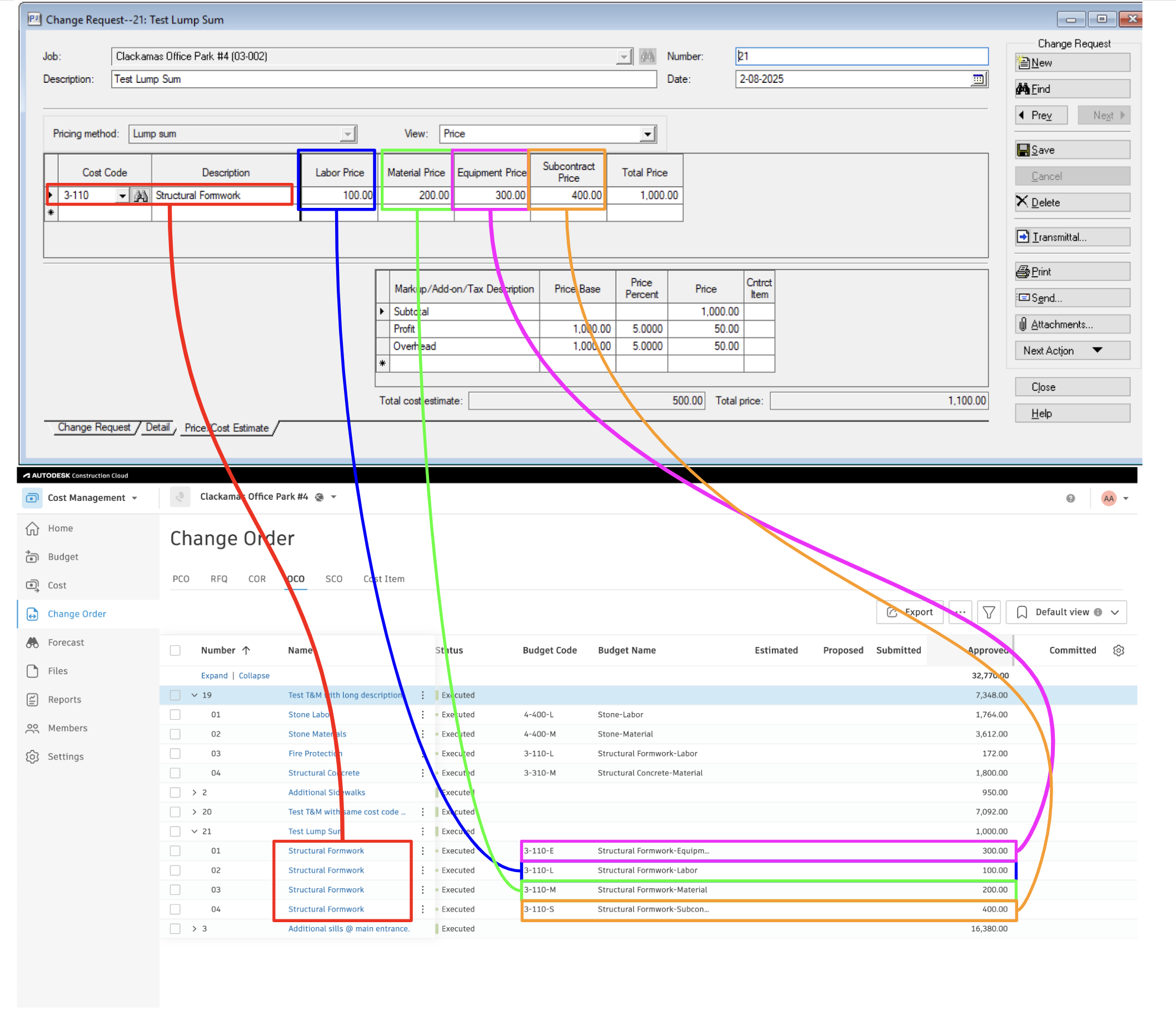
If Price Method is Lump Sum, Agave Sync will break down each line in Sage 300 CRE to at most 4 lines with Cost Type as Labor, Materials, Equipment, and Subcontract.
Syncing Autodesk Build Owner Change Orders to Sage 300 CRE
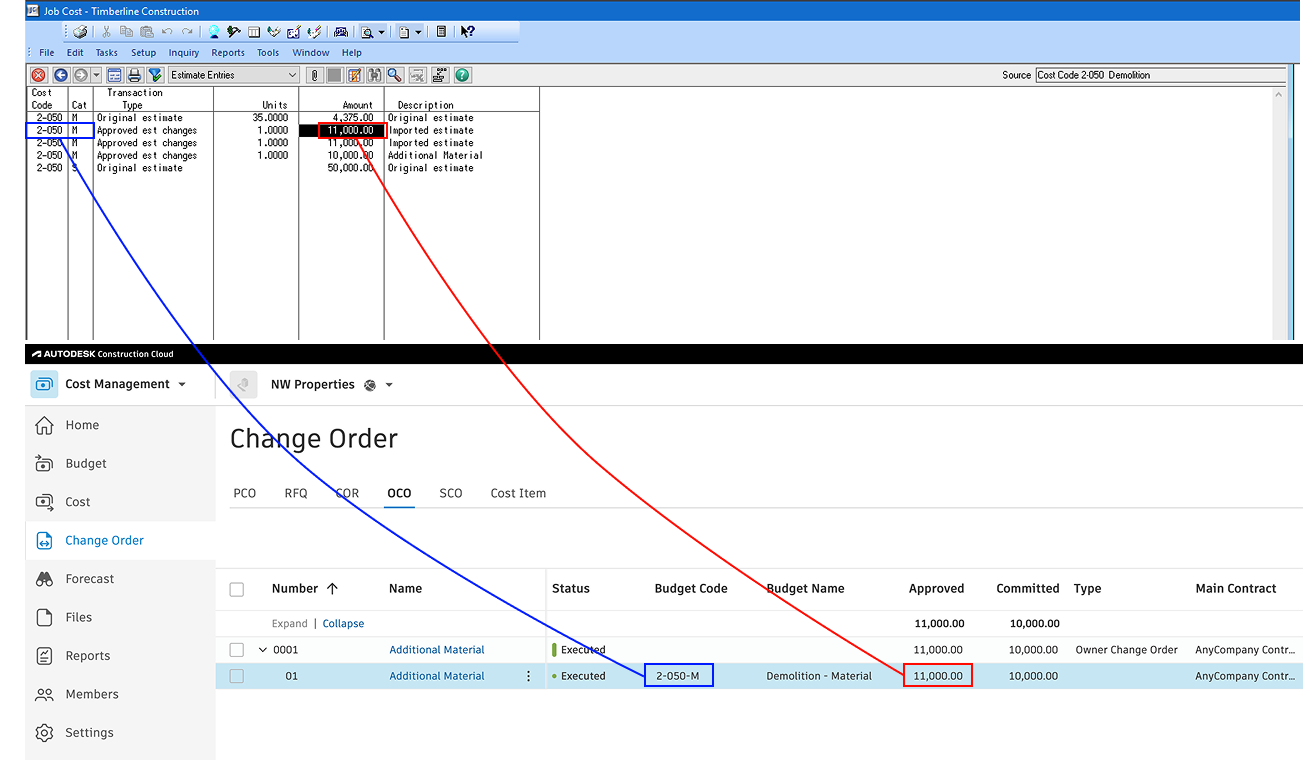
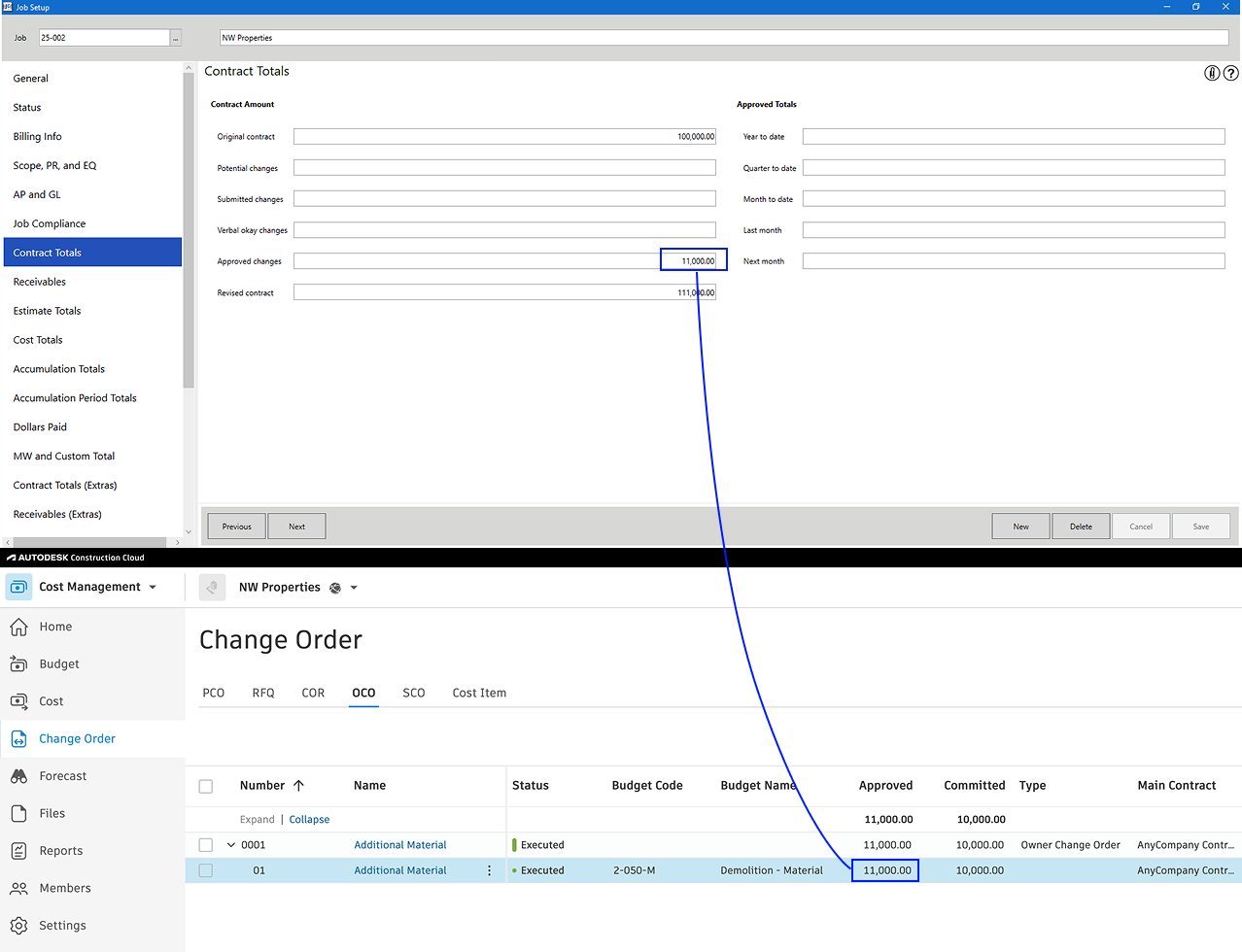
Agave Sync allows you to sync Owner Change Orders from Autodesk Build to Sage 300 CRE. When an Owner Change Order is synced, Agave creates the following record types in Sage 300:
- Contract Line Item: a new Contract Line Item is added to the Main Contract in the Contracts (CN) module for the associated Job. This Contract Line Item has an original amount of $0.
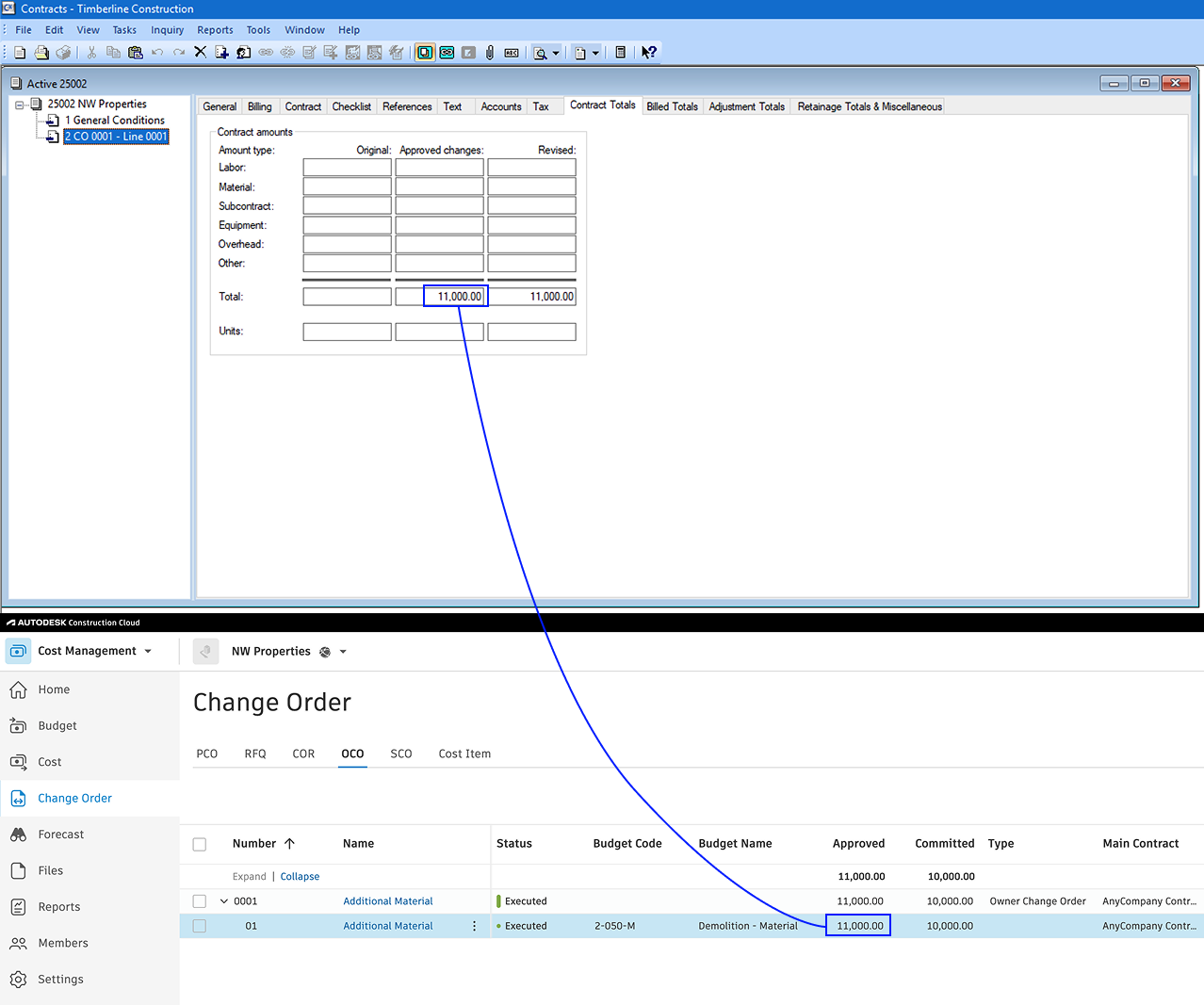
- Job Cost Transactions: two transaction types are created in the Job Cost (JC) module:
- Approved Estimate Change: Updates the Approved Estimate and Total Estimate for the Job or Project.
- Approved Scheduled Value: Updates the Approved Changes and Total Contract amounts for the Job or Project. (Note: "Scheduled Value" in Job Cost is equivalent to "Contract Amount" in the Contracts module.)
While a formal Change Order record is not created in the CN or JC modules, these transactions achieve the same result by updating the Job's estimate and revenue amounts accordingly.
Does Agave Support Syncing Sub-items from Autodesk Build?
Yes, Agave supports syncing one level of sub-items from Autodesk Build for the following record types:
- Subcontracts
- Purchase Orders
- Change Orders
- AP Invoices
- Prime Contracts
- Prime Contract Change Orders
- AR Invoices
To enable syncing for sub-items, ask your Agave Account Manager to enable it for you.
How It Works
Autodesk Build records have a hierarchical structure with:
- Root items — parent line items
- Sub-items — child line items
- Sub-sub items — which are explicitly filtered out (only one level of nesting is supported)
Agave Sync will include root items and their direct sub-items when syncing. Any items nested deeper than one-level are excluded.
Differentiating Revenue and Cost Amounts When Syncing Owner Change Orders from Autodesk
When syncing Owner Change Orders from Autodesk to your ERP, you may want to separate cost and revenue amounts so that profit (i.e. revenue − cost) can be calculated correctly.
By default, a Change Order line item may generate both cost and revenue in the ERP. Agave Sync provides two ways to mark certain line items as revenue-only, meaning they generate revenue but no cost.
Available Approaches
1. Revenue-only Cost Code
A specific Cost Code can be configured as revenue-only.
- Line items using this Cost Code will:
- Generate revenue
- Not generate cost
- Configuration is enabled by your Agave Account Manager
Best used when:
- Markups, fees, or similar items are tracked using dedicated Cost Codes
- You want the rule to apply regardless of Cost Type
2. Revenue-only Cost Type
A specific Cost Type can be configured as revenue-only.
- Line items using this Cost Type will:
- Generate revenue
- Not generate cost
- Configuration is enabled by your Agave Account Manager
Best used when:
- Markups or fees are categorized by Cost Type (e.g.,
Markup,Fee) - You want consistent behavior across multiple Cost Codes
Important Notes
- These settings must be enabled by your Agave Account Manager
- Once configured, the rules are applied automatically during syncs
What are my options for syncing Prime Contract Change Orders as Approved Schedule of Value Changes in Sage 300?
Agave supports four line item numbering strategies that control how contract line item numbers are assigned when change orders are written to Sage 300 CRE:
- Aggregate by OCO - Every Owner Change Order (OCO) is written as a single new contract line carrying the combined total of its cost item lines, with the change order number in the description.
- Catch-All — Routes all change order line items to a single contract line configured in your project management system's AR Catch All setting.
- PM Numbering — Uses the line item number from your project management system and writes to that contract line number in Sage 300 CRE, creating it if it does not exist.
- Increment — Creates a new contract line item using the next available sequential number in the contract.