Prime Contract Change Orders
Agave syncs Owner Change Orders ("OCOs") in Autodesk Build to Change Requests with Billing Lines in Viewpoint Spectrum.
The status field mapping is flexible based on your preferences; work with your Agave rep to configure this.
Visual Mapping
Header
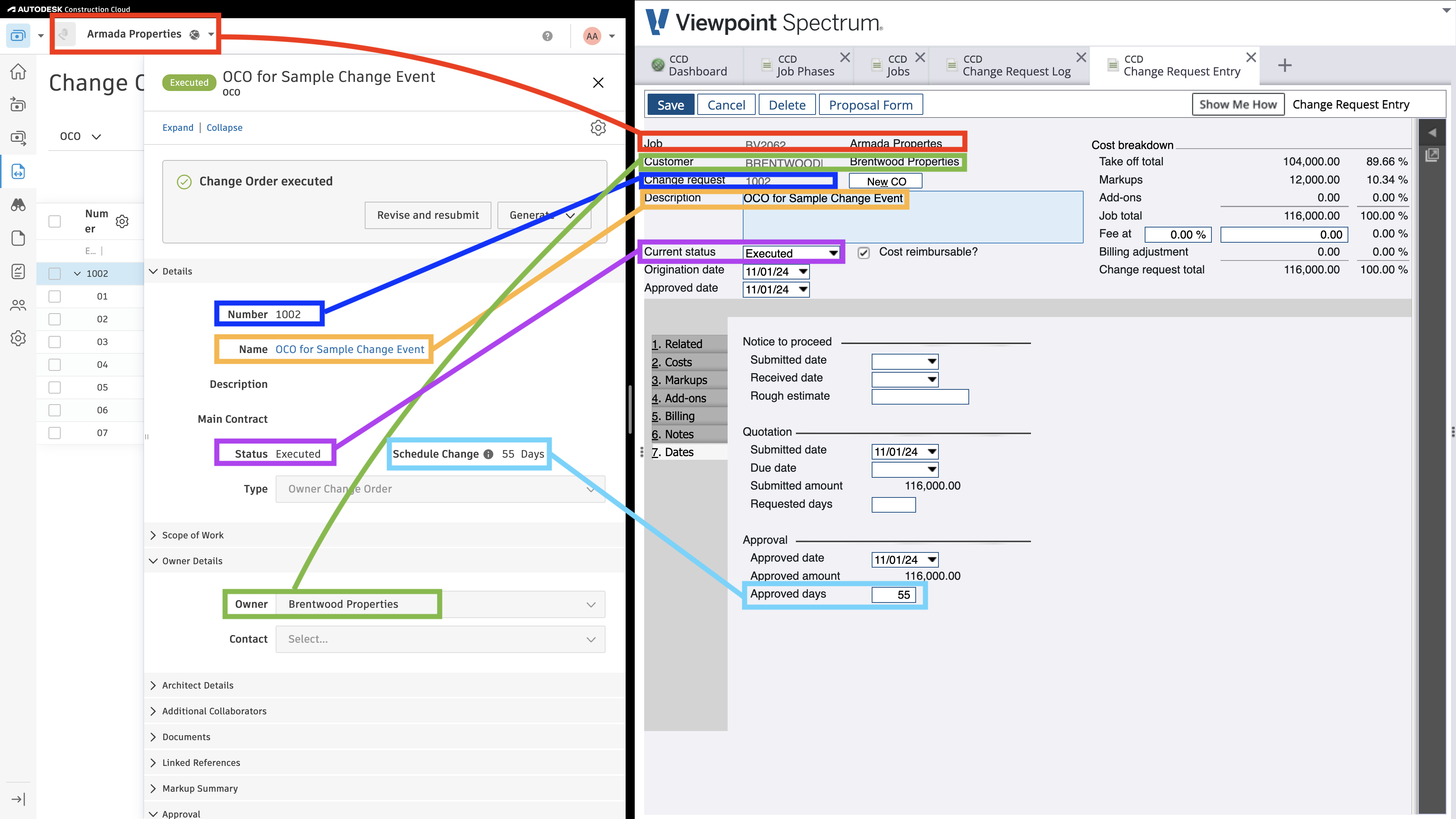
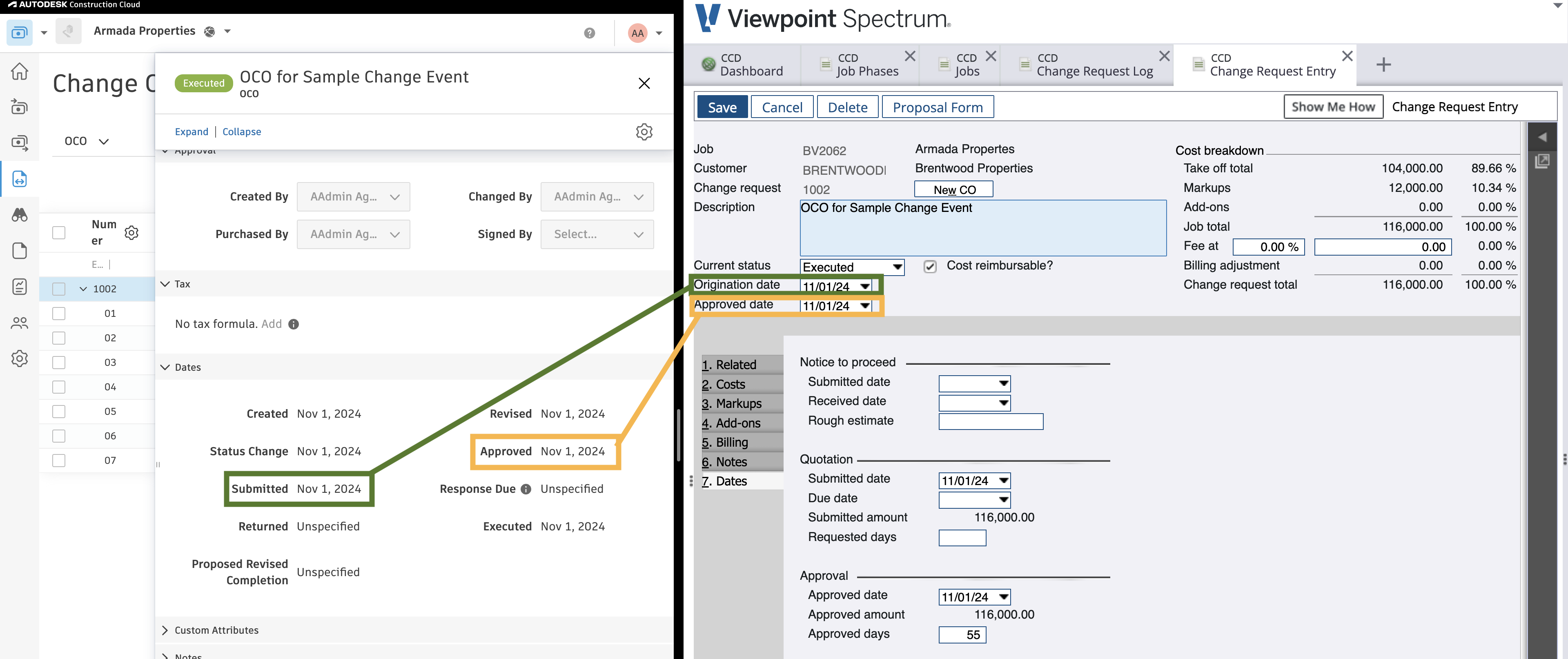
For each OCO in Autodesk, one Change Request will be created in Spectrum with the header-level information transferred:
Line Items
Agave can create three line item types in the Spectrum Change Request from the Owner Change Order (Cost, Markup, and Billing). You can choose to designate a special cost code for Overhead/Profit (OH&P) in Autodesk that Agave will withhold from syncing as a cost.
Cost Lines
Each non-OH&P Budget Code (the first 5 in this example) on the Autodesk OCO are synced to the “Costs” tab in Spectrum:
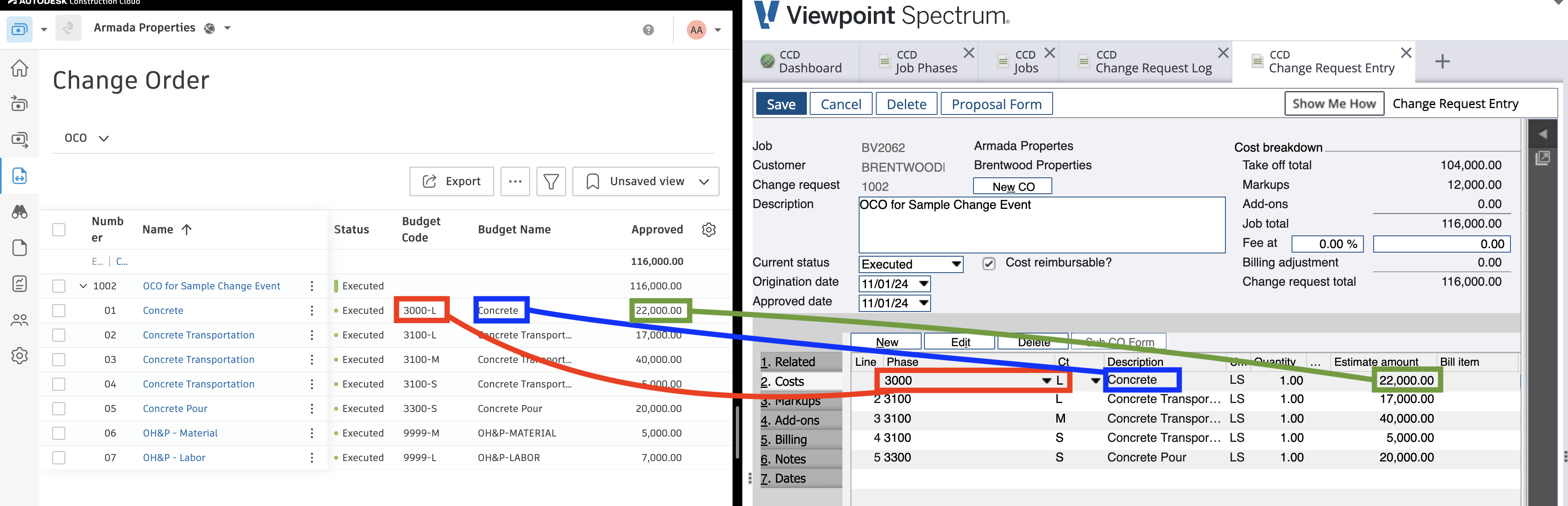
Note that the “Take off total” in Spectrum is equal to the total Autodesk OCO total minus the OH&P lines.
Markup Lines
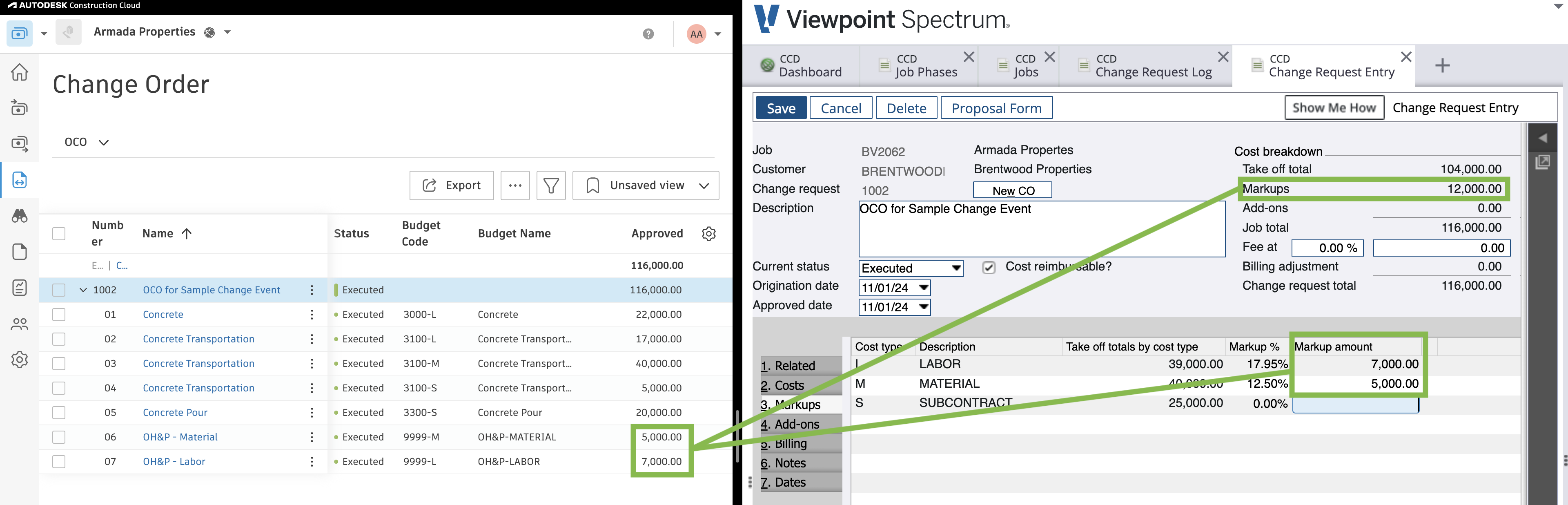
The OCO lines using the OH&P Cost Code in Autodesk are synced to the “Markups” tab in Spectrum, with the markup amount distributed by Cost Type.
Billing Lines
Optionally, Agave creates a line on the billing tab equal to the sum of all line items (both OH&P and non-OH&P):
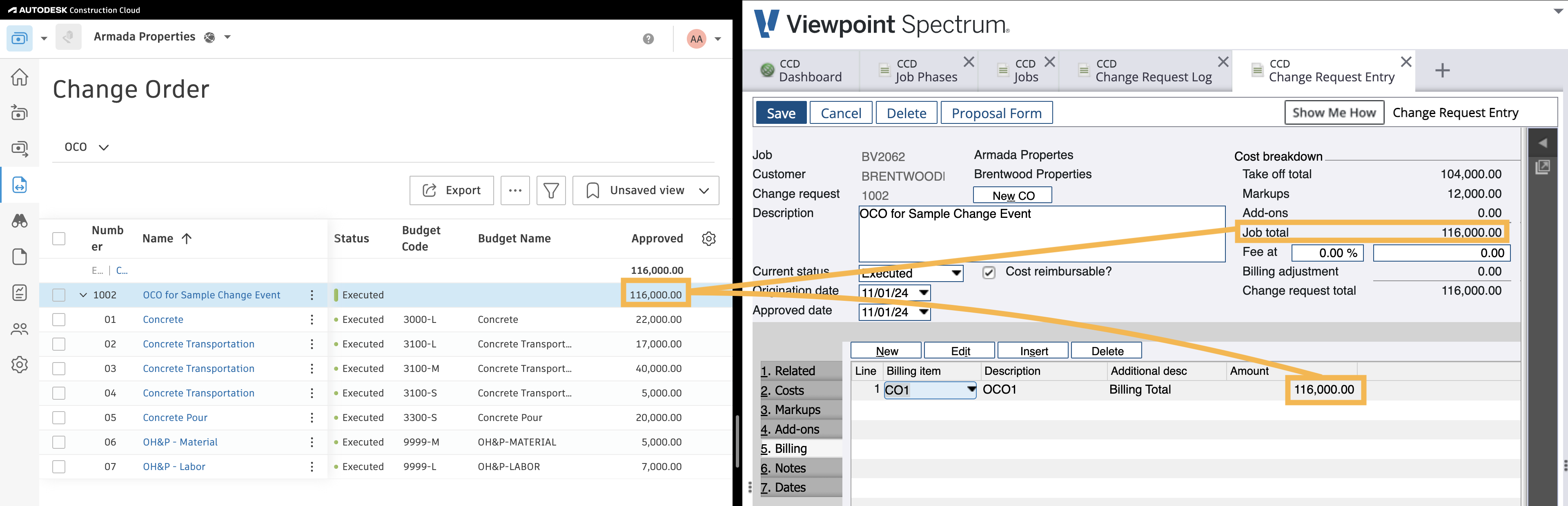
Note that this matches the total on the Autodesk OCO. Agave can also create multiple billing items (one for each line item) if preferable.
Video Tutorial
Common Errors and FAQs
Does Agave Support Syncing Sub-items from Autodesk Build?
Yes, Agave supports syncing one level of sub-items from Autodesk Build for the following record types:
- Subcontracts
- Purchase Orders
- Change Orders
- AP Invoices
- Prime Contracts
- Prime Contract Change Orders
- AR Invoices
To enable syncing for sub-items, ask your Agave Account Manager to enable it for you.
How It Works
Autodesk Build records have a hierarchical structure with:
- Root items — parent line items
- Sub-items — child line items
- Sub-sub items — which are explicitly filtered out (only one level of nesting is supported)
Agave Sync will include root items and their direct sub-items when syncing. Any items nested deeper than one-level are excluded.
Differentiating Revenue and Cost Amounts When Syncing Owner Change Orders from Autodesk
When syncing Owner Change Orders from Autodesk to your ERP, you may want to separate cost and revenue amounts so that profit (i.e. revenue − cost) can be calculated correctly.
By default, a Change Order line item may generate both cost and revenue in the ERP. Agave Sync provides two ways to mark certain line items as revenue-only, meaning they generate revenue but no cost.
Available Approaches
1. Revenue-only Cost Code
A specific Cost Code can be configured as revenue-only.
- Line items using this Cost Code will:
- Generate revenue
- Not generate cost
- Configuration is enabled by your Agave Account Manager
Best used when:
- Markups, fees, or similar items are tracked using dedicated Cost Codes
- You want the rule to apply regardless of Cost Type
2. Revenue-only Cost Type
A specific Cost Type can be configured as revenue-only.
- Line items using this Cost Type will:
- Generate revenue
- Not generate cost
- Configuration is enabled by your Agave Account Manager
Best used when:
- Markups or fees are categorized by Cost Type (e.g.,
Markup,Fee) - You want consistent behavior across multiple Cost Codes
Important Notes
- These settings must be enabled by your Agave Account Manager
- Once configured, the rules are applied automatically during syncs
What Info-Link Tables do I need?
The following Info-Link tables are required when syncing Change Orders from or to Spectrum:
- CR_CHNG_REQ_CON_DET_MC
- CR_CHNG_REQ_HDR_MC
- CR_CHNG_REQ_REV_MC
- CR_CHNG_REQ_STATUS_MC
For details on enabling Info-Link tables for your user, see Steps 2.7 in our Spectrum authentication guide.