Budget Production Quantities
Agave Sync allows you to sync Viewpoint Spectrum Phase budget data (Original Estimated Hours, Quantity, and Cost) to Autodesk Build Performance Tracking Items and Instances.
In Autodesk Build, Budget Production Quantities represent the measurable output a team plans to produce on a project (for example, units installed). They live under the Performance Tracking tab of the Forecast module, where each budget code is tracked as a Performance Tracking Item with one or more Performance Tracking Instances beneath it.
Budget Production Quantities sync from Spectrum to Autodesk Build only.
Visual Mapping
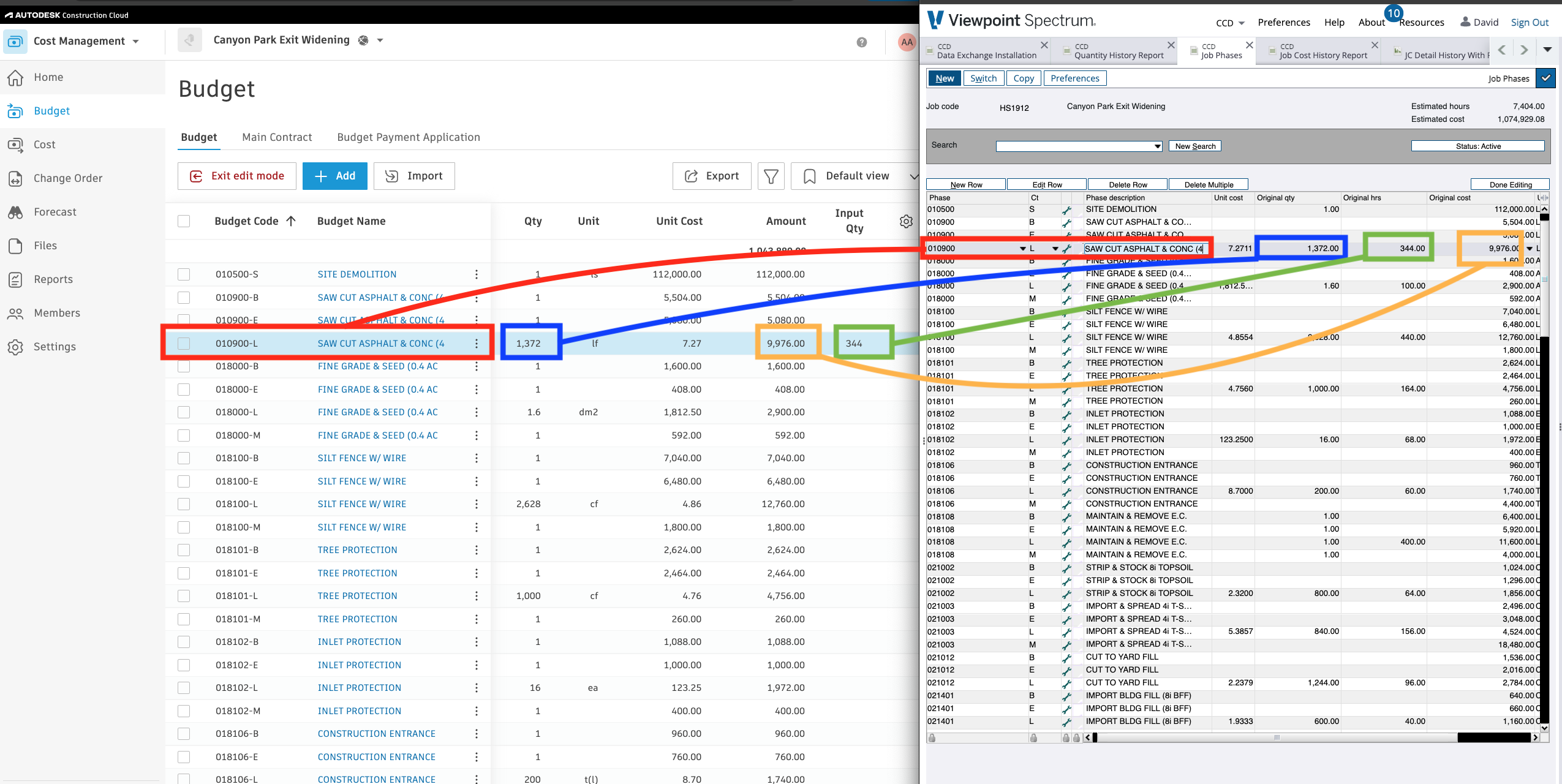
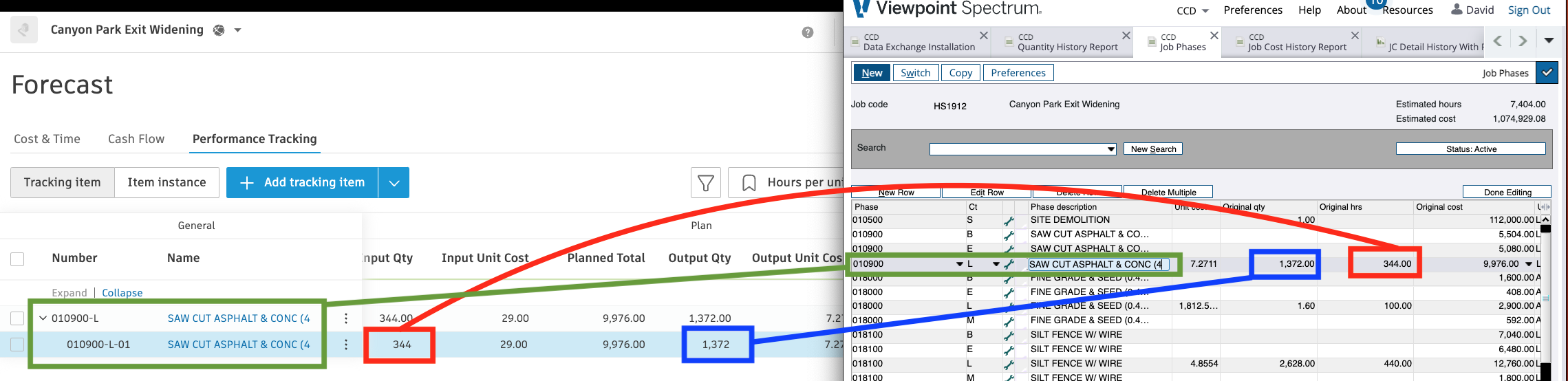
Importing Budget Production Quantities to Autodesk Build
Step 1: Enter Phase Budget Data in Spectrum
On your phase in Spectrum, enter the budget estimates:
- Original Estimated Hours - the input you expect to put into the work (most commonly labor hours).
- Original Estimated Quantity - the output you expect to produce (the production quantity).
- Original Estimated Cost - the estimated cost of the work.
A phase in Spectrum typically has several cost types working together to produce the output (for example Material M, Equipment E, and Labor L). Customers usually track the expected output quantity on a single cost type - most commonly Labor (L) - and that line's Original Estimated Quantity represents the expected output for the whole cost code.
For example, for cost code 3000 with 3000.M, 3000.E, and 3000.L, the quantity on 3000.L represents the expected output for cost code 3000, since the material, equipment, and labor all work together to produce it.
Step 2: Ensure the Budget Line Item has an Input Quantity
Budget Production Quantities require a Budget Line Item in Autodesk Build that has an Input Quantity. There are two ways the Input Quantity can end up on the Autodesk Budget Line Item:
- If your Budget Line Items sync from Spectrum to Autodesk Build, Agave carries the Original Estimated Hours onto the Autodesk Budget Line Item as the Input Quantity automatically.
- If your Budget Line Items originate in Autodesk Build, enter the Input Quantity directly on the Budget Line Item in Autodesk.
Step 3: Sync Budget Production Quantities in Agave
- In Agave, go to the Budget Production Quantity module.
- Select your records and push them to Autodesk Build.
For each record, Agave creates a Performance Tracking Item for the budget code (if one does not already exist) and a Performance Tracking Instance beneath it carrying the planned input and output quantities.
Step 4: Confirm in Autodesk Build
- In Autodesk Build, open the project's Forecast module.
- Select the Performance Tracking tab.
- You should see the Performance Tracking Item for the budget code, with a Performance Tracking Instance showing the planned input (hours) and output (production quantity).
Common Errors and FAQs
Are there any pre-requisites to syncing Budget Production Quantities?
Yes:
- The associated Project must be synced.
- The Budget Line Item in Autodesk Build must have an Input Quantity (see Step 2) - either carried over by the Spectrum → Autodesk Budget Line Item sync, or entered directly in Autodesk Build. A Budget Production Quantity cannot be created against a Budget Line Item that has no Input Quantity.
Using Projected Values Instead of Original Estimates
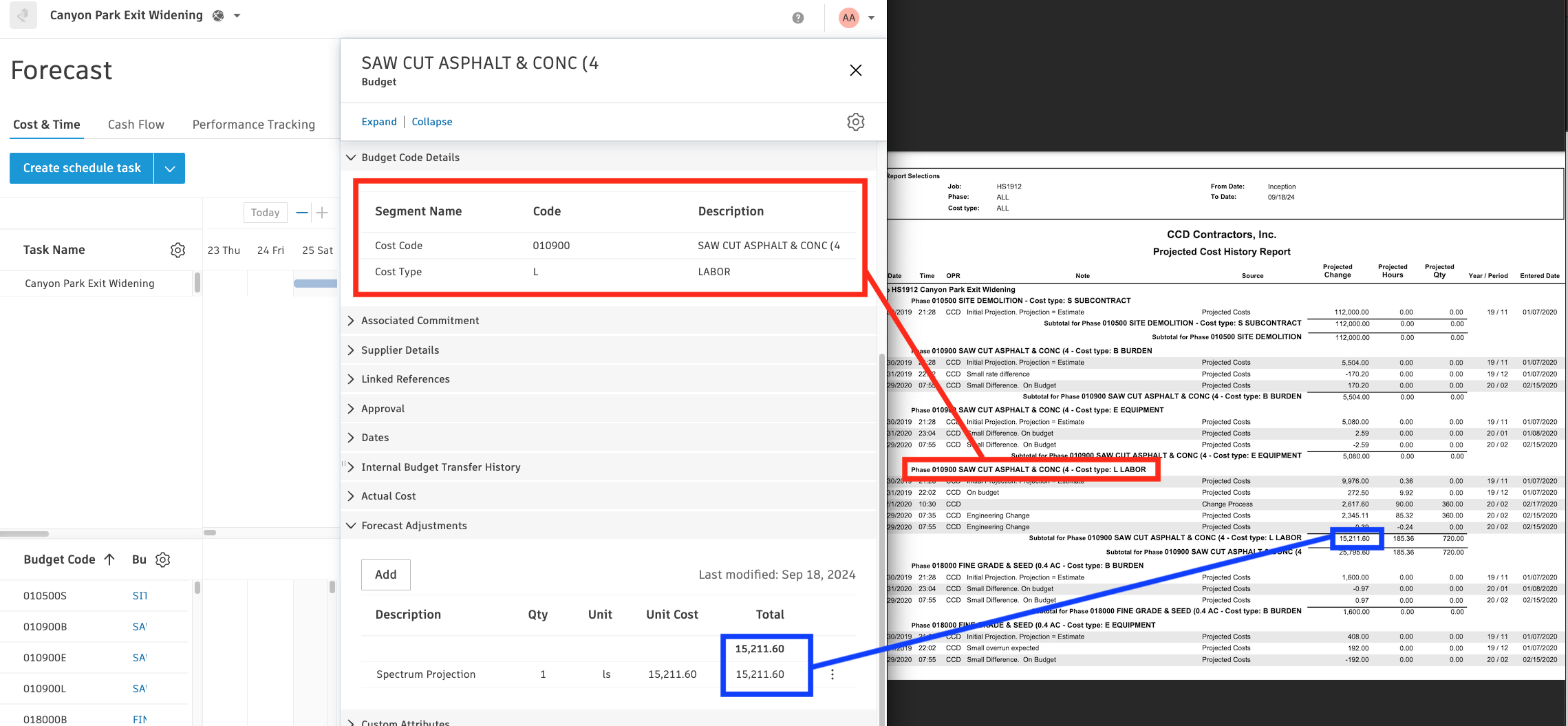
If you manage your current labor and output expectations in a projections tool, Agave can read Budget Production Quantities from your Spectrum projected totals (JC_PHASE_PROJECTED_TOTAL) instead of the original estimates. This is useful when estimates shift frequently over the life of a project. Work with your Agave Account Manager to enable this option.
What Info-Link Tables do I need?
The following Info-Link tables are required when syncing Cost Types from or to Spectrum:
- JC_COST_TYPE_MASTER_MC
- JC_PHASE_MASTER_MC
- JC_PHASE_PROJECTED_TOTAL_MC
- JC_PHASE_ESTIMATE_TOTAL_MC
For details on enabling Info-Link tables for your user, see Steps 2.7 in our Spectrum authentication guide.