Purchase Orders
Agave allows you to sync Sage Intacct Purchase Orders with Procore Purchase Orders and vice versa
Visual Mapping
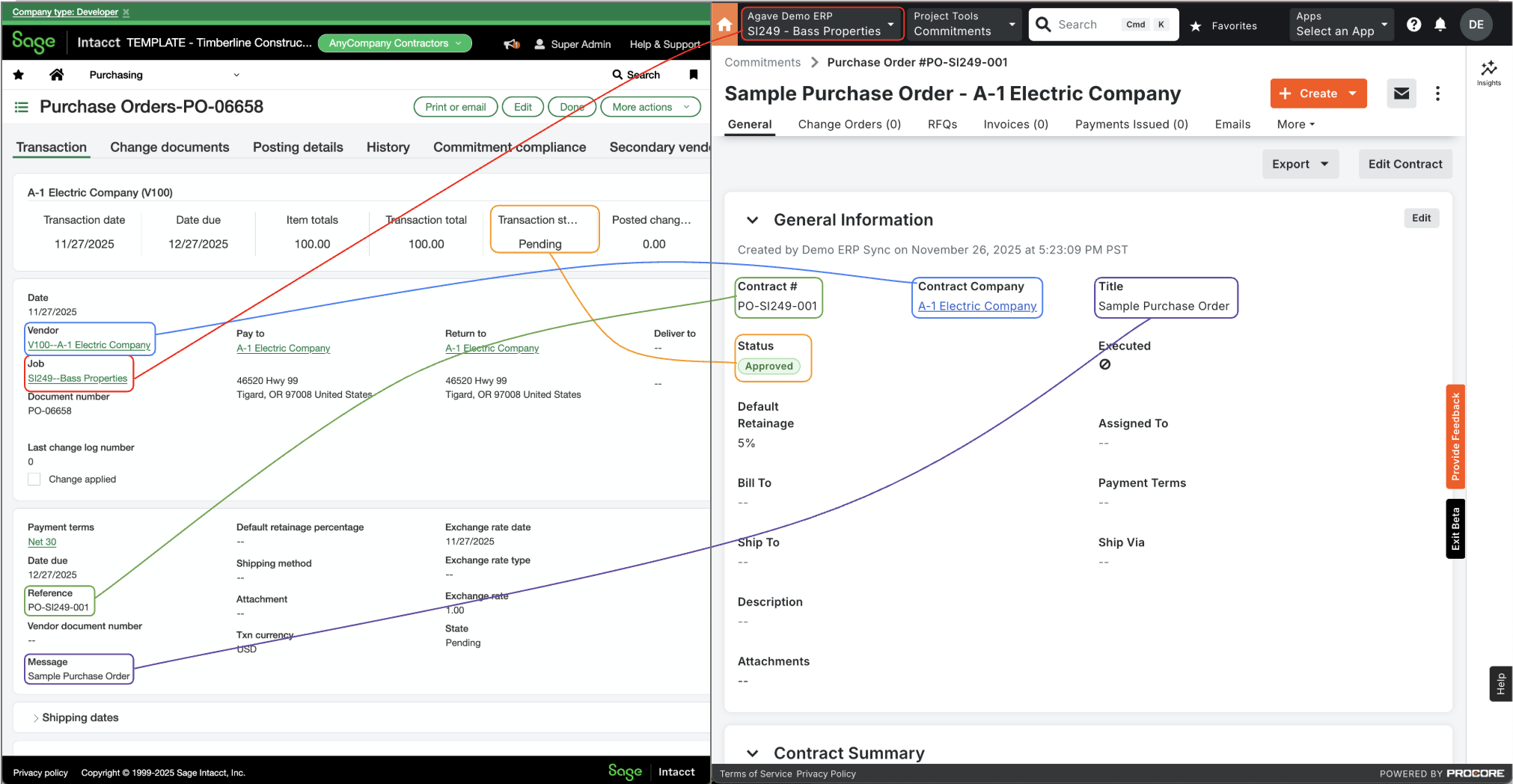
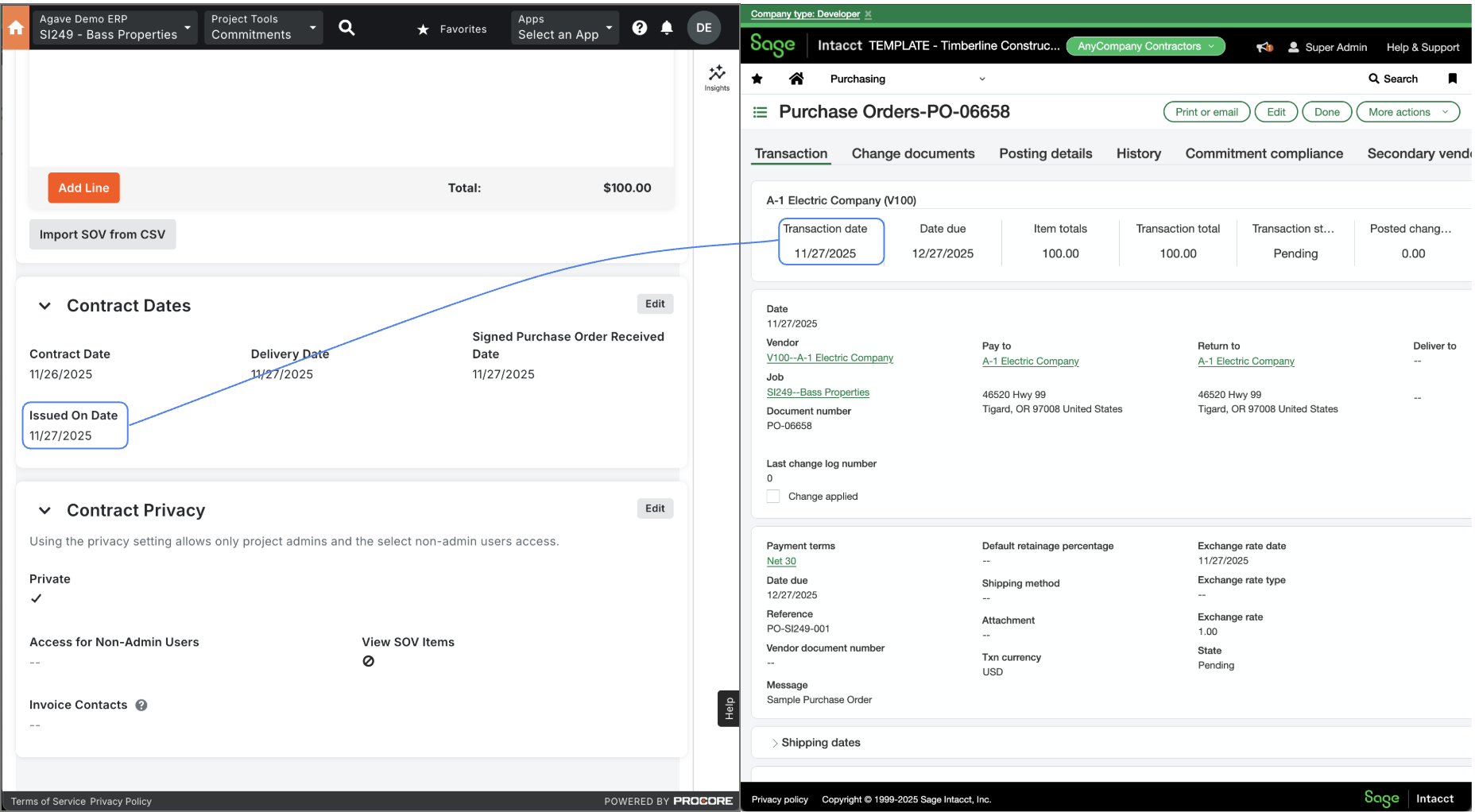
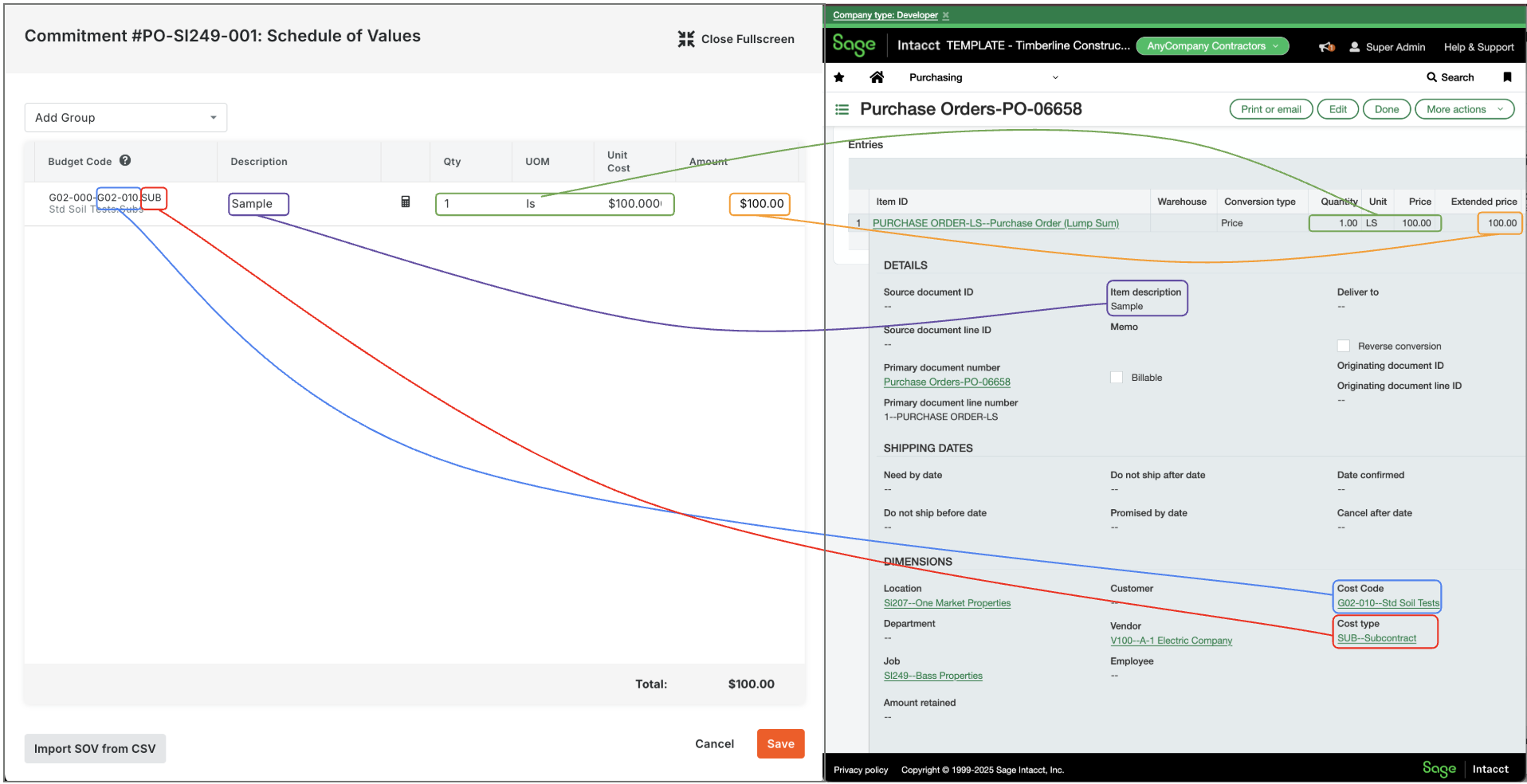
Video Tutorial
Common Errors and FAQs
Error: Terms Must Be One Of
This error occurs when the Payment Terms in Procore do not match the valid terms in your ERP. Procore's Payment Terms field allows free-text input, which means users must manually enter valid terms.
Here are three ways to resolve the issue:
- Update Payment Terms: instruct Procore users to enter a value that matches your ERP’s valid Payment Terms.
- Disable Payment Terms Sync: if syncing Payment Terms isn’t necessary for Purchase Orders, ask your Agave Account Manager to disable it.
- Use a Custom Field: create a custom field in Procore with a predefined list of valid Payment Terms.
Create a Defined List of Payment Terms with a Custom Field in Procore
If you use any of the following ERPs, consider adding a custom field to ensure users select a valid Payment Terms value:
- Acumatica
- Foundation
- Vista
To add a Custom Field for Payment Terms in Procore:
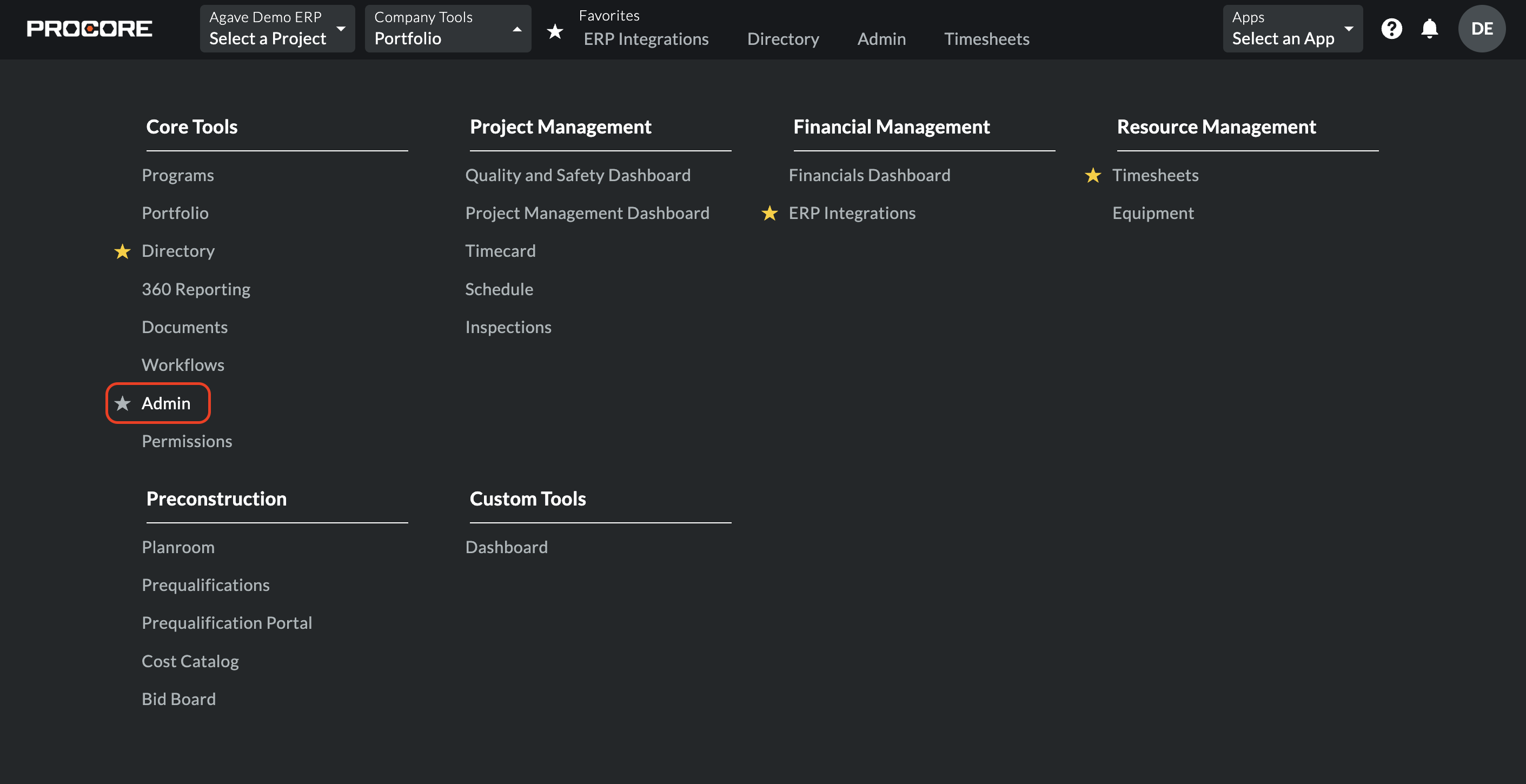
- From the Procore homepage, select Admin:
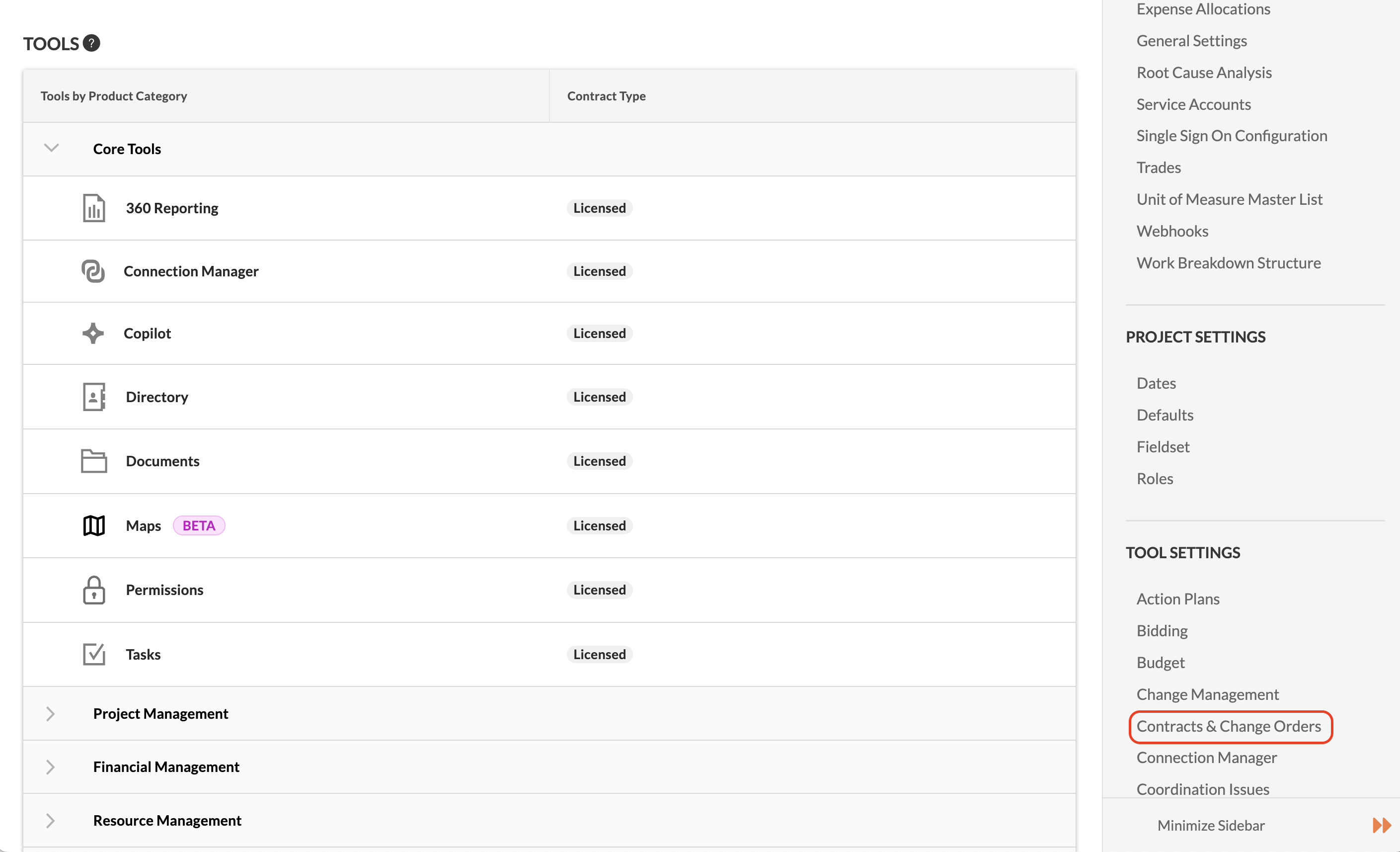
- Under Tool Settings, select Contracts & Change Orders:
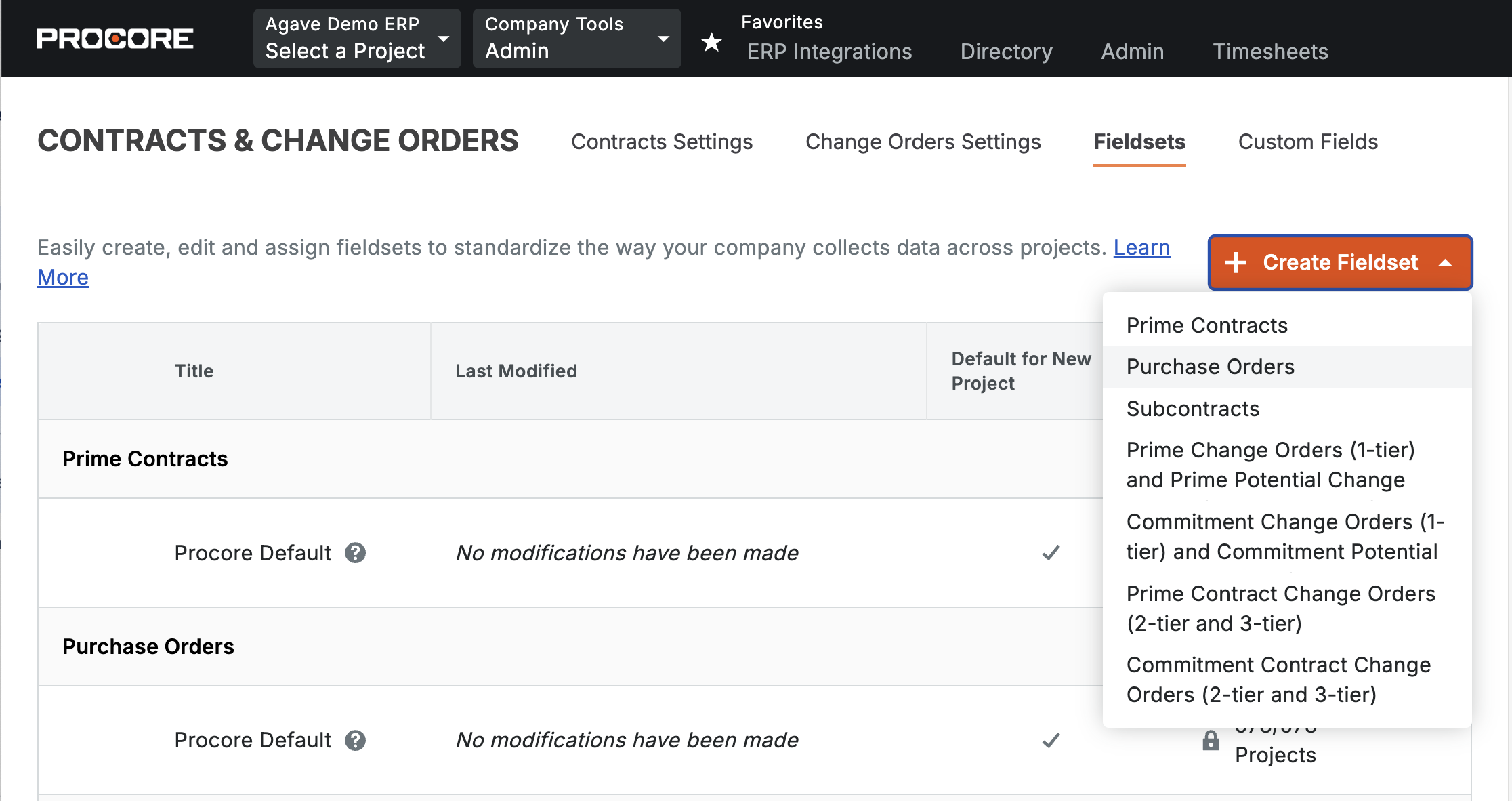
- Select Create Fieldset, then Purchase Orders. Note you can also re-use an existing Fieldset if you would like:
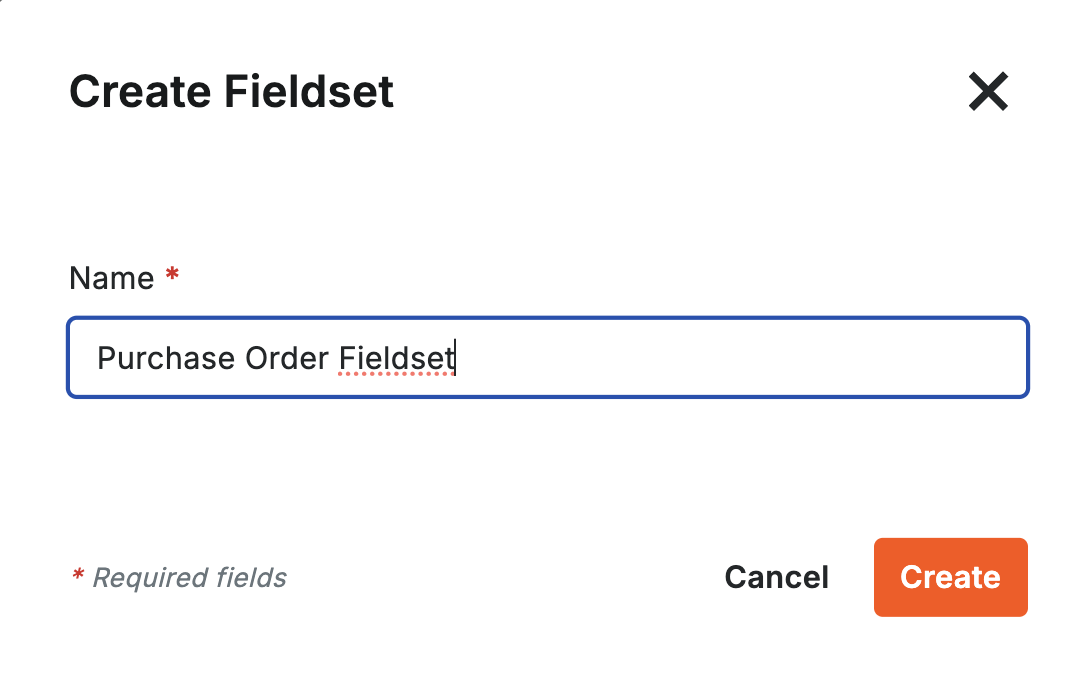
- If it is a new Fieldset, name it (e.g. "Purchase Order Fieldset"):
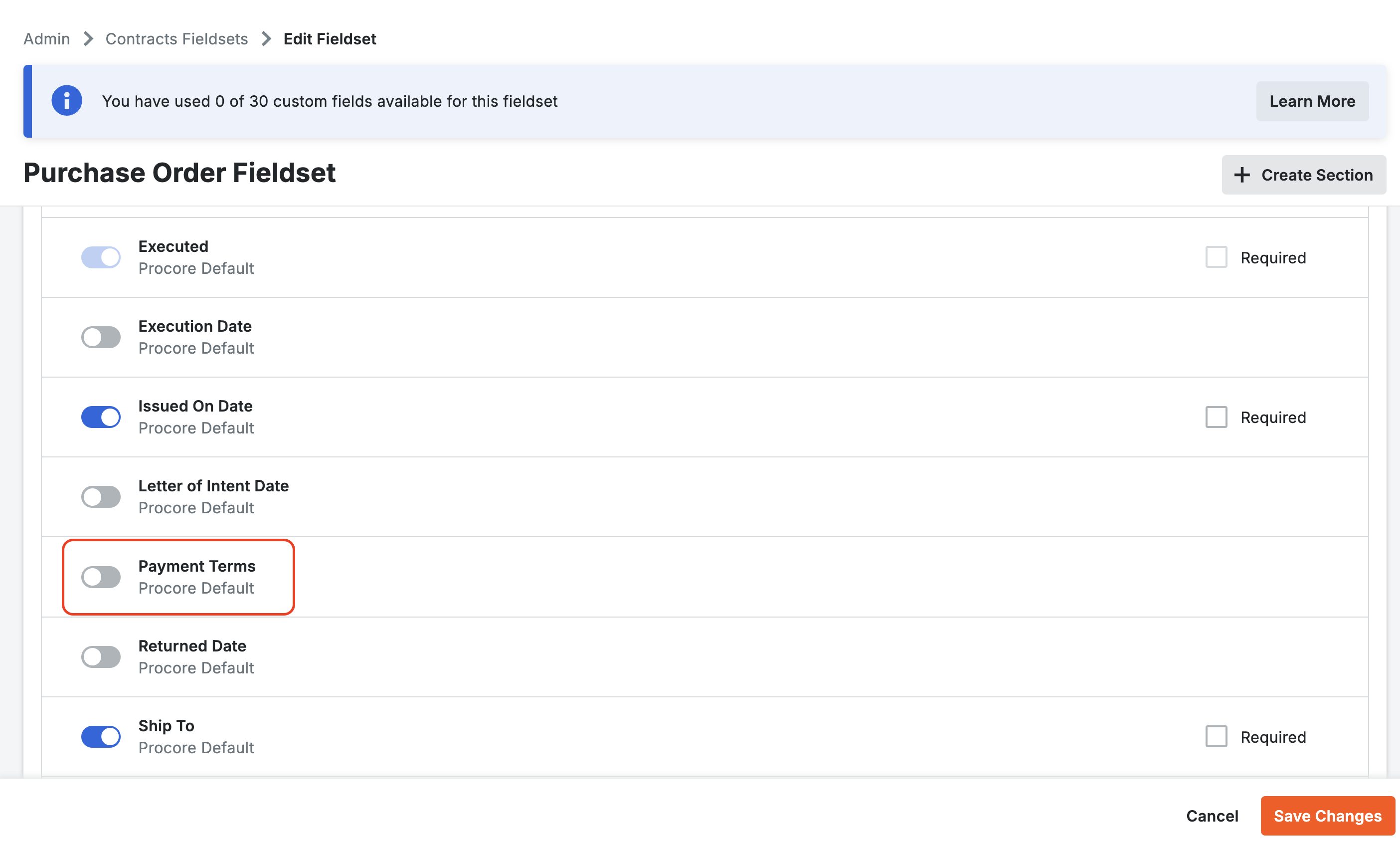
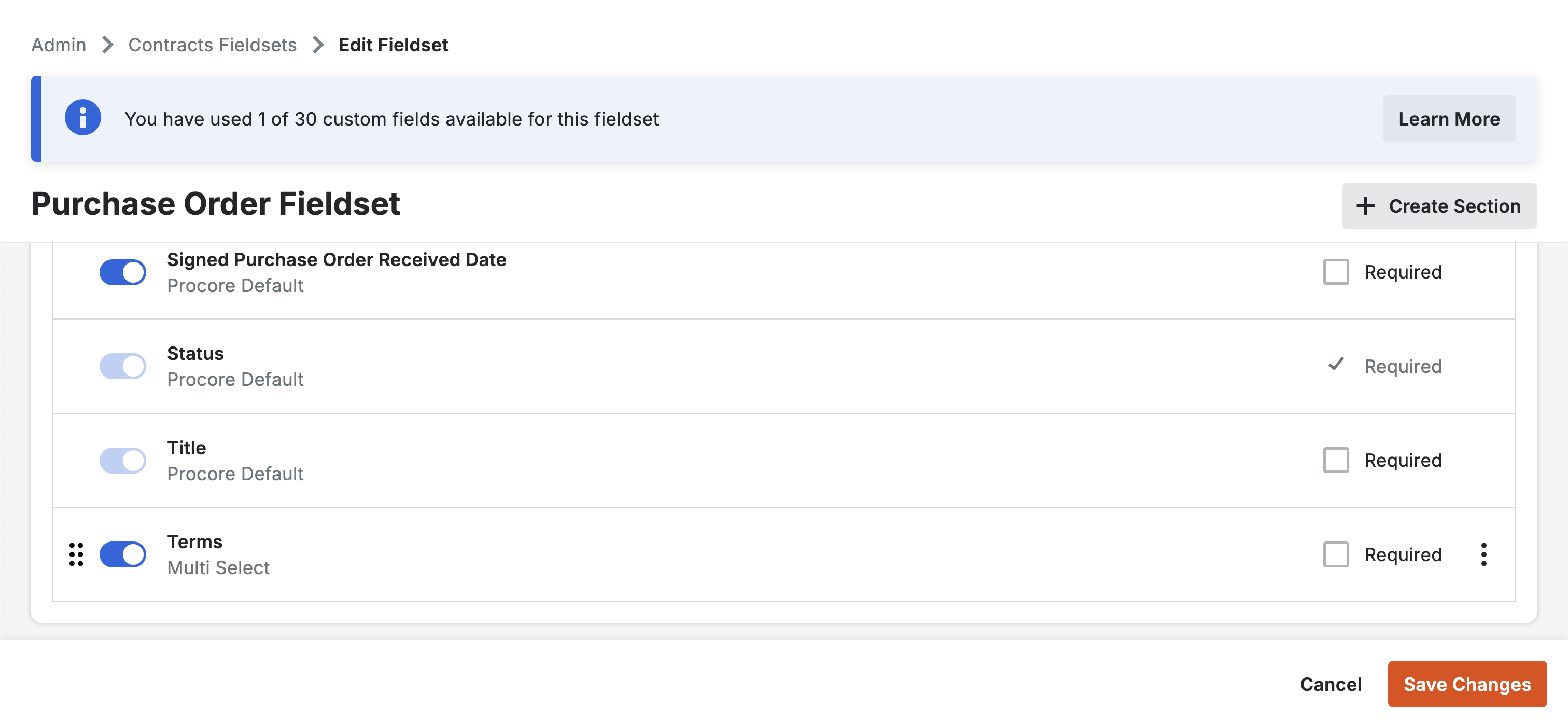
- Toggle off Procore's default Payment Terms field:
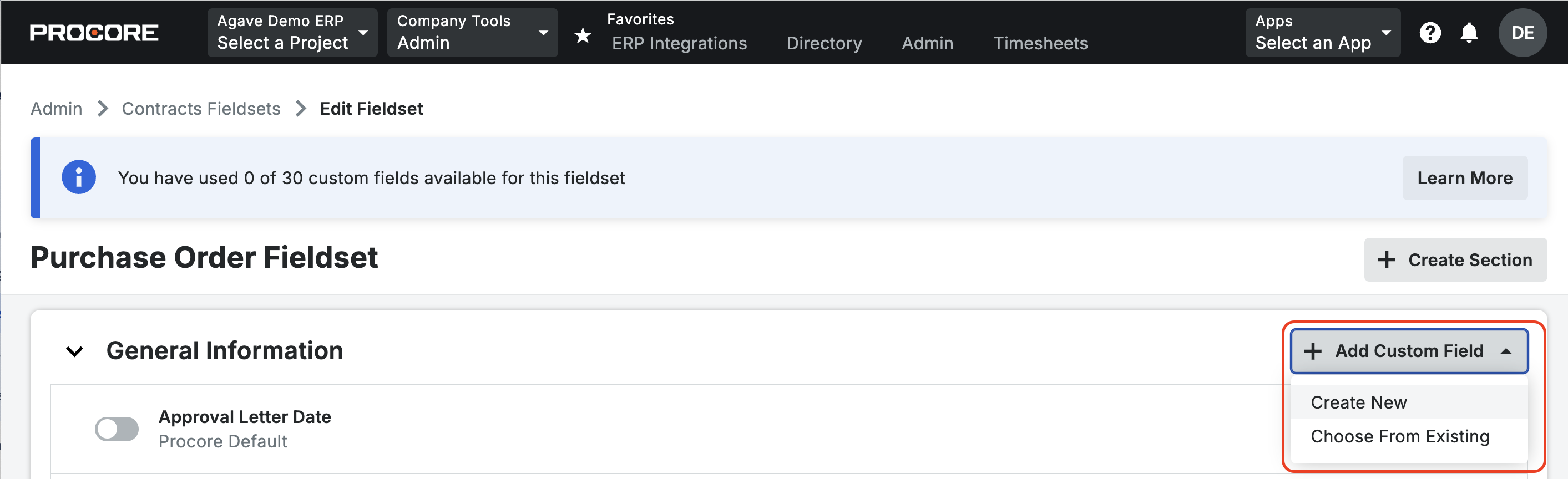
- Select Add Custom Field, and then press Create New.
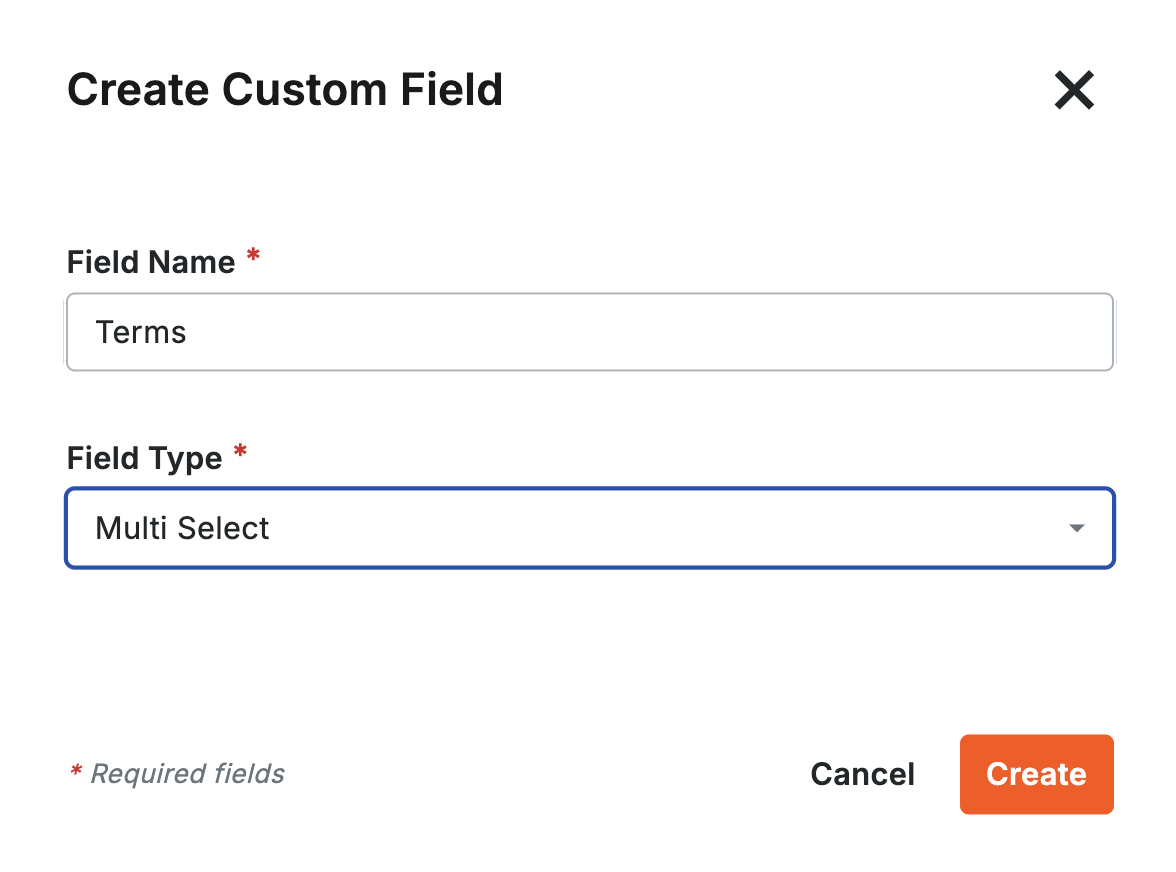
- Add a Name. Under Field Type select Multi Select:
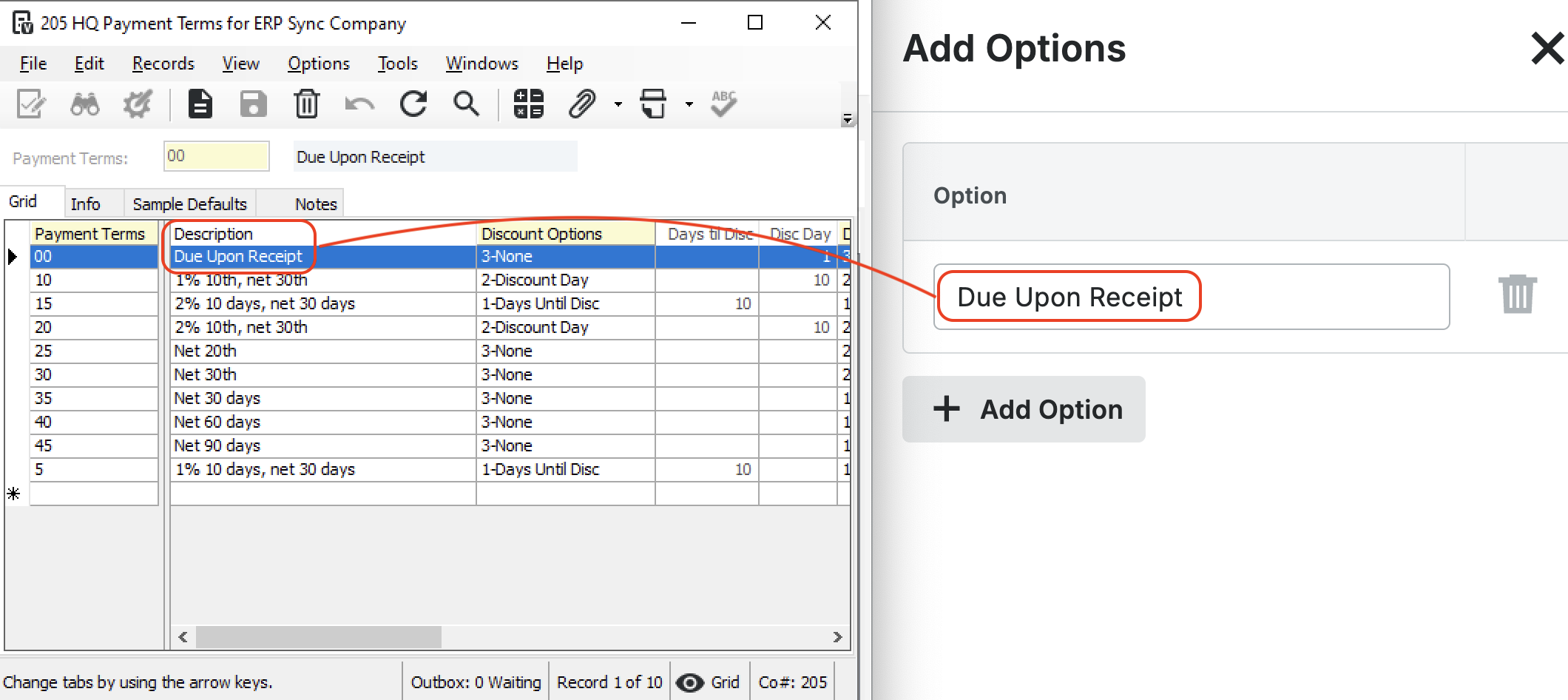
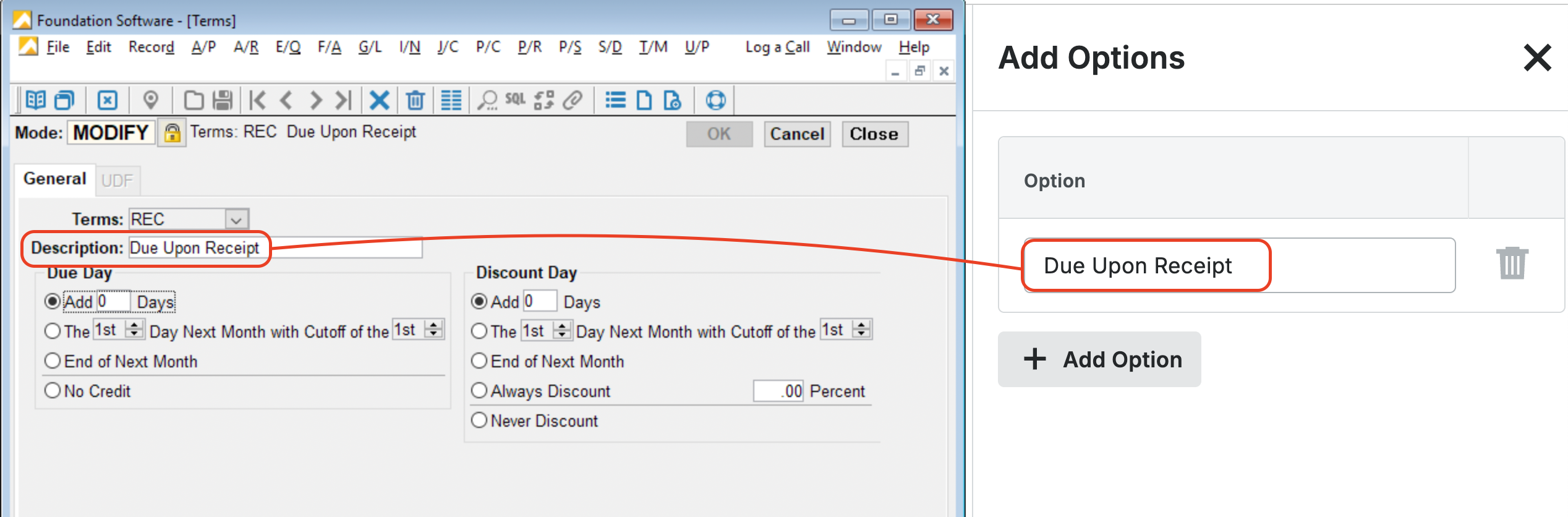
- Add values to the list. These should come from the Terms list in your ERP. Here are examples from Foundation and Vista:
- Toggle on this custom field for your Fieldset, and press Save Changes. You can also assign this fieldset to existing Projects in Procore:
Error: Document Number is missing
This error occurs when your Sage Intacct configuration requires a document number for purchase orders. Please reach out to your Agave implementation team so that they can enable a setting in your configuration to fix this.
Configuration in Sage Intacct
Purchasing Transaction Definition for Purchase Orders
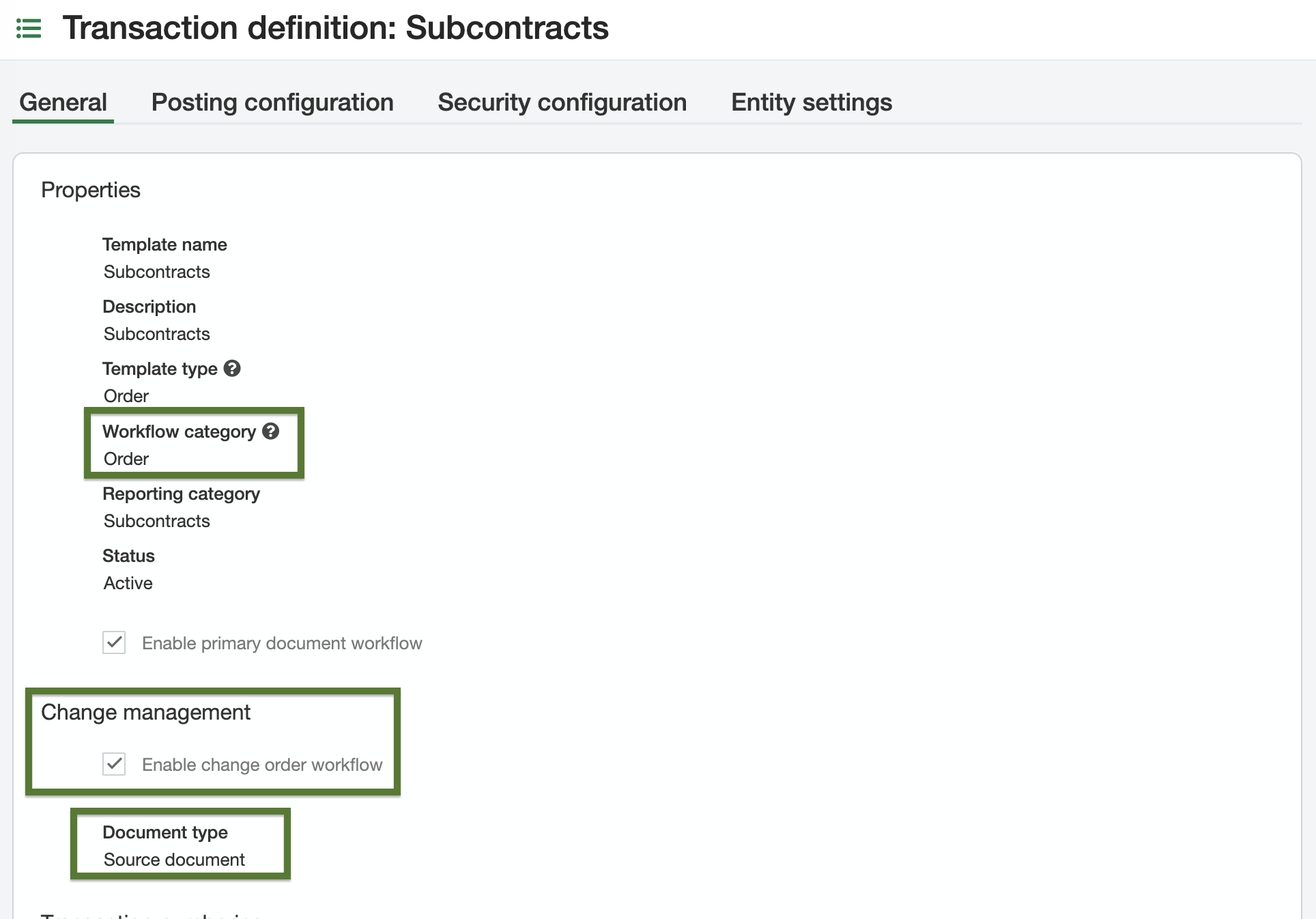
Configure a Purchasing Transaction Definition in Sage Intacct for Purchase Orders. Template names are flexible; the required settings are:
- Workflow category:
Order - Change management workflow: enabled, with document type set to
Source Document
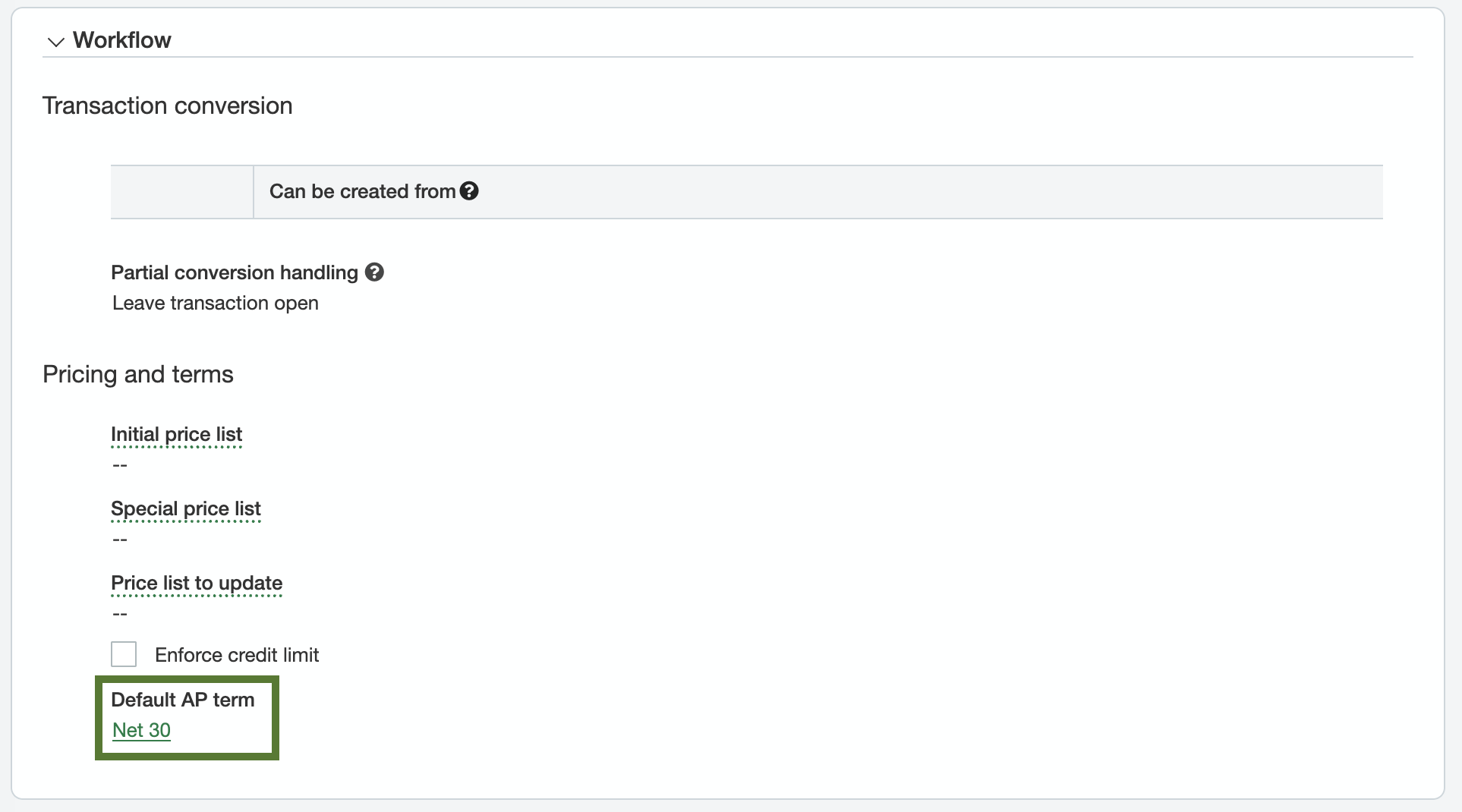
Optionally, configure a default AP term as a fallback for cases when terms aren't specified on the vendor record.
Top level vs entity level
Purchasing Transaction Definitions can live at the top level or the entity level. Top level definitions are inherited by all entities; entity level definitions are scoped to that entity only.
- If the same transaction definitions should apply across all entities, configure them at the top level.
- If entities need their own distinct transaction definitions, configure them at the entity level.
Item IDs on Purchase Order Line Items
Sage Intacct requires Item IDs on every line item for Purchasing Transactions, but Procore does not assign Item IDs. There are two supported approaches:
- Default Item ID approach — provide a single default Item ID that Agave applies to every Purchase Order Line Item during the sync. Your Agave Account Manager can enable this setting for you.
- Matched Item ID approach — configure Item IDs in Sage Intacct as exact string matches to the standard cost type IDs used in Procore. Typically, these Items belong to different GL Groups that correspond to different COGS accounts (Materials, Equipment, Subcontracts, etc.) — mirroring your cost types. This approach gives you per-cost-type GL posting.