AP Payments
Agave Sync allows you to sync Sage 100 Contractor AP Payments to Autodesk Build Payments.
Visual Mapping
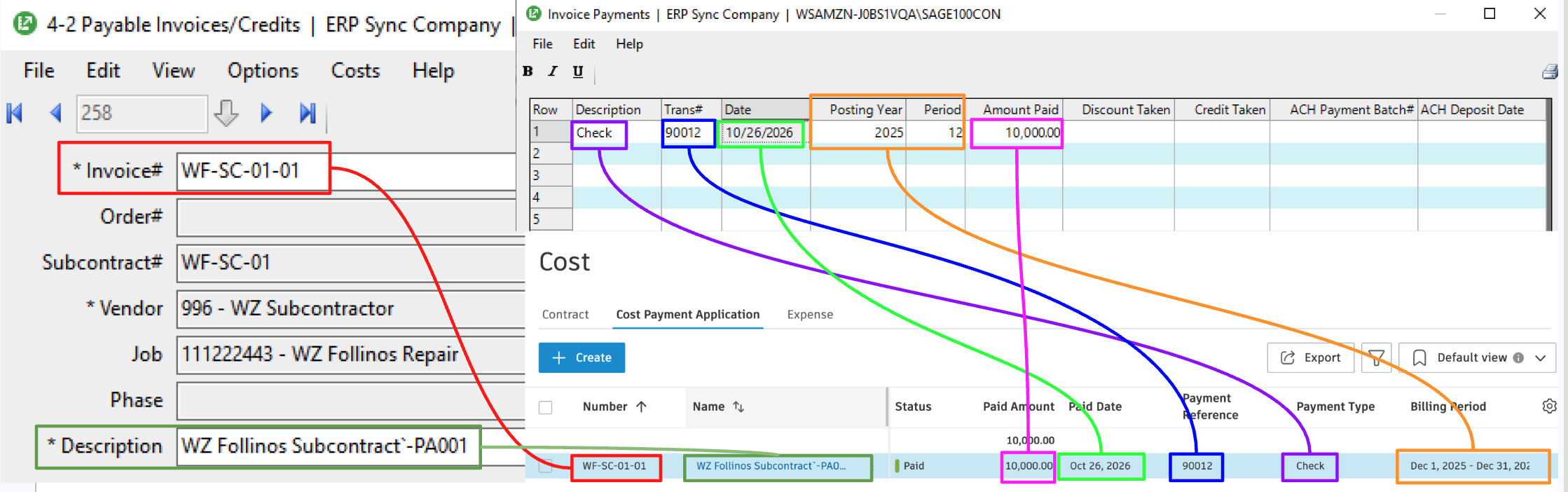
Common Errors and FAQs
Are there any pre-requisites to syncing AP Payments?
Yes. A payment attaches to an existing Cost Payment Application in Autodesk Build, so the following must be synced beforehand:
- Vendors
- Projects
- Subcontracts or Purchase Orders
- AP Invoices (Cost Payment Applications)
Does Agave update the AP Invoice status to be "Paid"?
Yes, but only when both of the following are true:
- The total of all AP Payments matches the full amount of the AP Invoice, and
- The AP Invoice is currently in an Approved status.
Partial payments leave the status unchanged, and the paid amount still appears in the Paid Amount column.
Why is my payment showing Missing Dependency or not syncing?
This usually means the invoice the payment is applied to is not linked to Autodesk Build. Check that:
- The Subcontract or Purchase Order is synced and linked
- The AP Invoice was synced from Autodesk Build, not entered in Sage 100 Contractor
What happens when one check pays several invoices?
Agave creates one payment per invoice. A check covering two invoices shows as two payments in Autodesk Build, each with the same check number as its reference.
How are discounts handled?
The payment amount includes the discount taken in Sage 100 Contractor. For example, a $10,000 invoice paid with a $9,900 check and a $100 discount syncs as a $10,000 payment, so the invoice shows as fully paid.
How are vendor credits handled?
- Credit applied when paying (4-3-1): the invoice syncs as paid in full. The credit memo itself does not sync.
- Credit applied to an invoice with Reference# (4-2): the credit syncs as a payment on that invoice, with the credit invoice number as the reference.