AP Invoices
Agave Sync allows you to export ServiceTitan Bills to Foundation AP Invoices.
Visual Mapping
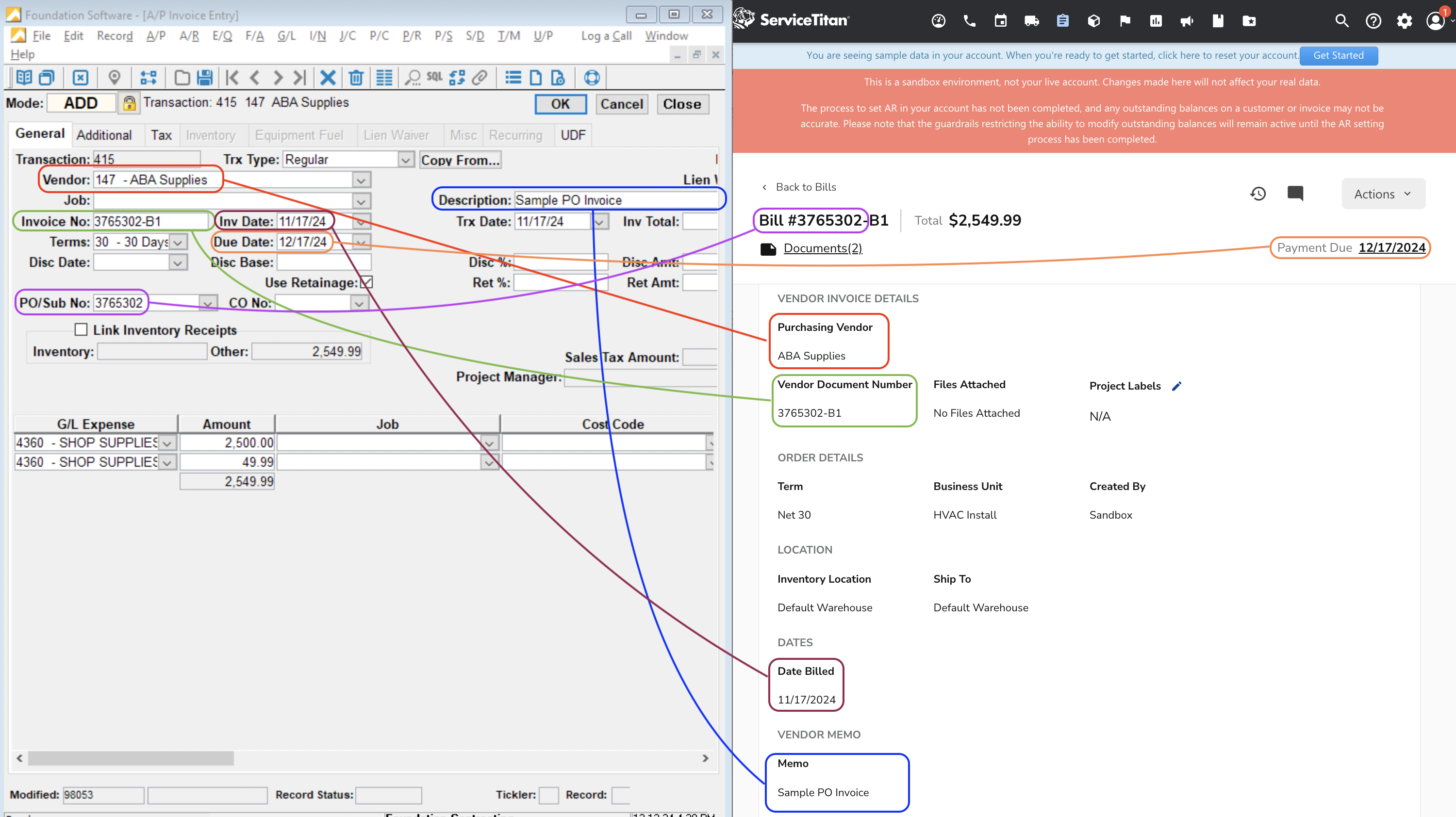
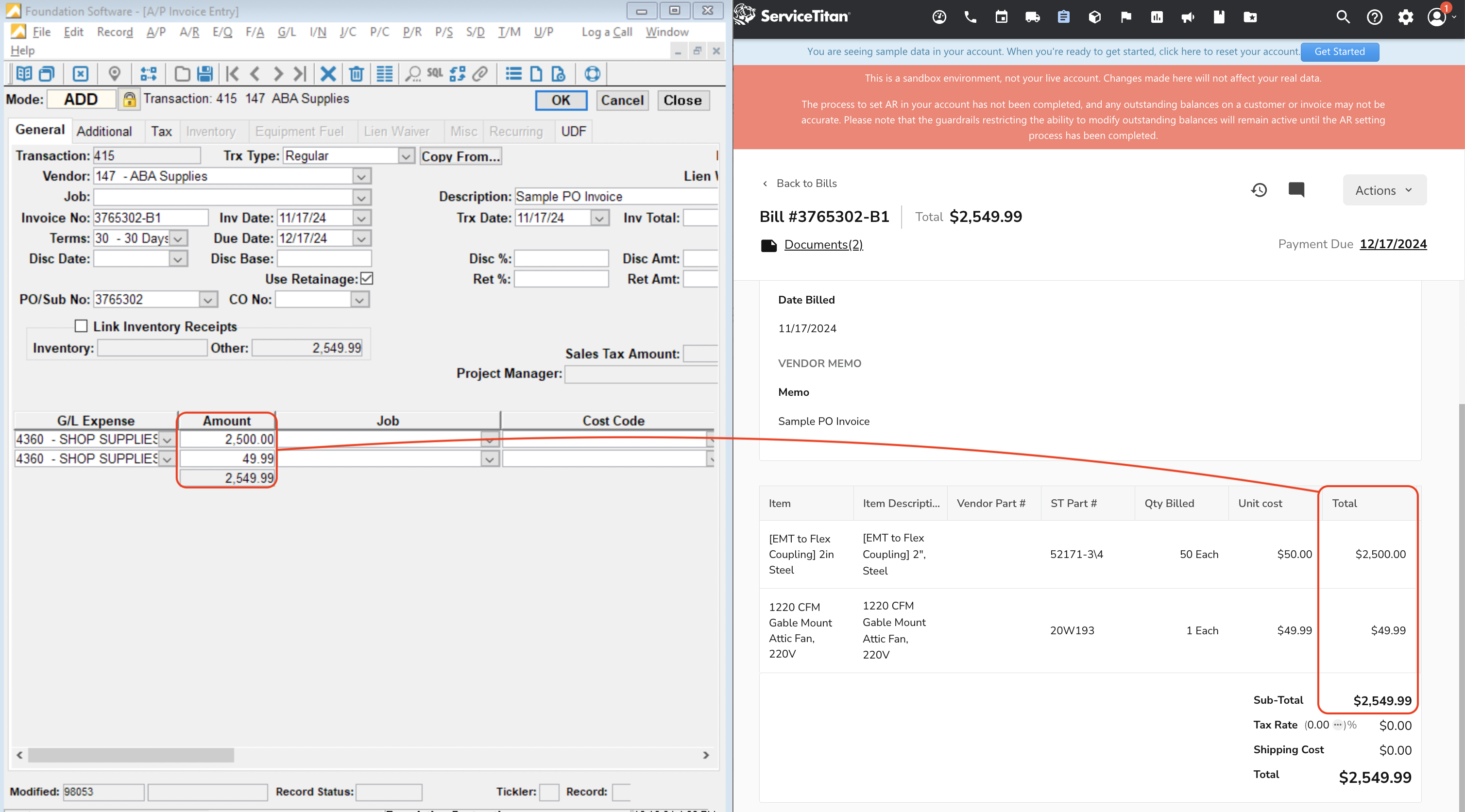
Agave Sync exports AP Invoices to Foundation in an Unposted status. To see the AP Invoice in Foundation, go to Foundation's Accounts Payable Enter Invoices form, then press Modify and Modify Unposted Invoices.
Enabling AP Invoices Sync to Foundation
Installation
Exporting AP Invoices to Foundation requires a combination of Foundation's FSI Importer, ODBC access, and the Agave Connector.
Step 1: Download the FSI Importer
-
Log in to the Foundation Client Portal.
-
If you are a Foundation Cloud (Hosted) Customer, go to Resources-->Downloads. If you are a Foundation On-premise Customer, go to Resources-->Software Releases.
-
Select the download icon for the FSI Importer.
-
Once the file has downloaded, go to your Downloads folder and open the .exe file. This will start the installation process for the FSI Importer.
-
Finish the installation process.
Step 2: Install the ODBC Driver
The FSI Importer reaches your Foundation instance over Microsoft Open Database Connectivity (ODBC). The Agave Connector configures the ODBC data source for you, so you only need to make sure the driver itself is installed.
Most machines running Foundation already have the ODBC driver installed. If yours does, you can skip this step and go straight to Step 3: Set up the Agave Connector.
- Go to the Microsoft website and download the Microsoft ODBC Driver for SQL Server 18 (x64)
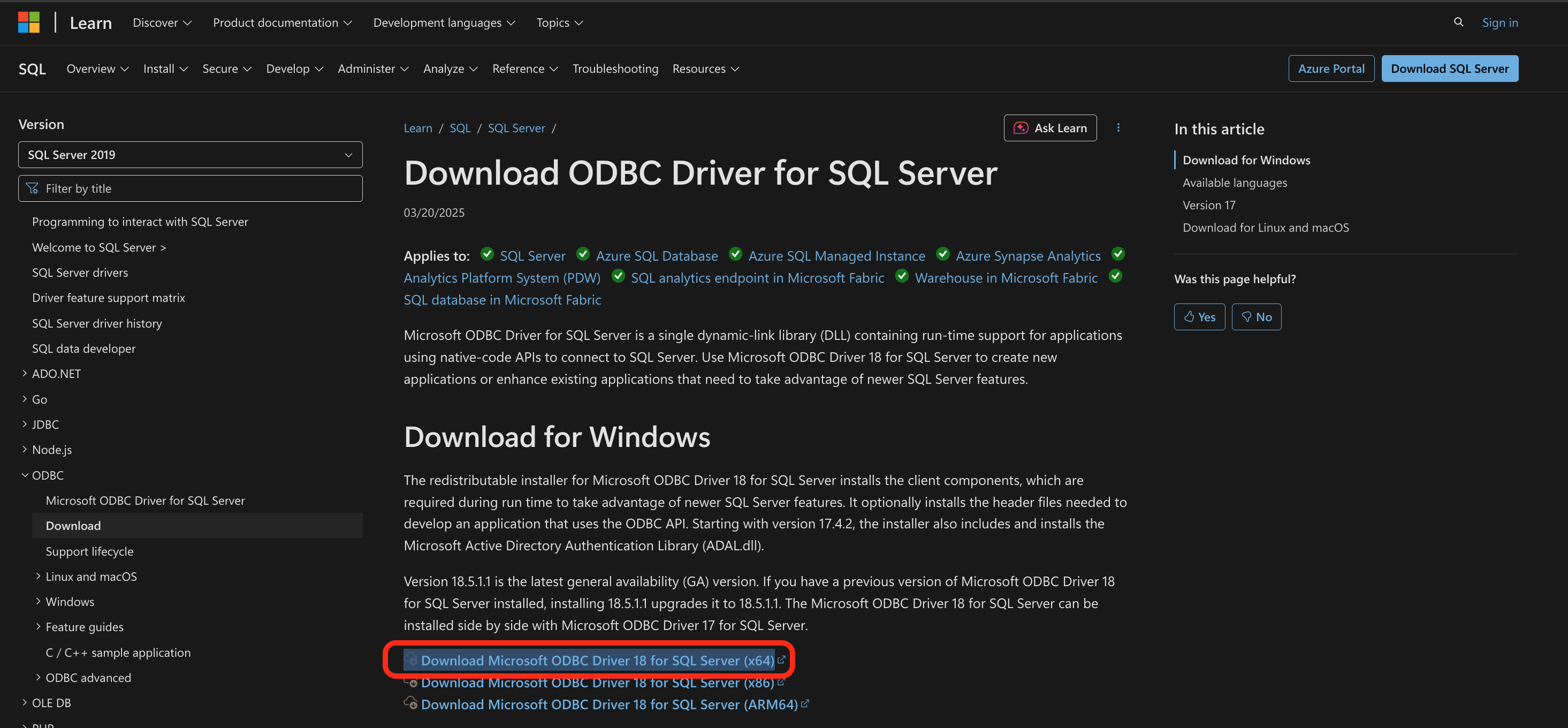
- Double click on the msodbcsql.msi file that you downloaded
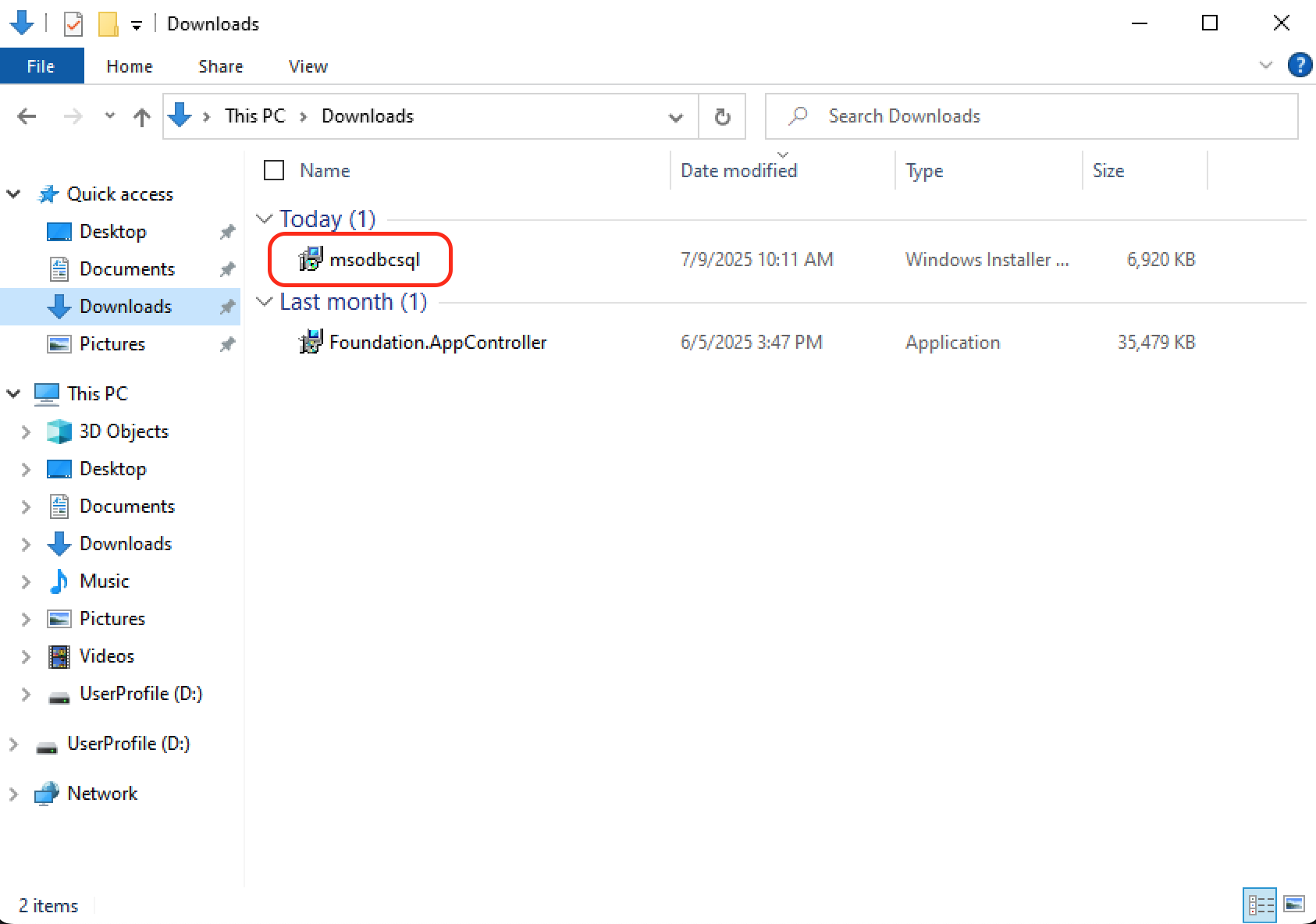
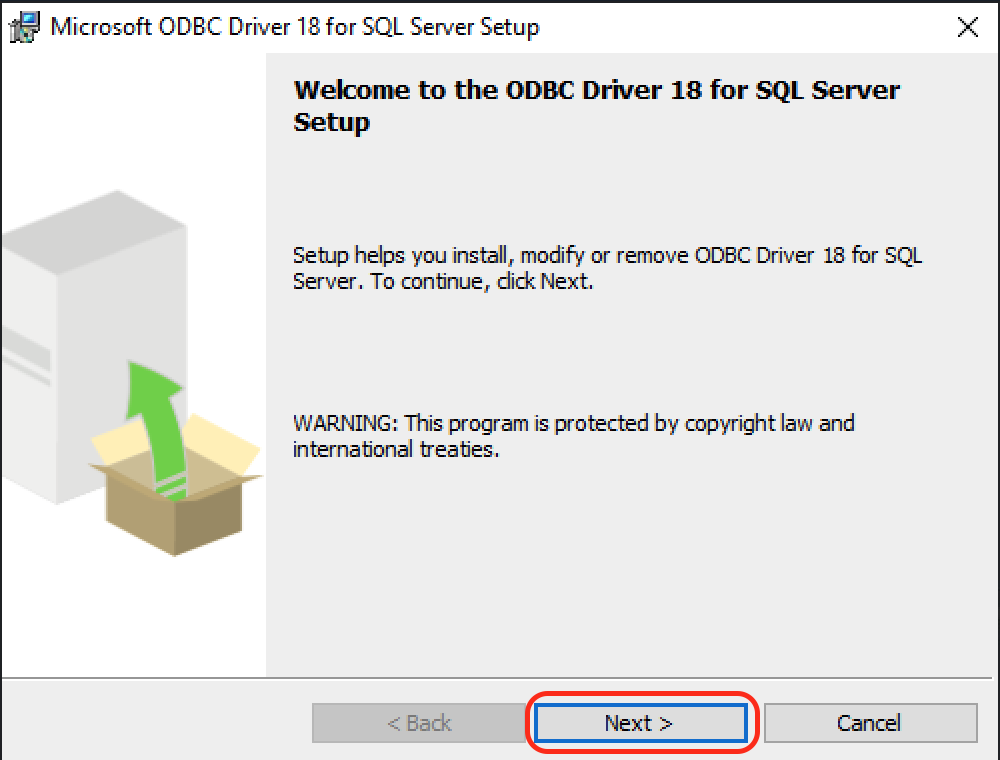
- This will open up an Installation Wizard, click Next
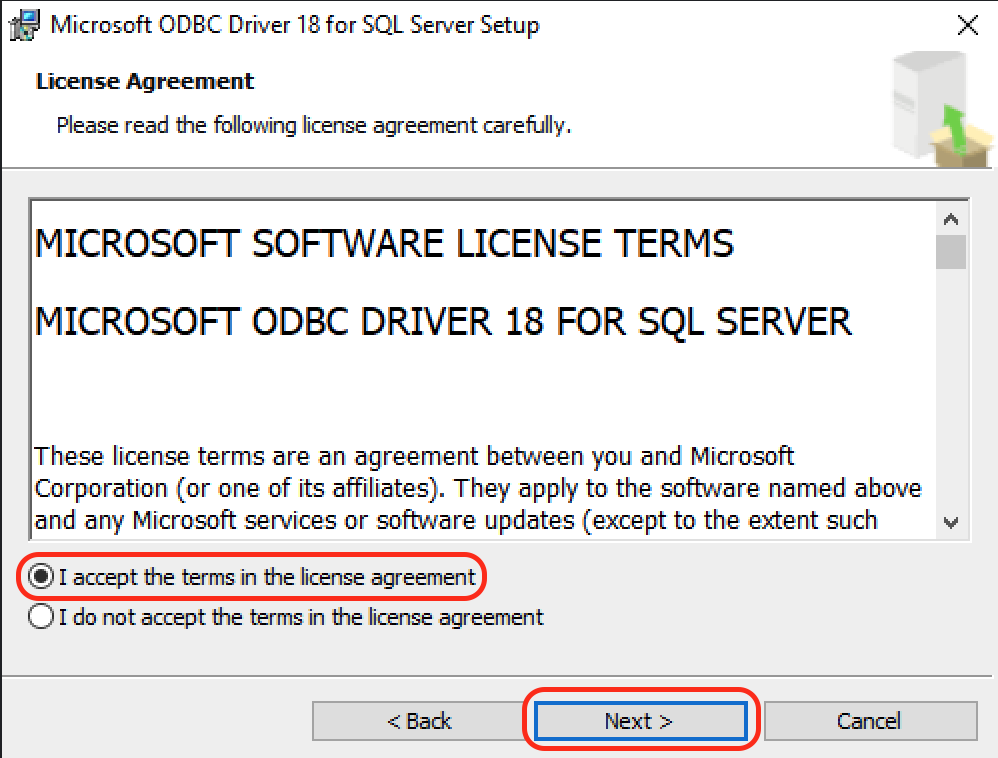
- Accept the agreement terms, click Next
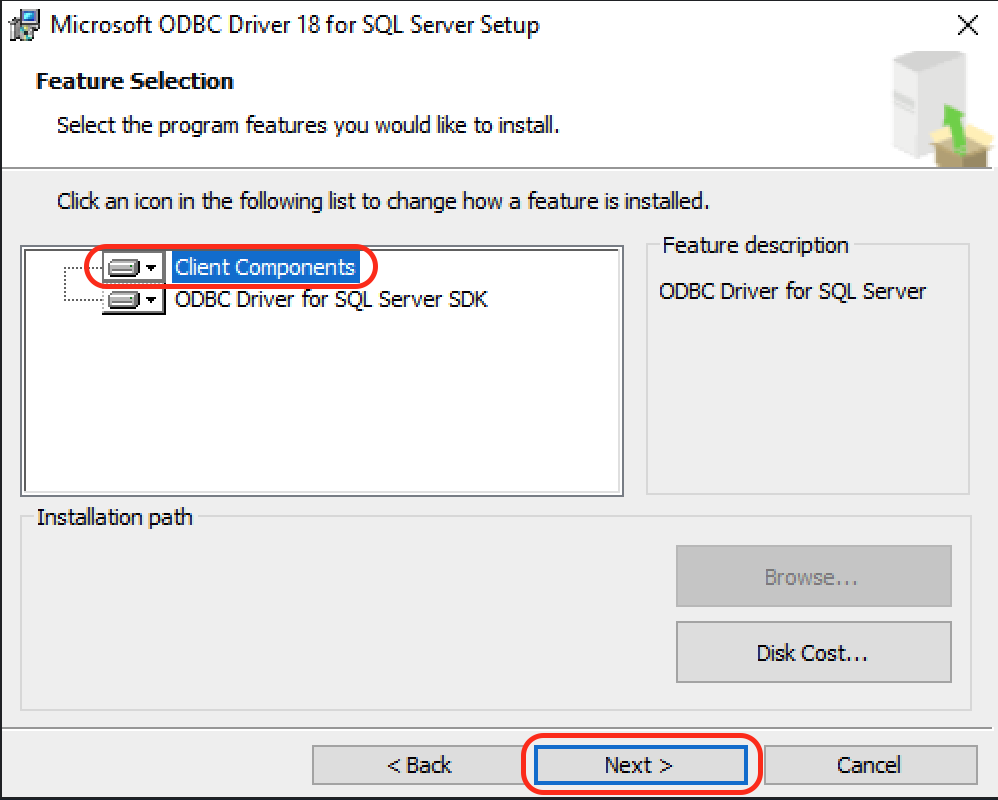
- Select Client Components, click Next
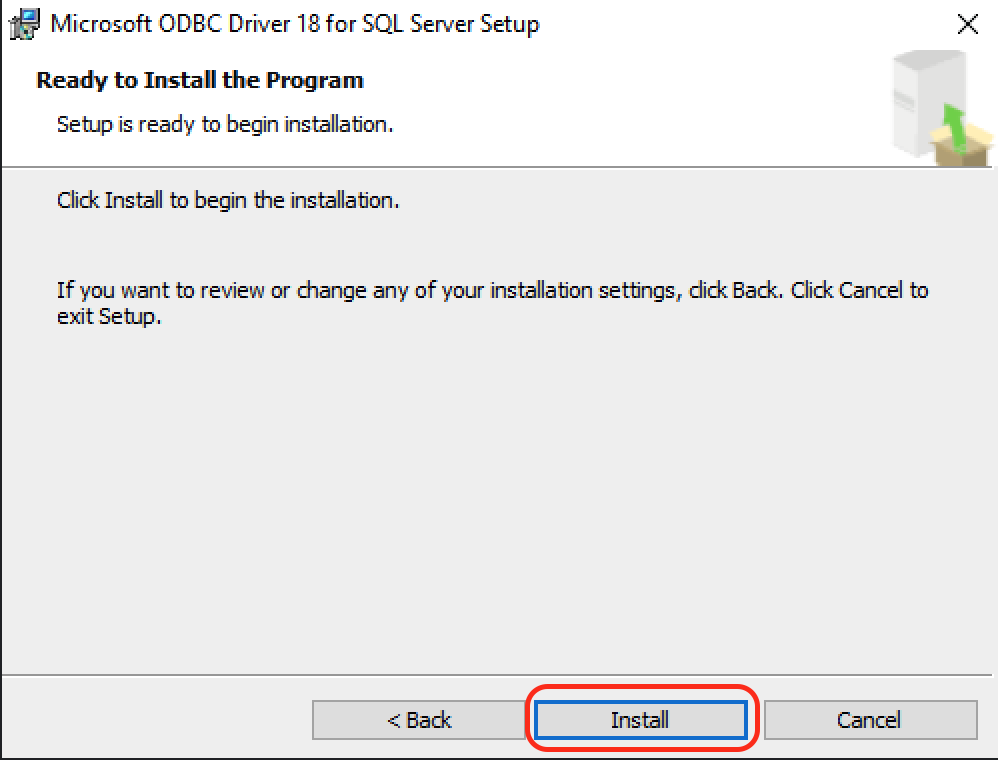
- On the next screen, click Install
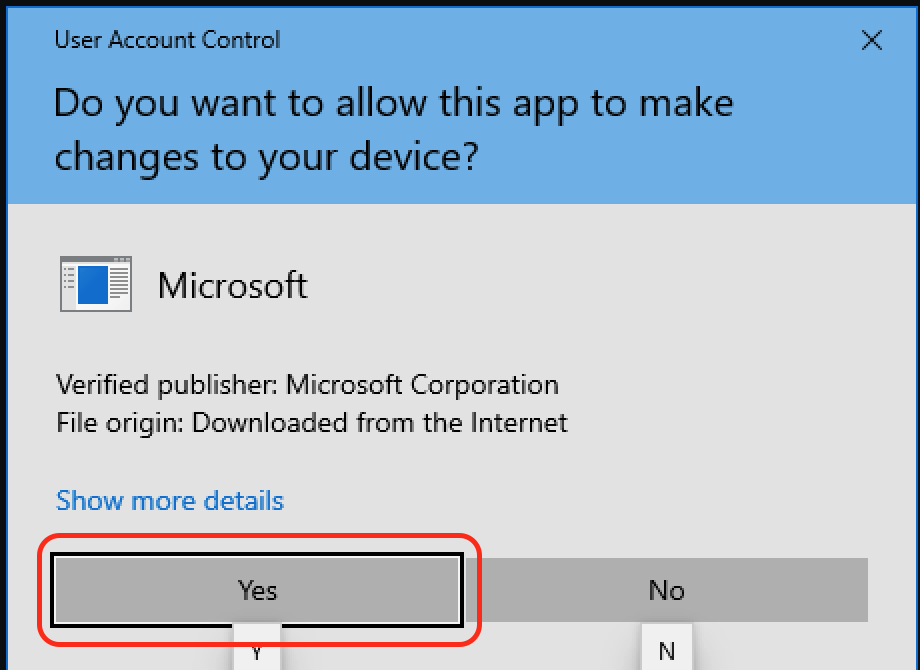
- You may encounter a User Account Control prompt, click Yes
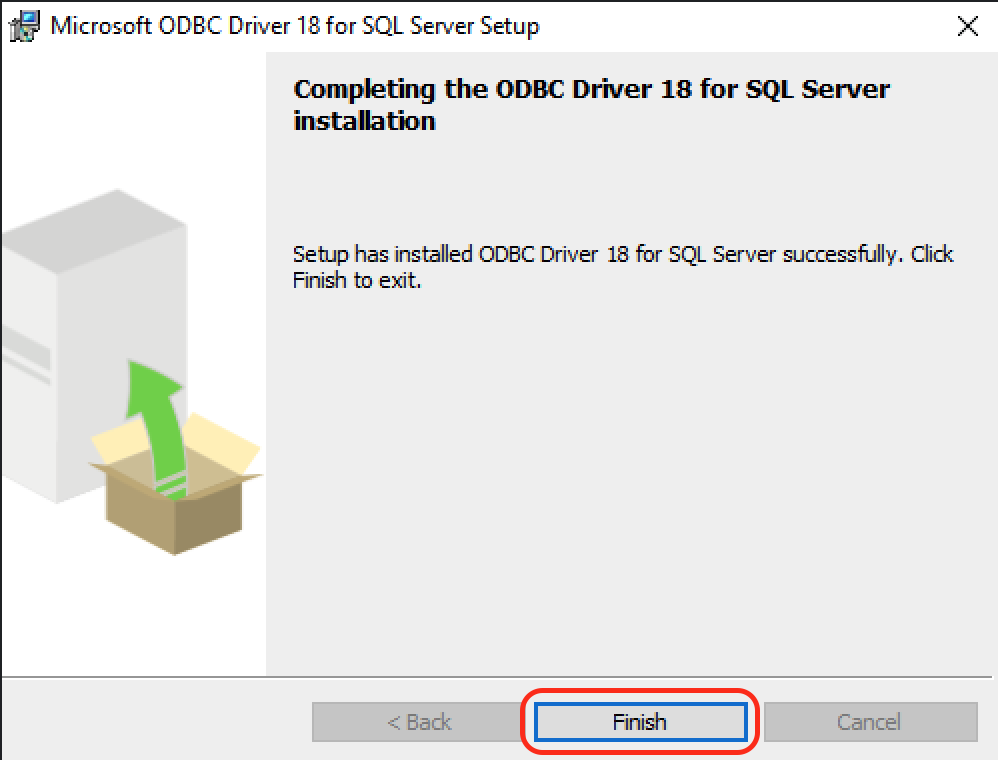
- Click Finish to complete the installation of the driver
Step 3: Set up the Agave Connector
-
Ask your Agave Account Manager for a link to the Agave Connector. Then download and install it.
-
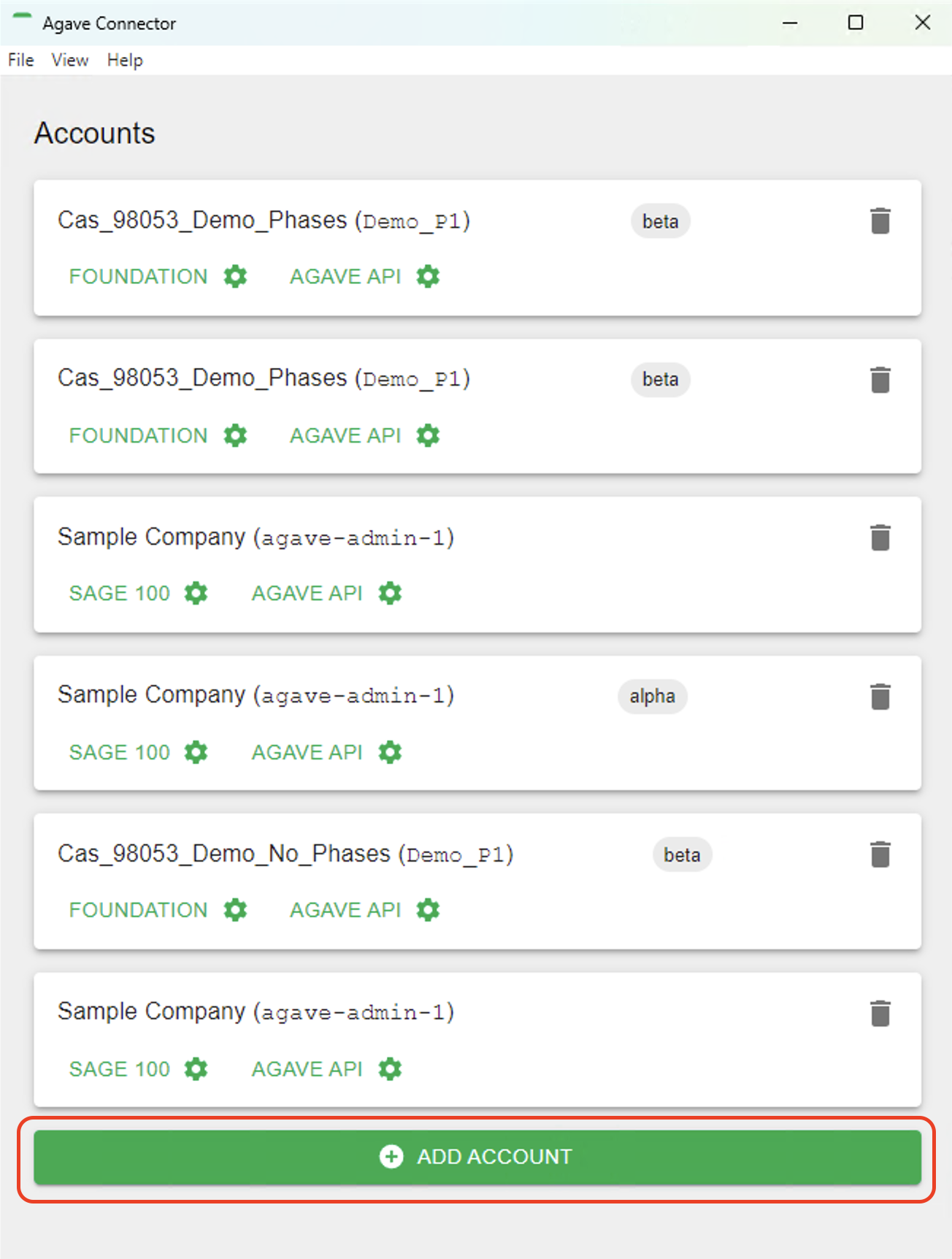
Open the Agave Connector and press Add Account.
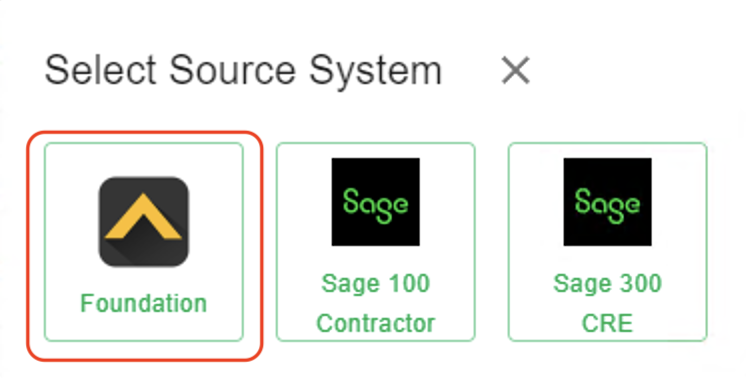
- Select Foundation as your Source System.
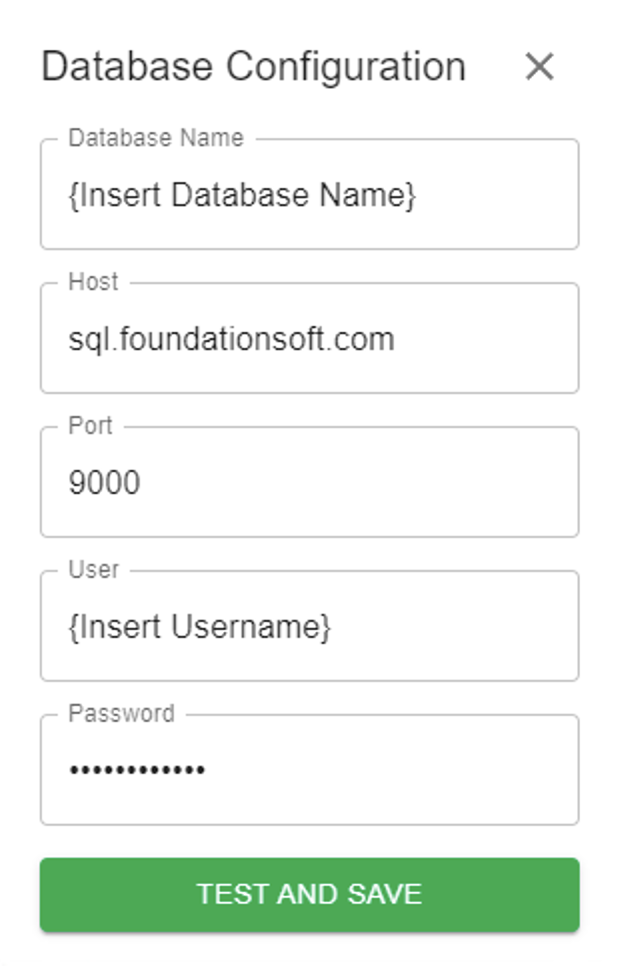
- Input details for your Foundation user you use in Agave Sync, and then press Test and Save. Note, these are the same credentials you used for connecting Foundation to Agave Sync.
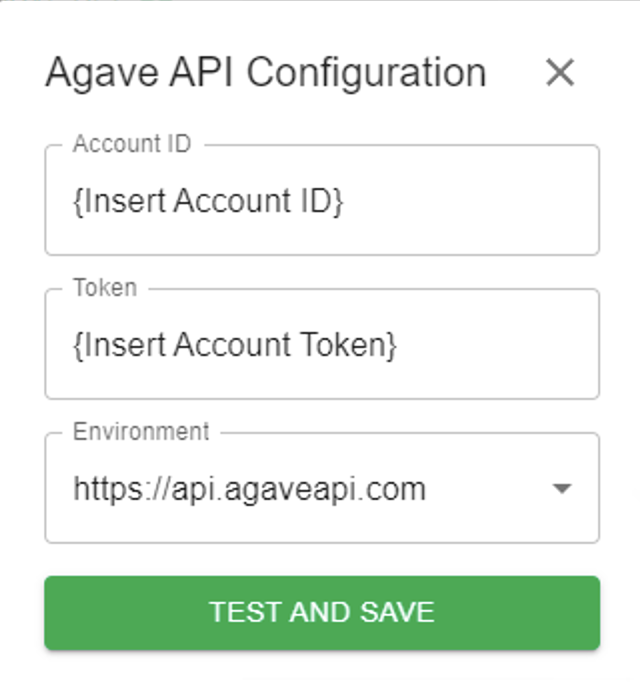
- Notify your Agave Account Manager that you have completed the foregoing step and ask for an Account ID and Token. Input these details in the next screen and then press Test and Save:
- Notify your Agave Account Manager that you have completed the foregoing step. They will then be able to confirm that you can export AP Invoices to Foundation.
Common Errors and FAQs
Are there any pre-requisites to syncing AP Invoices?
Yes, the Purchase Order associated with the AP Invoice must be synced.
How does Agave know which AP Invoice FSI Importer defaults to use?
Agave Sync references two locations to determine the FSI Importer defaults:
- For the Expense Ledger Account, Agave Sync uses the same Ledger Accounts references in Subcontracts and Purchase Orders (under System --> Controls --> P/S).
- For other defaults, Agave Sync references the AP Control file in Foundation (under System --> Controls --> A/P). These defaults include:
| Default | Control File | Notes |
|---|---|---|
| A/P G/L Account | Control A/P File | - |
| Cash G/L Account | Control A/P File | - |
| Credit Card G/L Account | Control A/P File | - |
| Discount G/L Account | Control A/P File | - |
| Expense G/L Account | None - see Notes | Defaults to the Expense Ledger Account from the Purchase Order or Subcontract Line Item |
| Division 1 | Control A/P File | - |
| Division 2 | Control A/P File | - |
| Division 3 | Control A/P File | - |
| Division 4 | Control A/P File | - |
| EFT G/L Account | Control A/P File | - |
| Is Phase Enabled? | Control J/C File | - |
| Lien Waiver Flag | Control A/P File | - |
| Payment Type | None - see Notes | Always set to "Regular" |
| Retainage G/L Account | Control A/P File | - |
| Terms | Control A/P File | - |
Do I need to have the FSI Importer installed for AP Invoice syncs to work?
Yes. We leverage the same technology that Foundation uses for the FSI Importer as part of this sync.
Do I need the Agave Connector to be opened/minimized for AP Invoice syncs to work?
Yes - we recommend keeping it open and minimized.
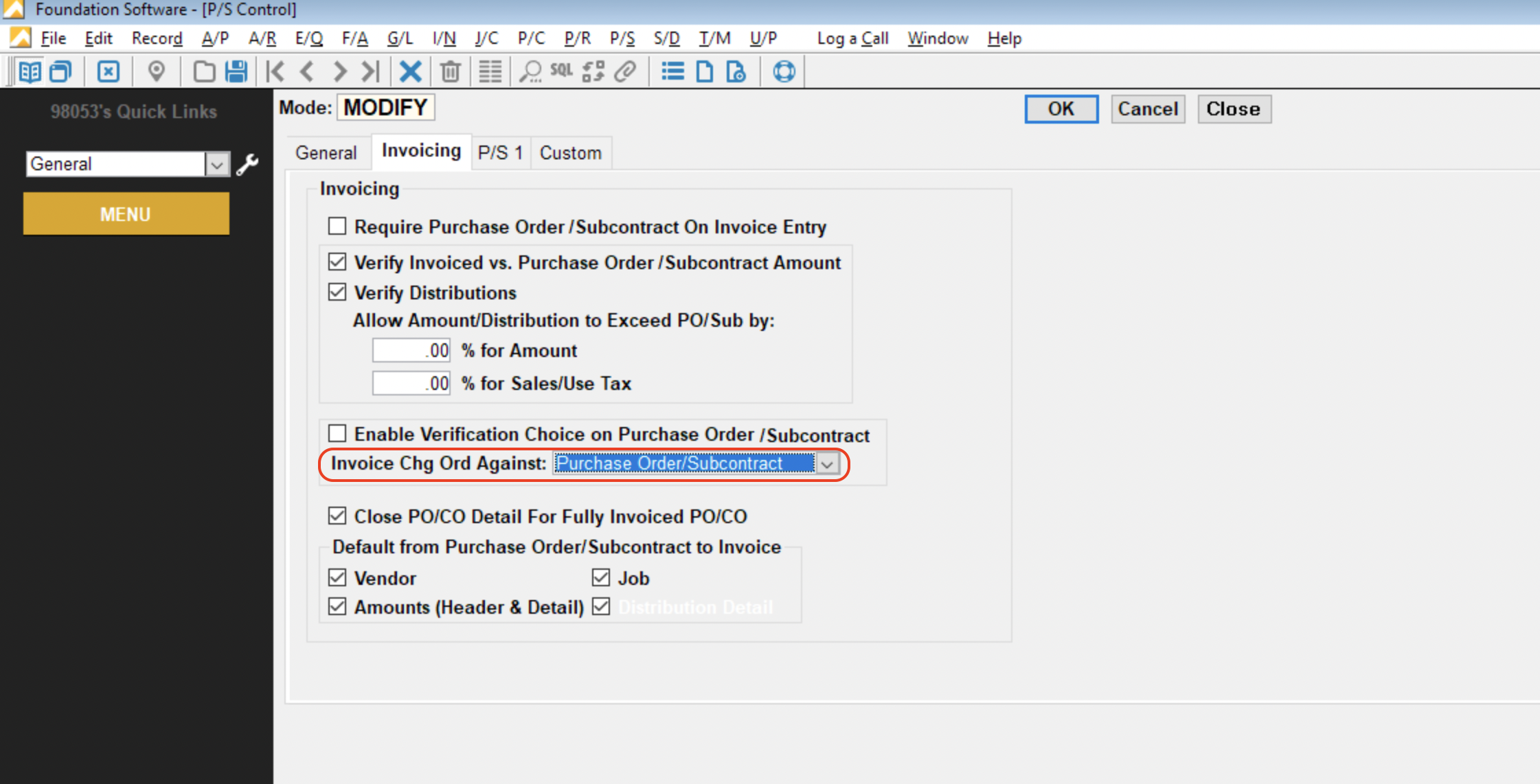
Can I sync AP Invoices against Subcontract or Purchase Order Change Orders?
Yes insofar as you have the following setting in Controls-->P/S-->Invoicing enabled:
Is releasing retention supported?
No, releasing retention is not supported in sync for Foundation.
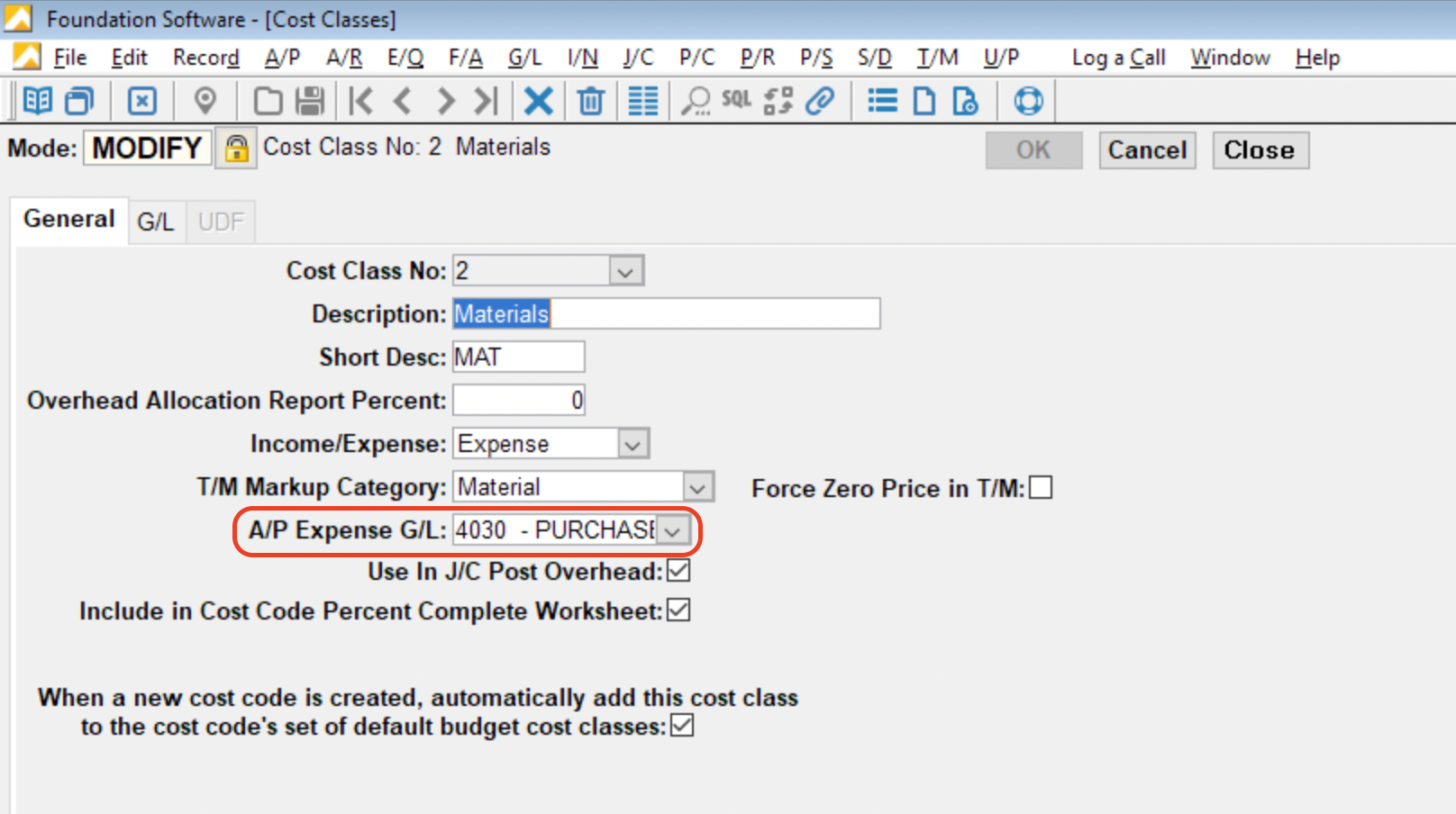
Error: No Ledger Account ID found for provided Foundation Cost Type.
Foundation requires a Ledger Account ID for AP Invoice line items. Since Procore does not have a Ledger Account field in Subcontractor Invoices, Agave Sync uses the value from the A/P Expense G/L field for the Cost Type (Cost Class). If this field is not populated, Agave Sync will generate an error.