Cost Codes (Service Items)
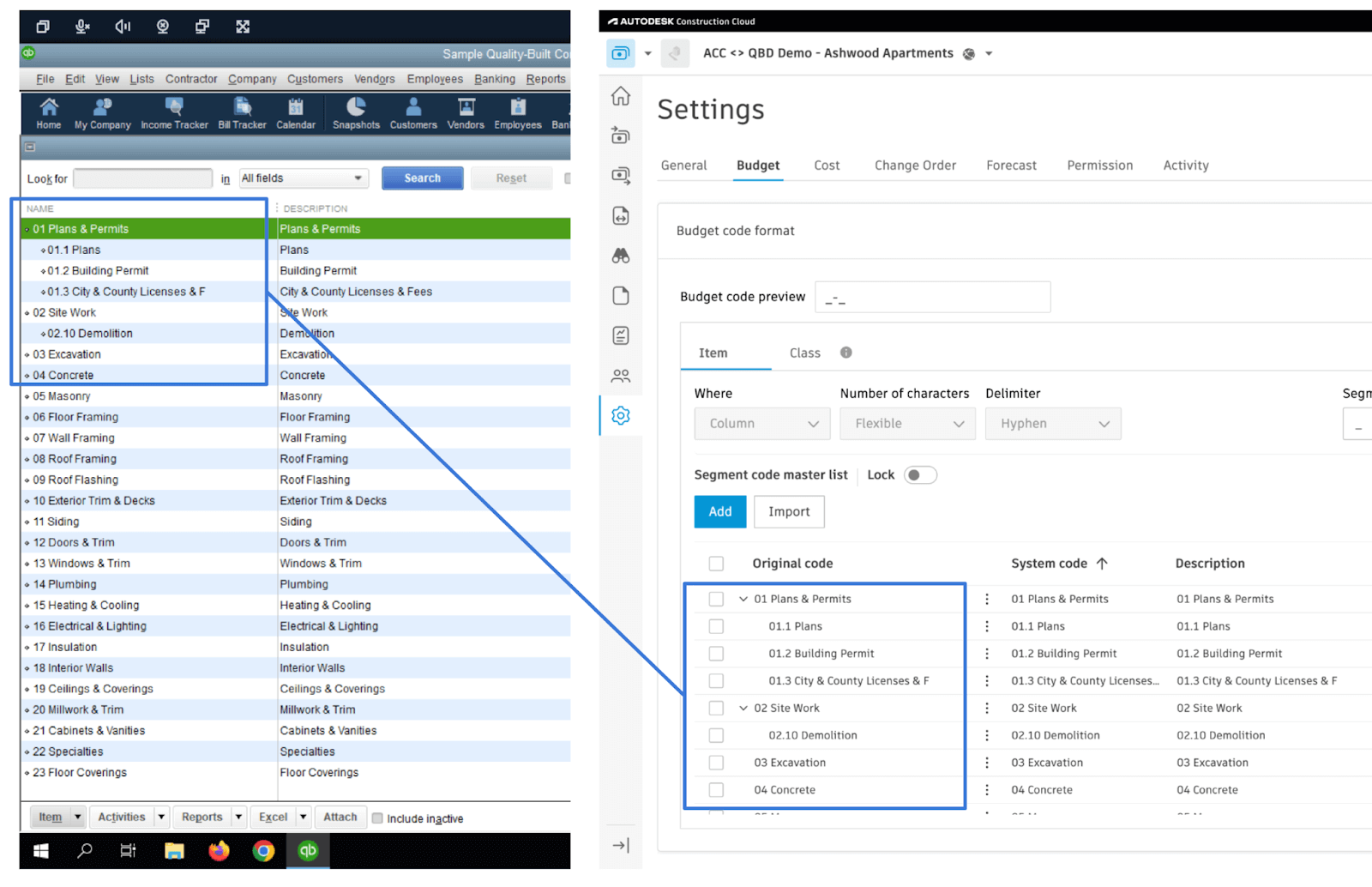
When syncing cost codes from QuickBooks Desktop to Autodesk Build, it is better to break down the Cost Code to 2 parts:
- In QuickBooks Desktop, we have "Name" (the numerical part; example: 001), and "Description" (the textural part; example: Framing).
- In Autodesk Build, we have "Original Code" / "System Code" (the numerical part; example: 001), and "Description" (the textural part; example: Framing).
In order to have a well-formatted Cost Code List, you can configure the Cost Codes in QuickBooks Desktop's "Lists" -> "Item List" tab.
- Set up "Name" column to hold a numerical value (e.g. 001)
- Set up "Description" column to hold a short description (e.g. Framing)
- Nesting structure (parent-child relationship) will be preserved when syncing from QuickBooks Desktop to Autodesk Build
Visual Mapping
Video Tutorial
Common Errors and FAQs
Does Agave support syncing other Items type in QuickBooks Desktop?
By default, Agave syncs Items in QuickBooks Desktop that have a type of "Service" for Cost Codes in Autodesk. We can also support additional item types such as Inventory, Non-Inventory, Other Charge etc.
Does Agave support syncing Chart of Accounts or General Ledger (G/L) Accounts?
We do not support G/L account-based tracking. If you are tracking costs via G/L accounts under Chart of Accounts on QuickBooks Desktop rather than Items, you would need to migrate to Items in order to integrate with Autodesk using Agave.
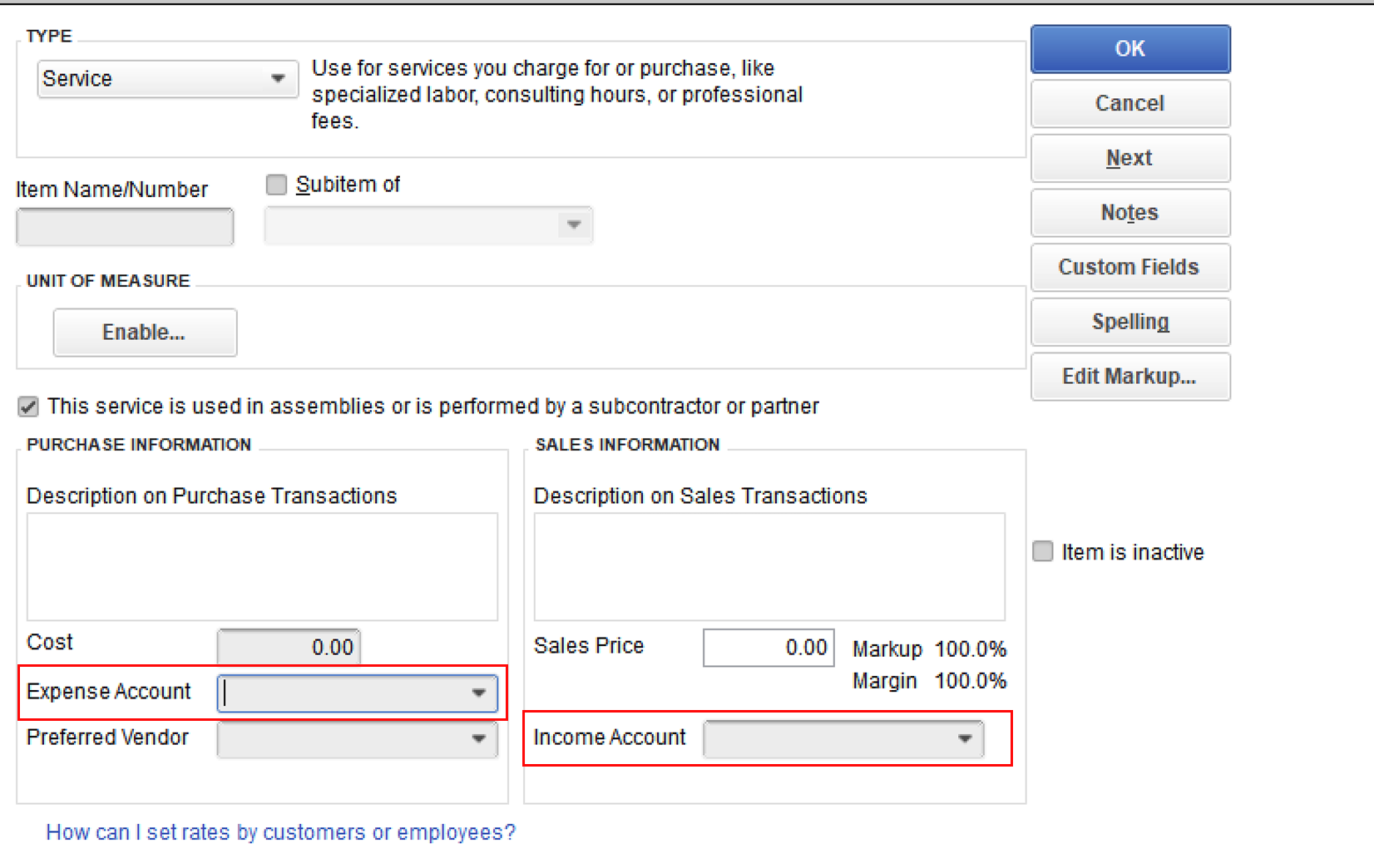
QuickBooks Desktop allows you to associate an Expense Account and an Income Account to each Item (see below).
Does Agave support syncing Sub Jobs?
We do not support syncing Sub Jobs or any Budget Code Segments outside of Cost Code (Service Items) and Cost Types (Classes).
Error: Unable to Create -- Segment Code Already Exists
If you see the error [Autodesk Build Error] ValidationException: Unable to create - segment code already exists, it means the Segment Code (such as a Sub Job, Cost Code, or Cost Type) you are trying to sync is already in the Project.
To fix this error, you will need to link the record to the existing Sub Job, Cost Code, or Cost Type in Autodesk Build.
If the Segment Code is not appearing in the "Link to Existing" list, trying pressing Fetch Latest Data to confirm you are seeing the latest list of Sub Jobs, Cost Codes, or Cost Types in Autodesk Build.
Error: The Name Field is Required.
To sync a Segment Code (i.e. a Sub Job, Cost Code, or Cost Type), Autodesk Build requires a description for it (e.g. "Floor 1", "Concrete Pour", "Material").
To fix this error, add a description to the corresponding Segment Code in your Accounting System and re-sync the record.