Manual Syncing
Overview
With Agave Sync, you can export, update, and map your data between systems anytime. During initial onboarding, we recommend manual syncing to ensure data moves as expected.
Manual syncing is managed on a per-data-type basis through Data Pages. When you first set up Agave Sync, each page will display all records from the source system. From there, you can push them into the target system if they do not yet exist, or link them if they do.
Sync Actions
Push
Available for records in status: Disconnected
Pushing a record copies it from the source system to the target system. It will also create a link for that record between the systems to keep it updated. Records can only be pushed if they are "Disconnected" (not already synced).
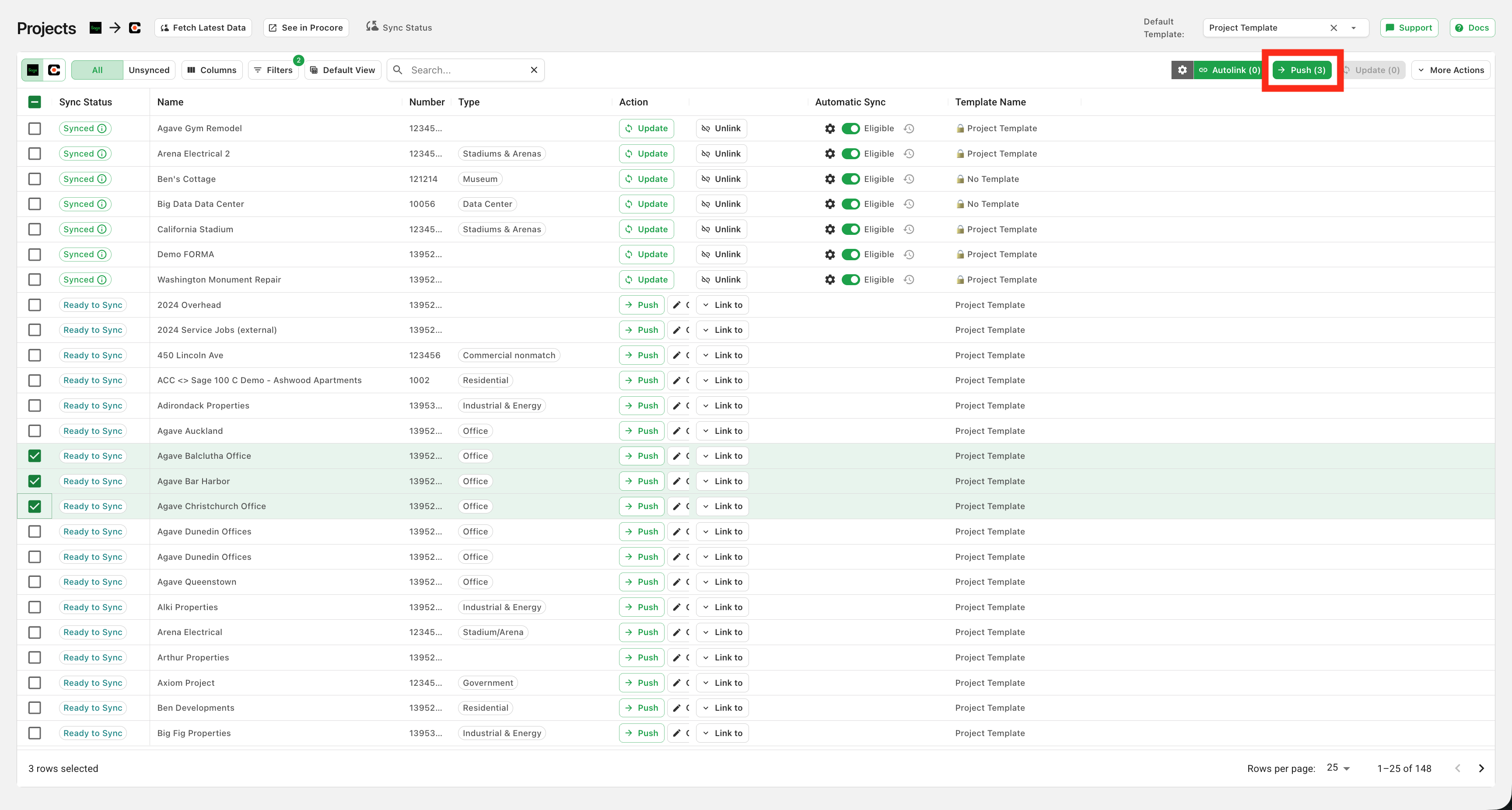
To push records, select them and click "Push Selected":
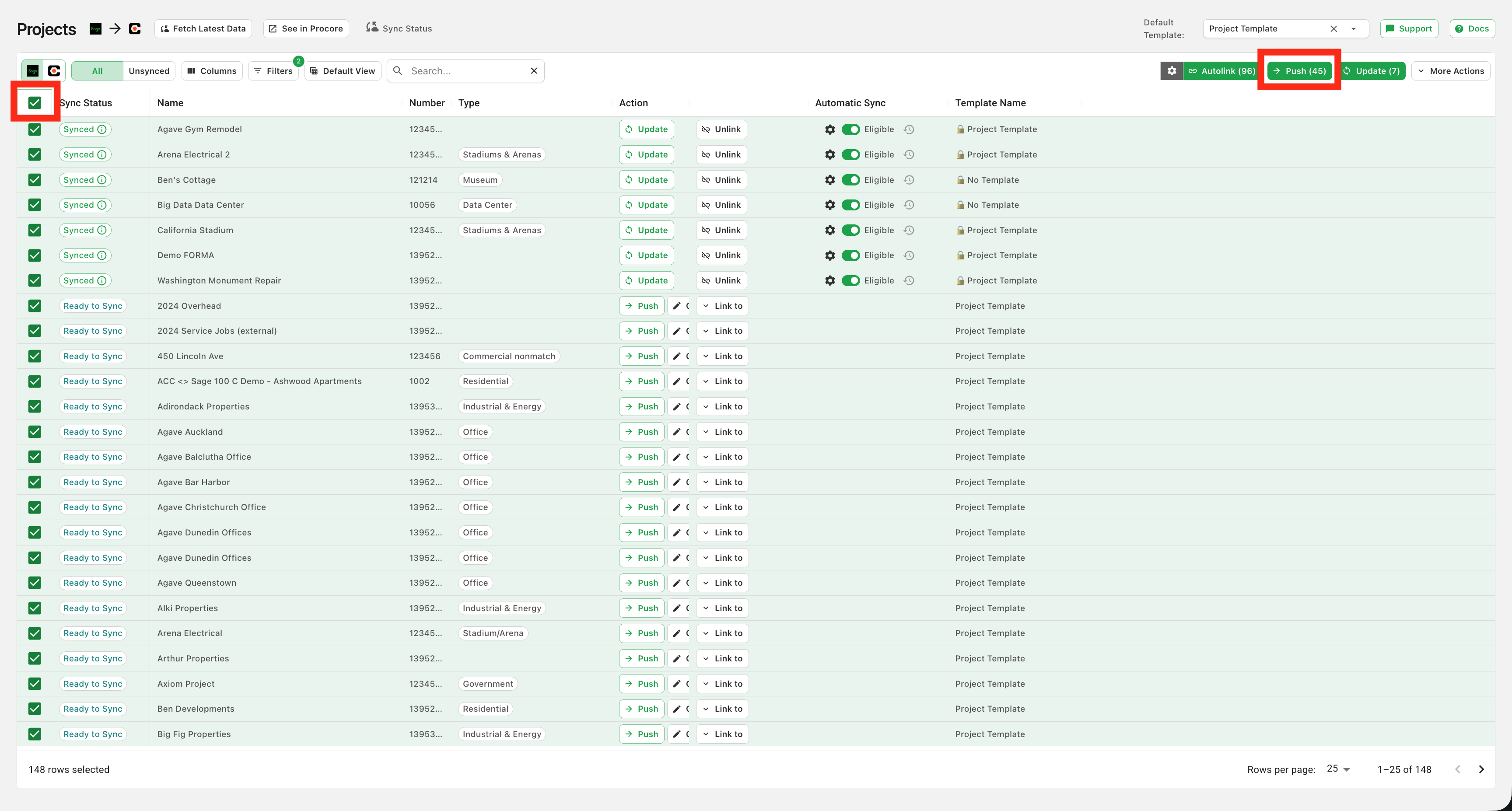
To push all records available to be pushed, click the checkbox in the header row (which will select all eligible records in your source system) and then click "Push Selected":
Update
Available for records in status: Synced
You can update records that are already connected between the two systems. This copies the most recent updates from the source system into the target system.
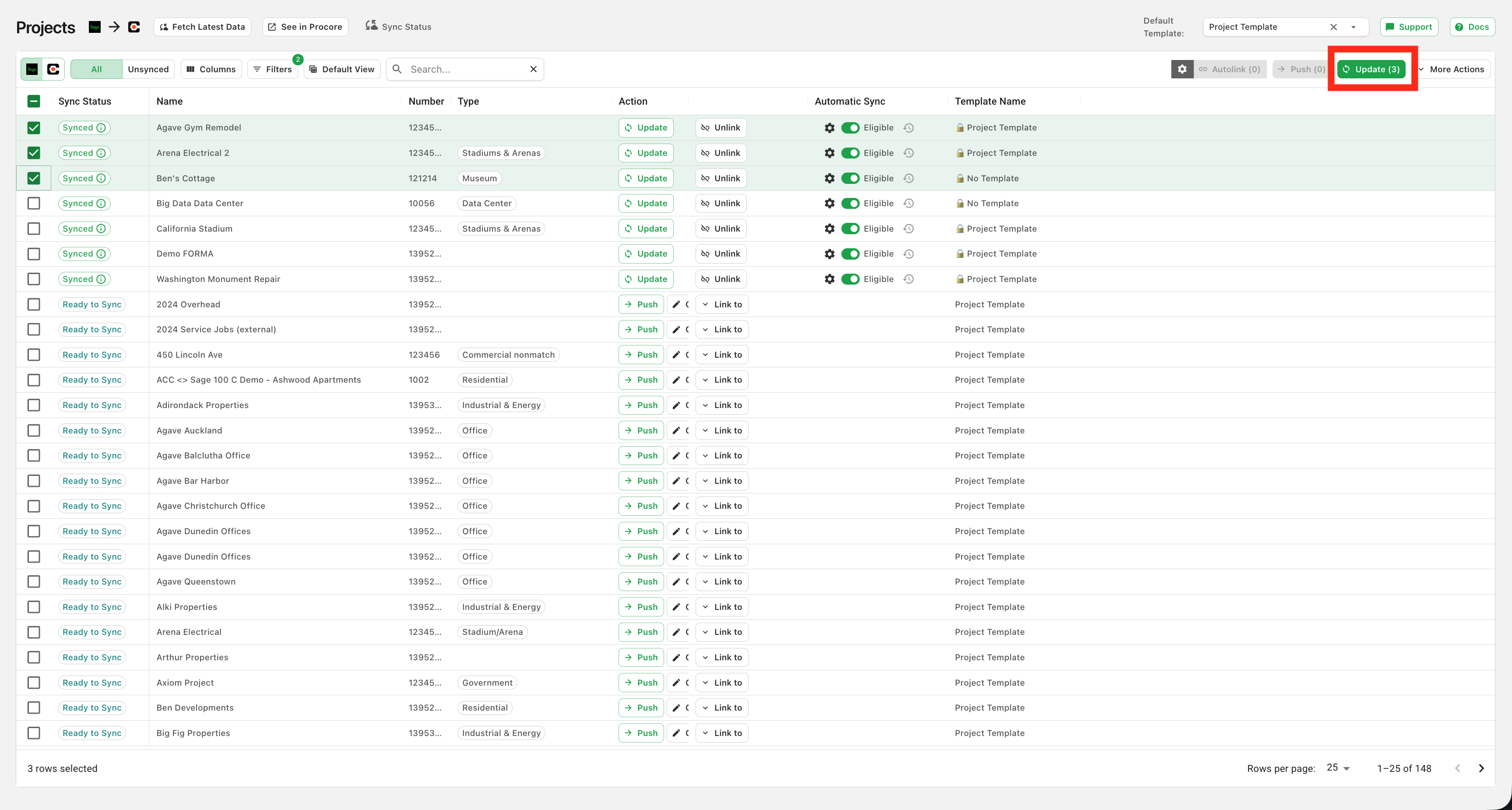
To update records, select them and click "Update Selected":
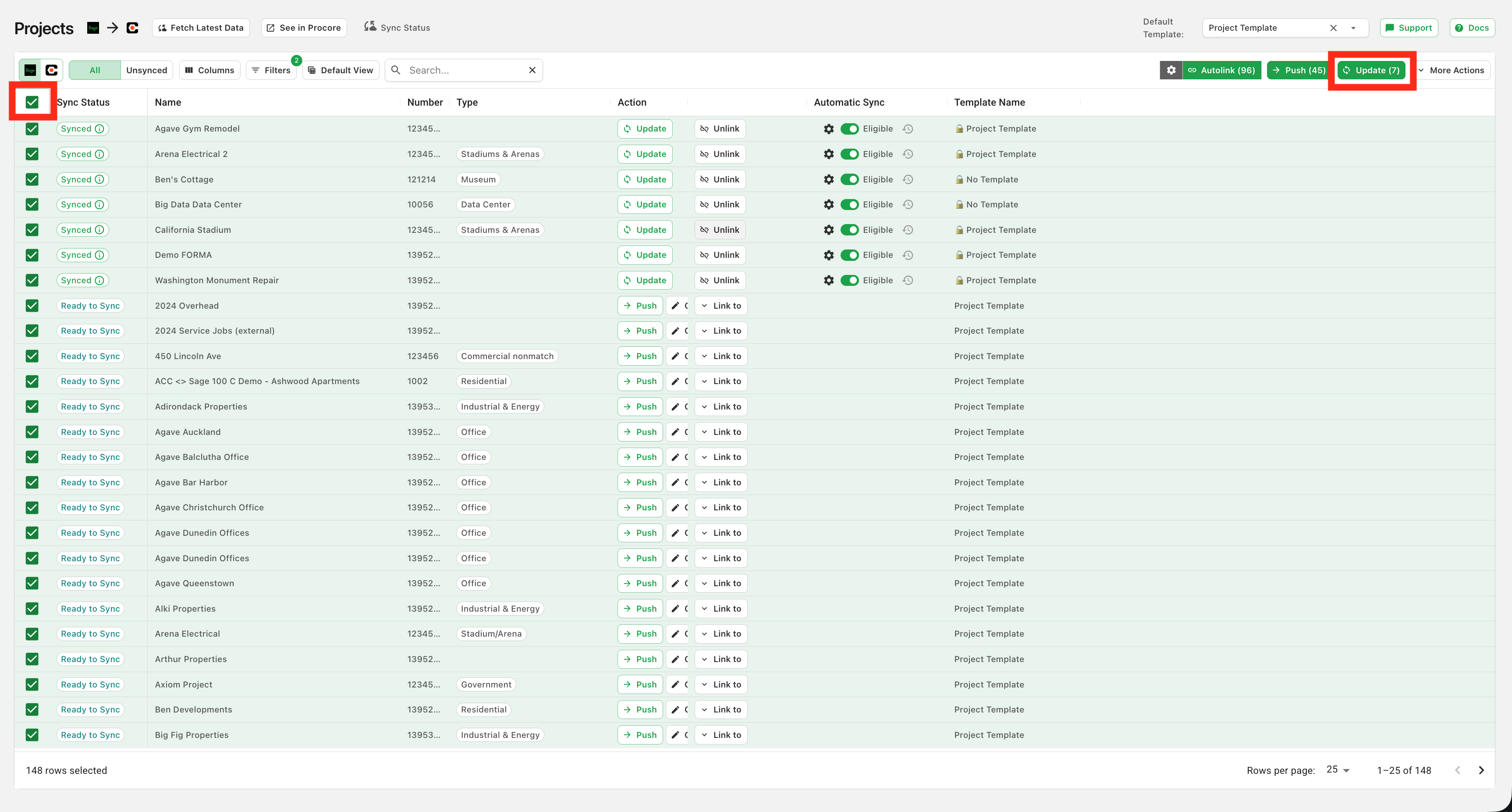
To update all records available to be updated, click the checkbox in the header row (which will select all eligible records in your source system) and then click "Update Selected":
Link
Available for records in status: Disconnected
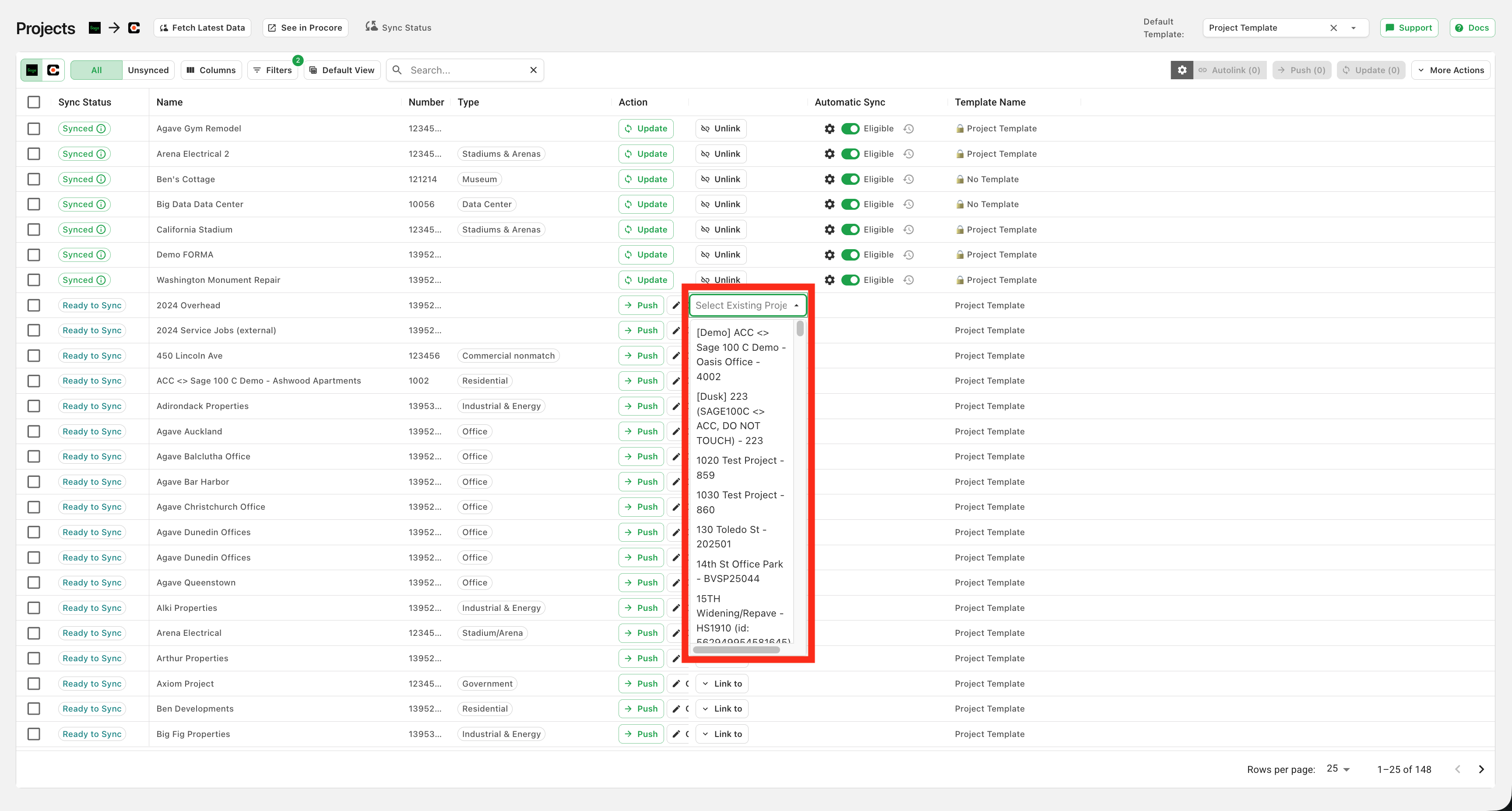
If a record already exists in both systems, you can link it in Agave Sync to keep it updated between systems and avoid duplication. Link a single record by selecting its match in the target system:
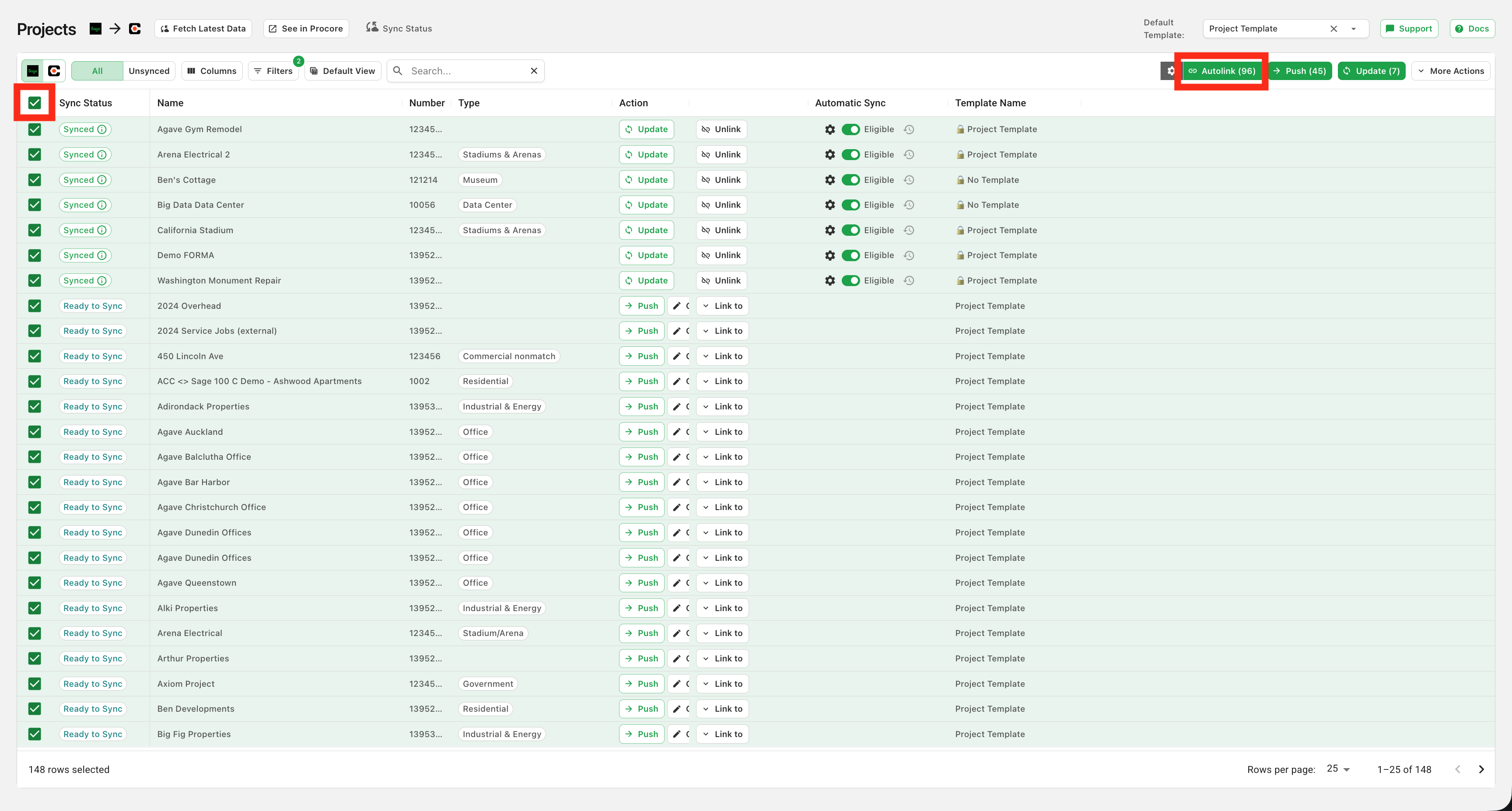
Agave can also find matching records for you in bulk with Automatic Linking:
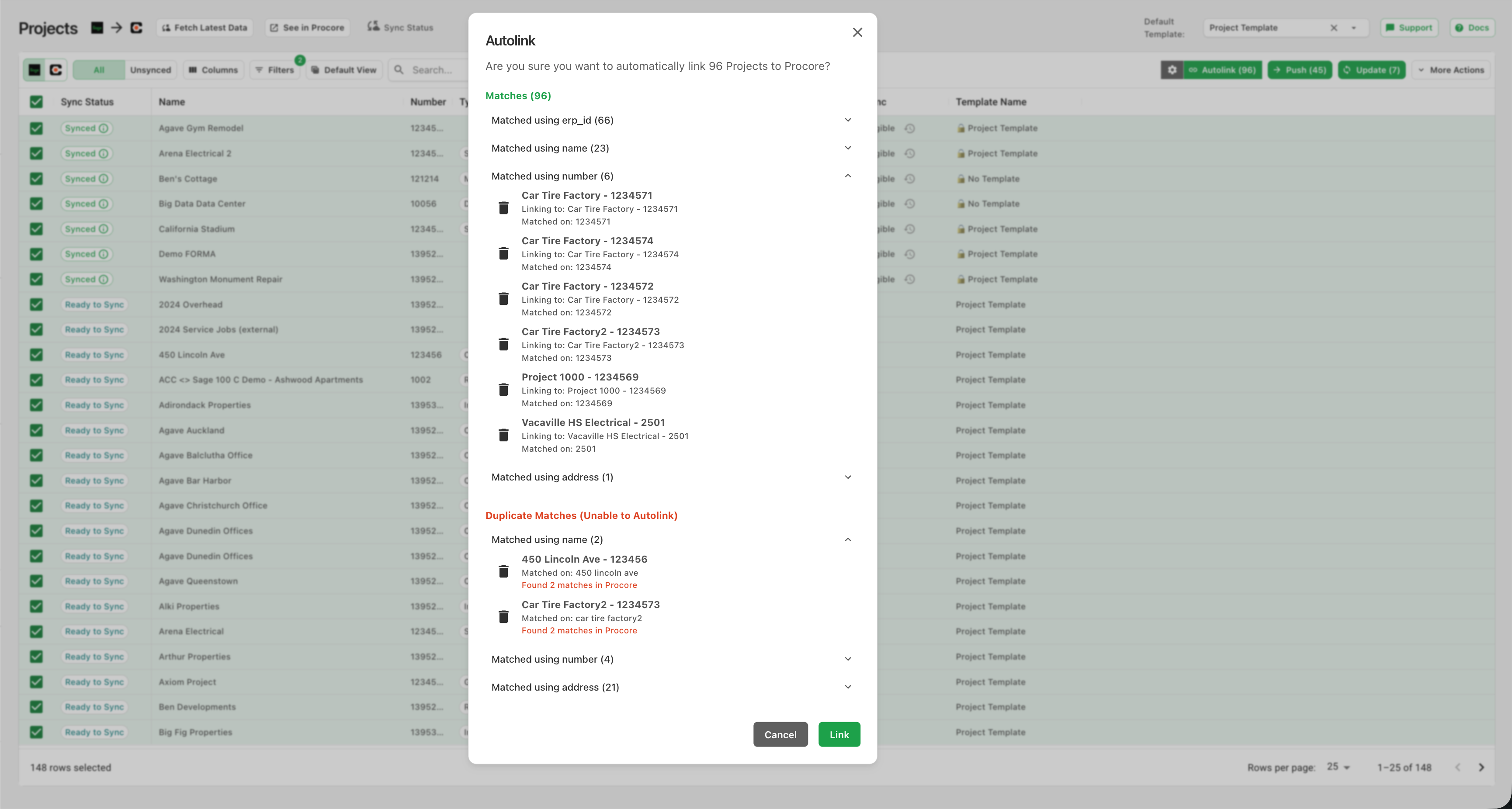
After you click the Autolink button, Agave will display which records were linked and the attribute used to create each link.
Unlink
Available for records in status: Synced, Orphaned
If you need to remap a record (e.g. if it has been deleted in one system), you can unlink it. Once unlinked, the record can be pushed or relinked to another record.
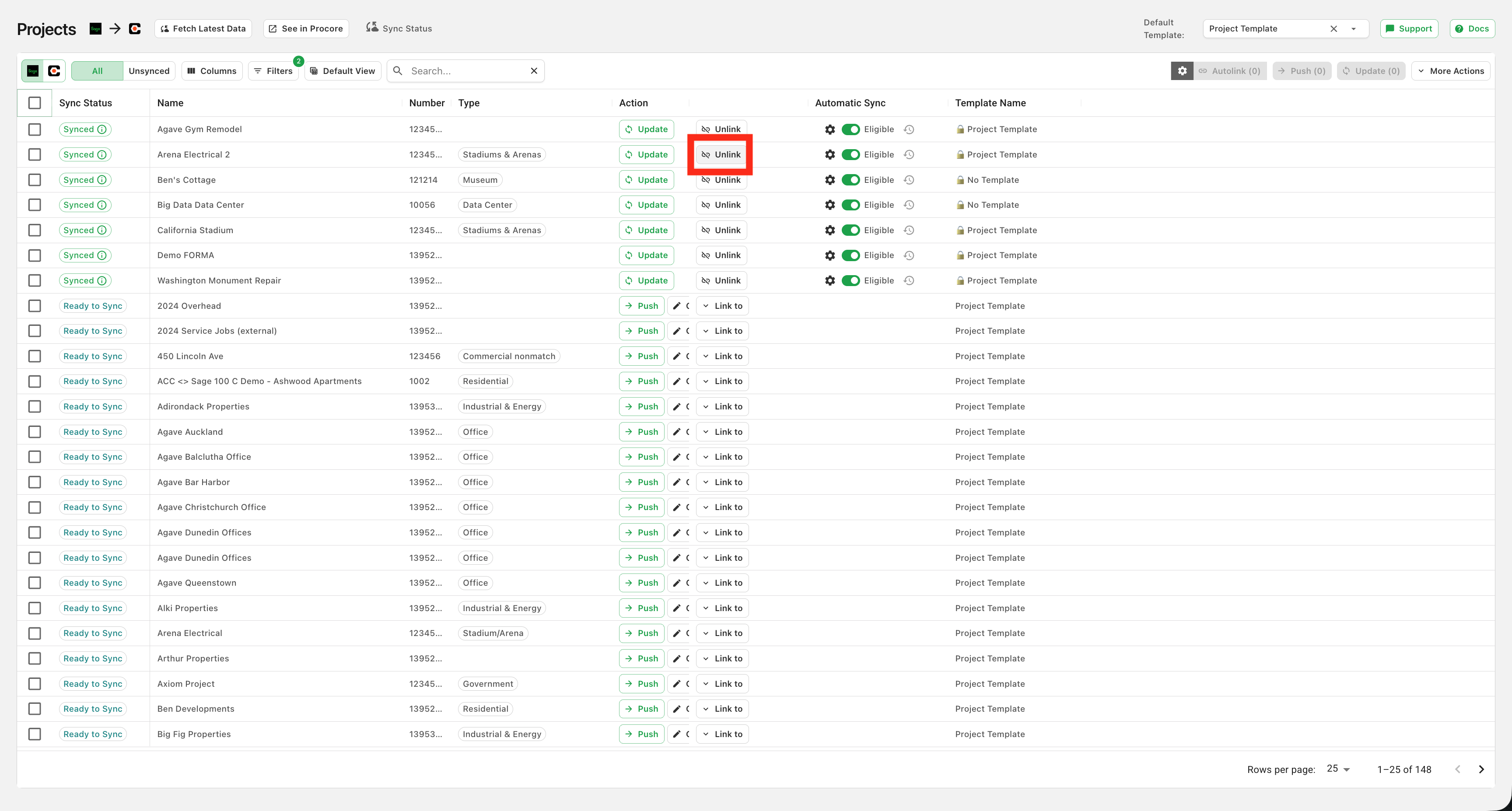
Click "Unlink" on a connected record to unlink it:
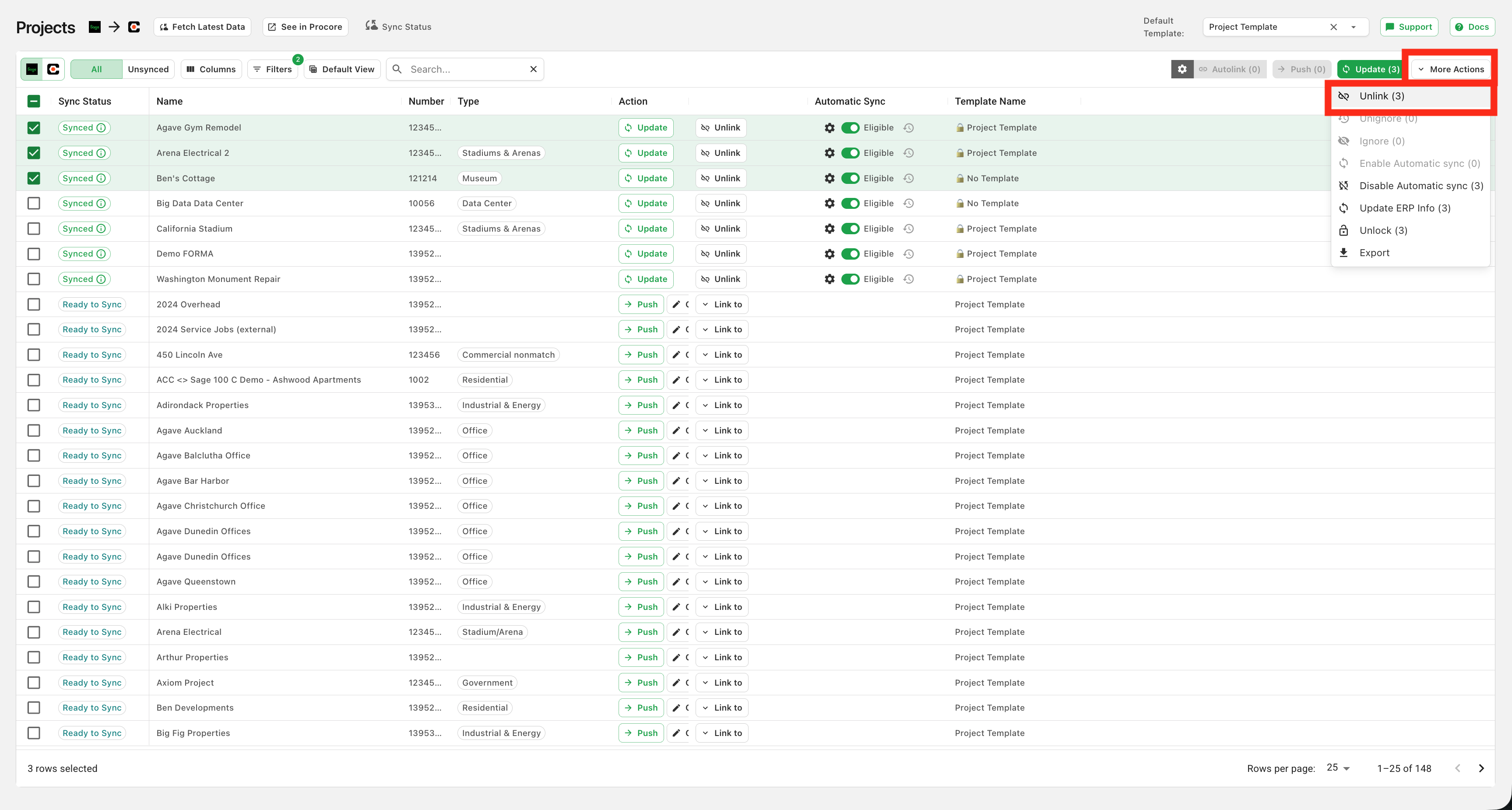
To unlink multiple records, select them and click "Unlink Selected":
Special Case: Cost Codes, Cost Types, and Sub Jobs
These cost segments are prerequisites to most data types and are often already applied to the project by the company-level cost code list or Project Template.
Agave automatically links cost codes, cost types, and sub jobs that exist in both systems when a project synced to reduce manual syncing. For more information on Project Templates, see our articles on Autodesk Build Project Templates and Procore Project Templates.