Adding a User
If you want a teammate to be able to use Agave ERP Sync, you can invite them yourself from the Users page. Inviting a user creates their account, emails them a link to activate their login, and gives them access to Agave ERP Sync.
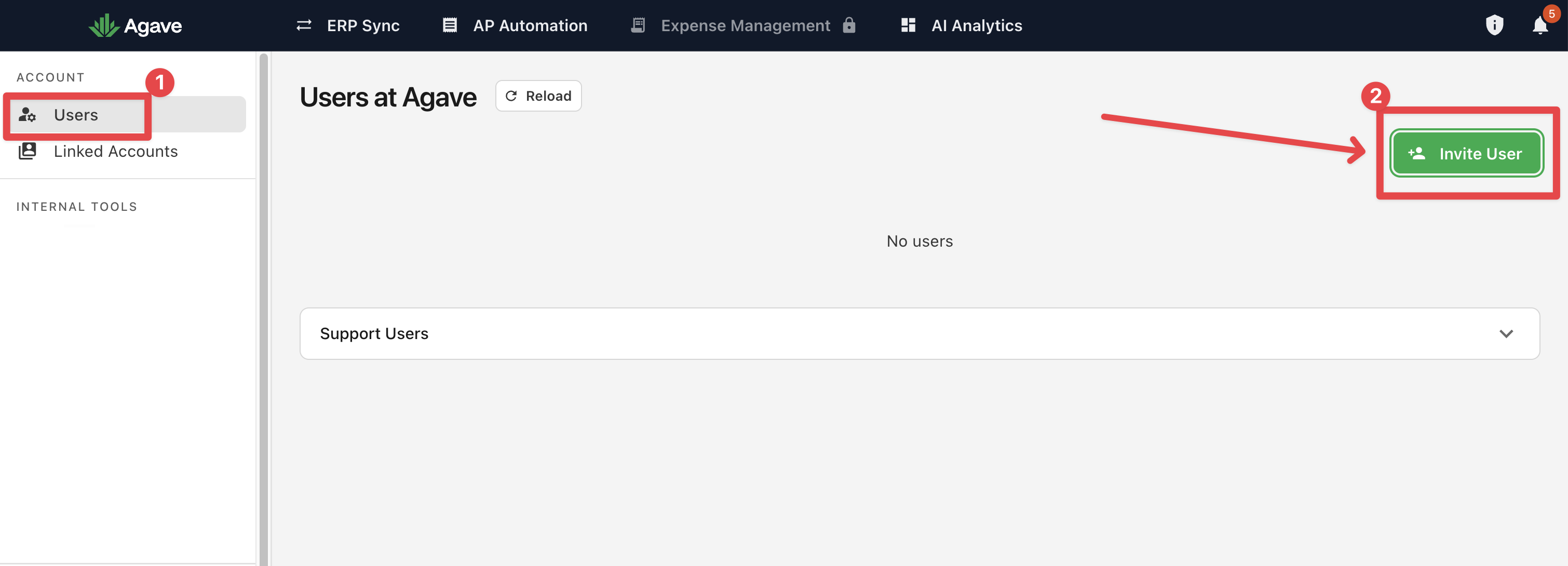
User management lives in your Agave account settings, not inside the Agave ERP Sync tool. You'll find it under Users in the left navigation, in the Account section.
Before You Start
- Have the new user's full name and email address ready.
- Each person needs their own account. Sharing a single login isn't supported.
Adding a New User
- In the left navigation, open the Users page (under the Account section).
- Click Invite User in the top right.
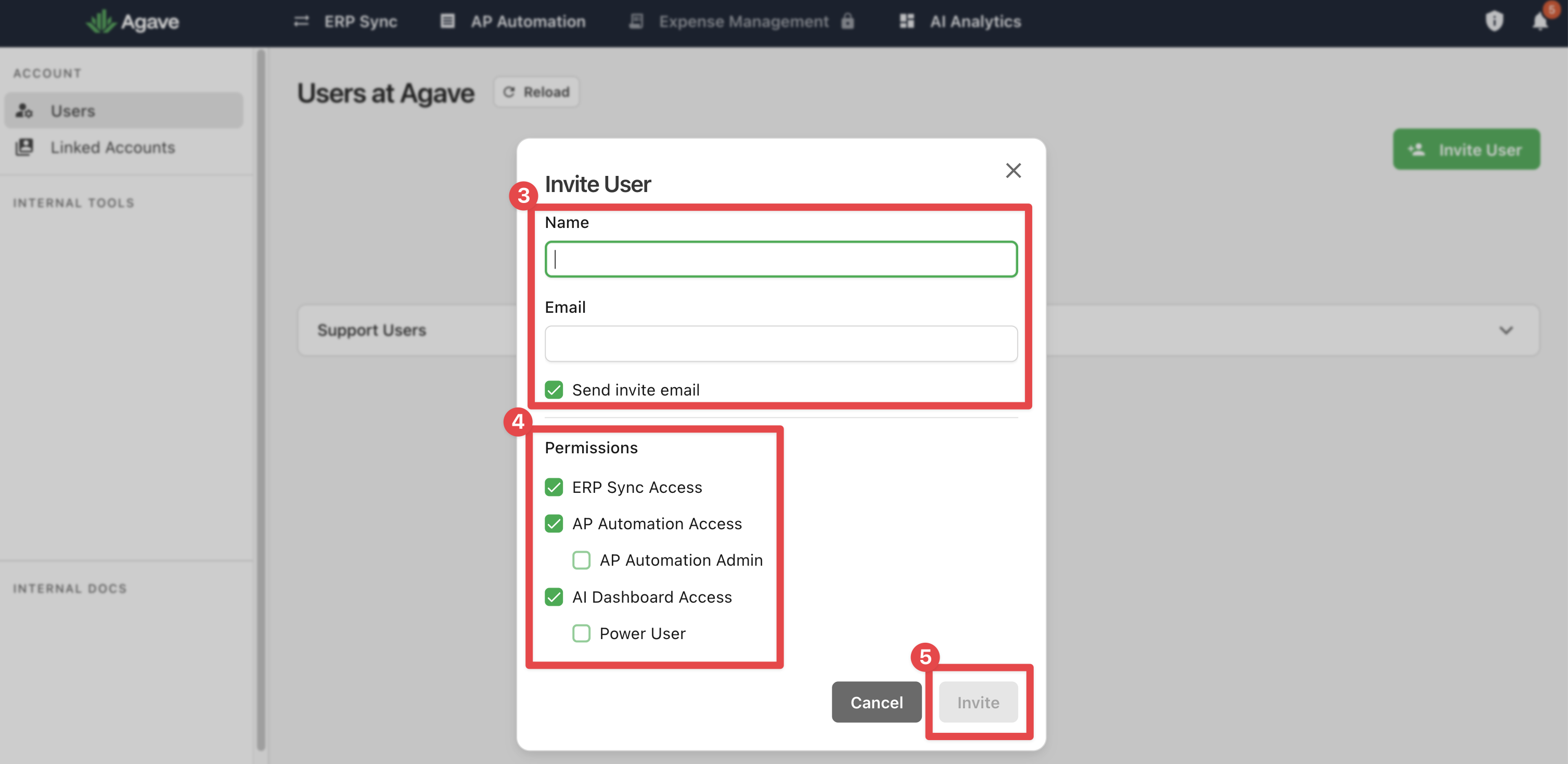
- Enter the new user's Name and Email, and leave Send invite email checked so they receive an activation link right away.
- Under Permissions, turn on ERP Sync Access so the user can open and use Agave ERP Sync. (You can enable access to other products here too if they are part of your Agave platform package.)
- Click Invite.
The user is added to your team immediately and, if you left the invite email checked, they'll get an email to activate their account.
User Roles & Permissions
New users are added as Admins, which lets them view and sync data, as well as invite other users.
What the New User Receives
If you left Send invite email checked, the new user gets an email titled "Activate Your Agave Account." To finish setting up:
- They click activate your account in the email, which opens the Create Password page with their email pre-filled.
- They request the password link, then follow it to set their password.
- Once their password is set, their email is verified and they can log in.
Didn't check the invite email box, or the user never got it? They can use Forgot password on the login page to set a password at any time.
Editing or Removing a User
To change an existing user's access (for example, turning ERP Sync access on or off) or to remove a user, contact Agave Support or your account manager. We'll make the change for you.