Unlocking Records
FAQs
Why am I unable to edit a record after it has been synced from Autodesk to my ERP or from my ERP to Autodesk?
In Autodesk, once a record has been pushed from your ERP system into Autodesk or from Autodesk into your ERP system it will show up as “Integrated and Locked”.
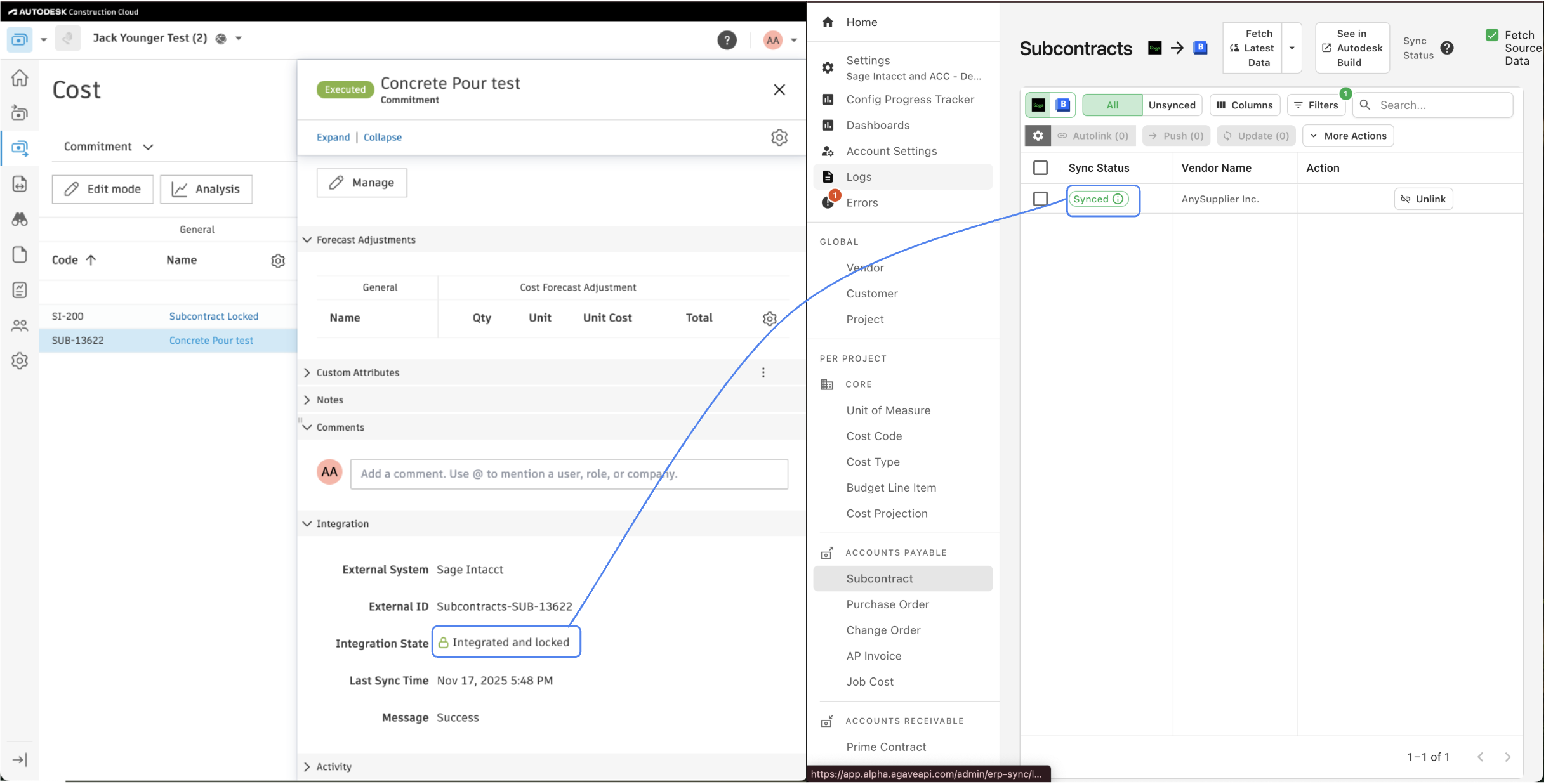
To enable edits on the record and status rollbacks in Autodesk, navigate to the Autodesk tab in the ERP sync tool, select the record you would like to edit in Autodesk, and click the “Unlock” button in the header.
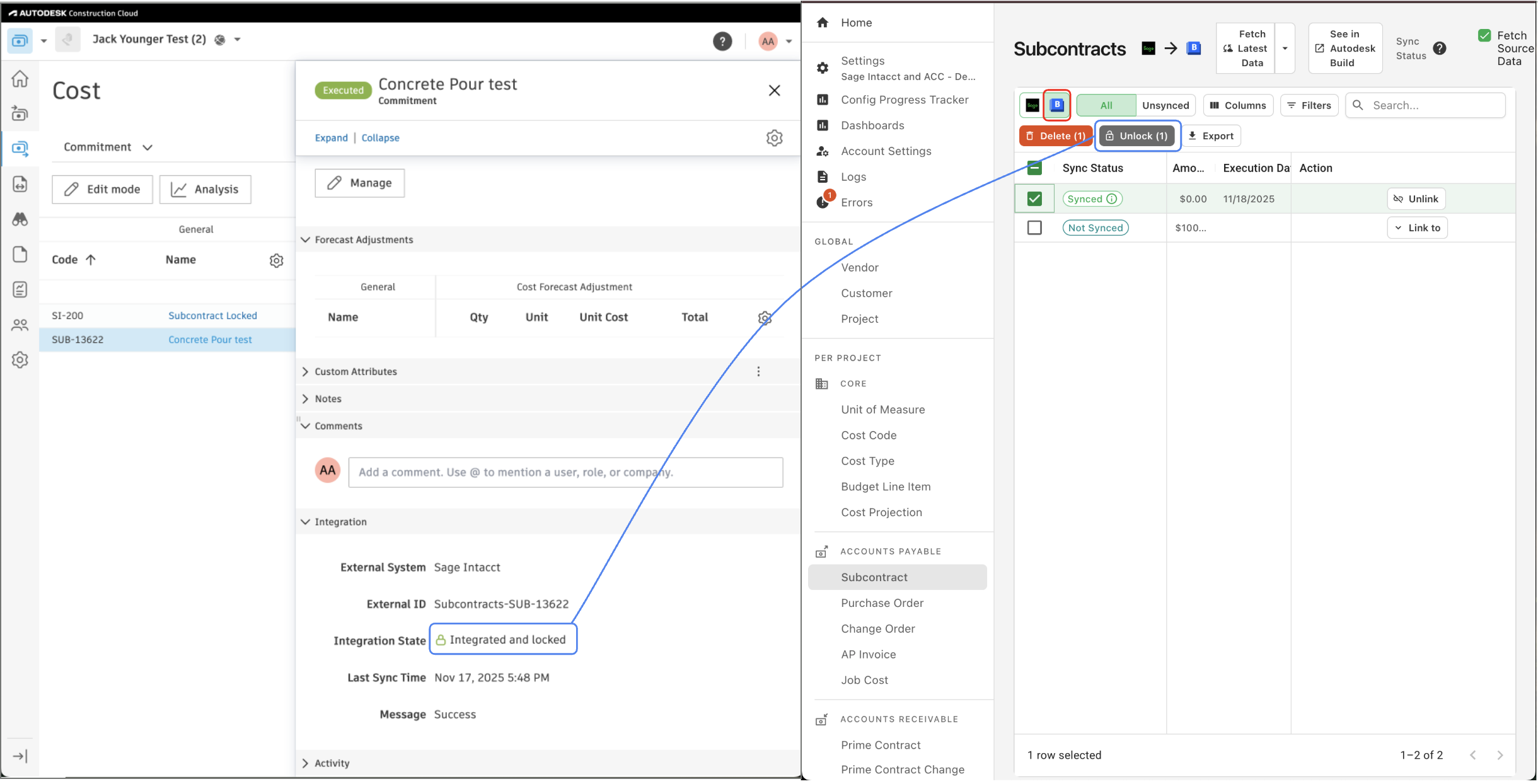
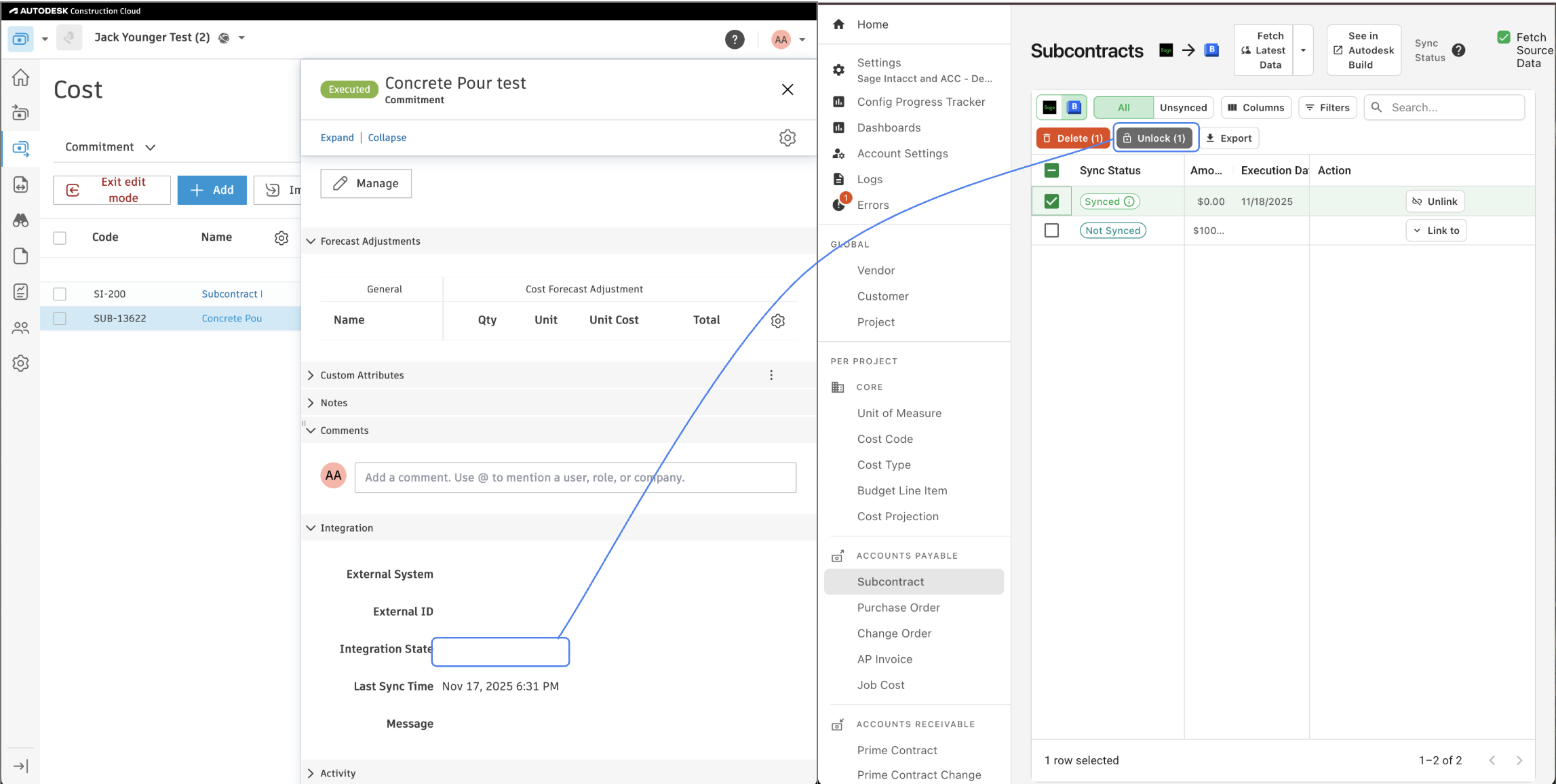
This will disable the “Integrated and Locked” lock in Autodesk and allow you to edit the selected record.
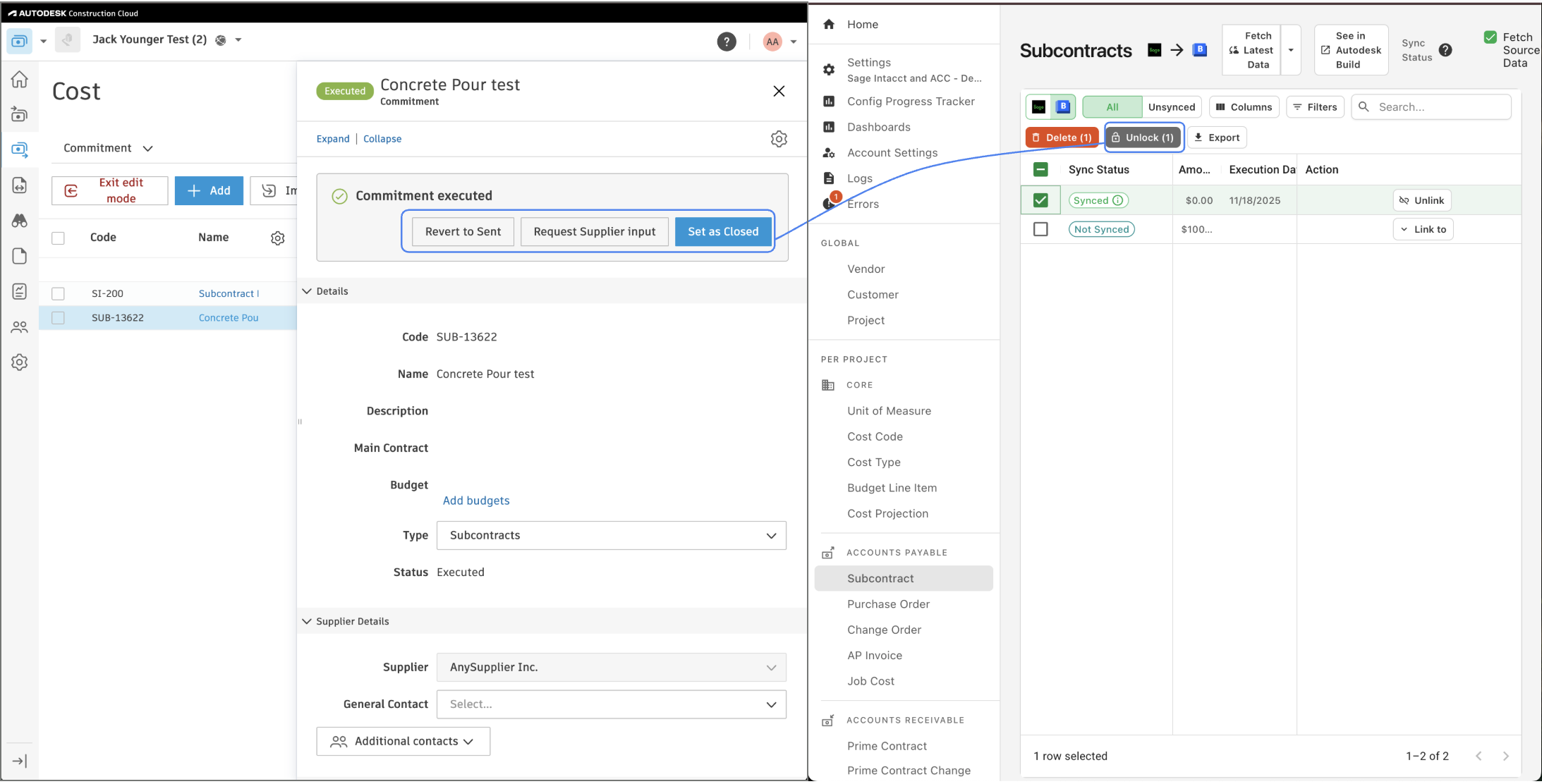
Additionally, for certain record types (e.g., Prime Contracts), your Agave account manager can enable a setting to disable the “Integrated and Locked” status by default.